Reading NFC cards
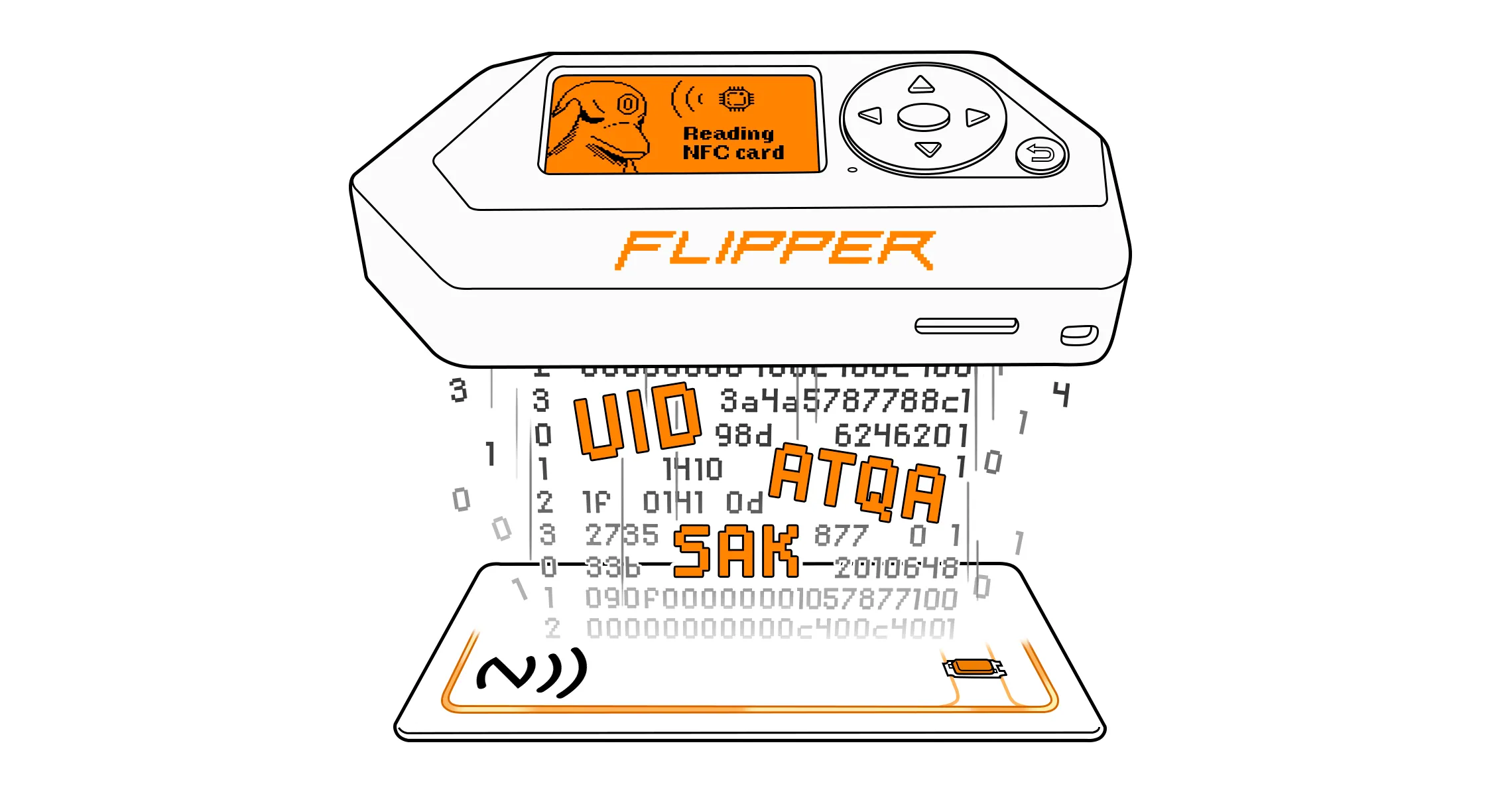
Flipper Zero allows you to read, save, and emulate NFC cards. An NFC card is a transponder that operates at 13.56 MHz and has a unique number (UID) as well as a part of rewritable memory for storing data. Depending on the card type, memory can be segmented into sectors, pages, applications, and more. When near a reader, NFC cards transmit the requested data.
On this page, you’ll learn how to read and emulate NFC cards and find the list of supported NFC cards.
How to read NFC cards
The reading process is automatic and doesn’t require the user to manually configure it.
To read and save the NFC card’s data, do the following:
Go to Main Menu -> NFC.
Press Read, then hold the card near your Flipper Zero’s back.
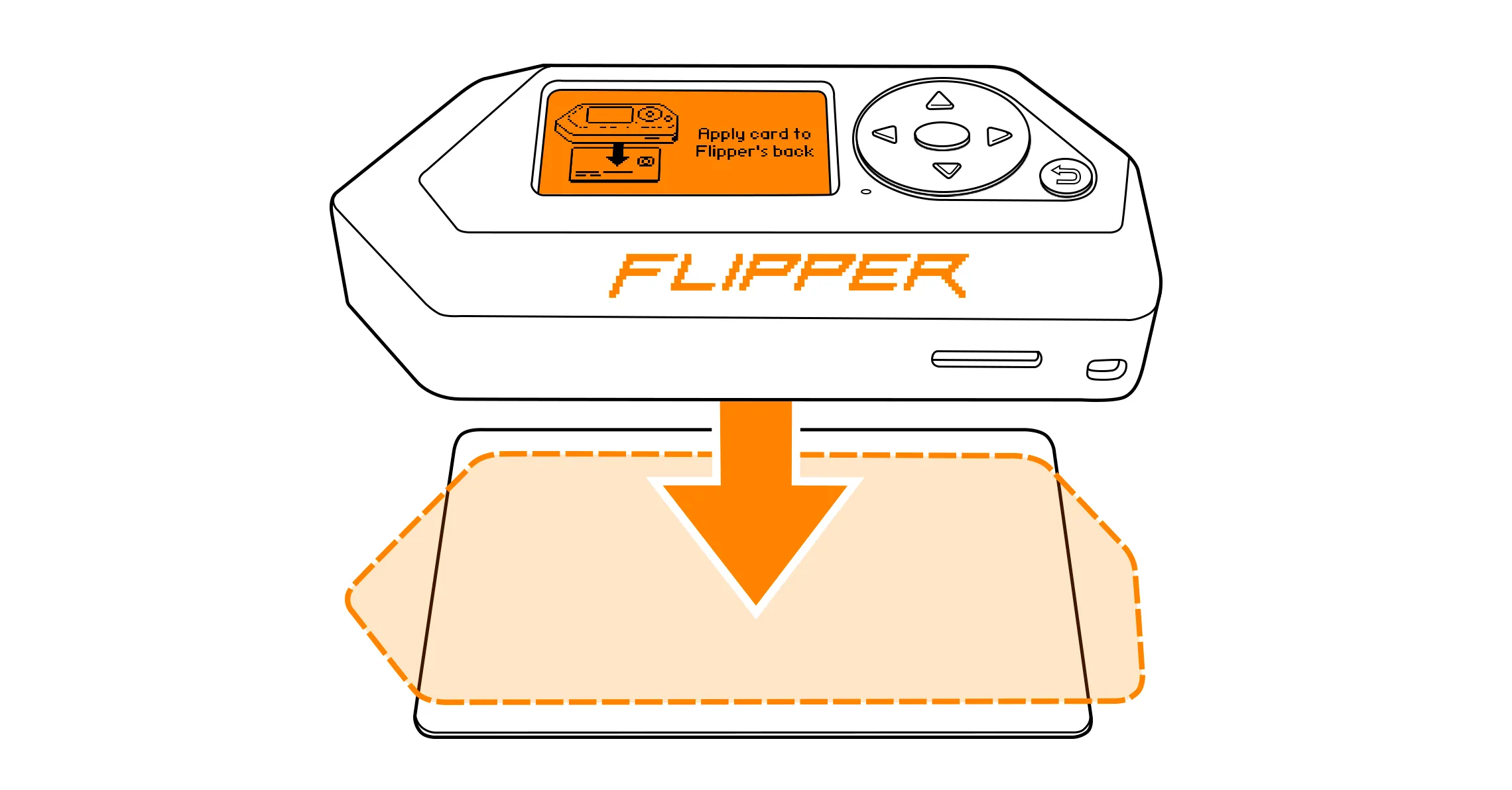
When reading is finished, go to More -> Save.
Name the read card, then press Save.
Reading what’s on your card
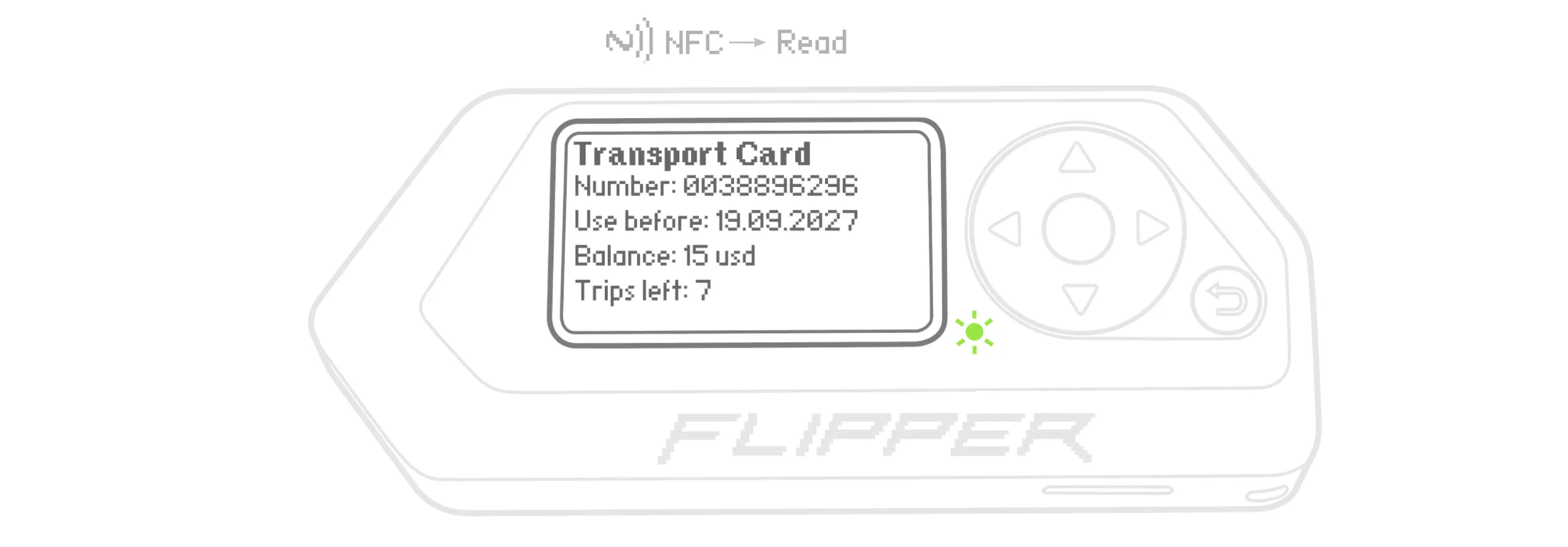
For some cards, Flipper Zero can read and show data in a readable format. For example, you can get information such as the card validity date, balance, or remaining trips. This functionality is made possible thanks to parsers contributed by the community. You can view the full list of available parsers in the Flipper Zero GitHub repository.
If reading failed
- The card might be using 125 kHz RFID technology. -> Read the card with the 125 kHz RFID application.
- The card might combine two different types of NFC cards in one card. -> Preselect the card type you want to read.
NFC cards type A
MIFARE Classic®
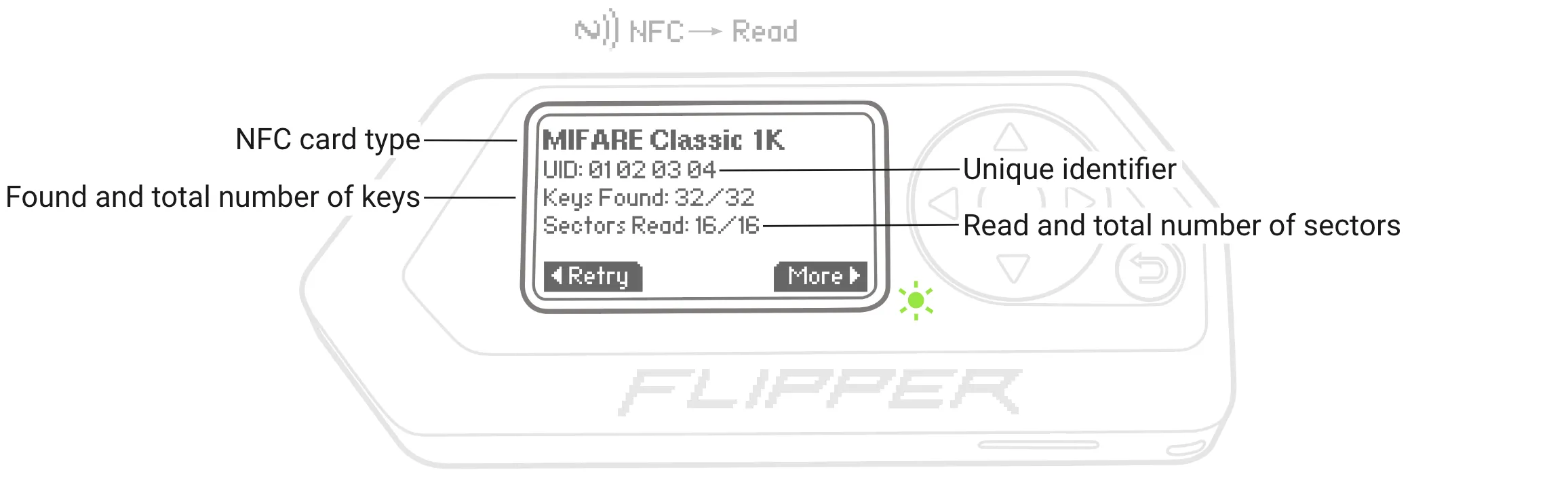
Flipper Zero can read MIFARE Classic 1K, MIFARE Classic 4K, and MIFARE Classic Mini cards and save data. To read data stored in sectors, Flipper Zero has to find all 32 keys for 16 sectors (MIFARE Classic 1K), 80 keys for 40 sectors (MIFARE Classic 4K), and 10 keys for 5 sectors (MIFARE Classic Mini). For that, Flipper Zero uses keys from the System dictionary.
You can manually add your keys to the User dictionary by going to Main Menu -> NFC -> Extra Actions -> MIFARE Classic Keys.
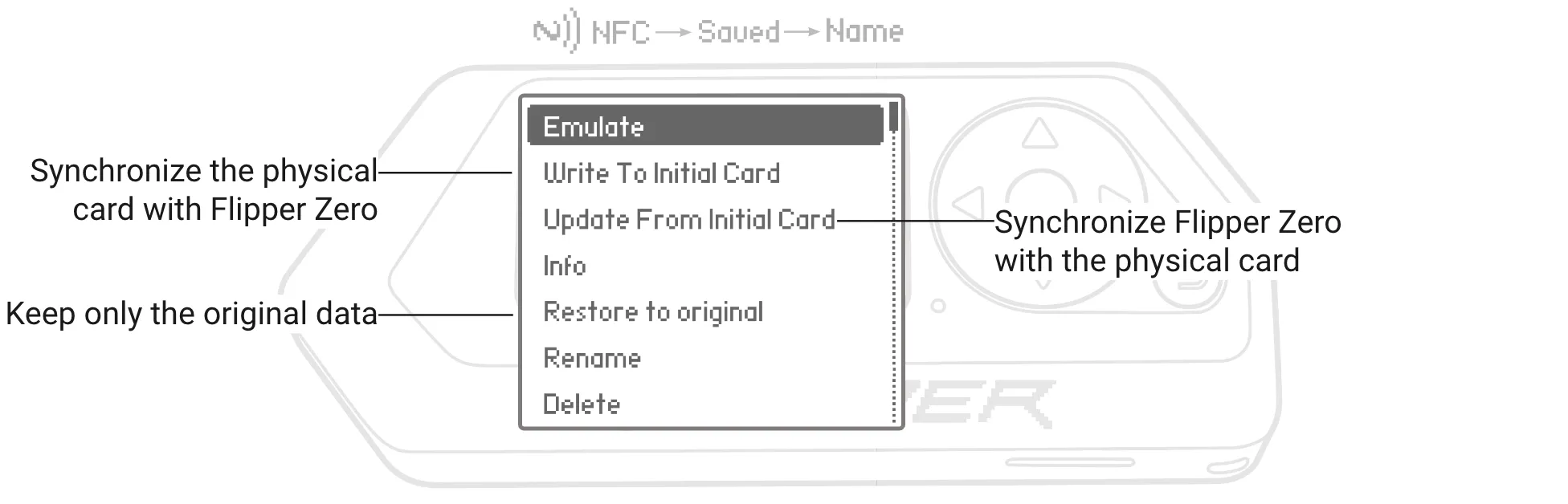
After Flipper Zero reads a MIFARE Classic card, the original data is stored in memory. When you implement changes to the data via Flipper Mobile App or through emulation via your Flipper Zero, the device generates a new shadow file representing the new data state. This leads to desynchronization between the actual state on your Flipper Zero and the physical card. To synchronize the physical card with the data state on your Flipper Zero, use the Write To Initial Card function.
Similarly, physical card data can be changed after interaction with a reader leading to desynchronization of data states. To synchronize states, use the Update From Initial Card function.
You can discard changes on your Flipper Zero by using the Restore to original function. In this case, Flipper Zero deletes the shadow file.
MIFARE Ultralight® & NTAG®
For MIFARE Ultralight and NTAG cards, Flipper Zero can read and save data in open pages.
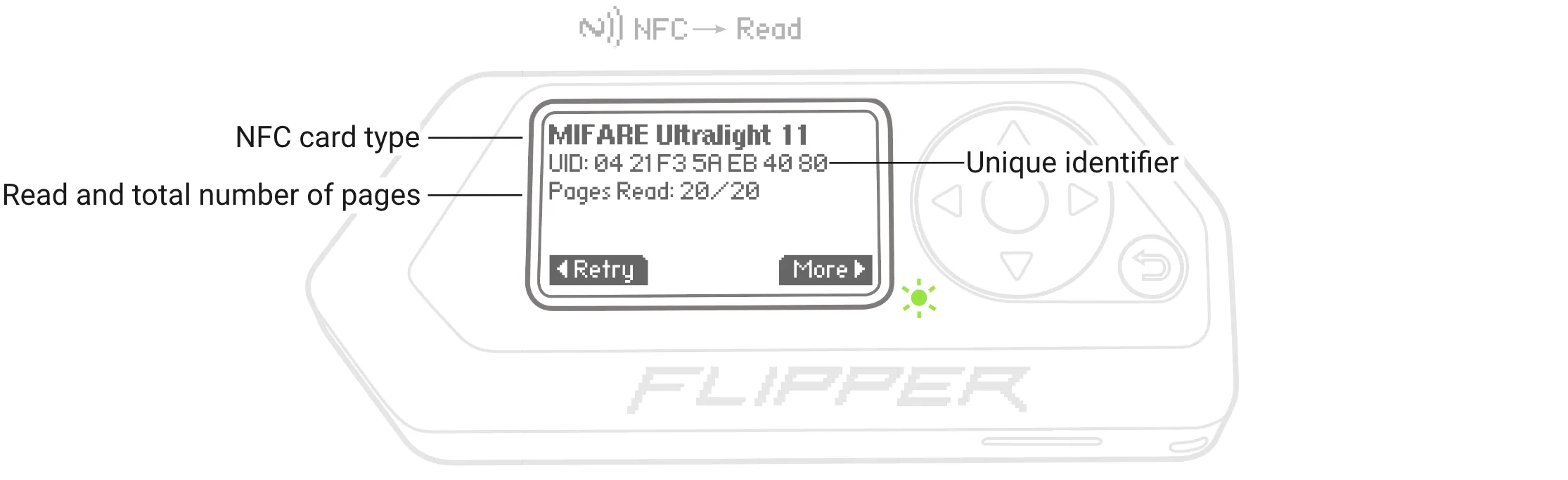
Some MIFARE Ultralight and NTAG card pages are protected with passwords. For example, MIFARE Ultralight C cards use 16-byte passwords to protect data. Flipper Zero has a built-in dictionary of MIFARE Ultralight C passwords to unlock pages and read data from them. You can manually add your keys to the dictionary by going to Main Menu -> NFC -> Extra Actions -> MIFARE Ultralight C Keys.
MIFARE Ultralight EV1 and NTAG21x family cards are protected with 4-byte passwords. If you know the password, you can manually entermanually enter it to read data with your Flipper Zero.
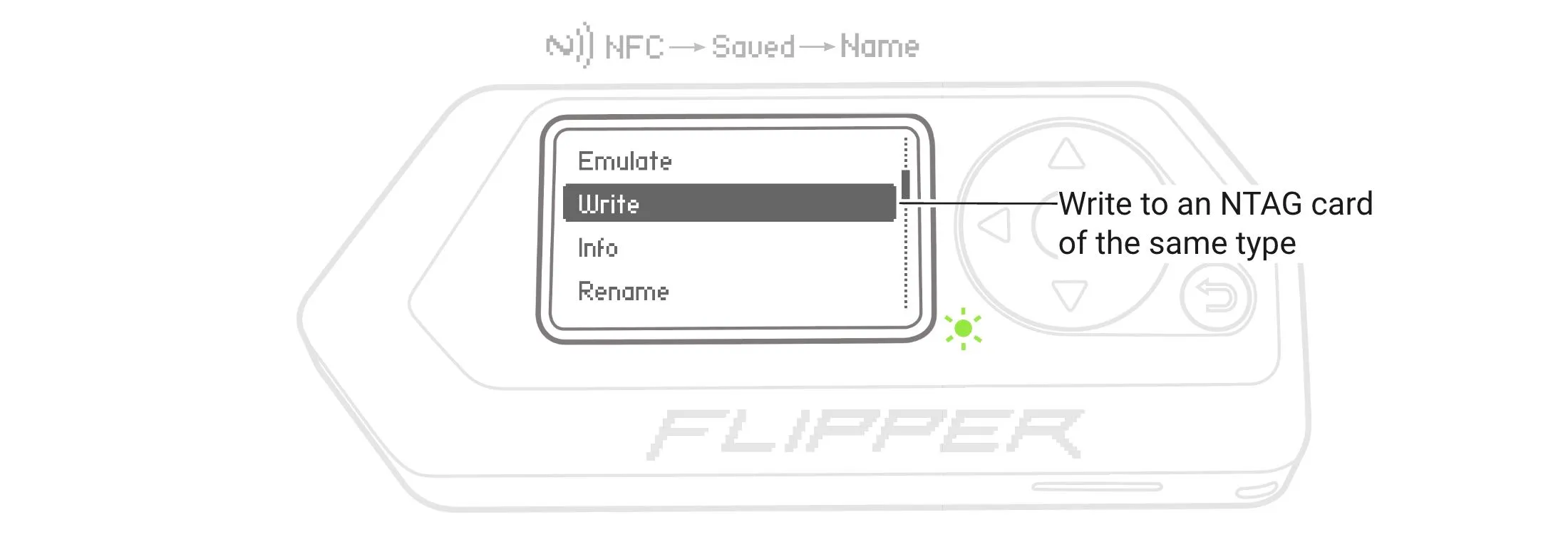
Flipper Zero can write saved NTAG data to another NTAG card of the same type (for example, NTAG 213 - NTAG 213). This feature is available for NTAG 213, NTAG 215, and NTAG 216 cards. The initial and destination NTAG cards must have their default PWD, PACK, and disabled AUTH0. Additionally, static and dynamic lock bits must be 0 for both the initial and destination NTAG cards, guaranteeing that all user memory is unlocked.
MIFARE® DESFire®
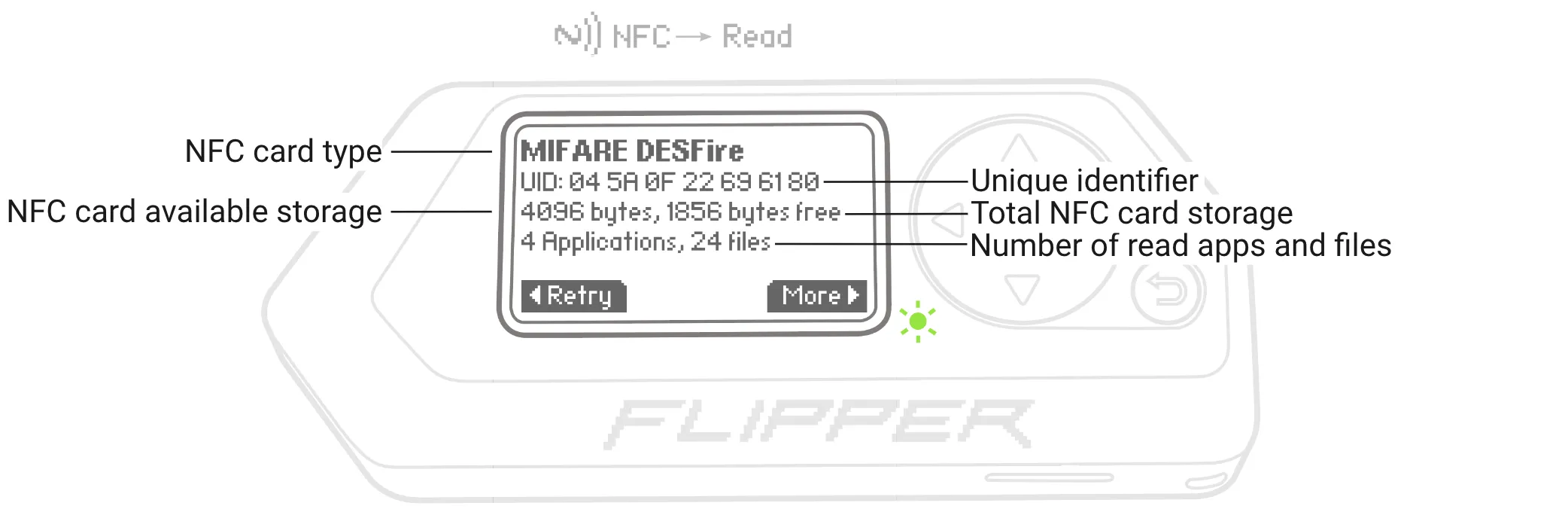
Flipper Zero can read MIFARE DESFire cards and save data. In this card type, memory is organized in applications with multiple files. Flipper Zero reads and saves unprotected applications and files with data.
Unknown cards
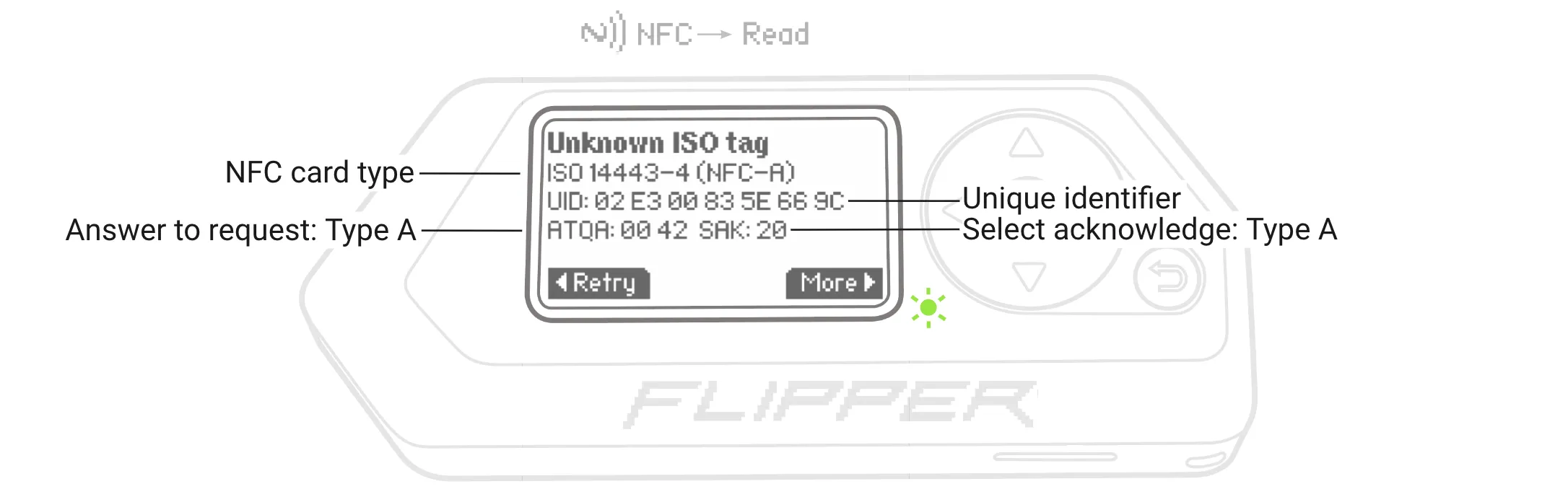
When reading an unknown NFC card, Flipper Zero reads and saves only the UID, SAK, and ATQA.
NFC cards type V
ICODE® SLIX
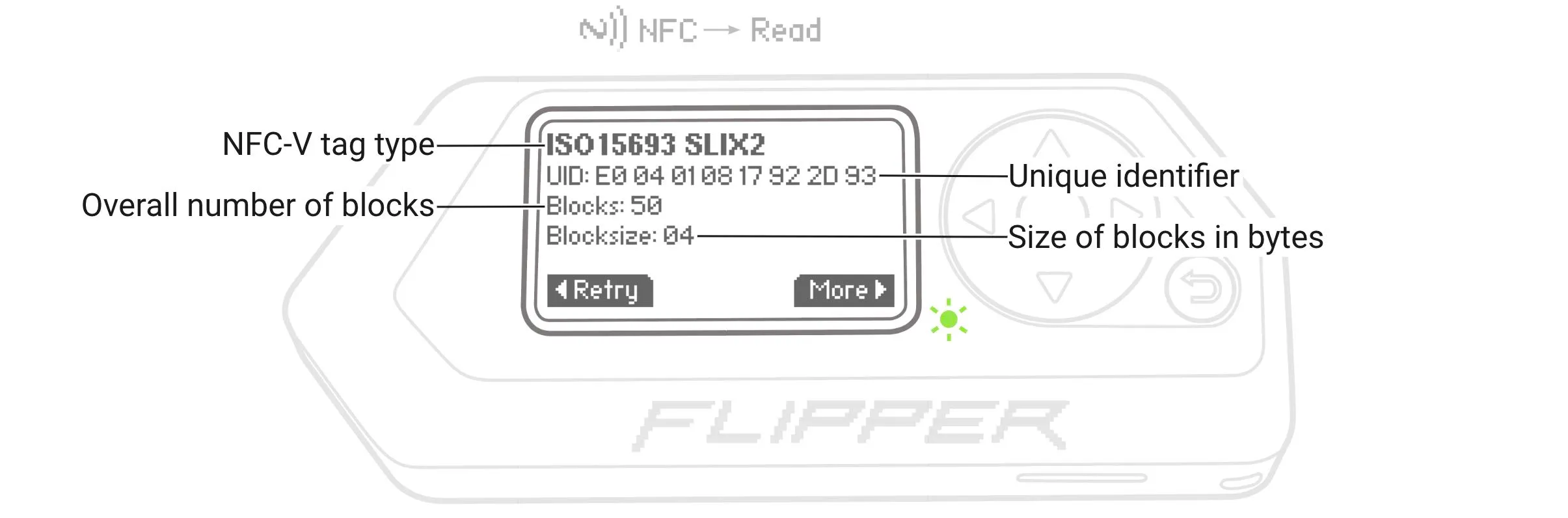
Flipper Zero can read and save data stored on ICODE SLIX, SLIX-2, SLIX-L, and SLIX-S tags. In these tags, memory is organized in blocks.
Unknown cards
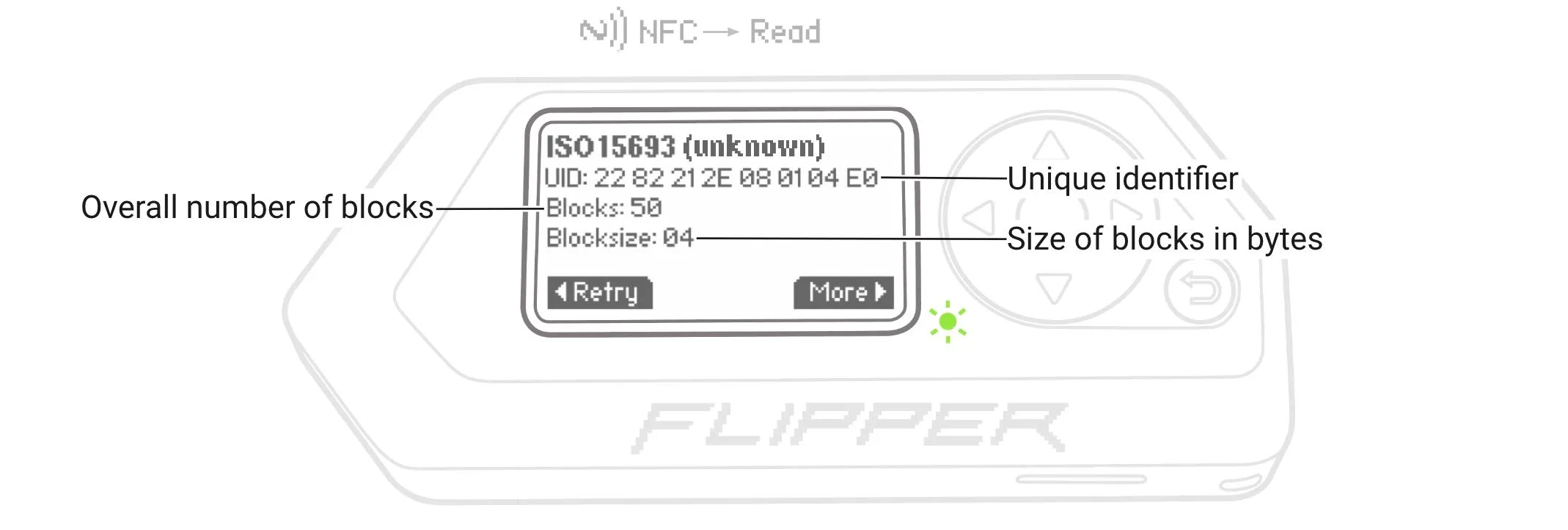
When reading an unknown NFC-V card, Flipper Zero reads and saves the UID and data in read blocks.
NFC cards type F
FeliCa™ Lite-S
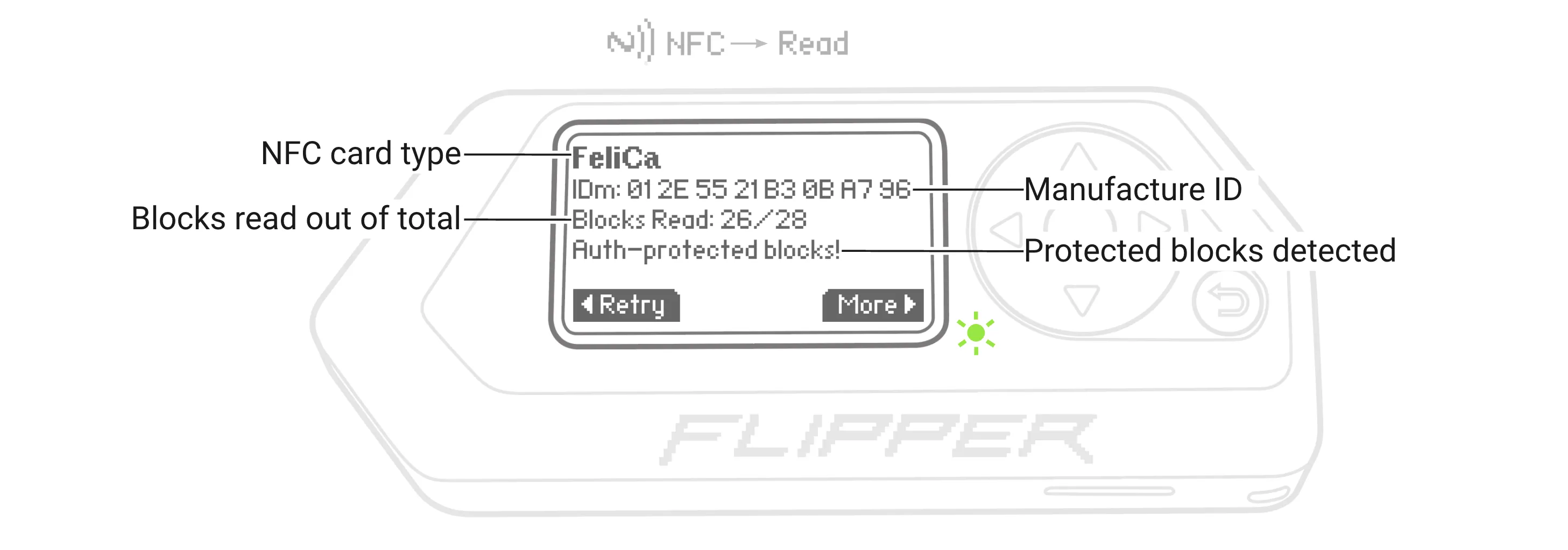
Flipper Zero can read, save and emulate FeliCa Lite-S cards. In particular, it can read the Manufacture ID (IDm), Manufacture parameter (PMm), and data in blocks.
NFC cards type B
ST25TB
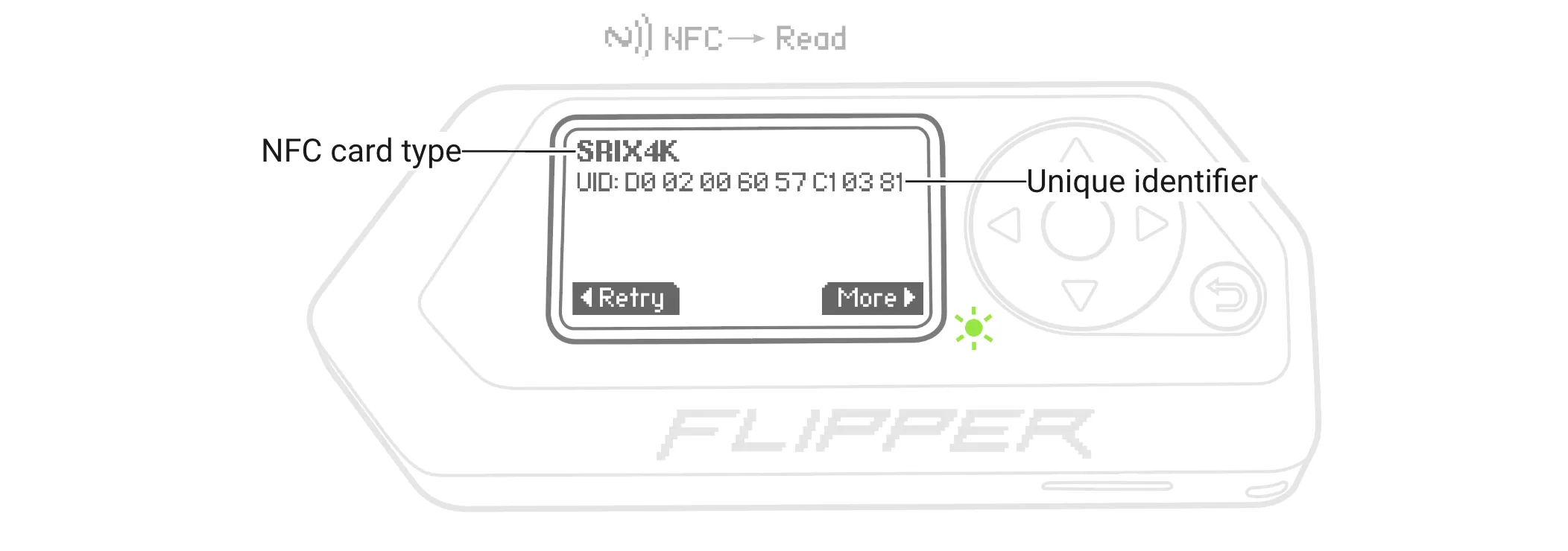
Flipper Zero can read and save ST25TB cards. The UID and card data can be captured.
The following card types with different memory organization are supported:
- ST25TB512
- ST25TB512-AC
- SRIX512
- ST25TB02K
- ST25TB04K
- SRIX4K
Other NFC type B cards
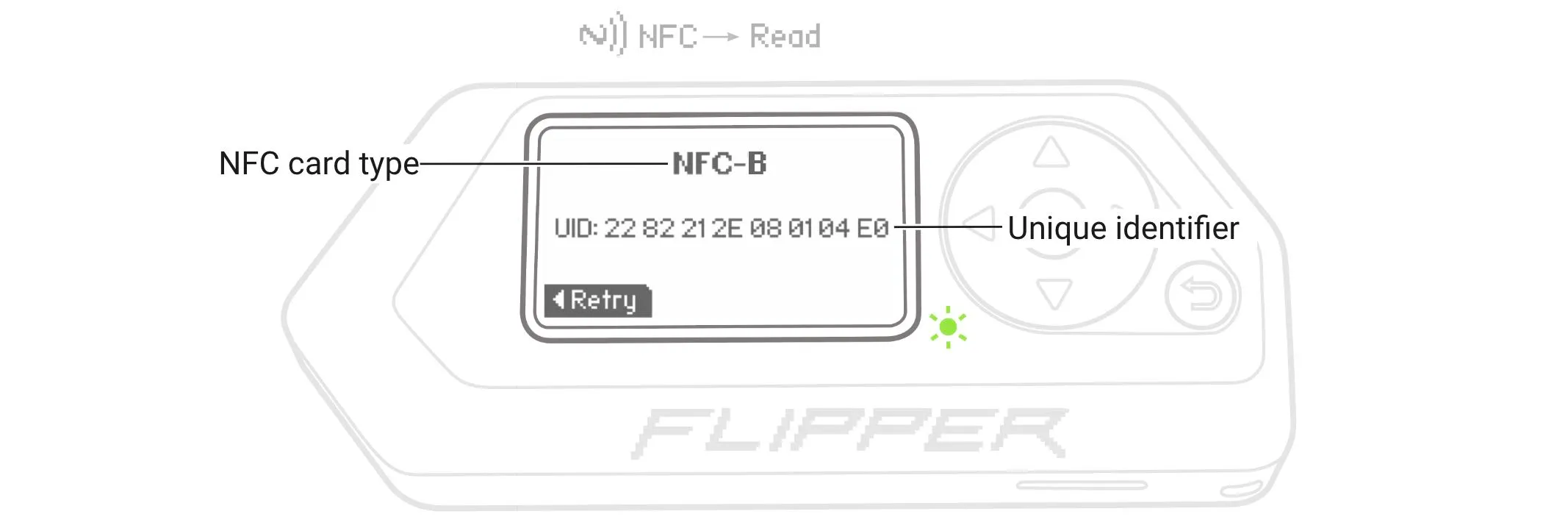
For other NFC cards type B, Flipper Zero can only read and display the UID without saving it.
Reading a specific card type
Hybrid cards combine two types of NFC card in one. For example, an EMV card can be combined with a MIFARE Classic card. In this case, you’ll need to specify what type of card you want to read by doing the following:
Go to Main Menu -> NFC -> Extra Actions -> Read Specific Card Type.
Select the card type you want to read, and then press %ok%OK.
Hold the card near your Flipper Zero’s back to read the card’s data.
Emulating NFC cards
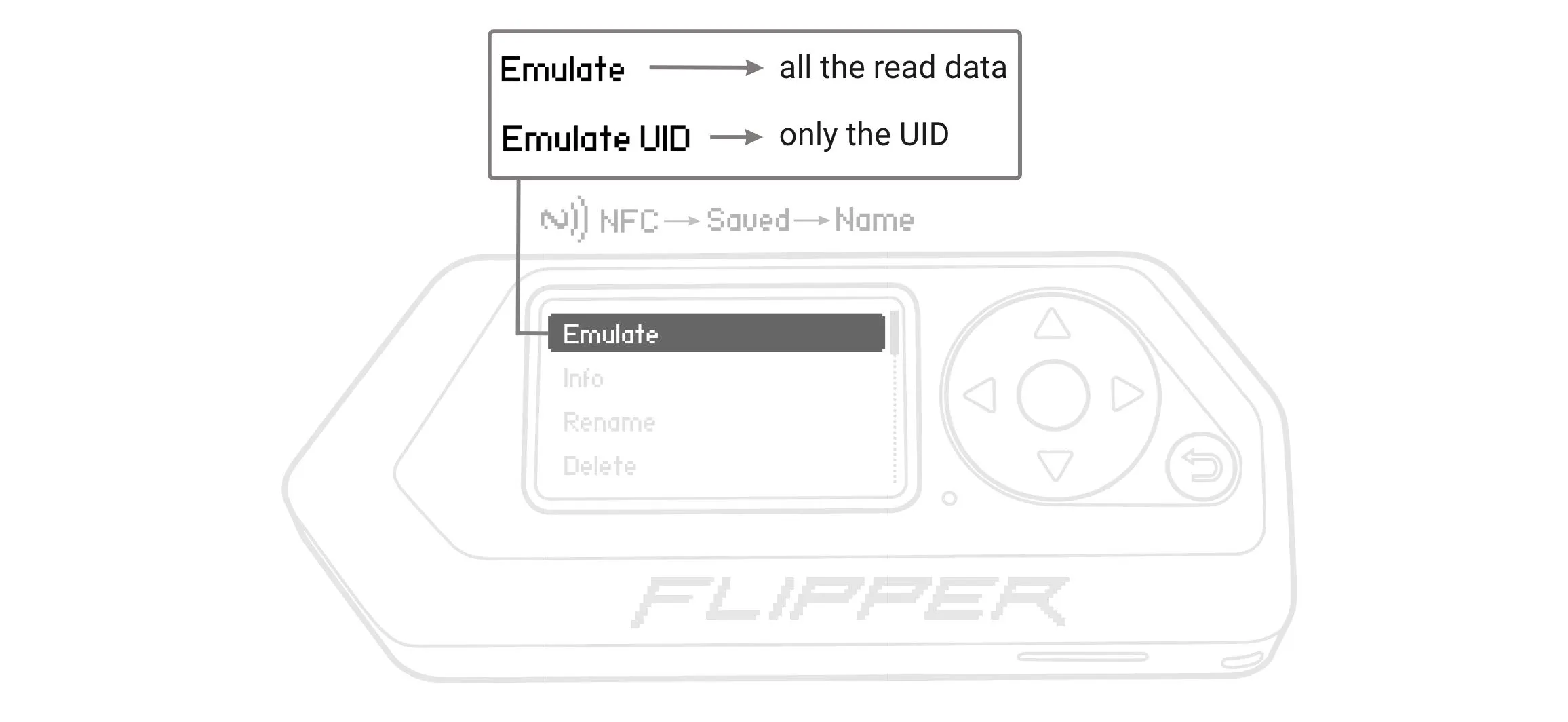
Flipper Zero can emulate an entire NFC card or just the UID depending on the NFC card type and saved data.
To emulate the saved NFC card, do the following:
Go to Main Menu -> NFC -> Saved.
Select the card, then press Emulate.
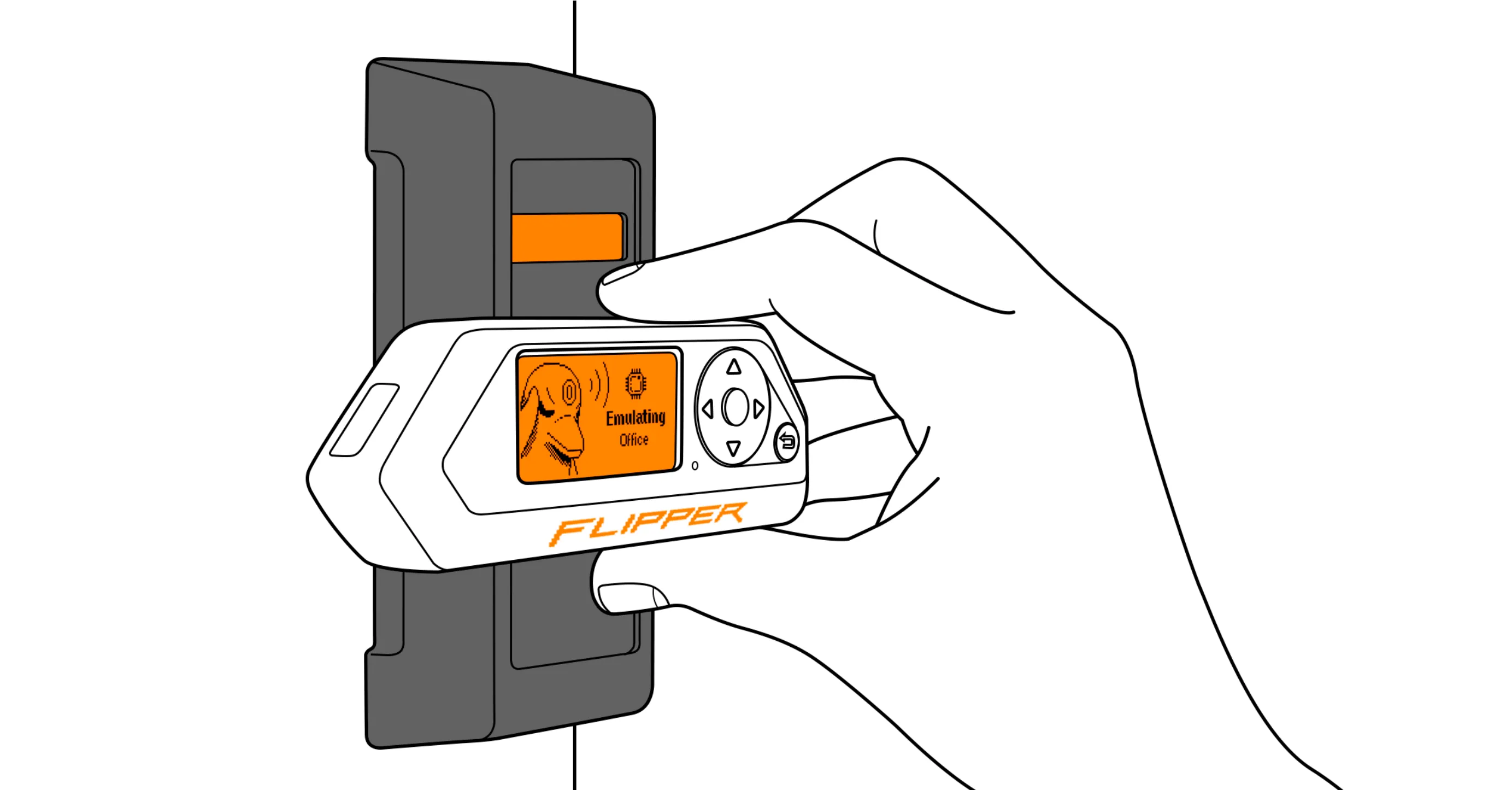
Hold your Flipper Zero near the reader to transfer data.
MIFARE, MIFARE Ultralight, MIFARE Classic, NTAG, DESFire, and ICODE are registered trademarks of NXP B.V.
FeliCa is a trademark of Sony Corporation.