Command-line interface
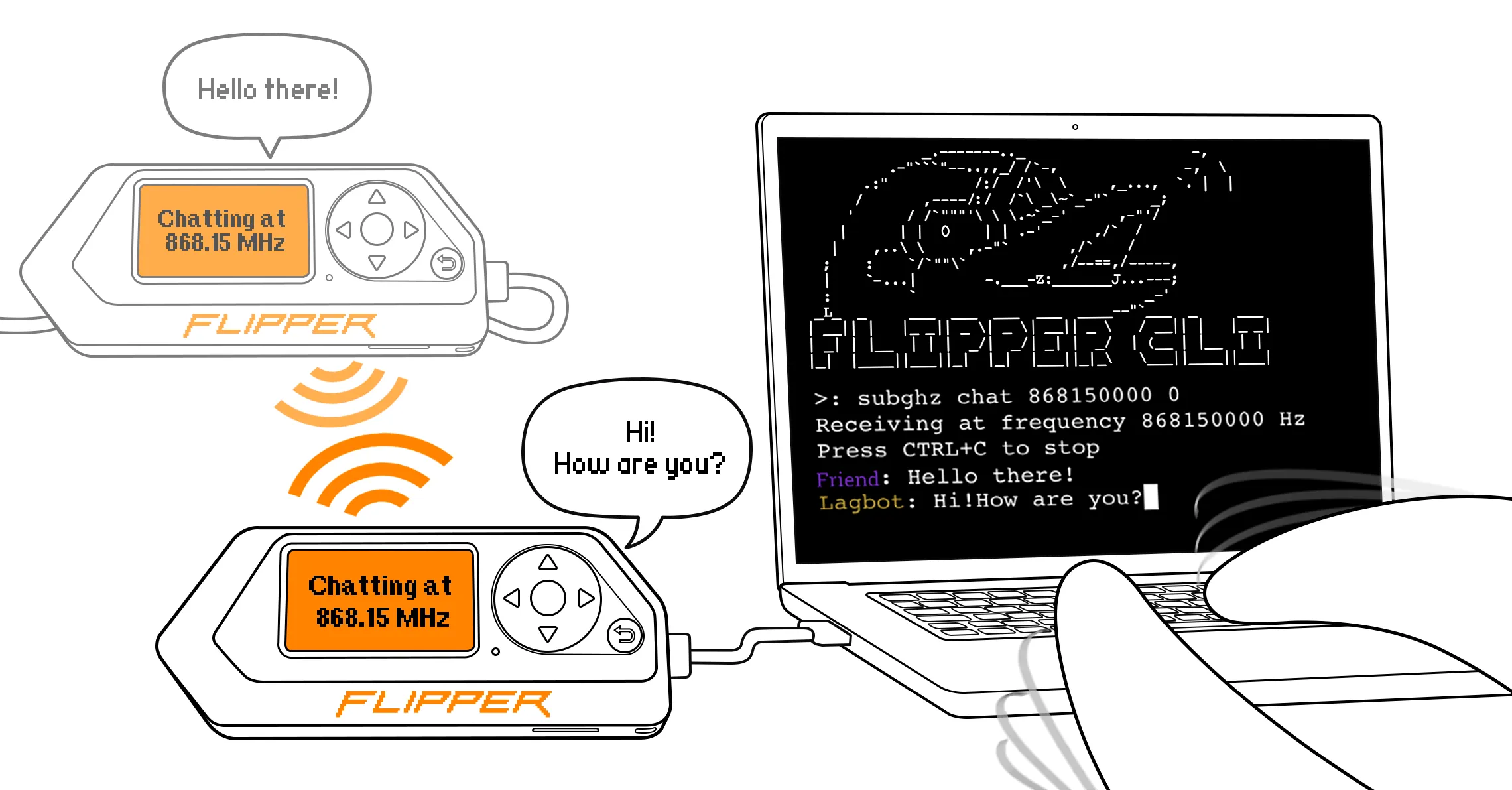
You can control Flipper Zero through the command-line interface (CLI) using your computer. The CLI is a text-based interface that allows you to read and emulate signals, run programs, manage files, and more on your Flipper Zero by running commands. In addition, the CLI offers a number of features, such as viewing the Flipper Zero logs, communicating with other Flipper Zero users via sub-1 GHz radio, and much more!
On this page, you’ll learn how to access the Flipper Zero CLI, view available commands, view logs, and chat with other Flipper Zero owners via sub-1 GHz radio.
Accessing the Flipper Zero CLI
There are three methods to access the Flipper Zero CLI:
Method 1: Using Flipper Lab
Access the CLI via the Flipper Lab website using Google Chrome, Microsoft Edge, or other Chromium-based browsers that support the Web Serial API by doing the following:
Quit the qFlipper application if running.
Connect your Flipper Zero to your computer via a USB cable.
On your computer, run Google Chrome or another Chromium-based browser.
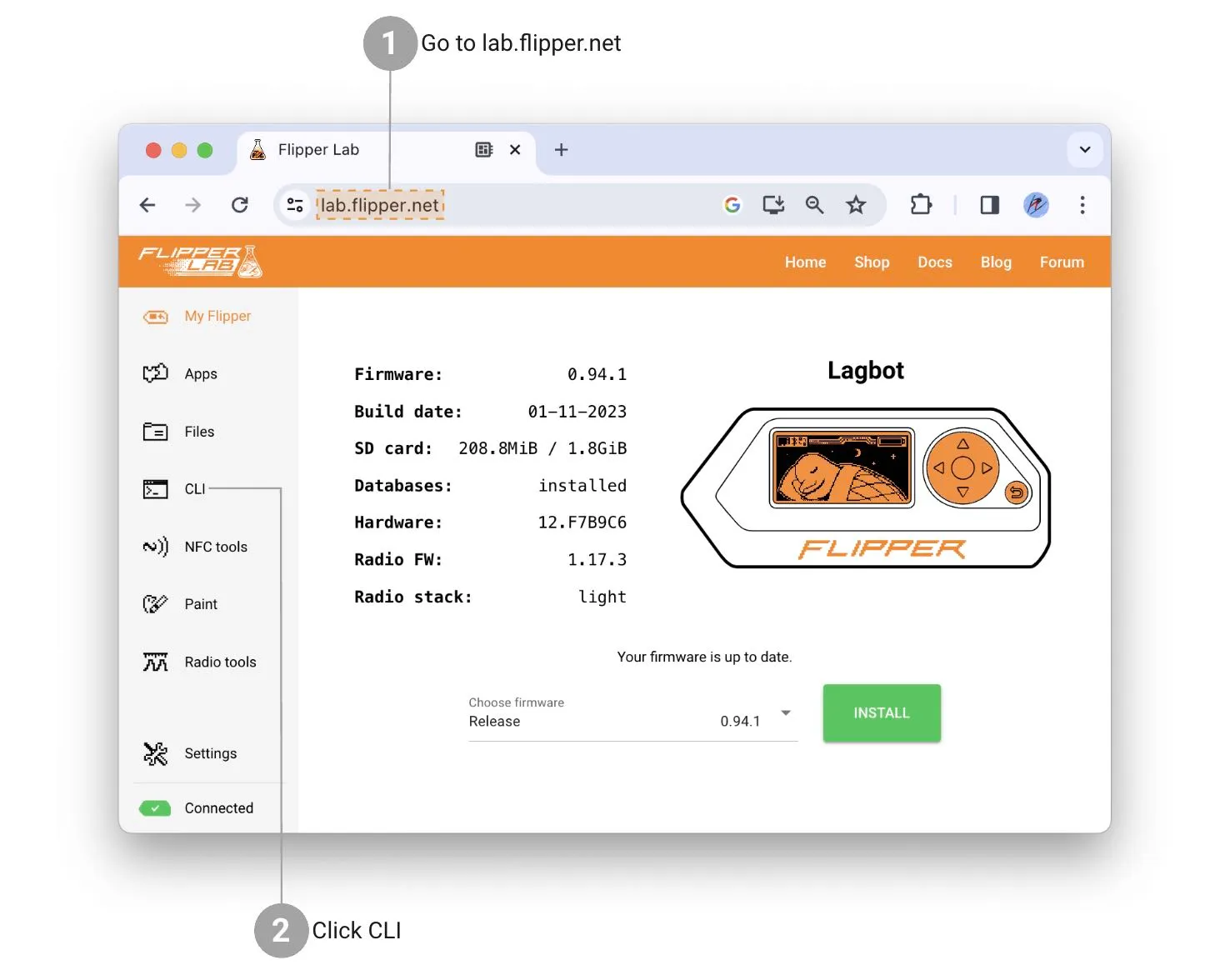
Go to lab.flipper.net -> CLI.
Method 2: Using the web serial terminal
Access the CLI via the web serial terminal using Google Chrome, Microsoft Edge, or other Chromium-based browsers that support the Web Serial API by doing the following:
Quit the qFlipper application if running.
Connect your Flipper Zero to your computer via a USB cable.
On your computer, run Google Chrome or another Chromium-based browser.
Go to the web serial terminal.
Set the Baud rate to 230400, then click Connect.
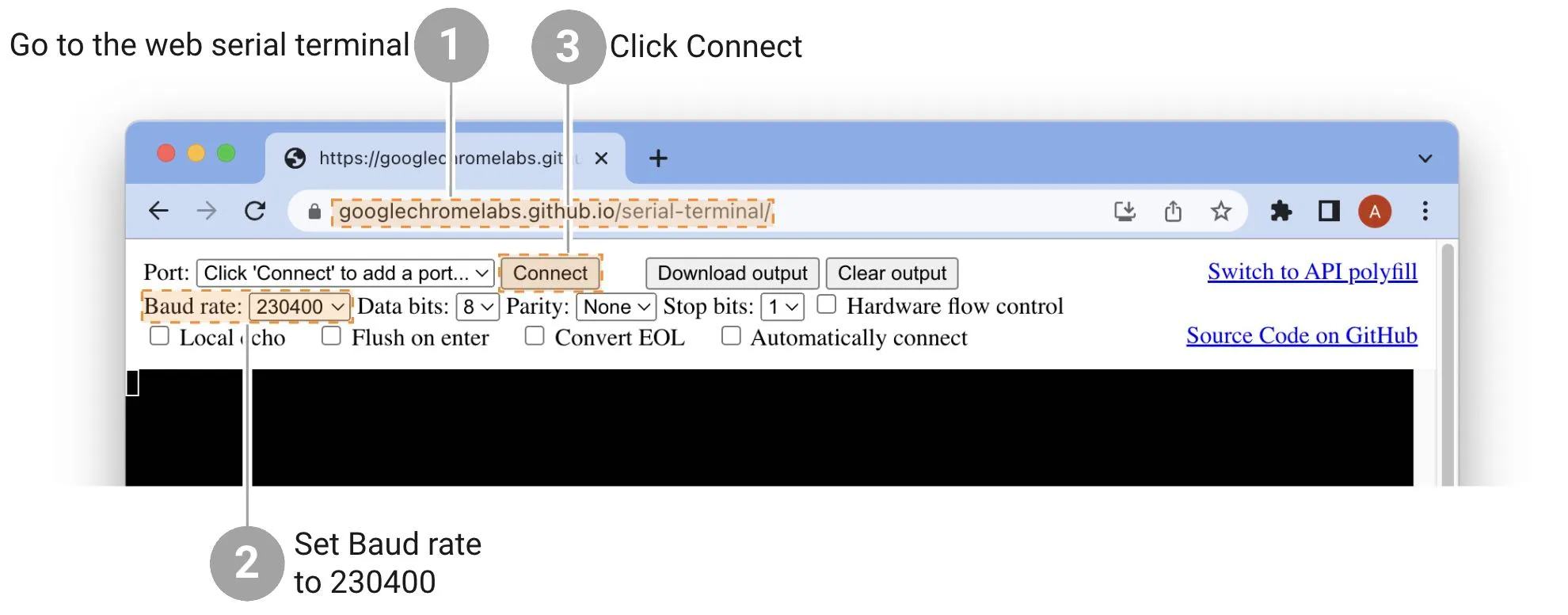
Select your Flipper Zero in the list, then click Connect.
Method 3: Using a serial terminal
Different operating systems have different procedures for accessing the Flipper Zero CLI via a serial terminal. Follow the instructions for your operating system below.
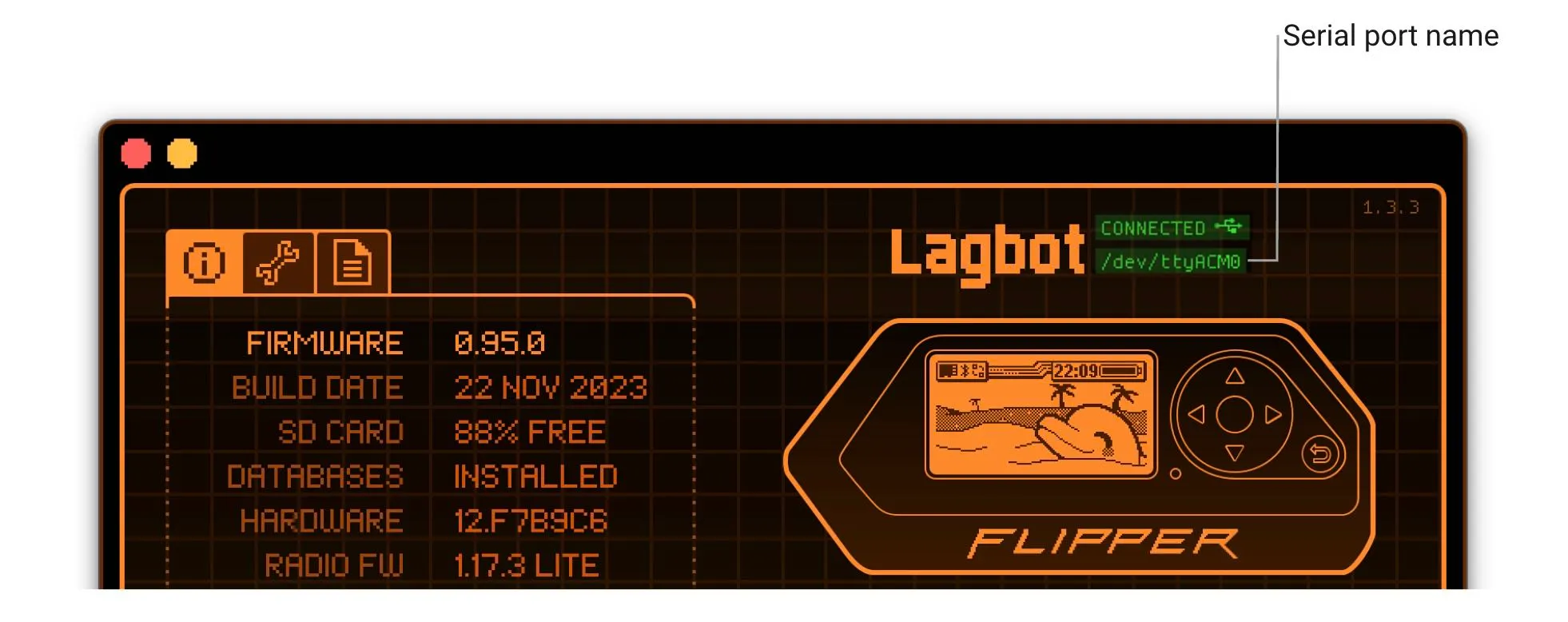
To access the Flipper Zero CLI on Windows via a serial terminal, do the following:
On your computer, install the PuTTY application.
Quit qFlipper if running.
Connect your Flipper Zero to your computer via a USB cable.
Go to Device Manager -> Ports (COM & LPT).
Look at the COM port number of your Flipper Zero connected. If there are several COM port numbers, disconnect and connect your Flipper Zero back to see the added port number.
Run PuTTY.
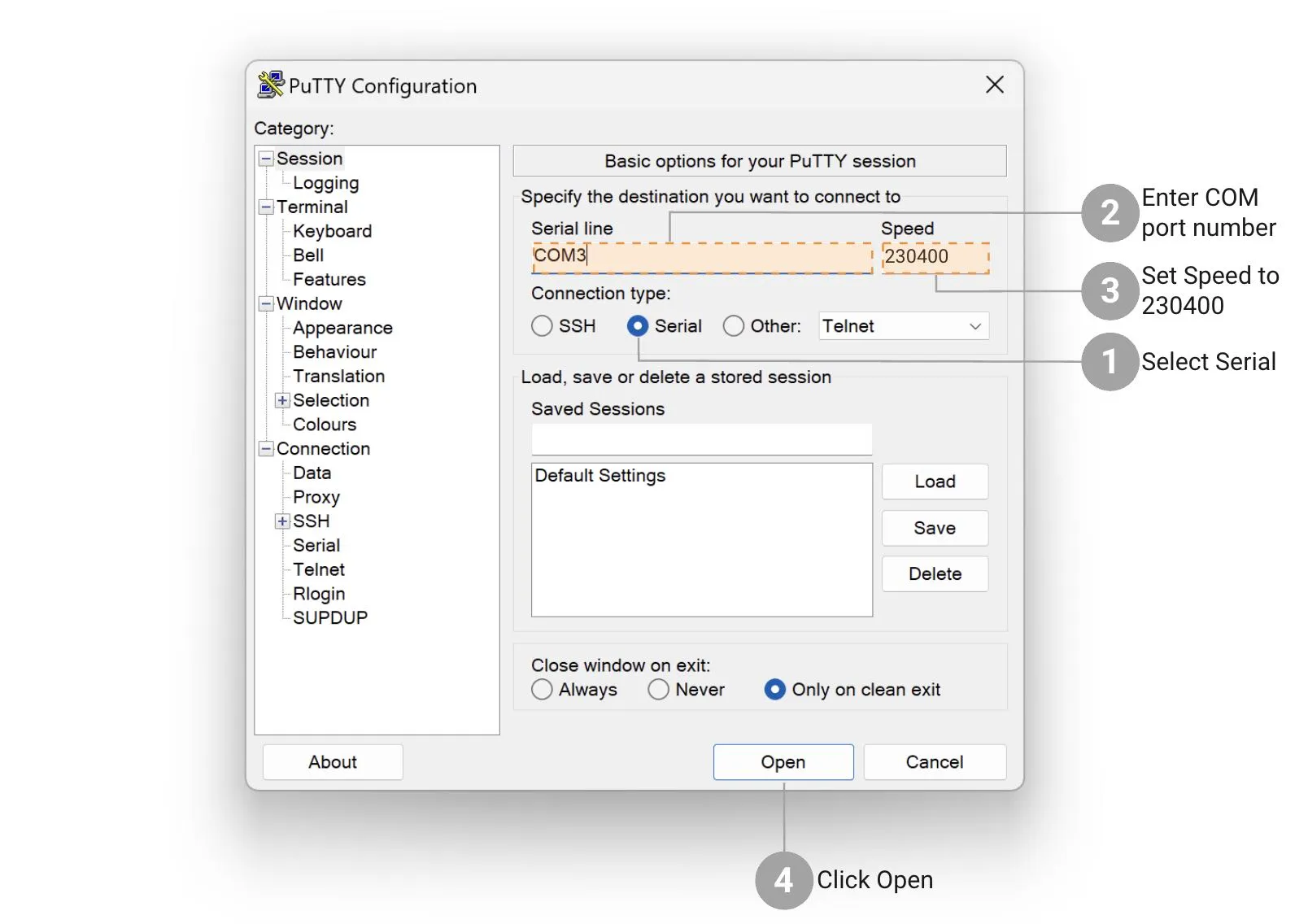
In the opened window, in the Connection type, select Serial.
In the Serial line field, enter the COM port number (For example, COM3).
In the Speed field, enter 230400.
Click the Open button.
To quit PuTTy, close the application window.
Available commands
To view the list of available commands in the CLI, run the ? or help command.
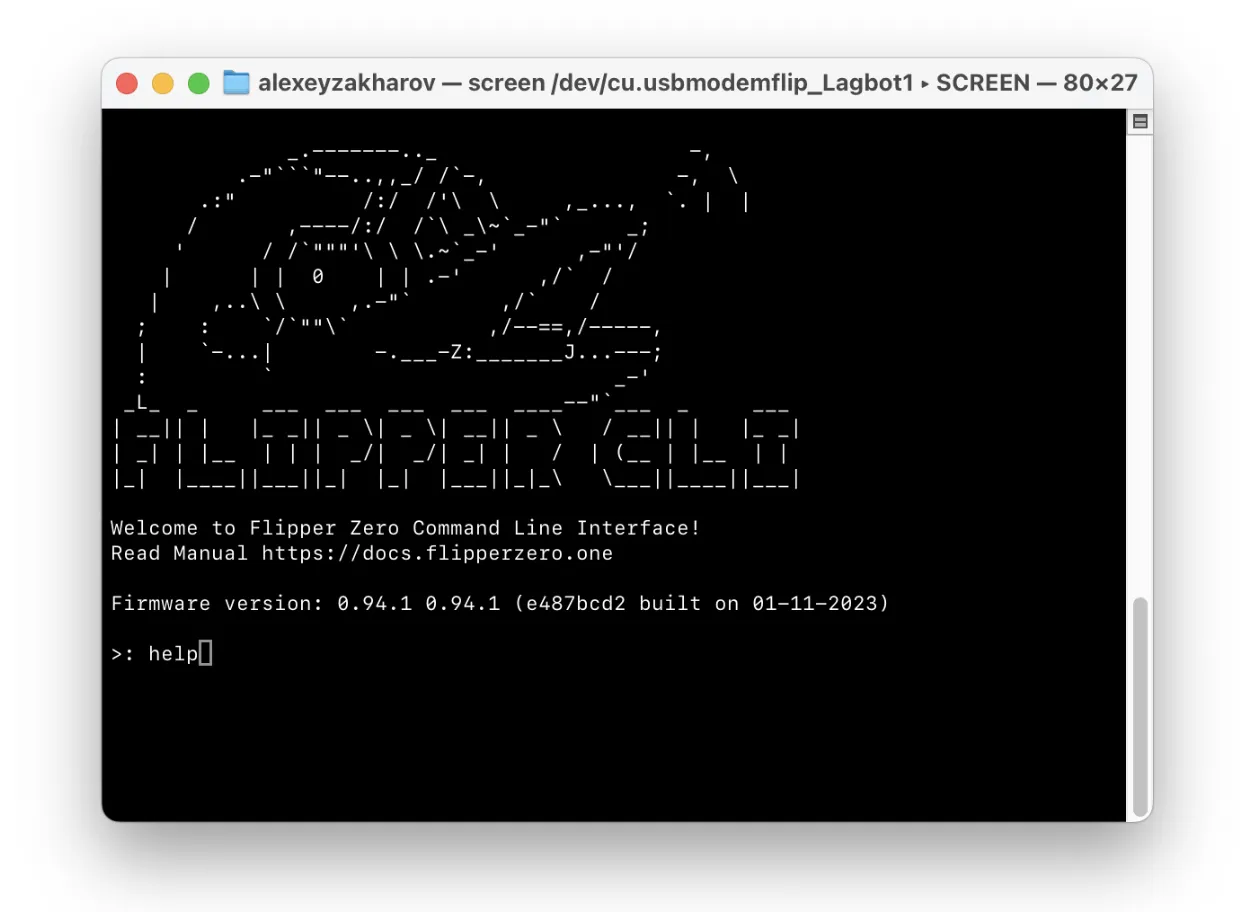
You can interact with the Flipper Zero CLI through the following commands:
Command | Description |
|---|---|
! | Alias for the info device command. |
? | Alias for the help command. |
bt | Radio core (BLE) test app: intended for factory tests. It can be used to check the BLE HCI version. Learn more. |
crypto | Crypto tool: used for enclave key provisioning and data encryption/decryption. Learn more. |
date | Displays/sets the current date and time. |
device_info | Alias for the info device command (obsolete). |
factory_reset | Resets your device to the factory settings. Data on the microSD card will be saved. |
free | Displays heap memory allocator information. It can be used for general application memory use profiling. |
free_blocks | Displays heap memory allocator free blocks and their respective size. It can be used to estimate heap fragmentation. |
gpio | Allows to directly control GPIO pins: set mode, read/write state. Learn more. |
help | Displays the list of available commands. |
i2c | I2C bus scan tool: can be used to search for a device on the bus. |
ikey | Reads, emulates, and writes iButton keys. Learn more. |
info | Displays detailed information about the device and power system. Learn more. |
input | Input subsystem command line tool: displays input and allows to inject input events into. Learn more. |
ir | Reads and sends infrared signals. Learn more. |
js | Runs a JavaScript file and sends console output to the CLI. Learn more. |
led | Notification service test app: allows to control LEDs and LCD backlight. Learn more. |
loader | Application / Script loader: can enumerate compiled-in apps, can open internal or external (fap) app. Learn more. |
log | System log viewer: allows to see device or app logs. Learn more. |
nfc | Reads and emulates data of NFC cards. Learn more.Learn more. |
onewire | 1-Wire bus scan app. It works on the same pins as iButton, but only scans for 1-Wire devices. Learn more. |
power | Turns off and reboots the device, as well as enables the power supply to GPIO pins. Learn more. |
rfid | Reads and emulates data from low-frequency RFID cards. Learn more. |
start_rpc_session | Activates the remote procedure call (RPC) session. Switches the CLI into protobuf mode. Normally, you don’t need to do that. |
storage | Provides commands for interaction with the file system of the device. Learn more. |
subghz | Sub-GHz test app: mostly used for factory testing, but also contains various supplementary tools. Learn more. |
sysctl | System Control: configures various system settings. Learn more. |
top | Lists running threads and information about them in real time. Similar to the top command on Linux. Press Ctrl+C to quit. |
update | Firmware updater command-line tool: updates and backs up the device, and restores the internal storage. Learn more. |
uptime | Displays the time since the last reboot of the device. |
vibro | Activates and deactivates the vibration motor. Learn more. |
echo | Sends received bytes as-is. Used by cli_perf for performance testing. Stops on session close or Ctrl+C (0x03). |
neofetch | Displays system info, similar to neofetch on Linux/*nix systems. |
reload_ext_cmds | Reloads the list of available commands to reflect any changes made to external commands on the SD card (added, removed, or updated). |
exit | Exits the CLI shell. Especially useful in secondary shells. |
buzzer | Plays a sound using the piezo speaker. Learn more. |
Reading Flipper Zero logs via the CLI
You can read Flipper Zero logs via the CLI by doing the following:
Connect your Flipper Zero to your computer via a USB-C cable.
Set the log level you need (the log info level is set by default) and start logging.
To do that, run one of the following commands:
- log: logs non-critical information, including warn logs.
- log error: logs only critical errors and other important messages.
- log warn: logs non-critical errors and warnings, including error logs.
- log info: logs non-critical information, including warn logs.
- log default: the default system log level (equivalent to info logs).
- log debug: logs debug information, including info logs (will impact system performance).
- log trace: logs system traces, including debug logs (will impact system performance).
You can access this list in the CLI by running the log ? command.
Interact with your Flipper Zero to view the logs.
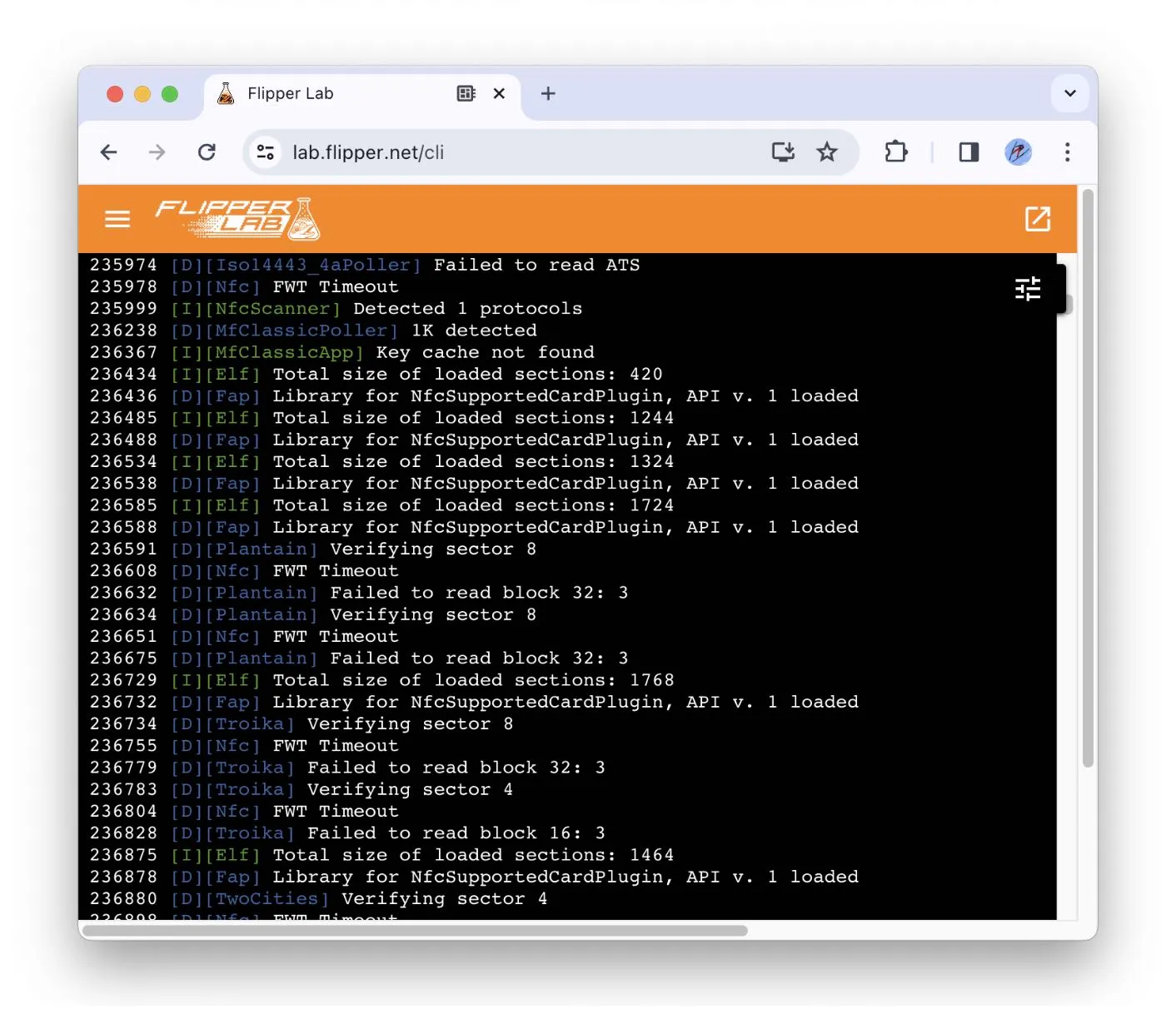
To stop the logging process, press Ctrl+C.
Chatting with other Flipper Zero users
In the CLI, you can chat with other Flipper Zero users via the sub-1 GHz radio. To do that, all devices have to communicate at the same frequency.
To chat, all participants have to do the following:
Connect your Flipper Zero to your computer via a USB-C cable.
Run the command that specifies the frequency and antenna type:
Where:
- <frequency_in_hz> must be in the 299999755-348000000, 386999938-464000000, 778999847-928000000 Hz range. Some frequencies might be unavailable in your region. Learn more.
- <device_0/1> must specify if the internal antenna (0) or external antenna (1) is used for communication if connected.
For example:
Enter your message and press Return.
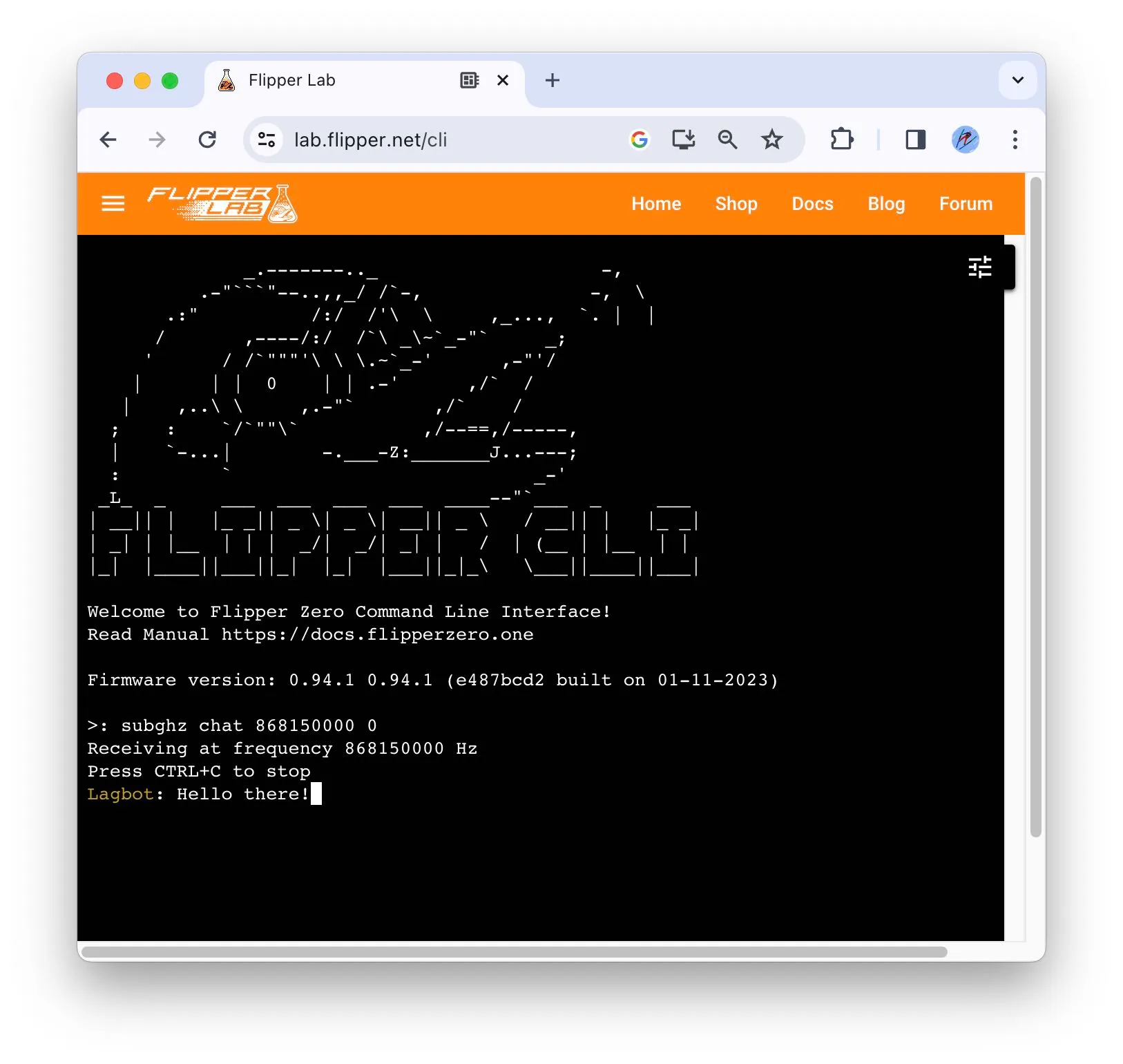
To quit the chat, press Ctrl+C.
Learning more about the CLI commands
bt
Command | Description |
|---|---|
bt hci_info | Displays Bluetooth Host Controller Interface (HCI) information. |
crypto
This command allows you to encrypt and decrypt plain text with the help of the cryptographic keys in the secure enclave and initialization vector.
Command | Arguments | Description |
|---|---|---|
crypto encrypt | <key_slot_int> <iv_hex> | Encrypts plain text with AES256CBC and encodes to hexadecimal format using a key from the secure enclave and initialization vector. |
crypto decrypt | <key_slot_int> <iv_hex> | Decrypts encoded with AES256CBC data hexadecimal text into plain text using the key from the secure enclave and initialization vector. |
crypto has_key | <key_slot_int> | Checks if the secure enclave has a key in the specific slot. Slots range from 1 to 100. |
crypto store_key | <key_slot_int> <key_type_str> <key_size_int> <key_data_hex> | NON-REVERSIBLE OPERATION! Adds a key to the secure enclave. The added key can’t be removed. |
Where:
- <key_slot_int>: secure enclave slot number that contains a cryptographic key. By default, slots 1 through 11 have cryptographic keys used for encryption.
- <iv_hex>: a 16-byte initialization vector in hexadecimal format generated by the user.
- <key_type_str>: master, simple, or encrypted.
- <key_size_int>: 128 or 256 bits.
- <key_data_hex>: the key data in hexadecimal format.
gpio
Command | Arguments | Description |
|---|---|---|
gpio mode | <pin_name> <0/1> | Sets the entered GPIO pin to input (0) or output (1) mode. |
gpio set | <pin_name> <0/1> | Sets the GPIO pin’s value. |
gpio read | <pin_name> | Reads the GPIO pin’s value. |
Where:
- <pin_name>: PA7, PA6, PA4, PB3, PB2, PC3, PC1, PC0.
ikey
Command | Arguments | Description |
|---|---|---|
ikey read | | Reads iButton keys. |
ikey emulate | <key_type> <key_data> | Emulates the entered data. |
ikey write Dallas | <key_data> | Writes 8-byte data in hexadecimal format to Dallas iButton keys. |
Where:
<key_type> | <key_data> in hexadecimal with the following lengths |
|---|---|
Dallas | 8 bytes |
Cyfral | 2 bytes |
Metakom | 4 bytes |
info
Command | Description |
|---|---|
info device | Displays information about the device. |
info power | Displays information about the power system. |
info power_debug | Displays detailed information about the power system. |
input
Command | Arguments | Description |
|---|---|---|
input dump | | Displays the pressed buttons. |
input send | <key> <type> | Emulates a press of a button. |
Where:
- <key>: up, down, left, right, back, ok.
- <type>: press, release, short, long.
To emulate a short press of a button, run the following commands in order:
- input send <key> press
- input send <key> short
- input send <key> release
To emulate a long press of a button, run the following commands in order:
- input send <key> press
- input send <key> long
- input send <key> release
Otherwise, the input will be discarded.
ir
Command | Arguments | Description |
|---|---|---|
ir rx | | Reads and decodes data from IR (infrared) remote controls. |
ir rx raw | | Reads data from IR remote controls in RAW format. |
ir tx | <protocol> <address> <command> | Sends the entered IR command. |
ir tx raw | F: <frequency> DC: <duty_cycle> <samples> | Sends RAW IR data. Up to 512 samples of data. |
ir decode | <input_file> <output_file> | Decodes the file with RAW data. |
ir universal list | <remote_name> | Displays the list of commands of the entered remote. |
ir universal | <remote_name> <signal_name> | Sends the command from the entered remote. |
Where:
- <protocol>: NEC, NECext, NEC42, NEC42ext, Samsung32, RC6, RC5, RC5X, SIRC, SIRC15, SIRC20, Kaseikyo, RCA.
- <address> and <command> must be in hexadecimal format.
- <frequency>: 10000-56000.
- <duty_cycle>: 0-100.
- <remote_name>: tv, audio, ac, projector.
js
Command | Arguments | Description |
|---|---|---|
js | <path> | Runs the selected JavaScript file and sends console output to the CLI. |
led
The led command allows you to set the color of the status LED by adjusting the brightness of each color component (red, green, and blue) using the values from 0 to 255. For example, to set the LED to 100% red color, you need to enter three commands: led r 255, then led g 0, and then led b 0.
You can also use this command to set the brightness of the always-on backlight. For example, the led bl 128 command sets the backlight brightness to 50%.
Command | Arguments | Description |
|---|---|---|
led r | <0-255> | Sets the brightness of the red component. |
led g | <0-255> | Sets the brightness of the green component. |
led b | <0-255> | Sets the brightness of the blue component. |
led bl | <0-255> | Turns on the display’s backlight and sets its brightness. |
loader
Command | Arguments | Description |
|---|---|---|
loader list | | Lists available applications. |
loader open | <application_name_string> | Runs the entered application. |
loader info | | Displays the loader’s state. |
loader close | | Closes the running application. |
loader signal | <signal_number> <arg_hex> | Sends a signal with an optional argument in hexadecimal. |
log
Command | Description |
|---|---|
log | Starts logging with the current log level. |
log error | Logs only critical errors and other important messages. |
log warn | Logs non-critical errors and warnings, including error logs. |
log info | Logs non-critical information, including warn logs. |
log default | The default system log level (equivalent to info logs). |
log debug | Logs debug information, including info logs (will impact system performance). |
log trace | Logs system traces, including debug logs (will impact system performance). |
To stop logging, press Ctrl+C.
nfc
The nfc command opens a separate shell, and all commands are run within this shell. To see all available commands, enter help or ?. To see detailed explanations in the CLI, enter <command> -h. To exit the shell, enter exit.
dump
Command | Arguments | Description |
|---|---|---|
dump | -f <path> | Dumps physical card data to a .nfc file. Optional arguments: -k <key>, -p <protocol>, -t <timeout>. |
Where:
- <path>: path to file.
- <protocol>: specifies the NFC protocol for scanning, overriding auto-detection. Available arguments:
- 14_3a: ISO 14443-3A
- 14_3b: ISO 14443-3B
- 14_4a: ISO 14443-4A
- 14_4b: ISO 14443-4B
- 15: ISO 15693-3
- felica: FeliCa™
- mfu: MIFARE Ultralight®
- mfc: MIFARE Classic®
- mfp: MIFARE Plus®
- des: MIFARE DESFire®
- slix: ICODE® SLIX
- st25: ST25TB
- <key>: authentication key in hexadecimal format.
- <timeout>: polling timeout value in milliseconds.
raw
Command | Arguments | Description |
|---|---|---|
raw | -p <protocol> -d <data> | Sends raw bytes using different protocols. Optional arguments that can be combined with the required arguments: -t <timeout>, -k, -c, -s. |
Where:
- <protocol>: specifies the NFC protocol to use. Available arguments:
- 14a or iso14a: ISO 14443-3A
- 14b or iso14b: ISO 14443-3B
- 15: ISO 15693-3
- felica: FeliCa
- <data>: raw bytes for sending, in hexadecimal format.
- <timeout>: timeout in number of carrier frequency cycles until receiving a response.
- -k: add to the command to keep the signal field on after the response.
- -c: add to the command to calculate and append CRC to the transmitted data before sending.
- -s: add to the command to perform the initial activation/anti-collision sequence before sending the raw data.
mfu
Command | Arguments | Description |
|---|---|---|
mfu info | | Outputs basic information about a MIFARE Ultralight tag. |
mfu rdbl | -b <block_number> | Reads a specific block of data from a MIFARE Ultralight tag. |
mfu wrbl | -b <block_number> -d <data> | Writes data to a specific data block of a MIFARE Ultralight tag. |
Where:
- <block_number>: a decimal number of the block to write or read.
- <data>: a 4-byte hexadecimal string to write.
Other
Command | Arguments | Description |
|---|---|---|
field | | Enables the high-frequency NFC field. Ctrl+C to abort the command execution. |
emulate | -f <path> | Emulates a .nfc file content. |
scanner | | Identifies all communication protocols supported by a tag and lists their names. Optional argument: -t <tree>. Ctrl+C to abort the command execution. |
apdu | -d <data> | Sends APDU data to ISO14443-4A, ISO 14443-4B, and ISO15693-3 tags. Optional argument: -p <protocol>. |
Where:
- <path>: path to file.
- <tree>: add to the command to display the protocol hierarchy for each detected protocol.
- <protocol>: sets the protocol, otherwise autodetected. Available arguments:
- 4a: ISO 14443-4A
- 4b: ISO 14443-4B
- 15: ISO 15693-3
- <data>: APDU payload as hexadecimal strings. Supports multiple payloads, which are sent sequentially: apdu -d <data_1> <data_2>.
onewire
Command | Description |
|---|---|
onewire search | Searches for 1-Wire devices. |
power
Command | Arguments | Description |
|---|---|---|
power off | | Powers off the device. |
power reboot | | Reboots the device. |
power reboot2dfu | | Reboots the device to DFU mode. |
power 5v | <1/0> | Enables (1) or disables (0) 5 V power supply to GPIO pin 1. |
power 3v3 | <1/0> | Enables (1) or disables (0) 3.3 V power supply to GPIO pin 9. Available in Debug mode. |
rfid
Command | Arguments | Description |
|---|---|---|
rfid read | | Reads RFID card’s data in ASK and PSK modes. |
rfid write | <key_type> <key_data> | Writes the entered data. |
rfid emulate | <key_type> <key_data> | Emulates the entered data. |
rfid raw_read | <ask/psk> <filename> | Reads and saves card’s data in RAW format in a file. |
rfid raw_emulate | <filename> | Emulates the saved RAW data from a file. Useful for debugging protocols. |
rfid raw_analyze | <filename> | Outputs RAW data from a file to the CLI and tries to decode it. Useful for protocol development. |
Where:
<key_type> | <key_data> in hexadecimal format with the following lengths |
|---|---|
EM4100 | 5 bytes |
EM4100/32 | 5 bytes |
EM4100/16 | 5 bytes |
Electra | 8 bytes |
H10301 | 3 bytes |
Idteck | 8 bytes |
Indala26 | 4 bytes |
IoProxXSF | 4 bytes |
AWID | 9 bytes |
FDX-A | 5 bytes |
FDX-B | 11 bytes |
HIDProx | 6 bytes |
HIDExt | 12 bytes |
Pyramid | 4 bytes |
Viking | 4 bytes |
Jablotron | 5 bytes |
Paradox | 6 bytes |
PAC/Stanley | 4 bytes |
Keri | 4 bytes |
Gallagher | 8 bytes |
Nexwatch | 8 bytes |
Radio Key | 6 bytes |
GProxII | 12 bytes |
Noralsy | 12 bytes |
storage
The path must start with /int or /ext.
Command | Path | Arguments | Description |
|---|---|---|---|
storage info | </ext> | | Gets general info about the file system. |
storage format | </ext> | | Formats the file system on the microSD card. |
storage list | </ext/path_to_directory> | | Lists files and directories. |
storage tree | </ext/path_to_directory> | | Lists all files and directories. |
storage remove | </ext/path_to_directory> | | Deletes the file or directory. The directory must be empty. |
storage read | </ext/path_to_file> | | Reads text from the file and prints the file size and content to the CLI. |
storage read_chunks | </ext/path_to_file> | <1-512> | Reads data from file in blocks and prints the file size and content to the CLI, <1-512> is how many bytes you want to read in one block. |
storage write | </ext/path_to_file> | <text> | Reads text from the CLI and adds it to a file. Stops by pressing Ctrl+C. |
storage write_chunk | </ext/path_to_file> | <1-512> | Reads data from the CLI and adds it to the file, <1-512> is how many bytes you want to write. The entered data is not visible in the CLI. The command execution stops once the set number of bytes is entered. |
storage copy | </ext/path_to_source_file> </ext/path_to_destination_file> | | Copies the file to a new file. |
storage rename | </ext/path_to_file> </ext/path_to_directory> | | Renames a file or directory. Moves the file to a new directory with a new name. |
storage mkdir | </ext/path_to_directory> | | Creates a new directory. |
storage md5 | </ext/path_to_file> | | Displays the MD5 hash of the file. |
storage stat | </ext/path_to_file> | | Displays info about the file or directory. |
storage timestamp | </ext/path_to_file> | | Displays the last modification timestamp. |
storage extract | </ext/path_to_archive> </ext/path_to_directory> | | Extracts a .tar archive file to a directory. |
subghz
Command | Arguments | Description |
|---|---|---|
subghz chat | <frequency_in_hz> <device_0/1> | Enables chatting with other Flipper Zero users. |
subghz tx | <3-byte_key_hex> <frequency_in_hz> <te_in_us> <repeat_count> <device_0/1> | Transmits a key. |
subghz rx | <frequency_in_hz> <device_0/1> | Enables receiving of a signal. |
subghz rx_raw | <frequency_in_hz> | Enables receiving of a signal in RAW format. |
subghz decode_raw | </ext/path_to_raw_file> | Decodes a file with RAW data and displays the results. |
subghz tx_from_file | <path_to_file> <repeat_count> <device_0/1> | Transmits data from a file. |
The following commands can only be used in Debug mode:
Command | Arguments | Description |
|---|---|---|
subghz tx_carrier | <frequency_in_hz> | Transmits carrier frequency. |
subghz rx_carrier | <frequency_in_hz> | Receives carrier frequency. |
subghz encrypt_keeloq | <path_decrypted_file> <path_encrypted_file> <iv_16_bytes_hex> | Encrypts Keeloq manufacture keys. |
subghz encrypt_raw | <path_decrypted_file> <path_encrypted_file> <iv_16_bytes_hex> | Encrypts RAW data. |
Where:
- <frequency_in_hz>: is one of the values in the 299999755-348000000, 386999938-464000000, 778999847-928000000 Hz range. Some frequencies might be unavailable in your region. Learn more.
- <device_0/1>: 0 is the built-in sub-1 GHz antenna with the CC1101 transceiver, 1 is the external sub-1 GHz antenna with the CC1101 transceiver.
- <te_in_us>: quantization interval in microseconds.
- <iv_16_bytes_hex>: a 16-byte initialization vector in hexadecimal format generated by the user.
sysctl
Command | Arguments | Description |
|---|---|---|
sysctl debug | <0/1> | Enables (1) or disables (0) system debug. |
sysctl heap_track | <none/main> | Enables (main) or disables (none) heap allocation tracking mode. |
update
Command | Arguments | Description |
|---|---|---|
update install | </ext/path_to_update.fuf> | Verifies and installs an update package. |
update backup | </ext/path_to_backup.tar> | Creates an internal storage backup. |
update restore | </ext/path_to_backup.tar> | Restores from an internal storage backup. |
vibro
Command | Arguments | Description |
|---|---|---|
vibro | <1/0> | Activates (1) or deactivates (0) the vibration motor. |
buzzer
Command | Arguments | Description |
|---|---|---|
buzzer freq | <frequency_in_hz> <duration> | Plays a sound with the set frequency. |
buzzer note | <note> <duration> | Plays the set musical note. |
Where:
- <frequency_in_hz>: frequency in Hz.
- <note>: a musical note. The letter s represents a sharp (#); for example, c#3 is written as cs3. Flats (♭) aren’t supported.
- <duration>: duration in milliseconds (ms), seconds (s), minutes (m), or hours (h). For example: buzzer note cs3 500ms.
MIFARE, MIFARE Ultralight, MIFARE Classic, DESFire, and ICODE are registered trademarks of NXP B.V.
FeliCa is a trademark of Sony Corporation.