Flipper Mobile App
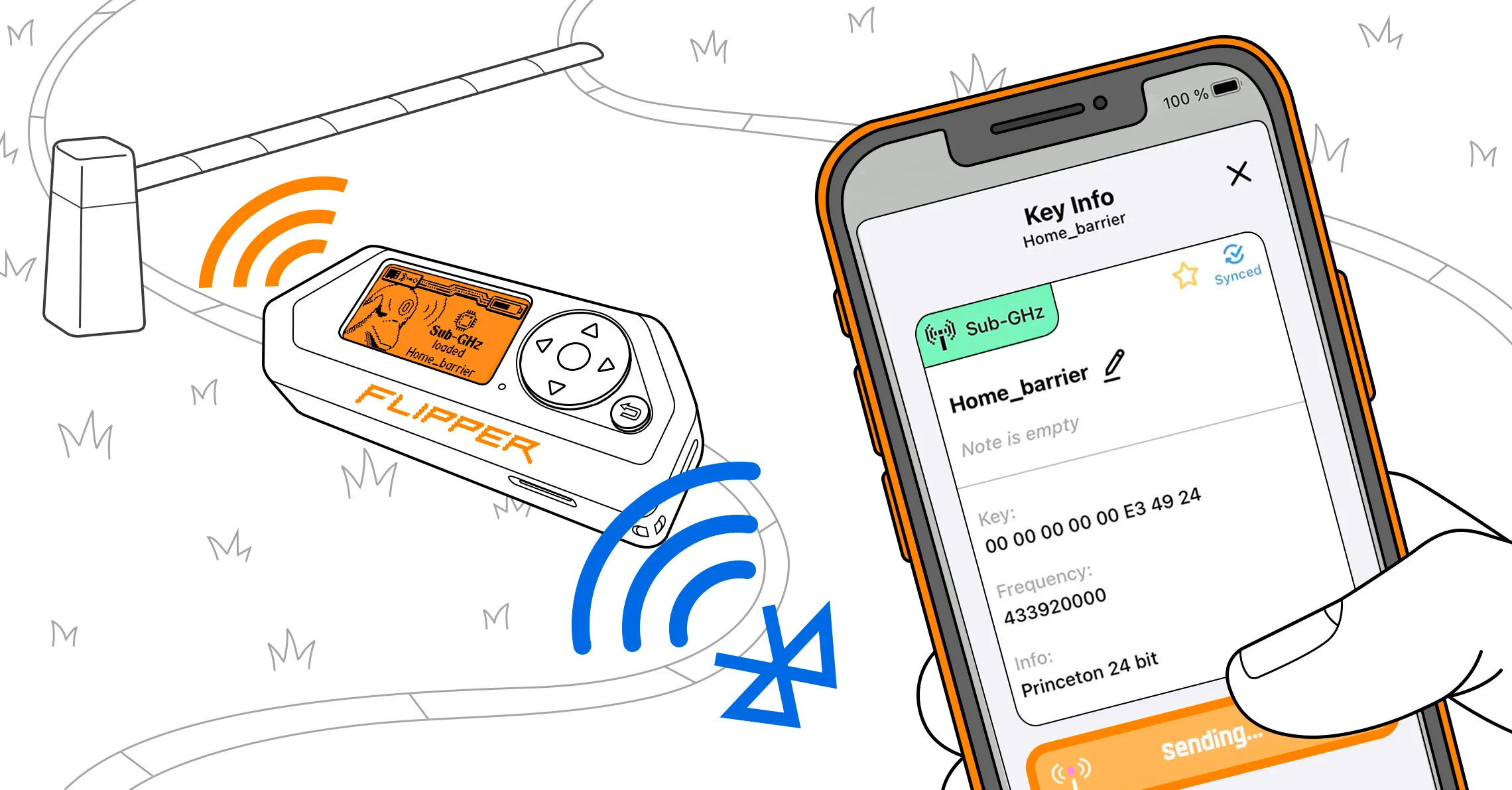
With Flipper Mobile App, you can remotely control and update your Flipper Zero, share saved keys, manage and edit data, and more. Flipper Mobile App enhances the functionality of your Flipper Zero, making it even more convenient to use.
The application is available on iOS and Android:
On this page, you’ll learn how to connect the mobile app to your Flipper Zero and troubleshoot any issues. You’ll also find an app overview, instructions for adding the app widget to your Home screen, a guide for updating your Flipper Zero via the app, and details on backing up your data.
Connecting to Flipper Zero
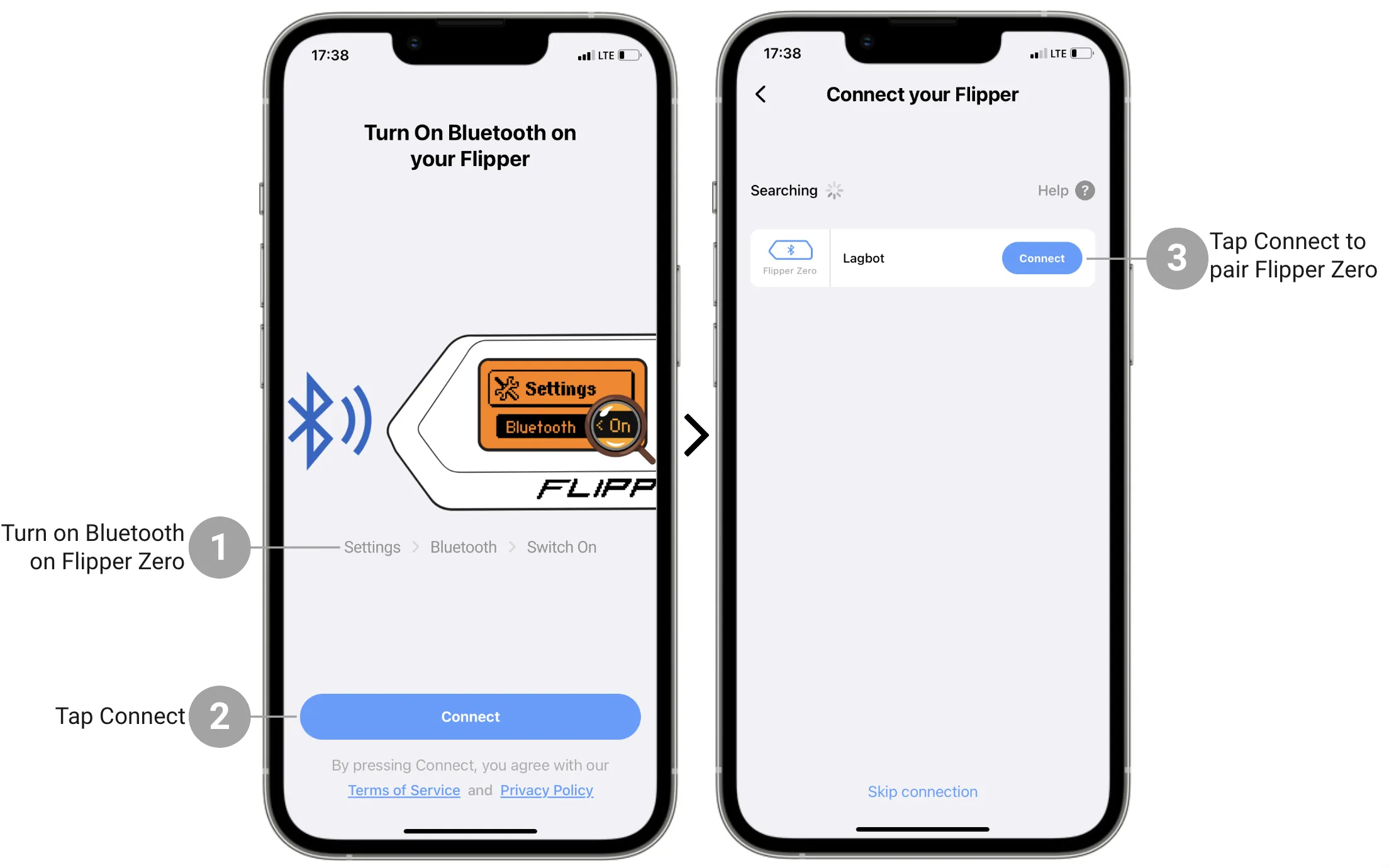
After you download Flipper Mobile App and activate Bluetooth on your phone, you need to connect the mobile application to your Flipper Zero:
Activate Bluetooth on your Flipper Zero by following these steps:
- Go to Main Menu -> Settings -> Bluetooth.
- Set Bluetooth to ON.
In Flipper Mobile App, tap Connect.
On the next page, next to the detected Flipper Zero’s name, tap Connect.
In Flipper Mobile App, enter the pairing code displayed on the Flipper Zero screen.
Tap Pair to finalize pairing.
Wait until Flipper Mobile App is done synchronizing with your Flipper Zero.
If your Flipper Zero is not detected
- Make sure Bluetooth is activated on your Flipper Zero. -> How to turn on Bluetooth on Flipper Zero.
- Check the Bluetooth connection on your phone.
- Disconnect Flipper Zero from other devices. -> How to forget all paired devices on Flipper Zero.
- Update Flipper Zero to the latest firmware version. It is important to update your Flipper Zero regularly. -> How to update the firmware on Flipper Zero.
- Check the latest version of Flipper Mobile App is installed on your phone. -> App Store or Google Play.
- Reboot your Flipper Zero by pressing and holding the %left%LEFT and %back%BACK buttons for 5 seconds.
If Flipper Mobile App fails to synchronize with your Flipper Zero
- Unpair the devices and then pair them again. -> To unpair the devices, go to Main Menu -> Settings -> Bluetooth -> Forget All Paired Devices.
- Restart your Flipper Zero. -> Press and hold the %left%LEFT and %back%BACK buttons.
- Restart your smartphone.
- Disable Sleep mode on your Flipper Zero. -> Go to Main Menu -> Settings -> System and set Sleep Method to Legacy.
Flipper Mobile App: overview
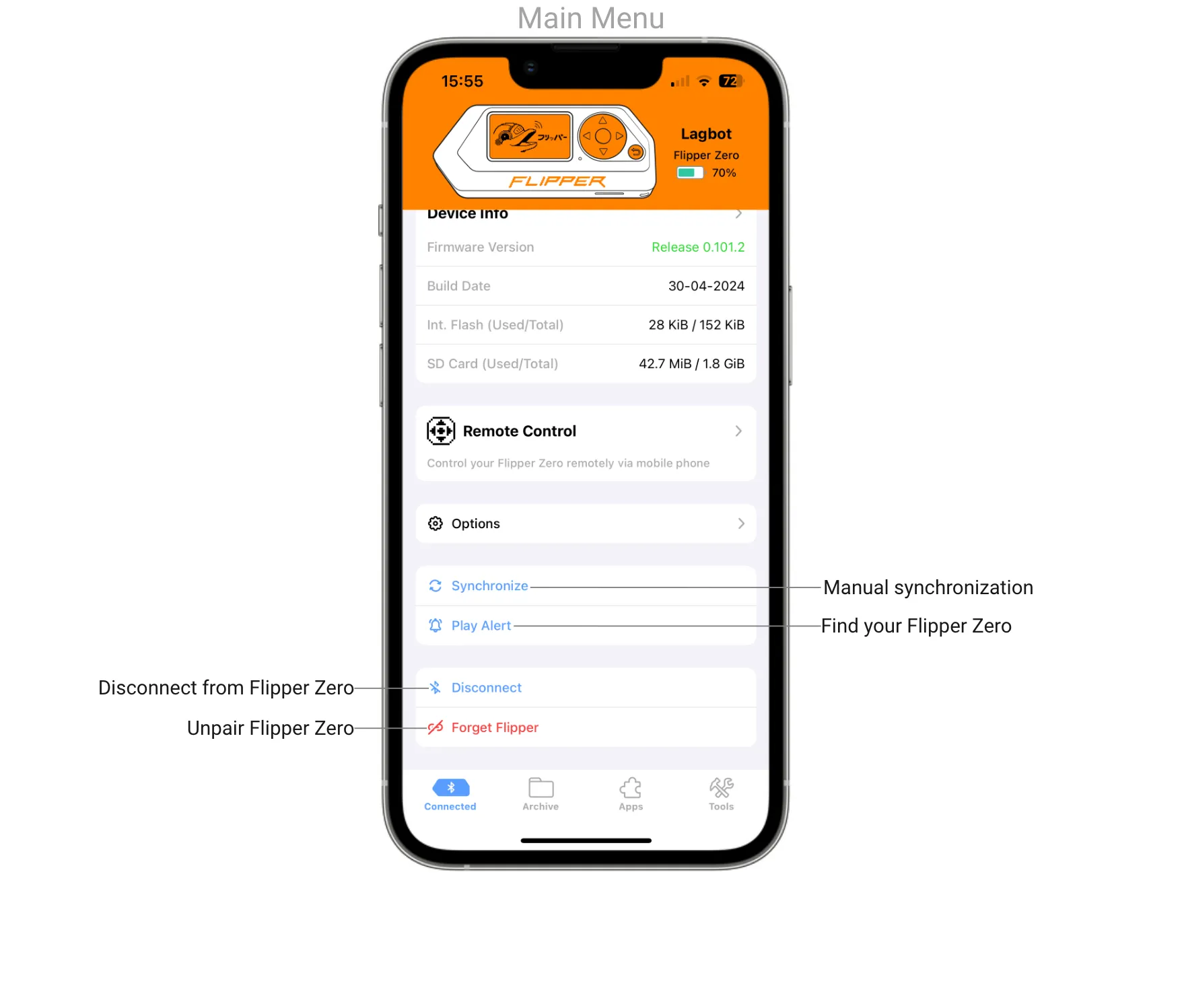
After Flipper Zero is connected to Flipper Mobile App, you’ll see the Main Menu tab. In this tab, you can update your Flipper Zero via Bluetooth, see additional options, manually synchronize, play sound on your Flipper Zero, and more.
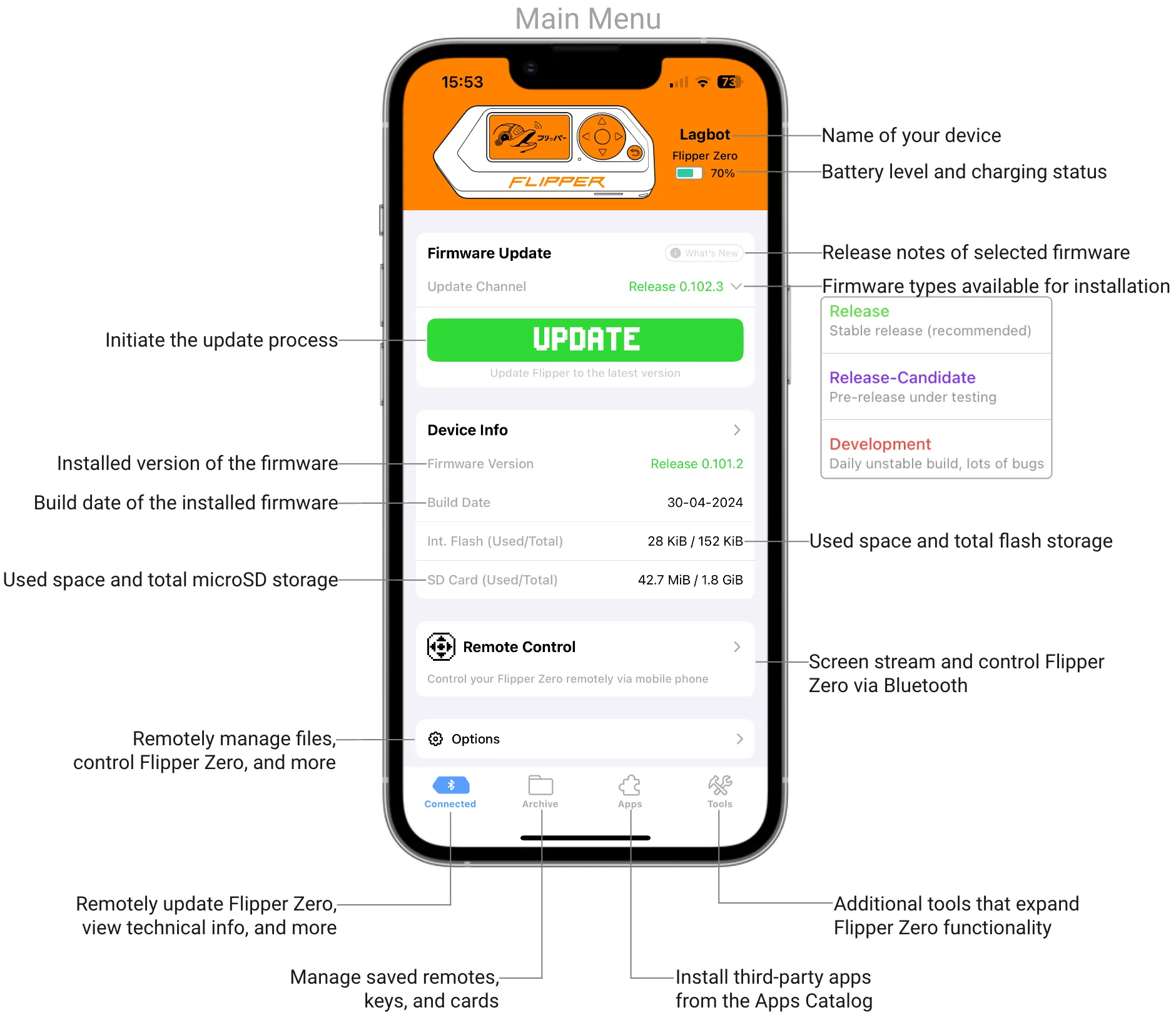
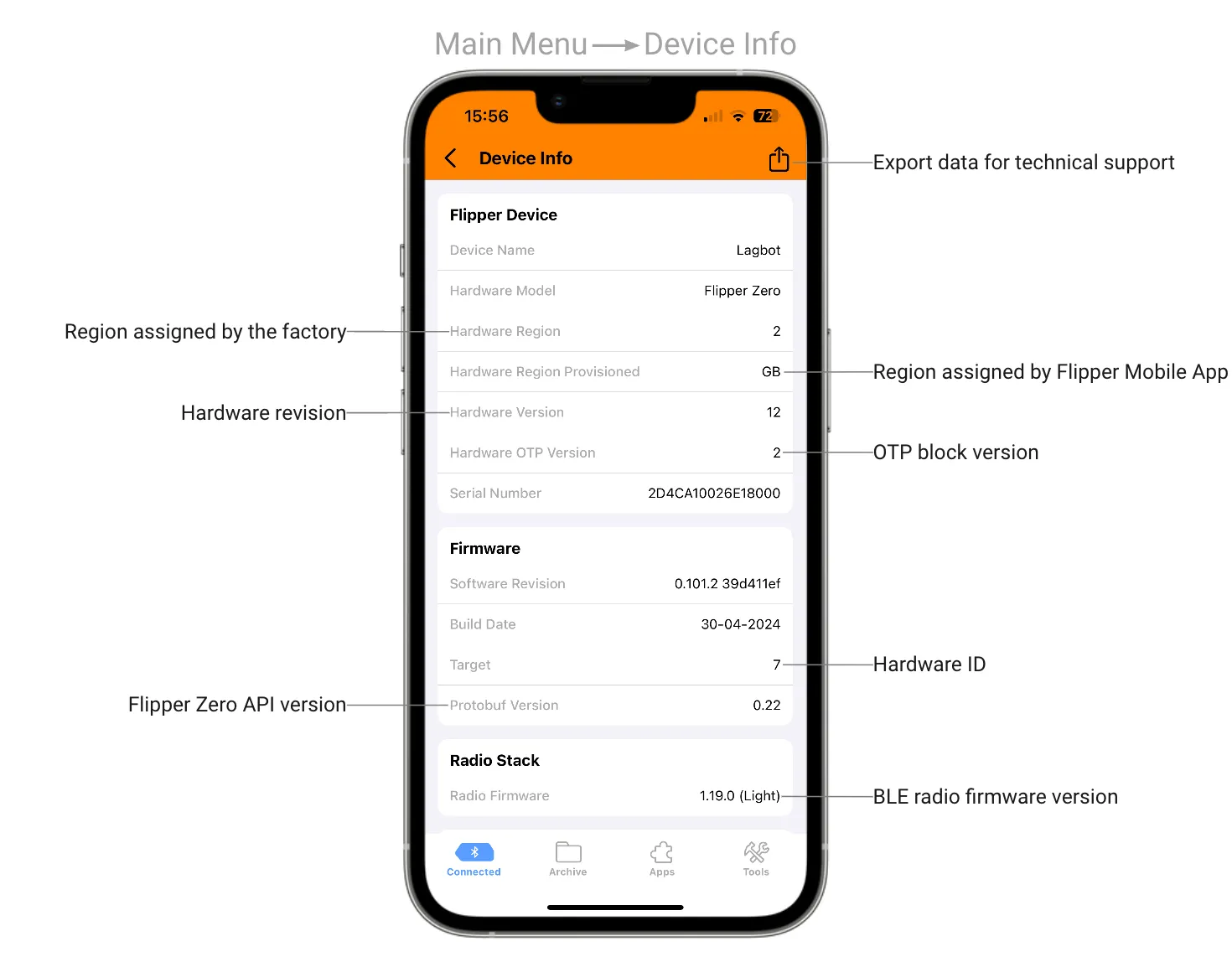
In Device Info, you can see detailed information about Flipper Zero’s hardware and firmware.
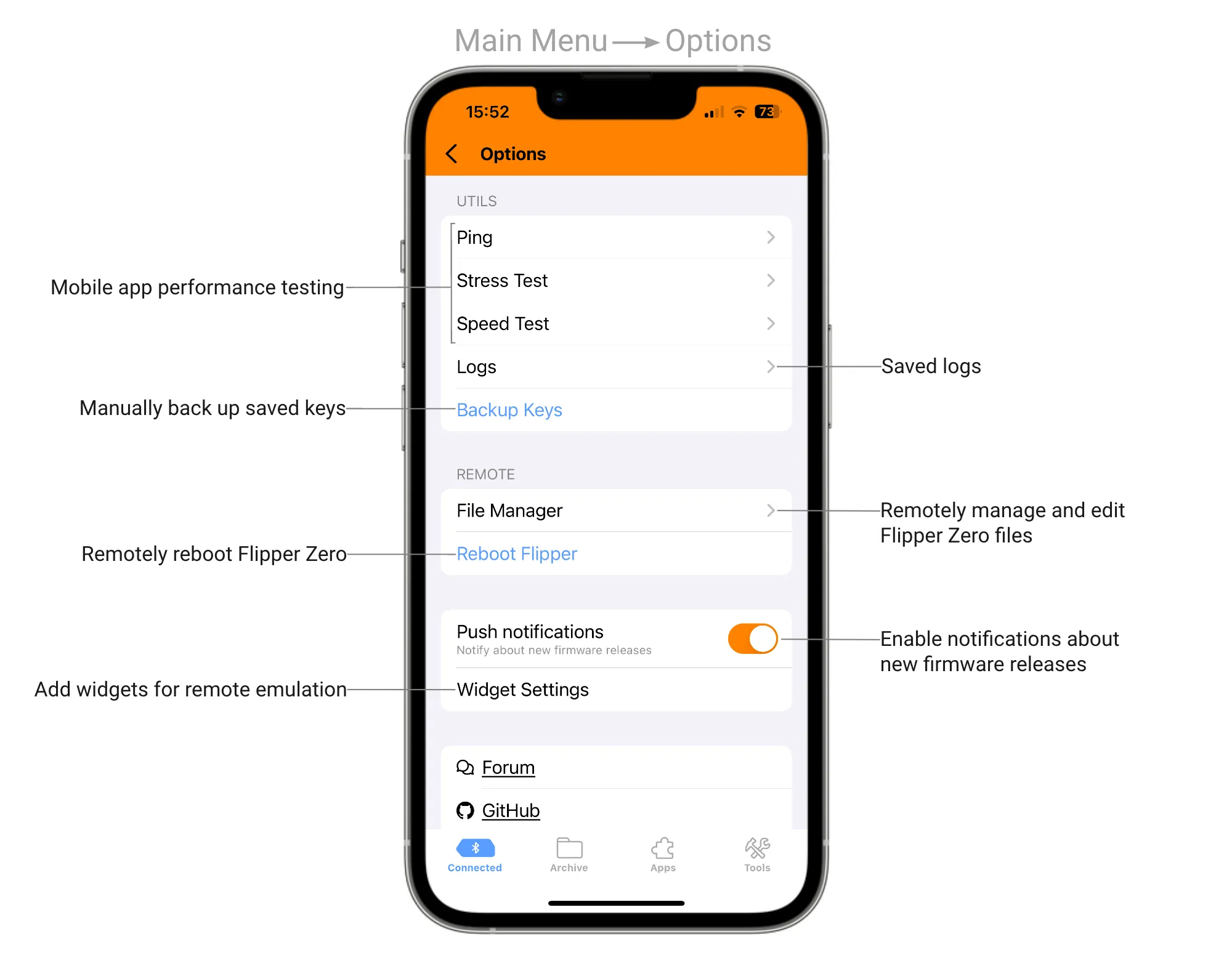
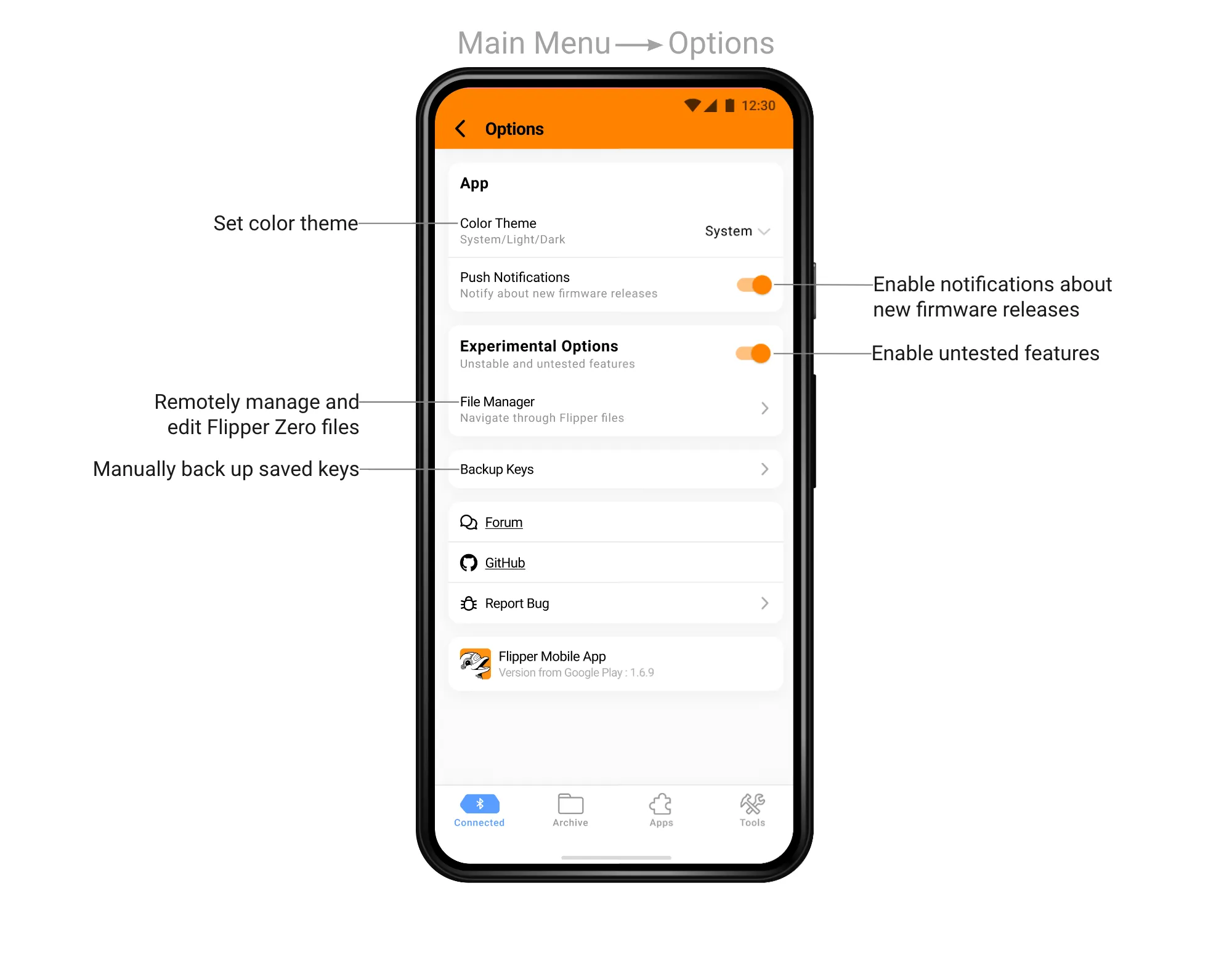
In Options, depending on the operating system, you can find the backup function, saved logs, file manager, reboot function, and bug report function.
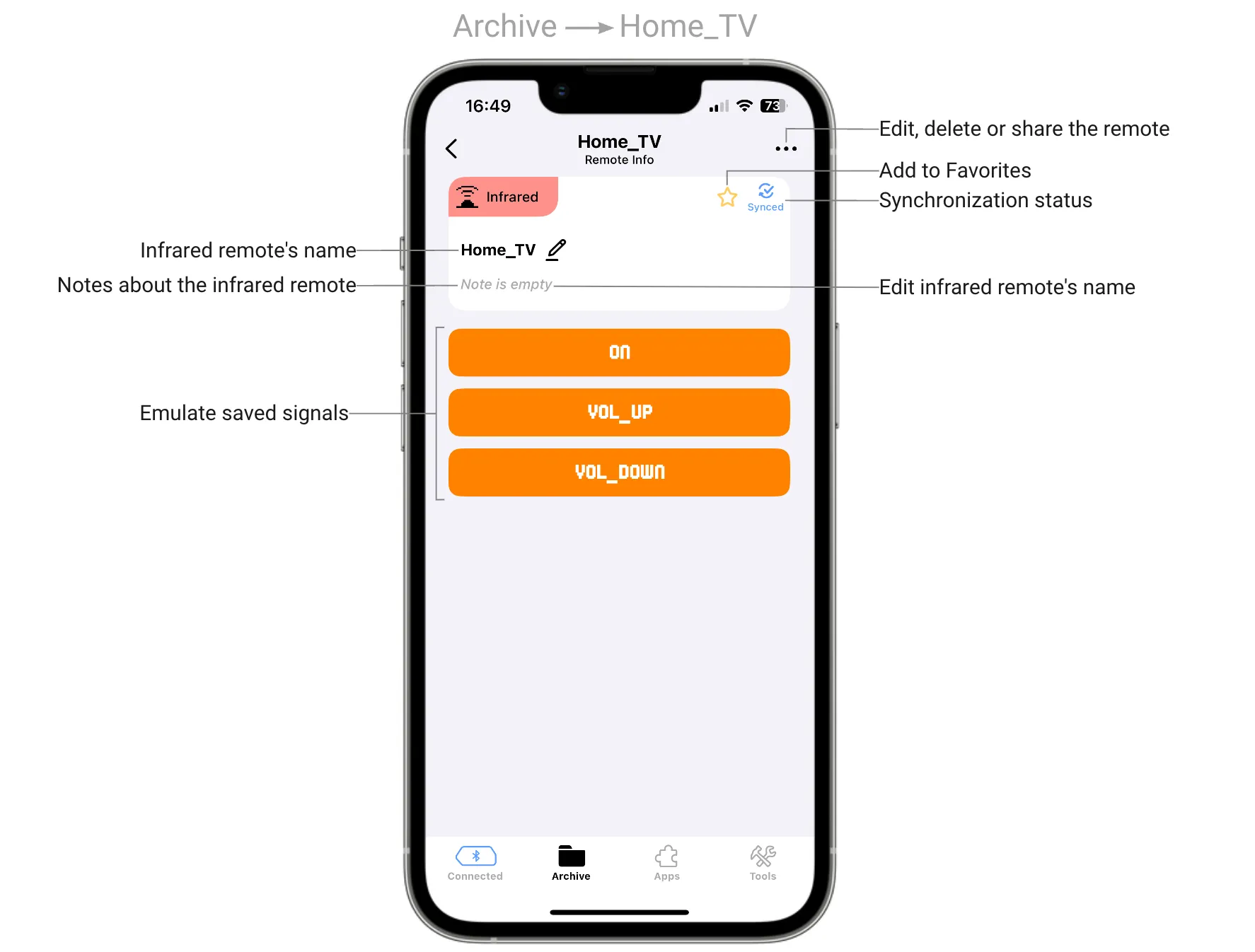
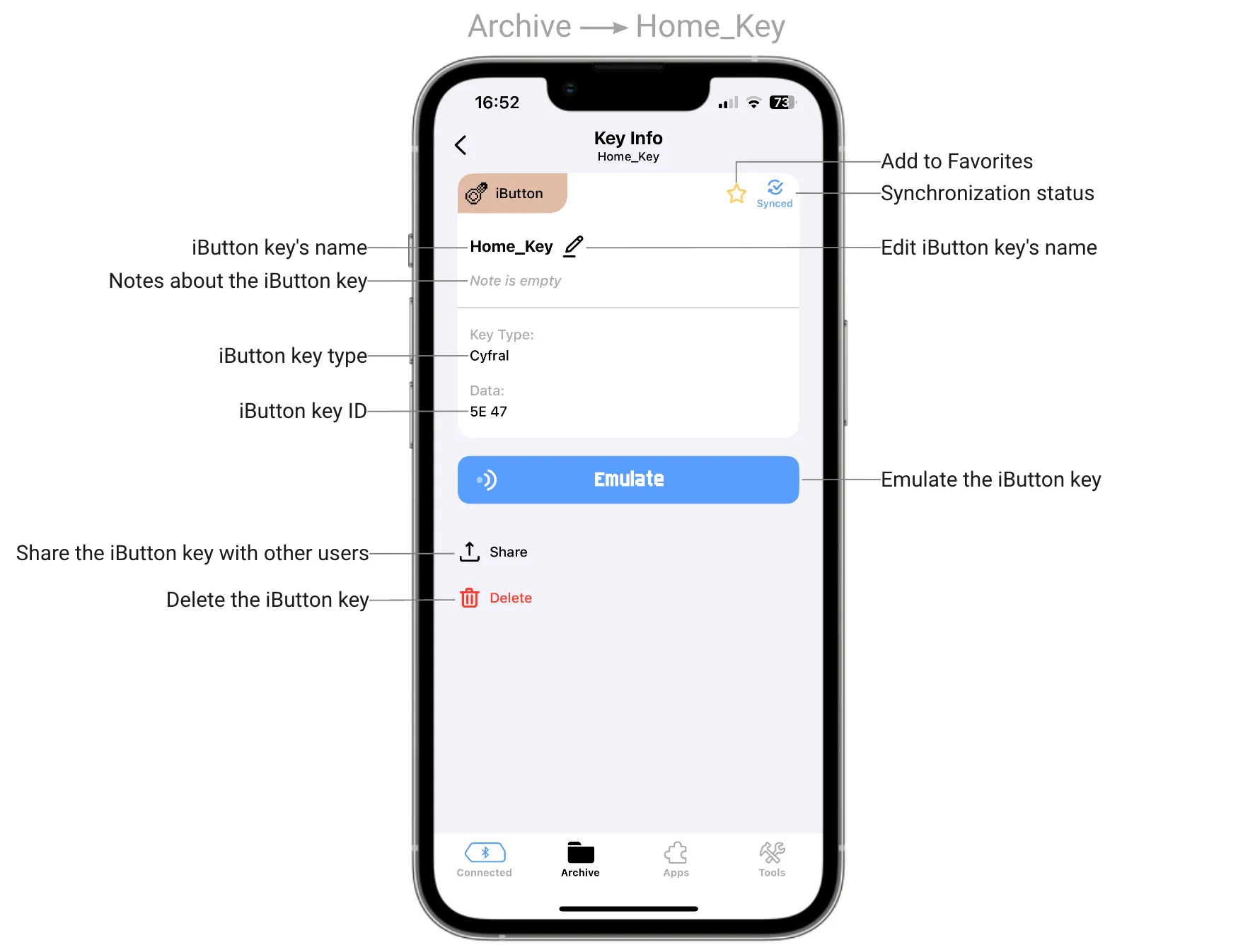
The Archive tab lists all the saved remotes, keys, and cards. In this tab, you can see favorites, search through the list, and restore deleted remotes, keys, and cards.
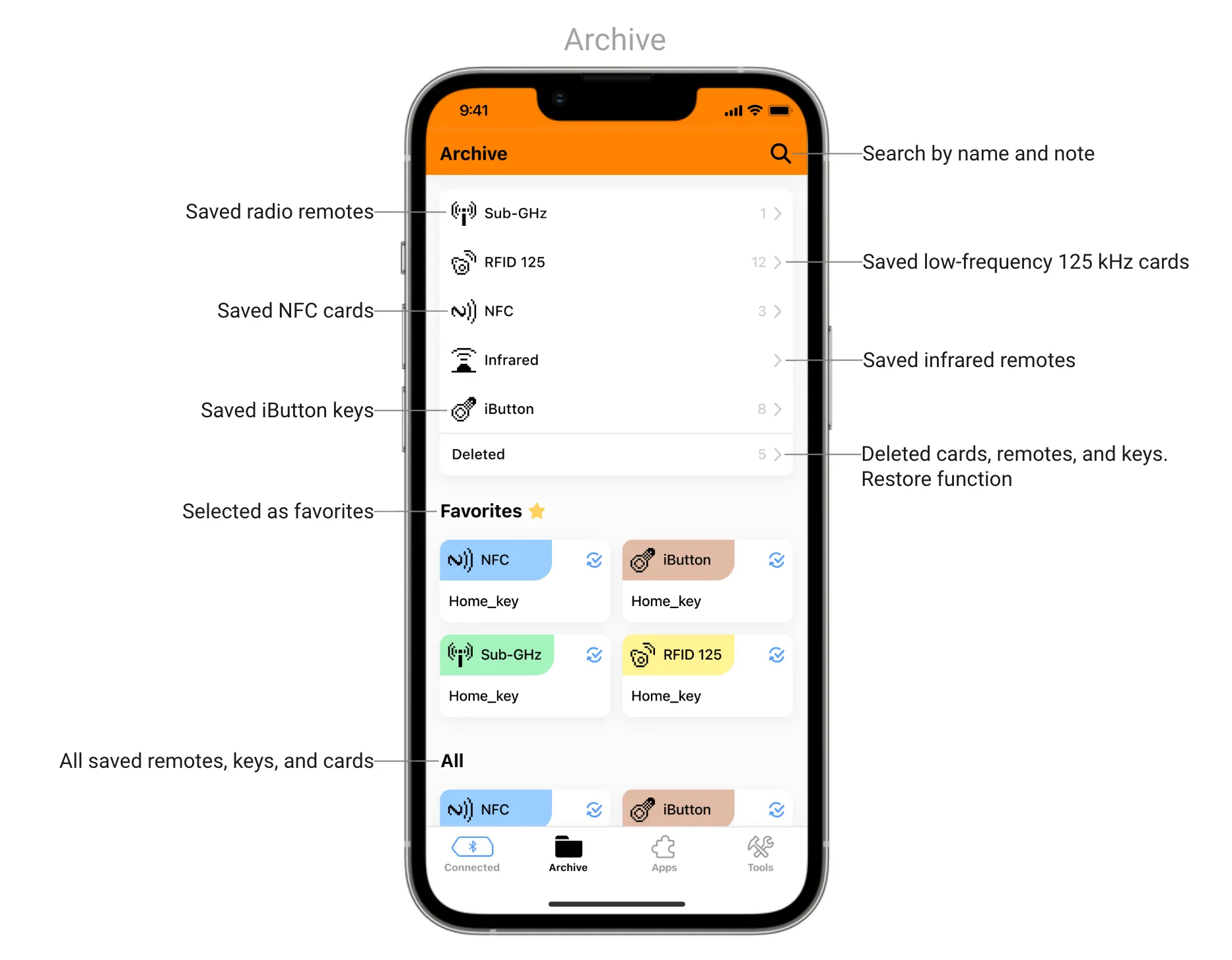
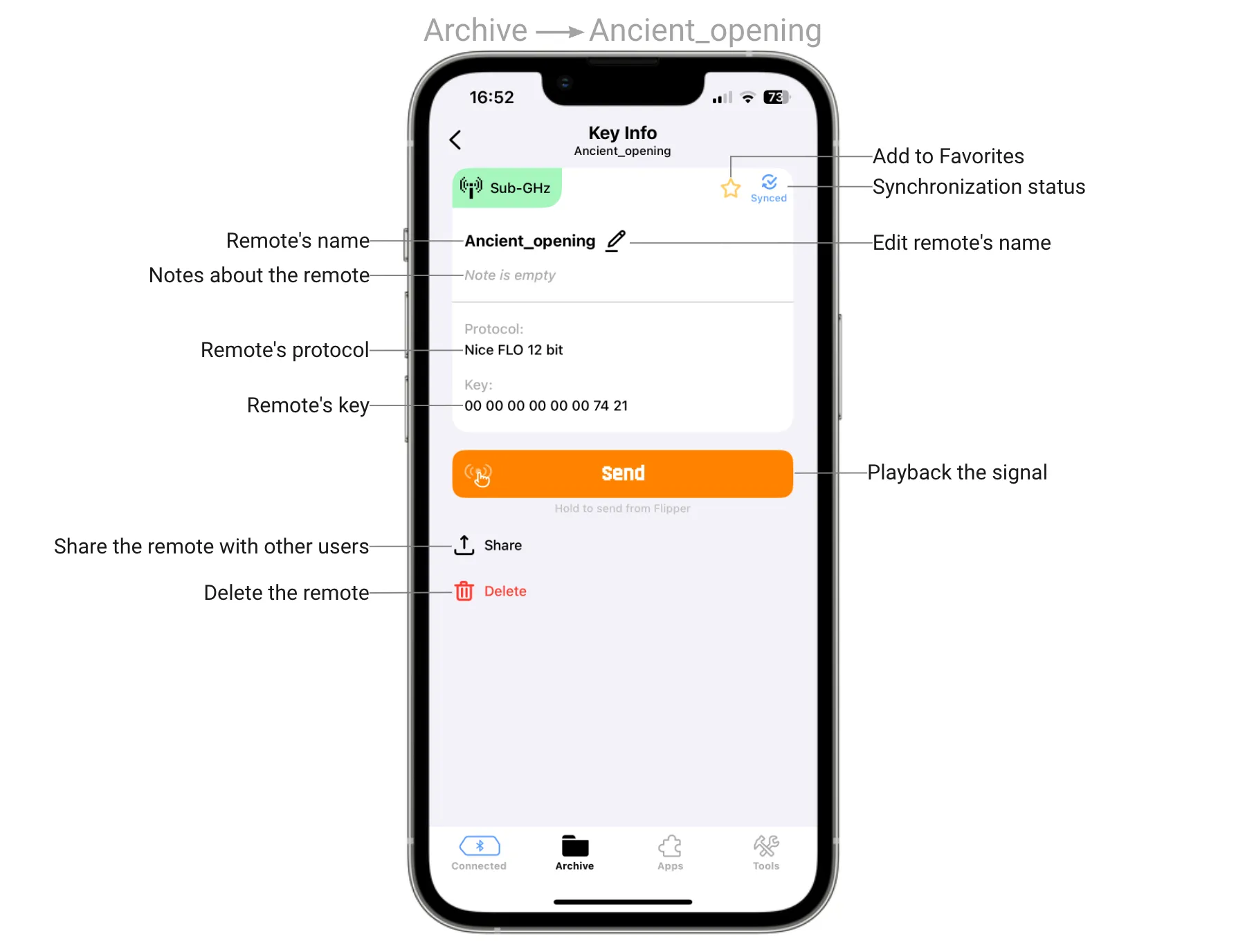
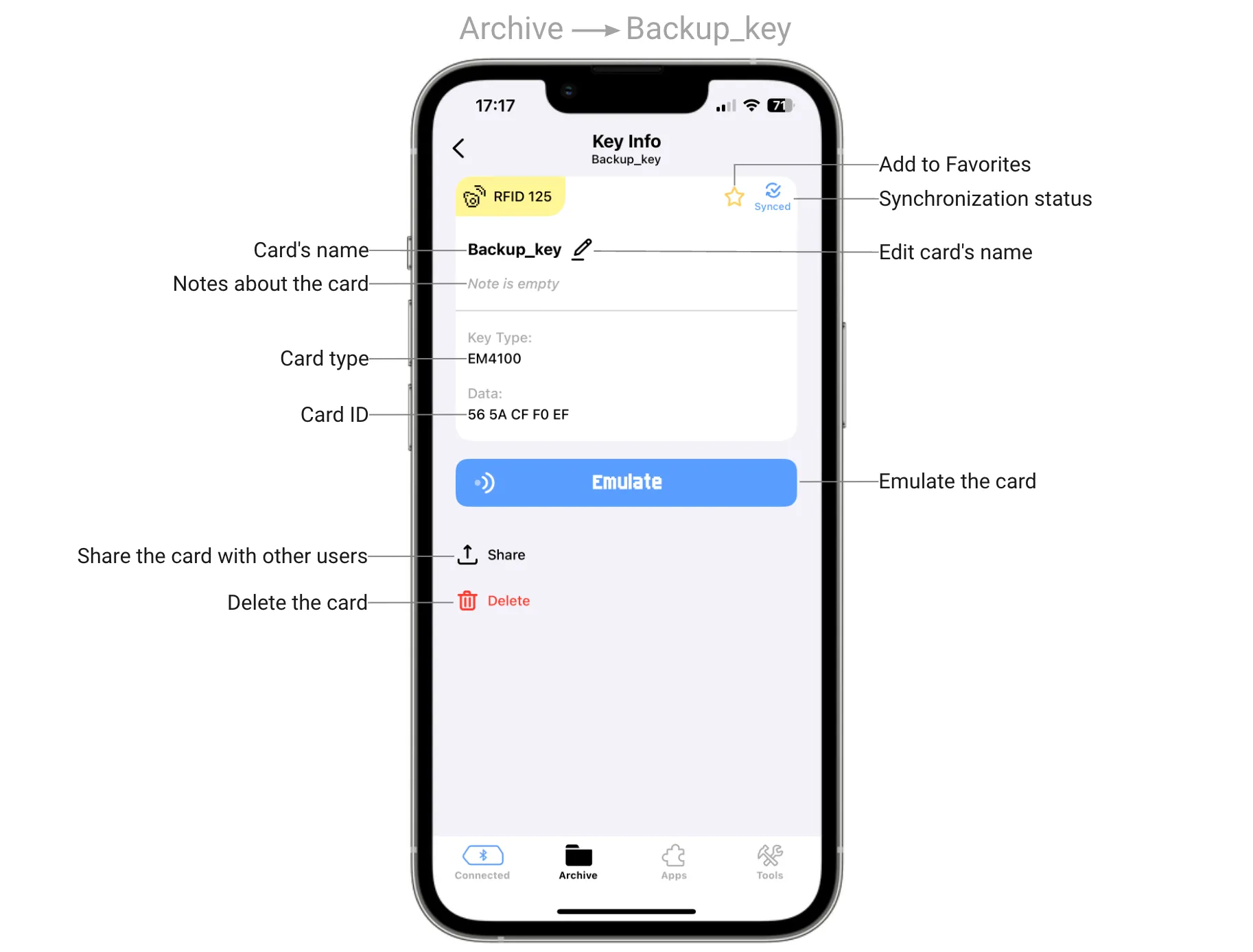
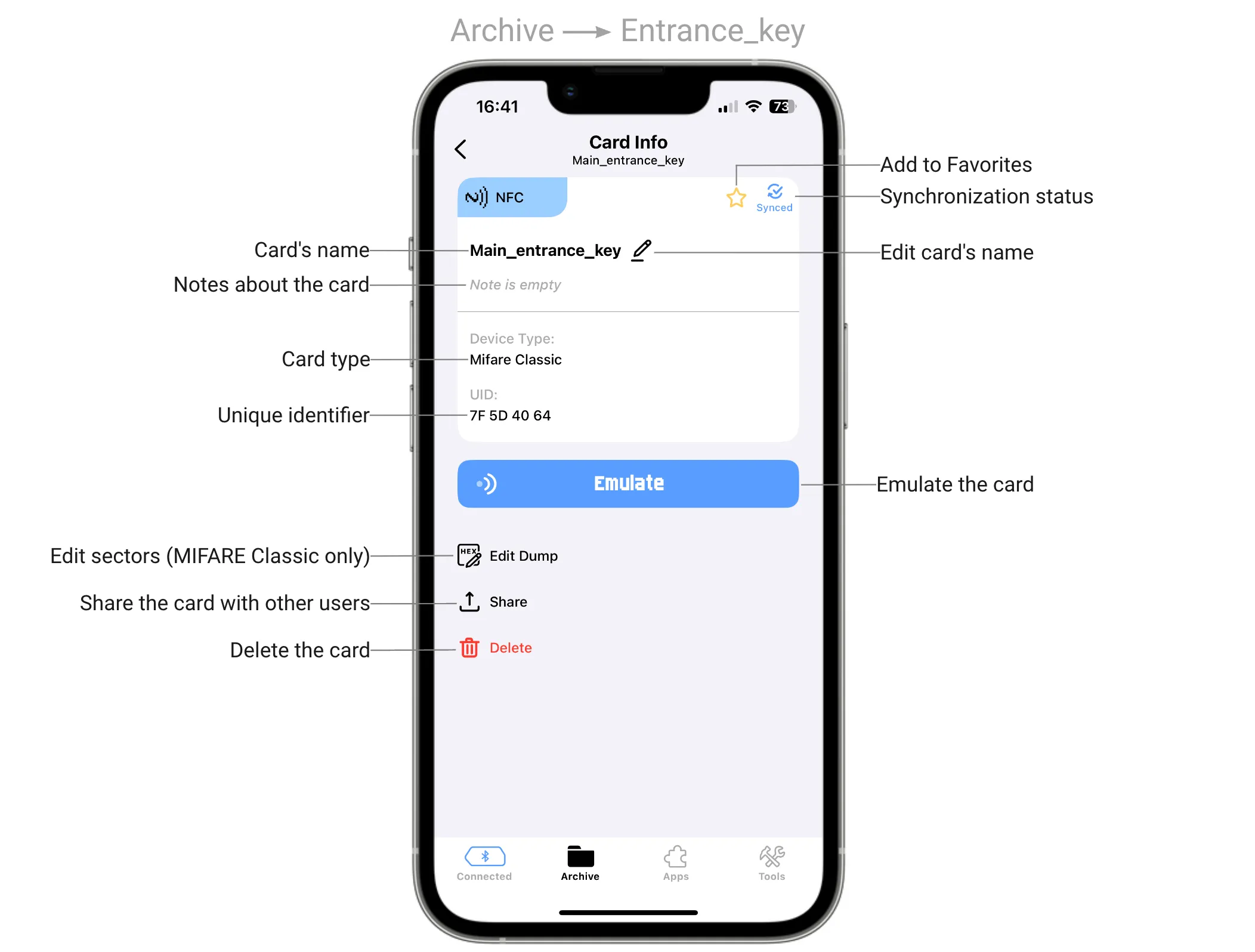
To see detailed information, tap one item from the list. In Key Info, you can emulate or play back saved keys, add to favorites, rename, add notes, review technical information, delete, and share keys with others.
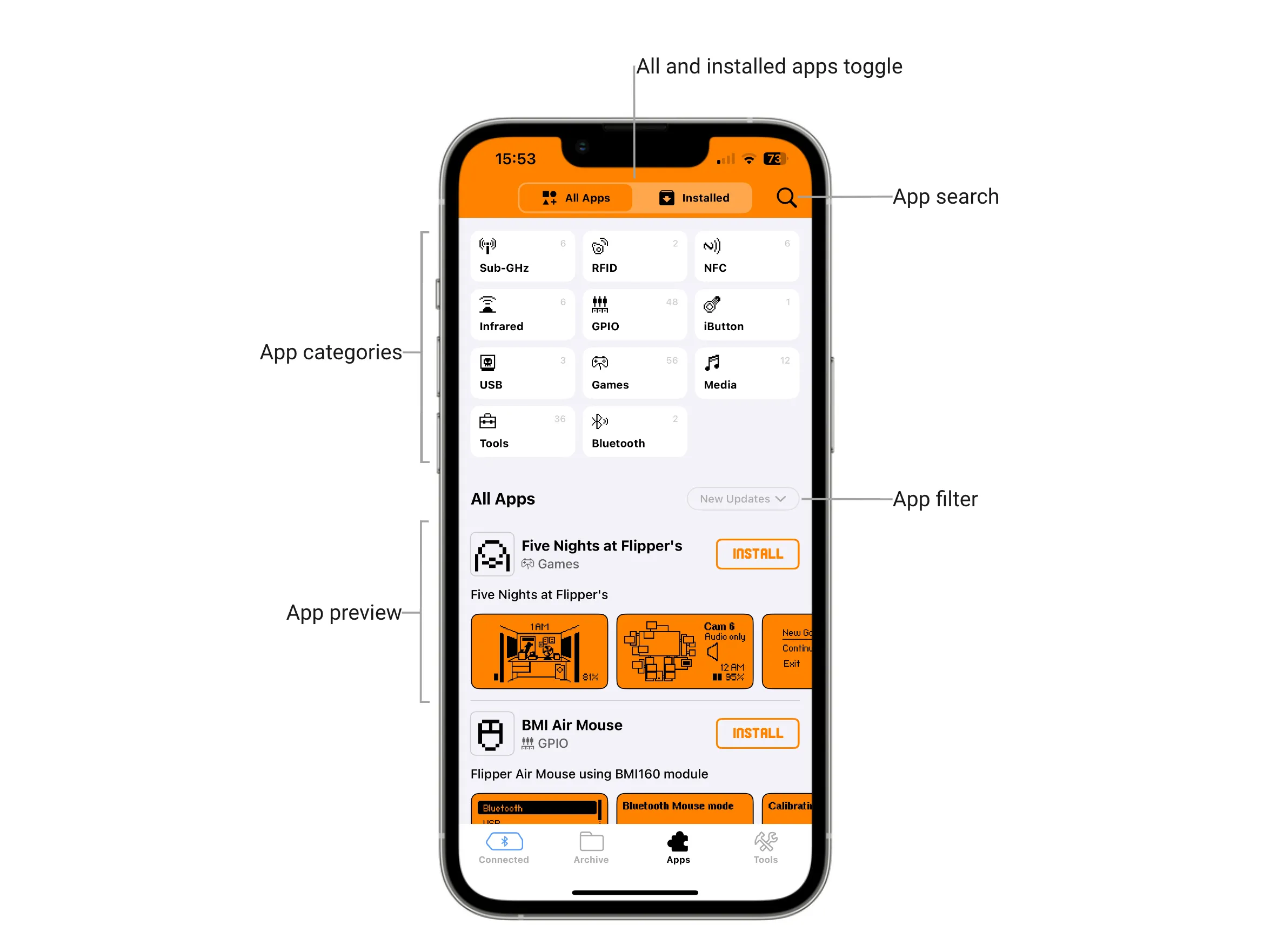
In the Apps tab, you can access the catalog of community-developed apps and install them to your Flipper Zero via Bluetooth LE.
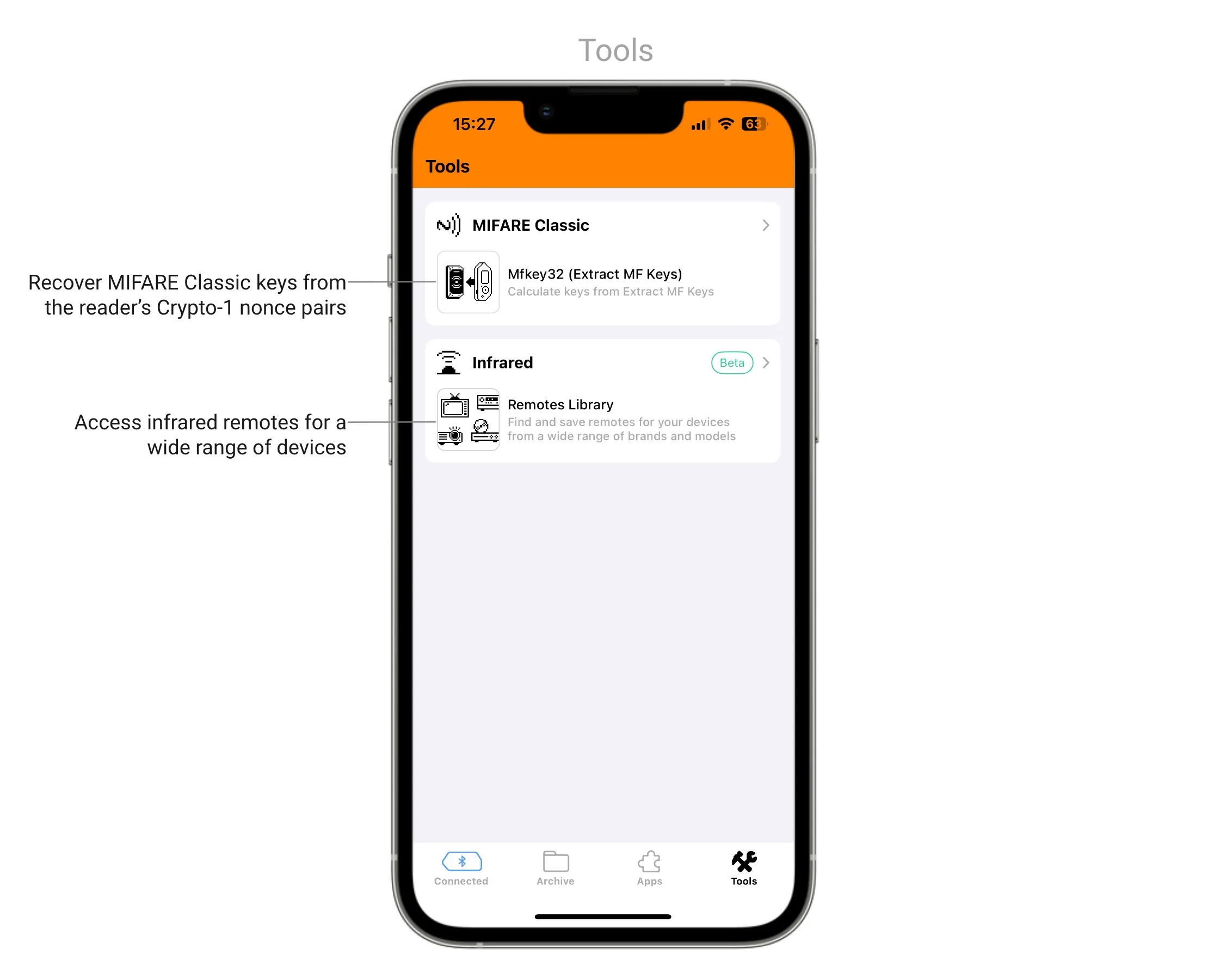
In the Tools tab, you’ll find tools that expand Flipper Zero functionality, such as Mfkey32 (Extract MF Keys) for calculating MIFARE Classic keys, and Remotes Library for getting access to a wide range of infrared remotes. These tools are developed and maintained by our team.
To learn how to report bugs, visit the Reporting Mobile App bugs page.
Adding the Flipper Mobile App widget
With the Flipper Mobile App widget, you can quickly emulate saved remotes and cards on your Flipper Zero without opening Flipper Mobile App.
Adding the widget on iOS
On iOS devices, you can add the Flipper Mobile App widget to the Today View screen by doing the following:
On your Home Screen, swipe right to open the Today View screen.
Touch and hold an empty area on the Today View screen.
Tap Edit, then tap Add Widget.
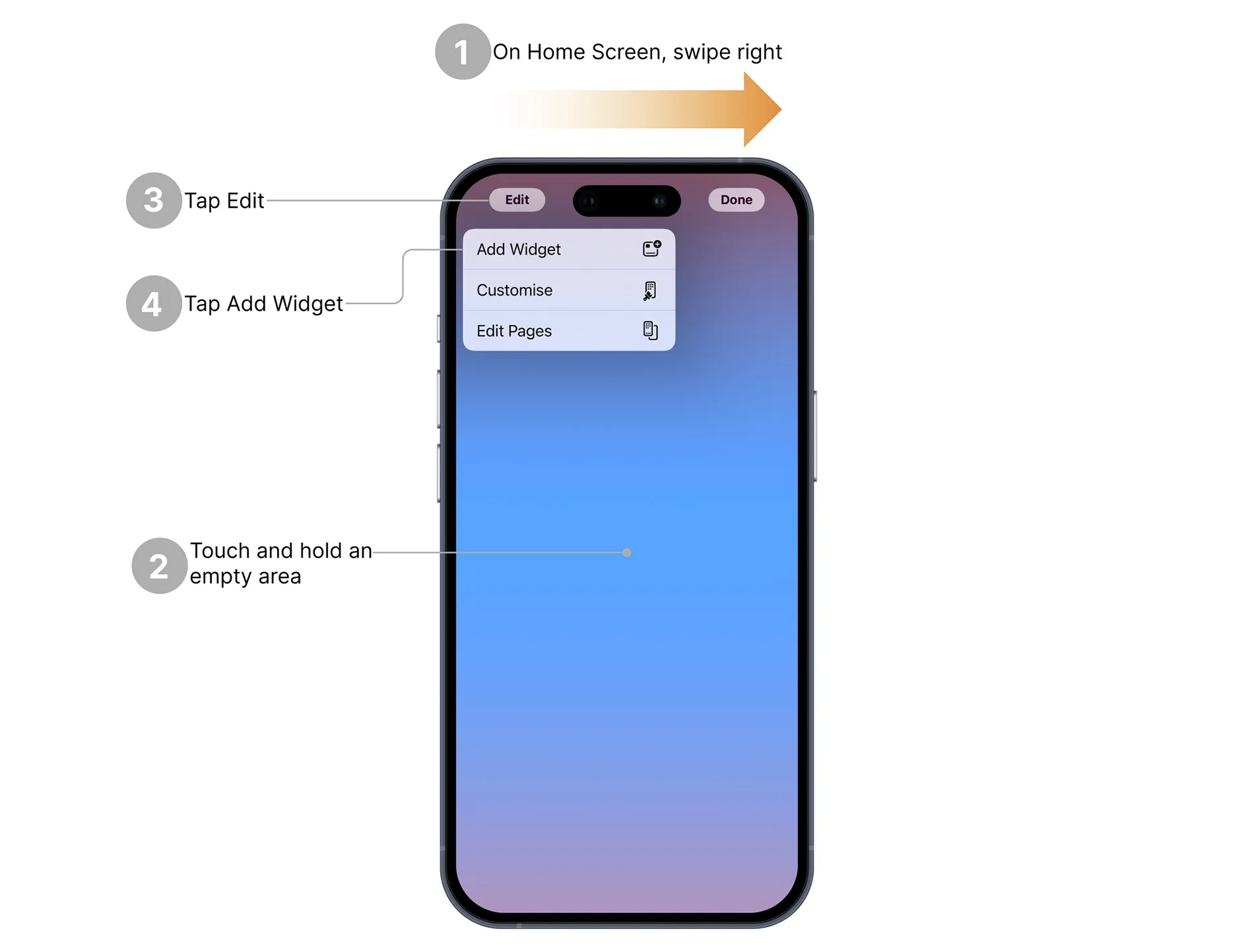
Find and add Flipper to the list of widgets, then tap Done.
Now, you can add saved remotes and cards to the Flipper Mobile App widget by customizing the widget itself.
On your phone, touch and hold the widget.
Tap Edit Widget.
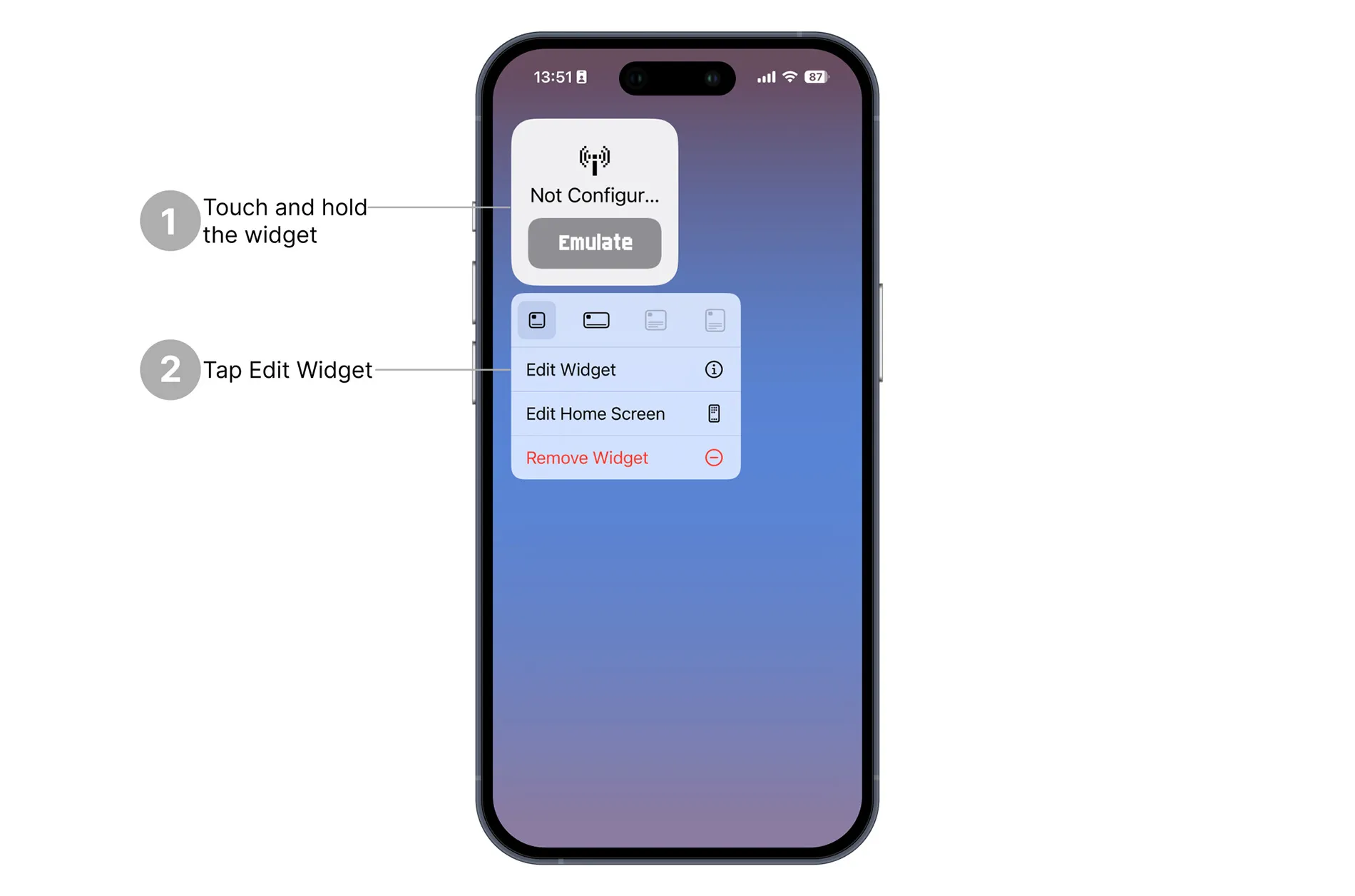
Select a saved remote or card.
To quit, tap outside the widget area.
Adding the widget on Android
On Android devices, add the widget on the Home screen, then tap the added widget to customize it.
Updating Flipper Zero
You can update your Flipper Zero with Flipper Mobile App via Bluetooth. Similar to qFlipper, Flipper Mobile App has three firmware update channels:
- DEVELOPMENT (Dev): The ongoing development is constantly building a new version of the firmware with every new commit, often multiple times per day. This Development version includes all the latest features, but it may be unstable, cause freezing or corruption of your data, or fail to function altogether.
- RELEASE-CANDIDATE (RC): The version submitted for validation testing to the QA department. If any bugs are detected during the testing phase, the version is revised, and a new Release candidate is issued. Once the release candidate successfully passes all tests, it becomes the Release version.
- RELEASE: The stable version of the firmware is extensively tested to ensure its reliability and is therefore recommended for general use.
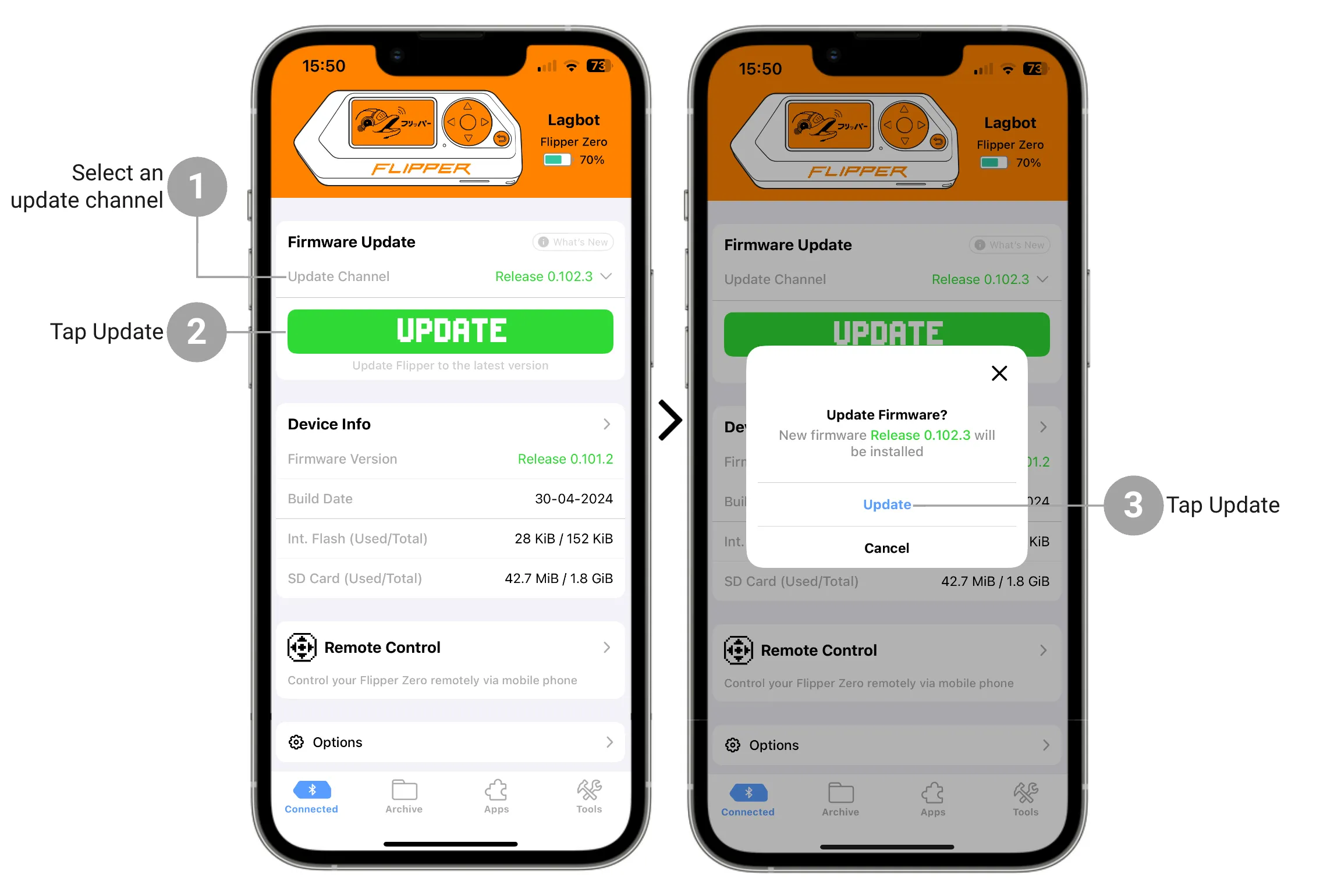
To update your Flipper Zero via Flipper Mobile App, do the following:
In the Main Menu tab, tap Update Channel and select a firmware (Release is recommended).
Tap the Update button.
Tap the Update button to confirm the action.
The update via Flipper Mobile App may take up to around 10 minutes.
If Flipper Zero update failed
- Check the Bluetooth connection with your Flipper Zero.
- Make sure your Flipper Zero is turned on.
- If your Flipper Zero doesn't respond, reboot it. -> How to reboot Flipper Zero.
- Restart firmware update.
- If you still can’t update your Flipper Zero with Flipper Mobile App, full or broken internal storage might be the cause. To resolve this issue, follow the steps described on the Internal storage repair page.
Backing up data with the mobile app
With Flipper Mobile App, you can back up keys, cards, and remotes stored on the microSD card of your Flipper Zero. The backed up keys can be shared via a messanger, uploaded to a PC, or saved to your smartphone.
To back up your data using Flipper Mobile App, do the following:
In the Main Menu tab, tap Options -> Backup Keys.
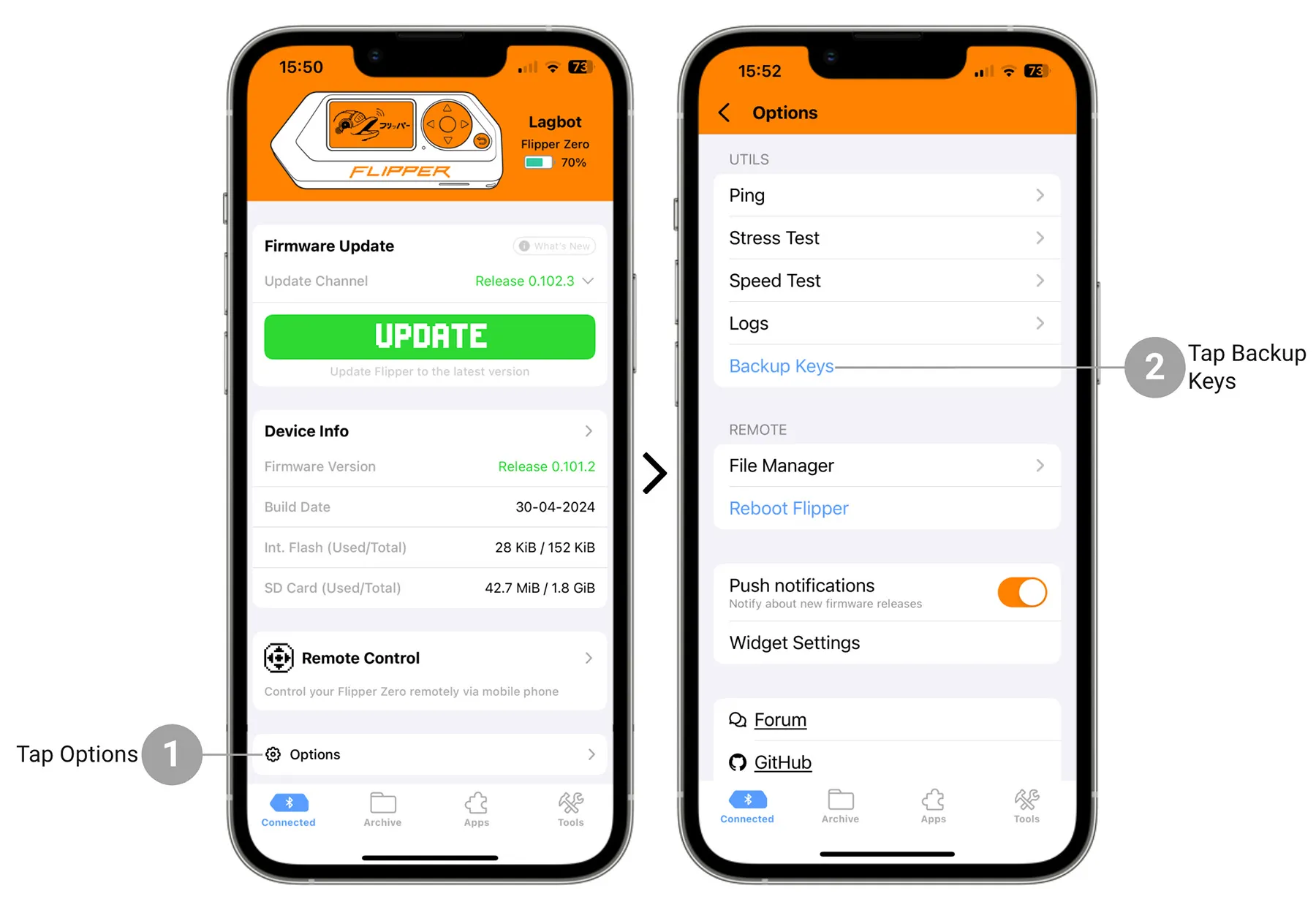
Select where you want to save or share the .zip file of your data.
Alternatively, you can download all of your microSD card data using the qFlipper desktop application:
In qFlipper, go to File manager -> SD Card
Right-click the folder or file, then click Download.
Choose where you want to download the folder or file.
How to upload backed up keys to Flipper Zero
To upload the backed up keys to Flipper Zero:
Unzip the .zip file with your backed up data.
Manually upload the files to your Flipper Zero using qFlipper.
Having issues with Flipper Mobile App? Report the bug: