ZEPETO LIVE PC Guide
ZEPETO Live Overview
Want to go live with the ZEPETO LIVE PC program? 💡 Not sure how to start? Just follow this guide step by step. It’s easy—let’s do it together! 🚀
⬇️ Software Download
ZEPETO LIVE PC program is updated manually. Check the middle banner on the Live Home periodically and download the latest version when an update is available.
📌 v4.31 Update! What’s New? (2026/09/04)
- No more troublesome cropping or chroma keying!
- You can now import Avatar, Gesture, Voice Donation (TTS), and Wishlist separately as high-quality transparent sources.
- Say goodbye to Avatar quality loss and awkward border shadows!
- Resize your Avatar freely without losing quality or creating unwanted shadows.
✅ OBS Studio must be downloaded directly from the official website.
✅ Windows users: After installing OBS, you must also install the OBS plugin below.
📌 Why go live on PC?
While ZEPETO LIVE makes it easy to stream from your phone, going live on PC gives you access to additional tools and more flexibility when creating content.
• Stream a variety of content through OBS integration • Enhance your broadcasts with subtitles, background music, scene transitions, and item switching • Control your Avatar with greater precision using face and hand recognition
It’s a great option for content that needs extra flair—such as gaming, web browsing, drawing, or exploring feeds.
Ready to get started with ZEPETO LIVE on PC?
1) Before You Start
Make sure everything is ready to run the LIVE PC program. Double-check the setup so you’re good to go.
Required Tools | Details |
|---|---|
Equipment | 1. Webcam that can connect to your PC 2. Microphone that can connect to your PC 3. Minimum PC specs: ✓ OS : Window(10, 11) / Mac (intel X64, Arm) ✓ CPU : intel i5 or higher ✓ RAM Memory : 8GB ✓ Internet : Speed 70 Mbps or faster |
Program | 1. ZEPETO LIVE PC Program
2. OBS Studio
|
Watching Live Streams | ZEPETO Mobile App (iOS/Android), Web Viewer 📌 You can now watch ZEPETO LIVE on PC through the Web Viewer! Just open your browser and start watching—easy! No app, no login needed. |
Getting Streaming Access | 1. Create a ZEPETO account 2. Sign up for ZEPETO Studio 3. Get ZEPETO LIVE streaming access |
If you’ve completed all the steps above, you’re now ready to start streaming with the LIVE PC program!
❗️Important Notes
- To receive earnings, you must be registered with ZEPETO Studio. Double-check your registration status.
- Supported countries for live streaming: South Korea, Japan, Taiwan, Thailand, Indonesia, USA, France, Canada, Australia, Ireland, UK, Belgium
- You may lose your streaming rights or face a permanent ban from broadcasting in the following cases:
- Violating ZEPETO’s Community Guidelines
- Sharing the ZEPETO LIVE program with others or online without permission
- Modifying the ZEPETO LIVE program without authorization
2) Setting up a Live stream
Before going live, make sure all your equipment is properly set up.
To stream, you’ll need to use both the ZEPETO LIVE PC program and a broadcasting tool like OBS at the same time. Launch the ZEPETO LIVE PC program and OBS --> Enter the OBS stream key from the PC program into OBS.
2-1) OBS Settings
Launch the OBS program.
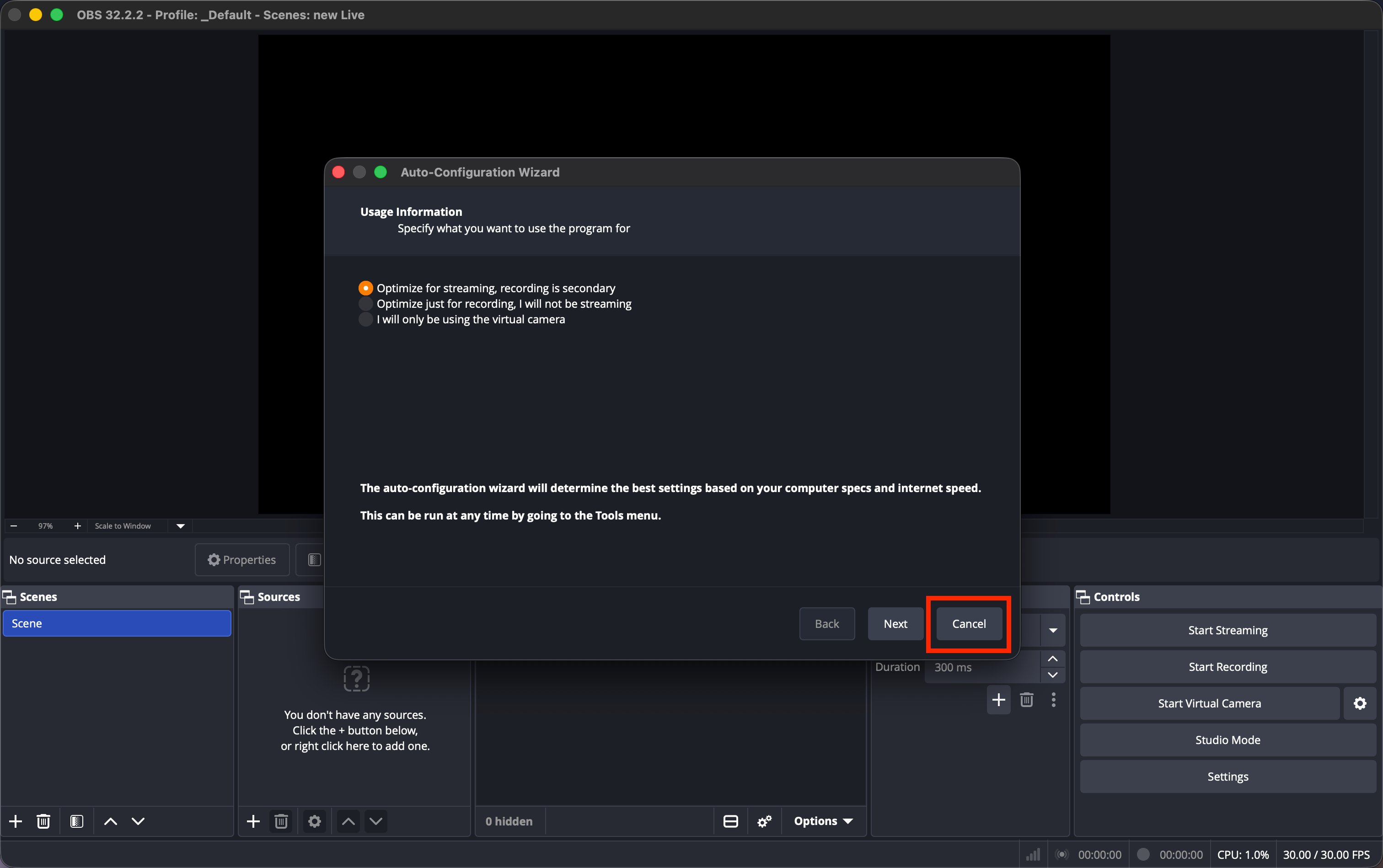
When the OBS auto-configuration wizard pops up, click “Cancel” without entering any info.
Go to File → Settings.
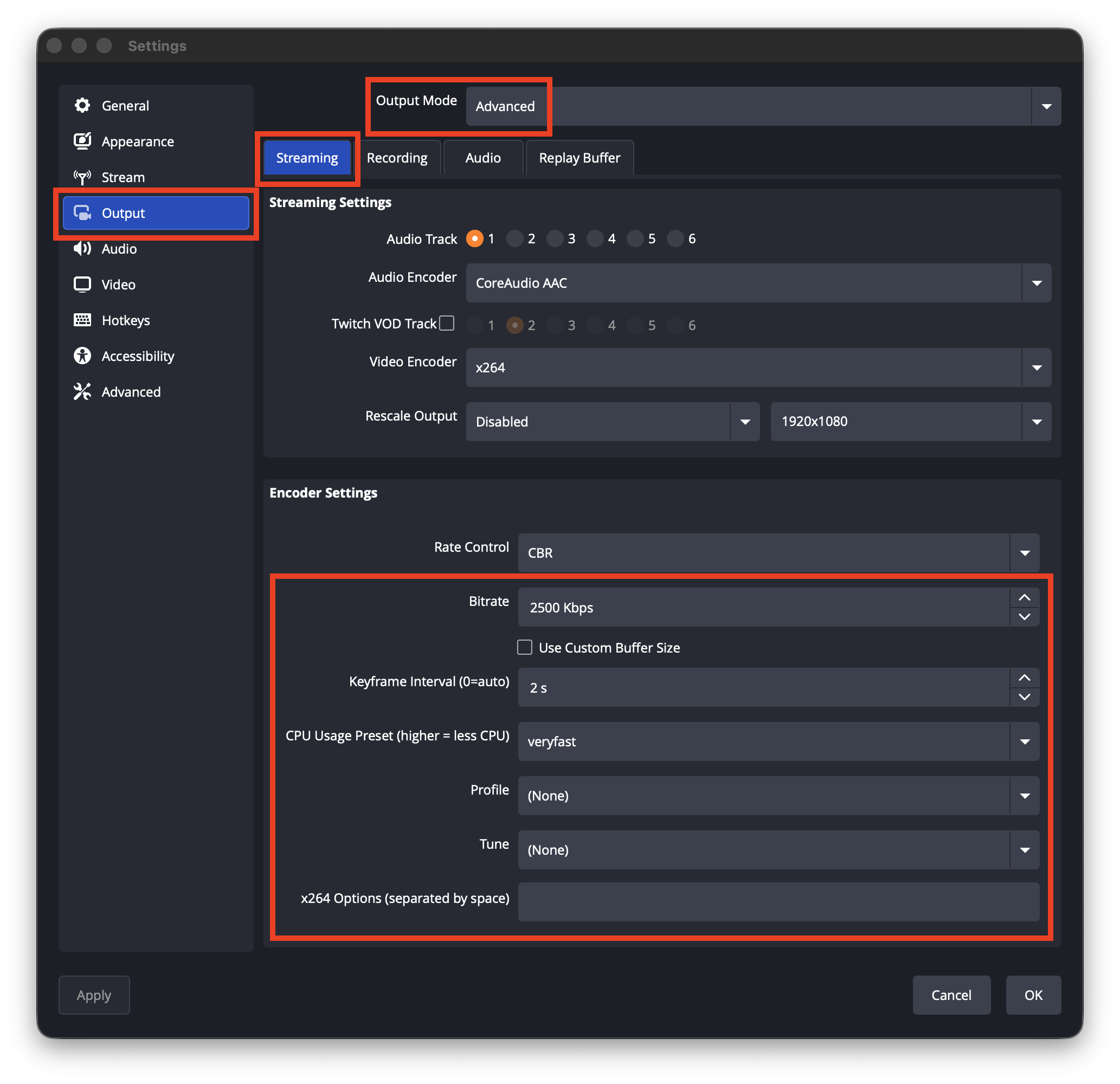
In the Output tab, set the Video Bitrate to 2500 kbps (Recommended range: 2000–3500 kbps).
Match the rest of the settings to the example shown in the image.
Next, go to the Video tab.
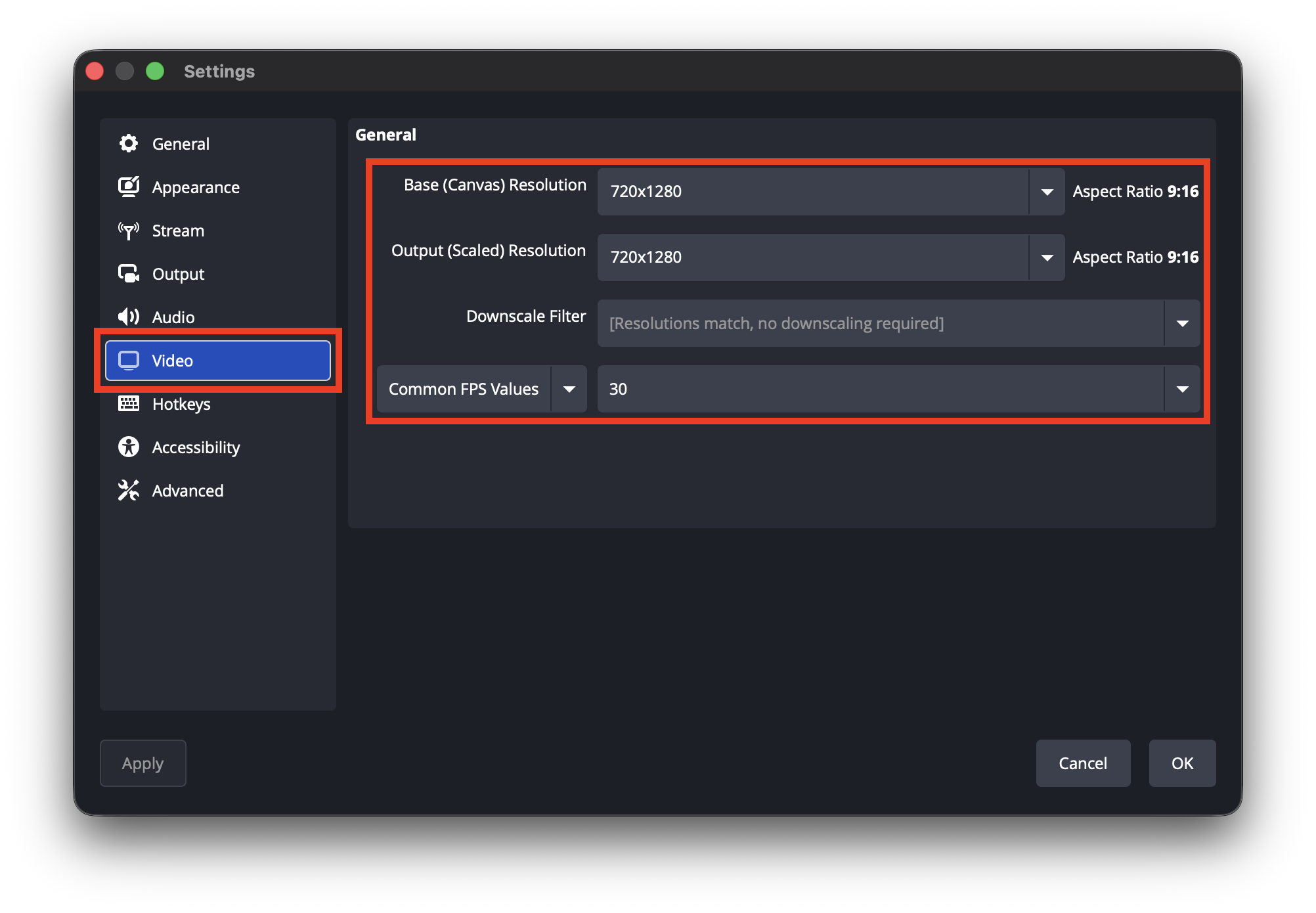
Set both the Base (Canvas) Resolution and Output (Scaled) Resolution to 720x1280. Set the Common FPS Values to 30. (Even if you choose 60 fps, ZEPETO’s servers process it as 30 fps.)
Click Apply and then OK — and you're all set! 👍
2-2) Setting Up the ZEPETO LIVE PC Program
Once you’ve finished setting up OBS, launch the ZEPETO LIVE PC program.
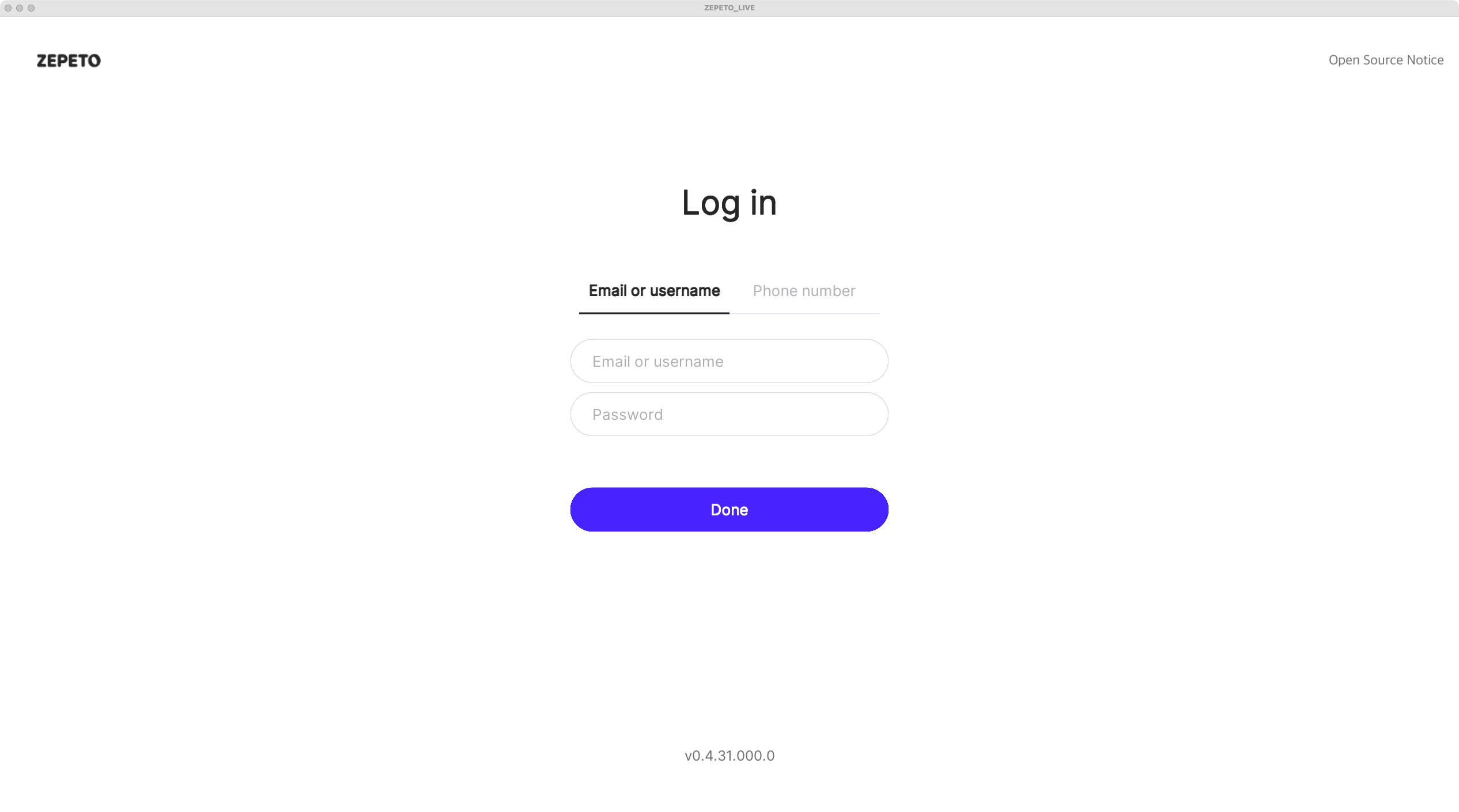
Log in with your ZEPETO ID and password to access the program.
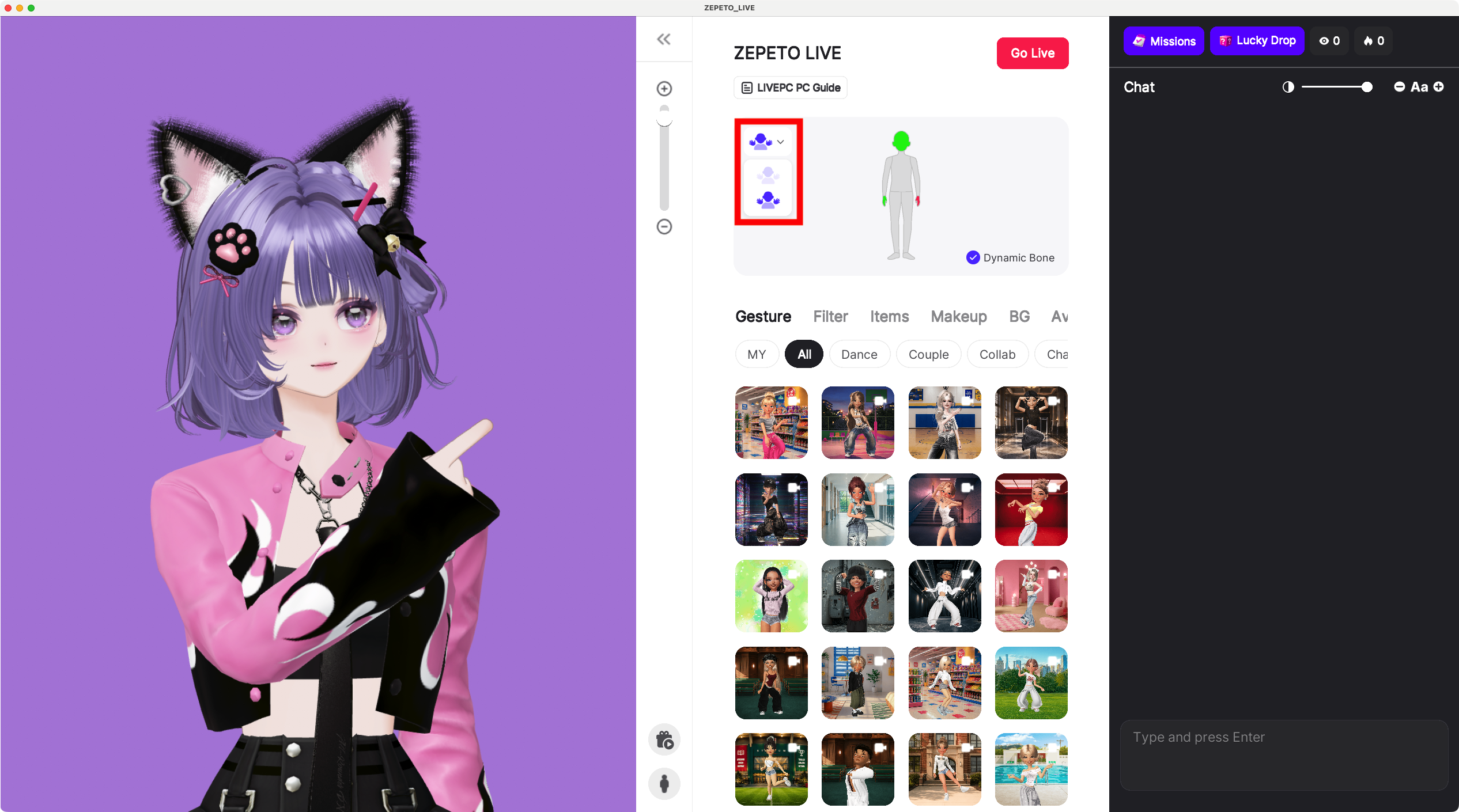
Ta-da! You’ll see your avatar on the left side of the screen. Try turning your head or smiling to check if face tracking is working well. 😉 In the center, you can choose between Face + Hand Tracking or Face (Upper Body) Tracking.
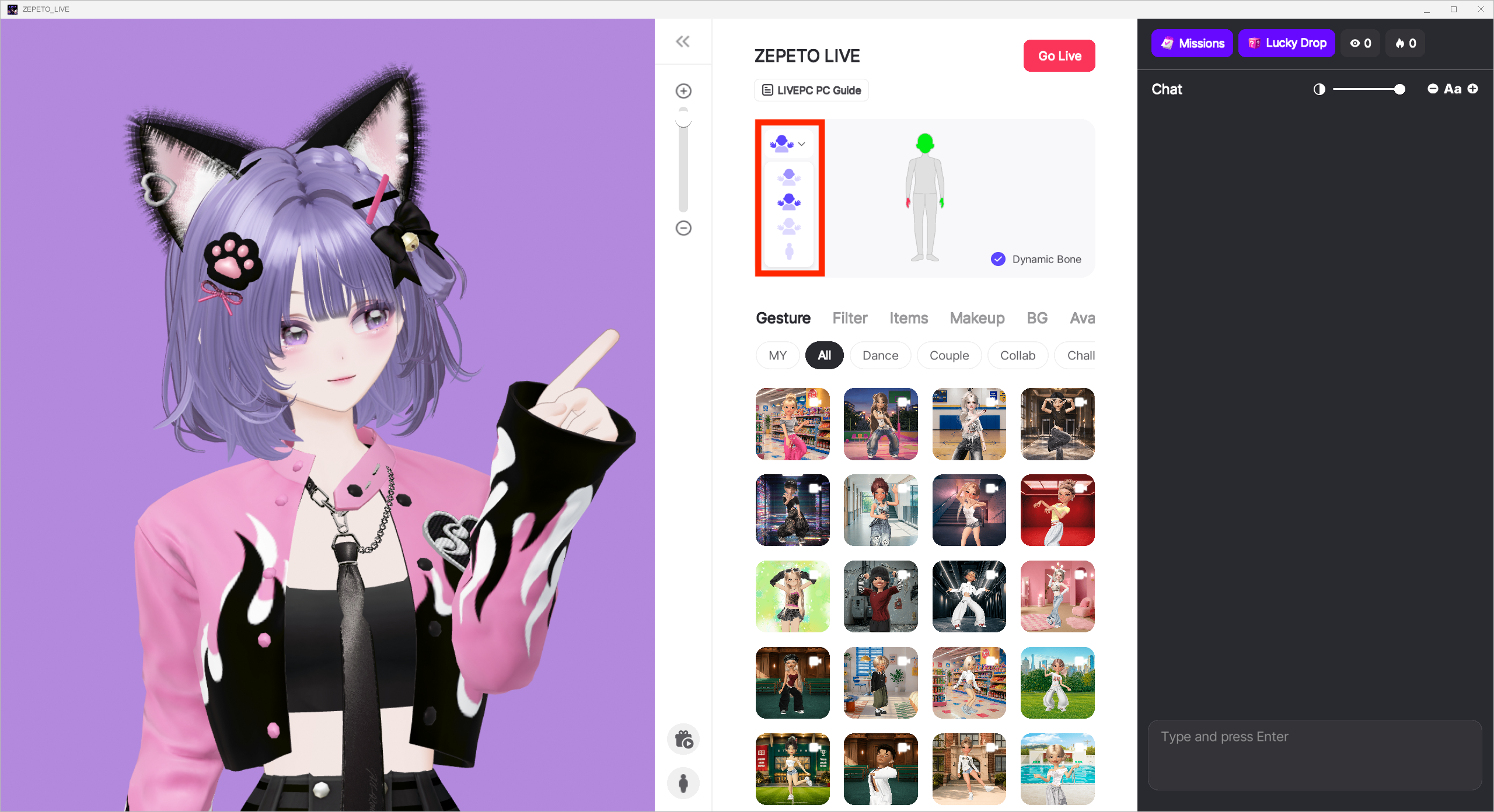
PCs that meet the system requirements below can try out Upper Body Capture and Full Body Capture! For Full Body Capture, your entire body must fit within the camera frame, so we recommend using a wider space for the best experience. Please note that these features are only available on PCs that meet the system requirements listed below.
- OS : Windows11
- GPU : Equipped with an NVIDIA GeForce or AMD Radeon graphics card
- Beta options are only available when an external graphics card is connected.
At the bottom center, you can customize gestures, filters, items, backgrounds, and avatars. Feel free to change them even during the stream—experiment and have fun!
On the right side of the screen, you’ll see chat messages from viewers. Make sure to check in and interact from time to time—engaging with your audience is key! 🎤
2-3) Connect OBS Studio and ZEPETO LIVE PC
Now, let’s connect OBS Studio and ZEPETO LIVE PC!
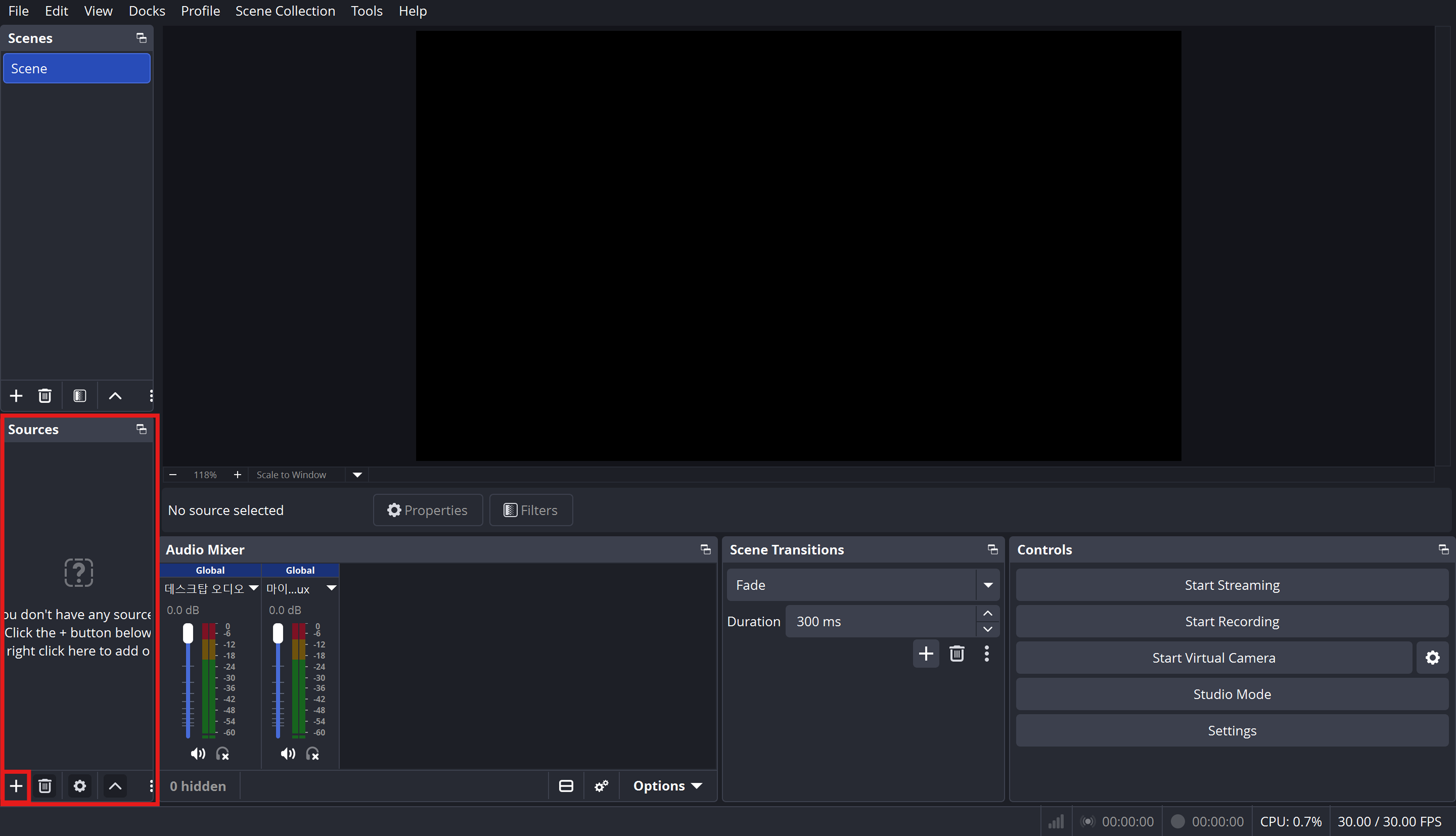
Open OBS Studio and click the [+] button in the Sources panel at the bottom.
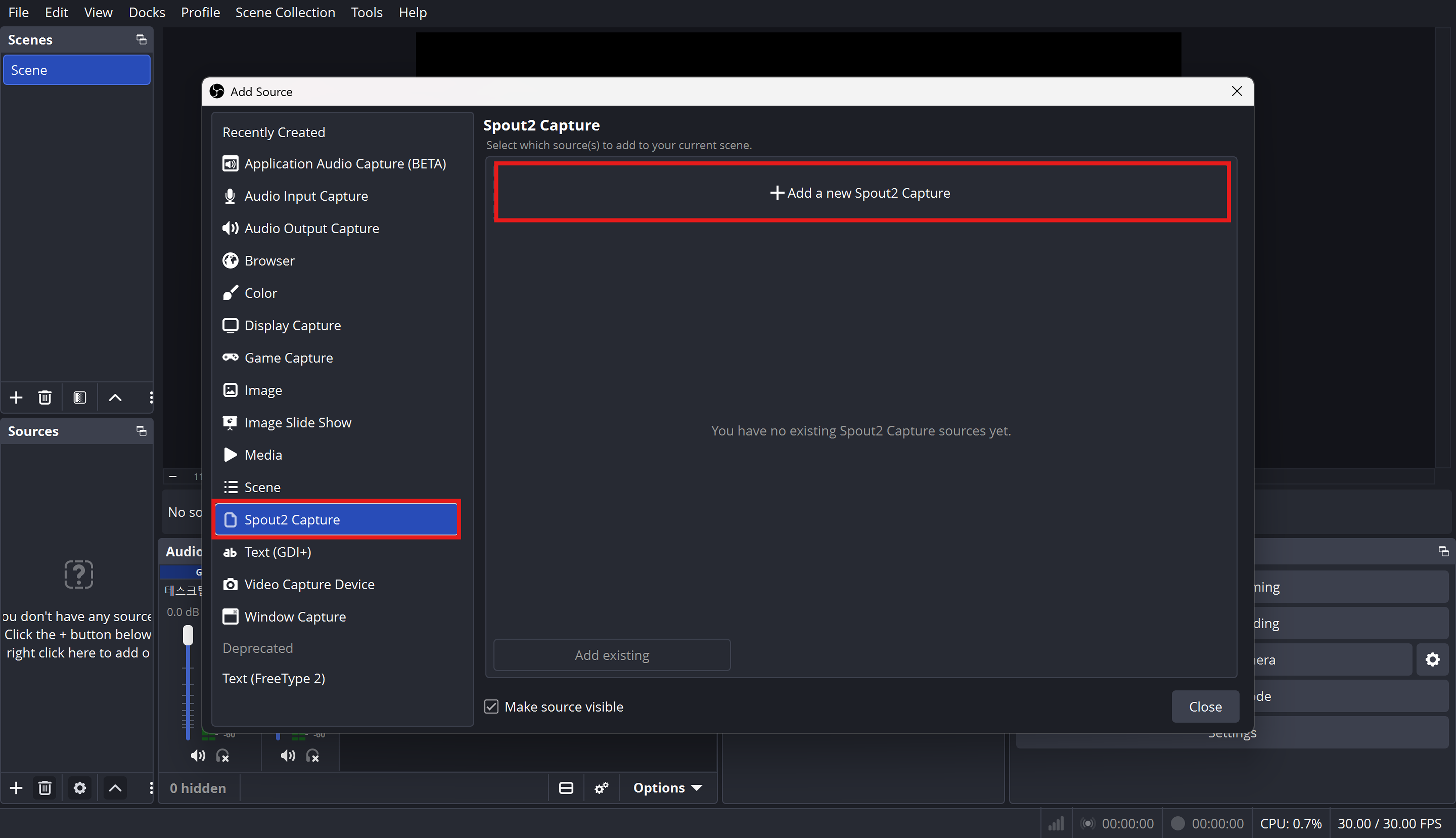
Select the source that matches your PC environment:
- Windows: Select Spout2 Capture
- macOS: Select Syphon Client
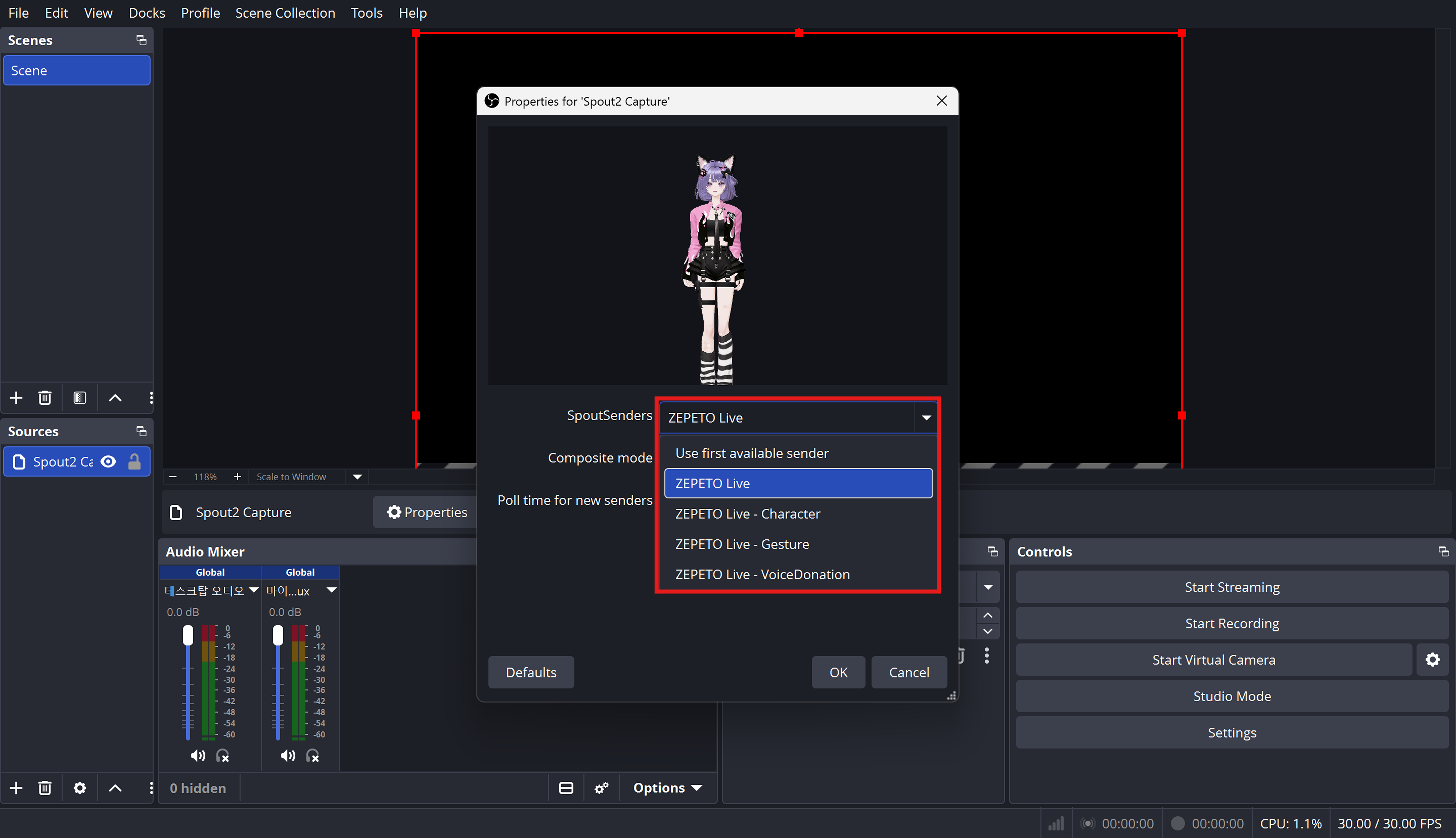
In the source settings window, select your desired source from the Spout2 / Syphon Sender list:
- ZEPETO Live - Full: Full screen (Character + Voice donation + Gesture)
- ZEPETO Live - Character: Avatar character only
- ZEPETO Live - Gesture: Gesture donation alert only
- ZEPETO Live - VoiceDonation: TTS voice donation alert only
- ZEPETO Live - Wishlist: Wishlist only
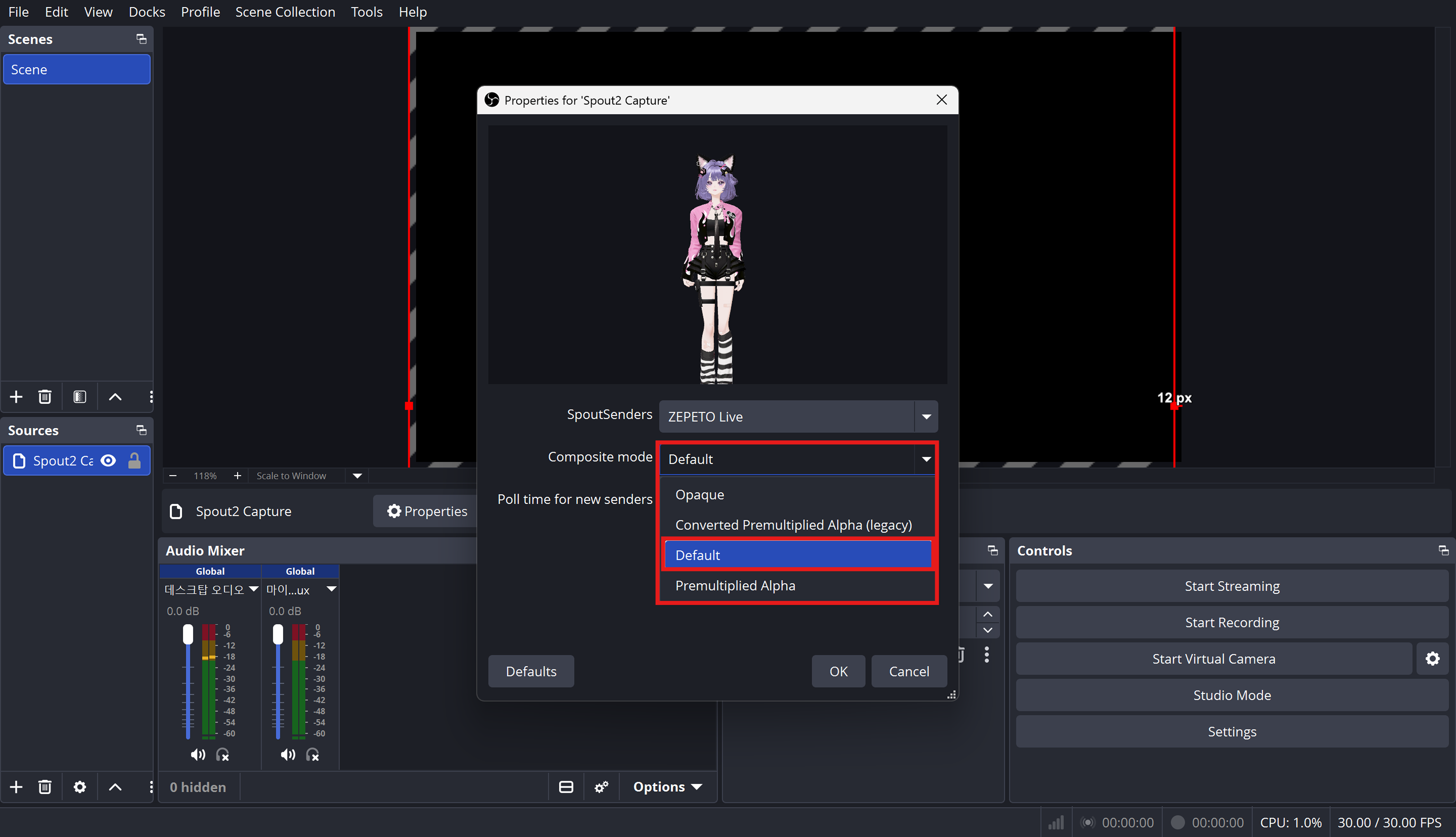
💡 OS Background Transparency Setup Tip!
- Windows (Spout2 Capture) Keep Composite Mode set to the default setting
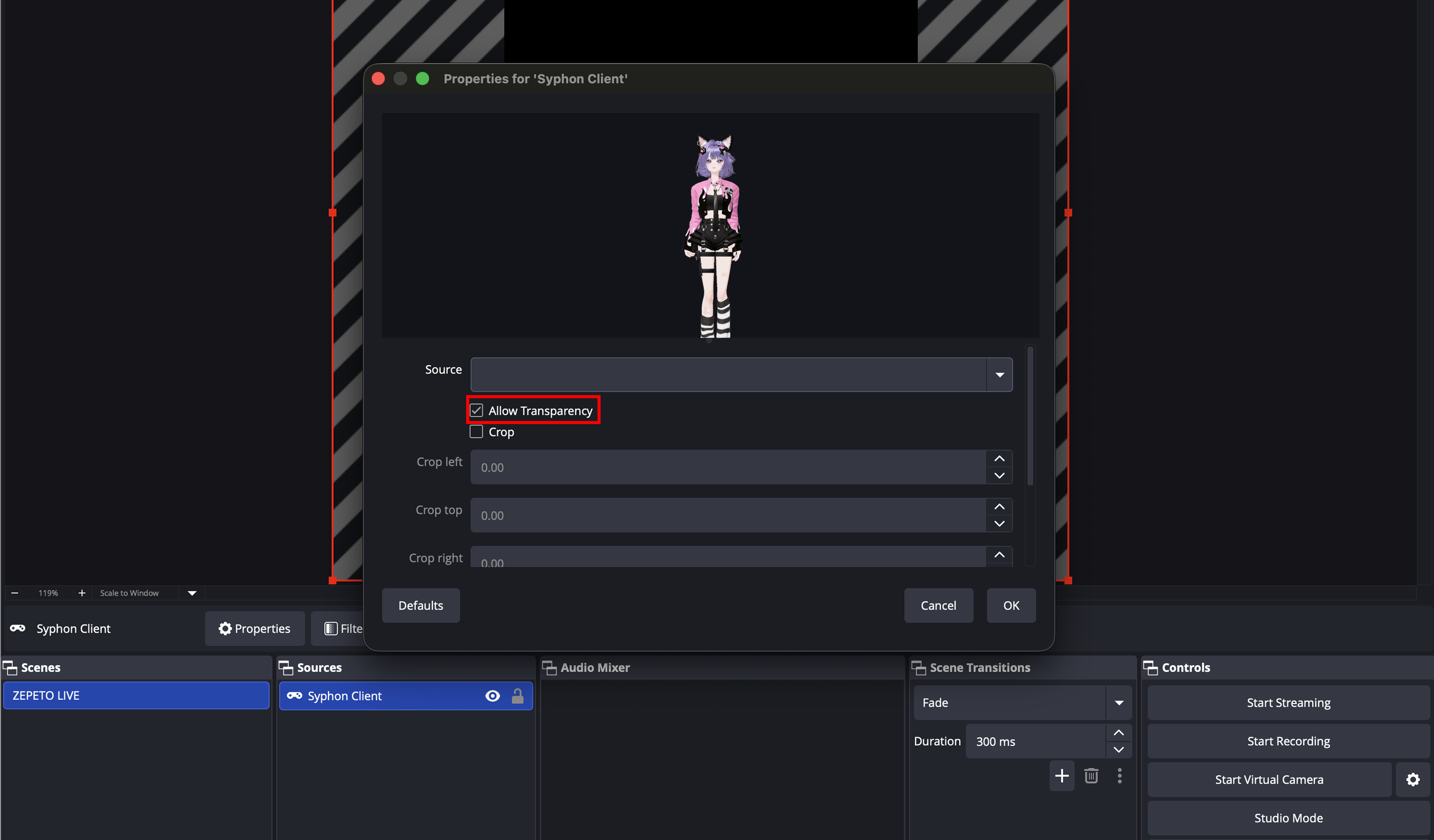
- Mac (Syphon Client) Make sure Allow Transparency is checked in the properties window. ※ If this option is unchecked, noise or graphic glitches may appear in the background.
- Tip: Rename your sources to make them easier to identify. (e.g., Avatar, TTS, etc.)
Congratulations! You're all set to stream!🥳
⚠️ Caution!
If the screen flickers or appears overly bright, go to [Settings] → [Display] and turn HDR Off to resolve the issue.
2-4) Arranging Individual Sources & Configuring Stream Layout
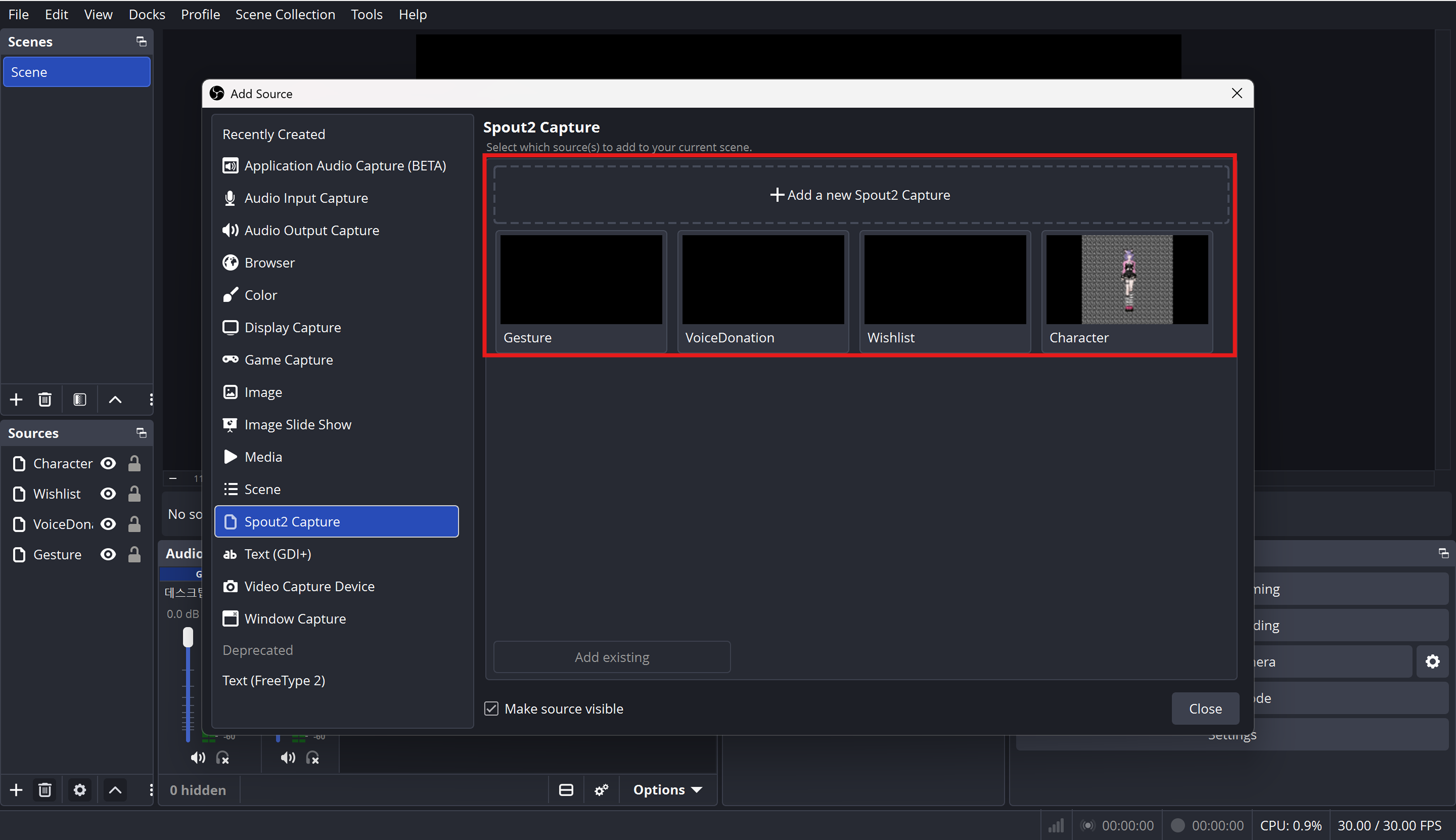
Follow the steps above to add the Character, Gesture, VoiceDonation, and Wishlist sources separately.
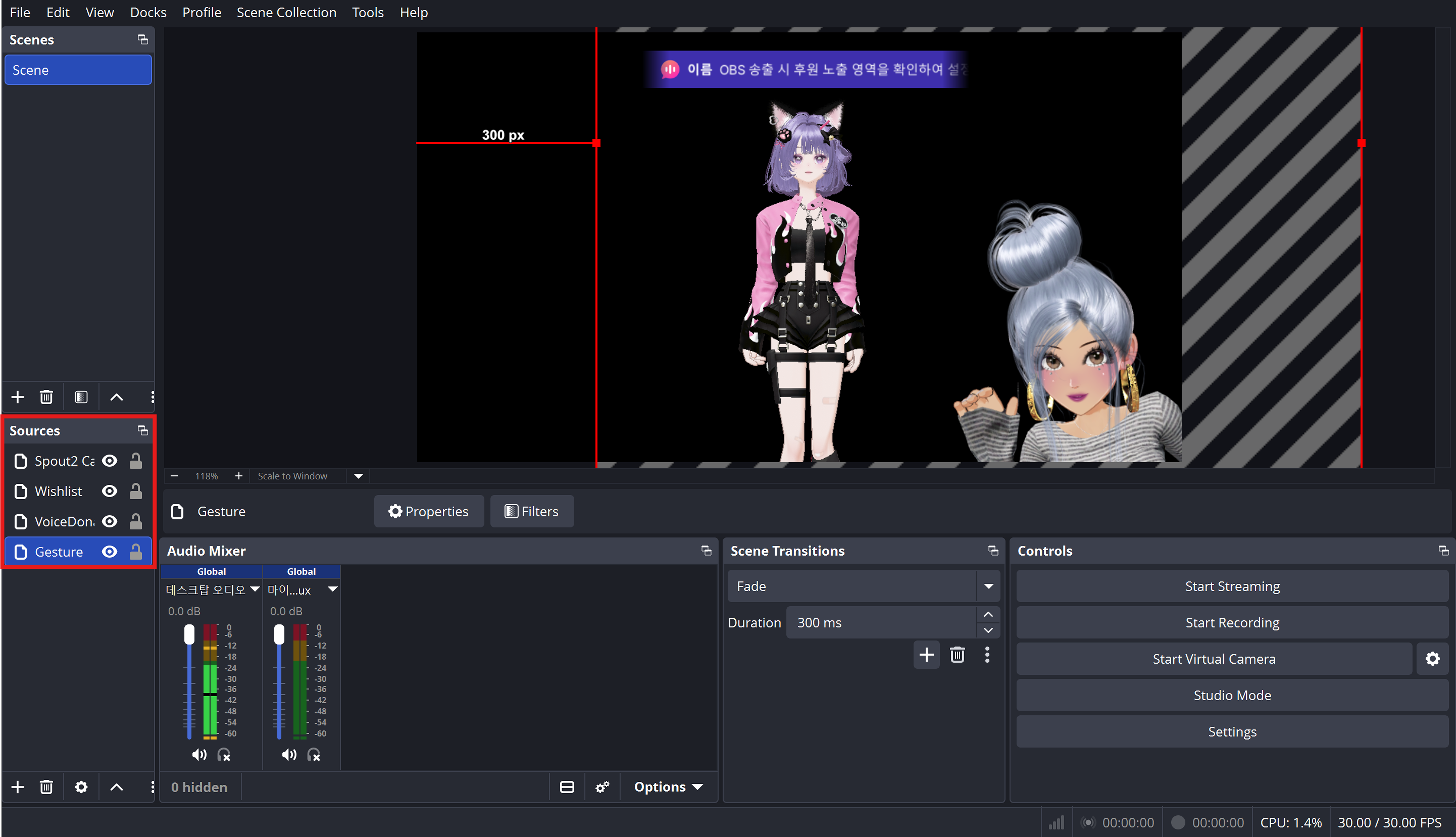
Drag and resize each source freely on the OBS canvas. You can customize your layout without losing quality or creating unwanted border shadows! Your personalized stream screen is now complete 👏👏👏
📘 Tip
When arranging your sources, make sure they don’t cover the chat box or stream information, keeping mobile viewers in mind.
When viewers watch on mobile devices, the chat box appears at the bottom, while stream information appears at the top. Be sure to leave these areas clear when setting up your layout!
2-5) ZEPETO LIVE PC Other Settings
Want to add another window to your stream screen?
Go back to OBS Studio, click the [+] button under Sources, select Window Capture, and click “OK.”
Window Capture can be used to show the ZEPETO LIVE PC background or display a real-time chat box on your stream!
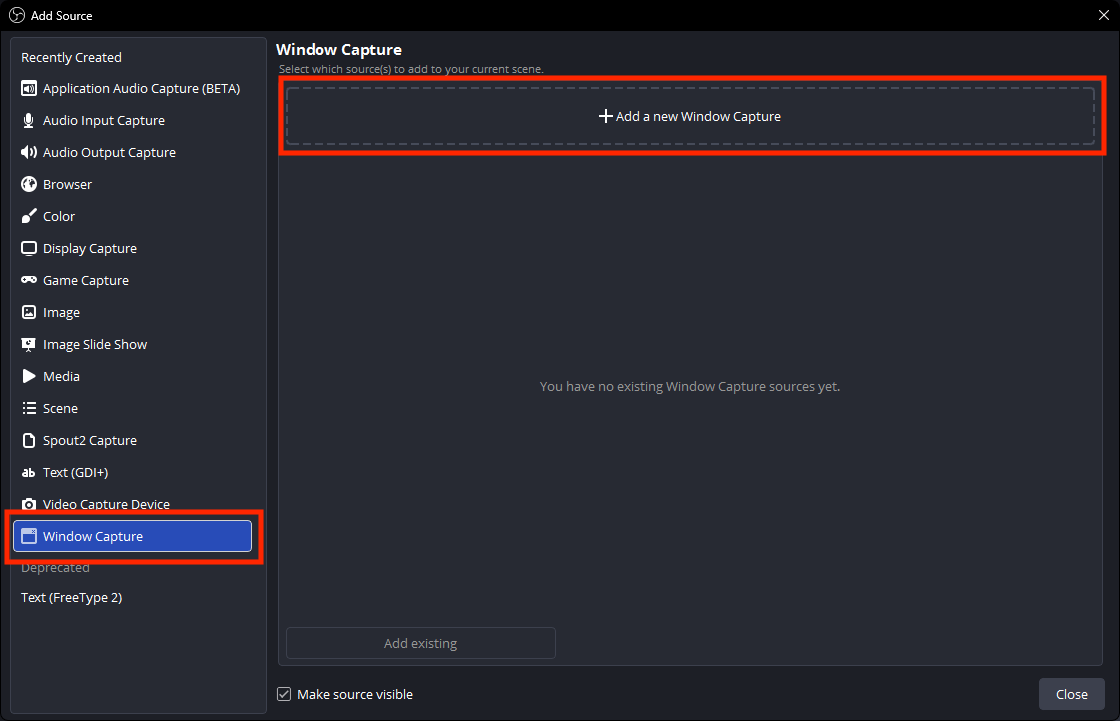
Open Window Capture Properties and select the active ZEPETO LIVE window to display it on your stream.
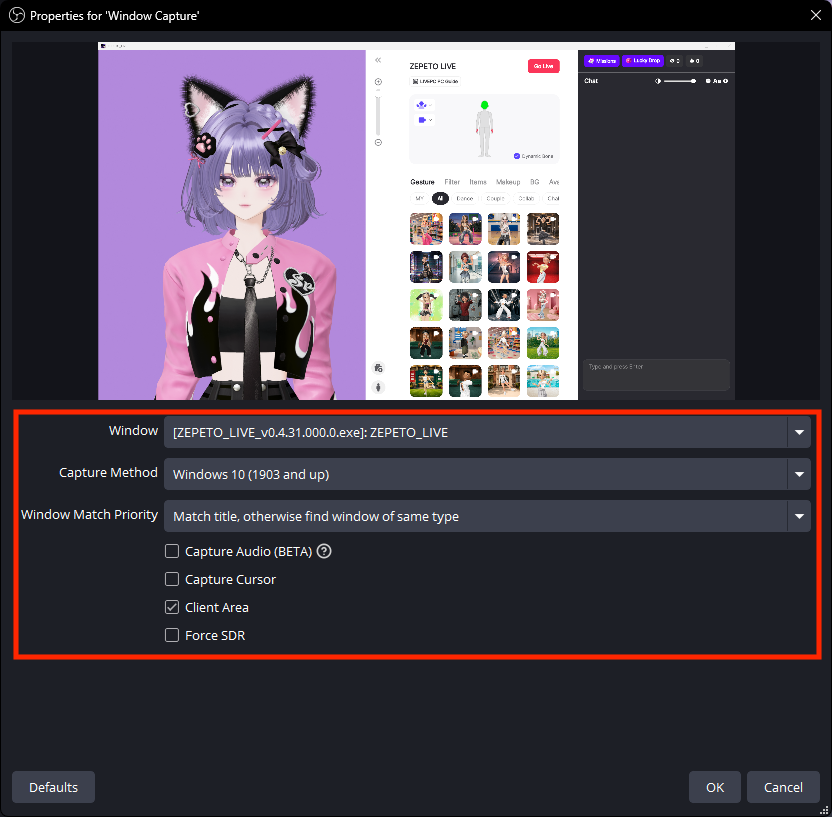
⚠️ Note for Windows Users!
When using Window Capture on Windows, set Capture Method to Windows 10 to apply transparency correctly.
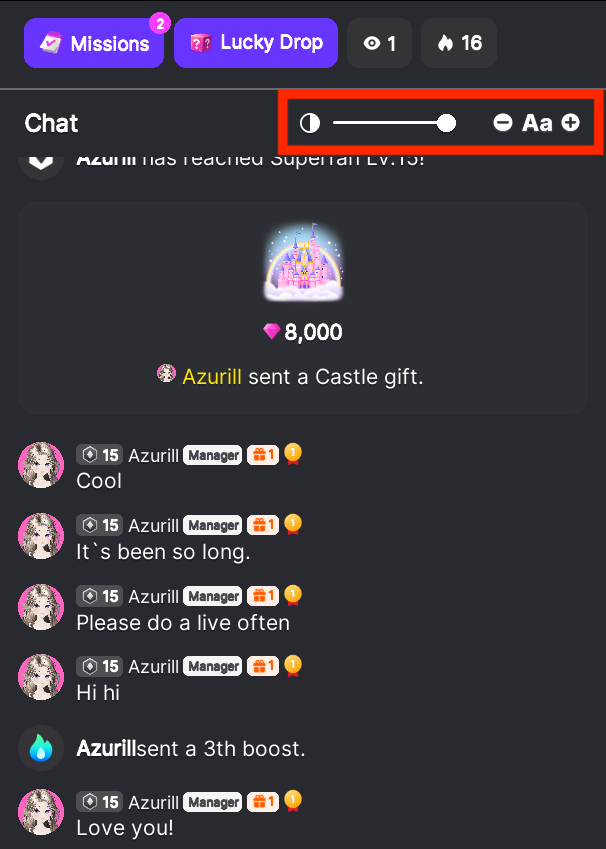
Hold the Alt key and drag the edges of the source with your mouse to crop and display only the area you want to show.
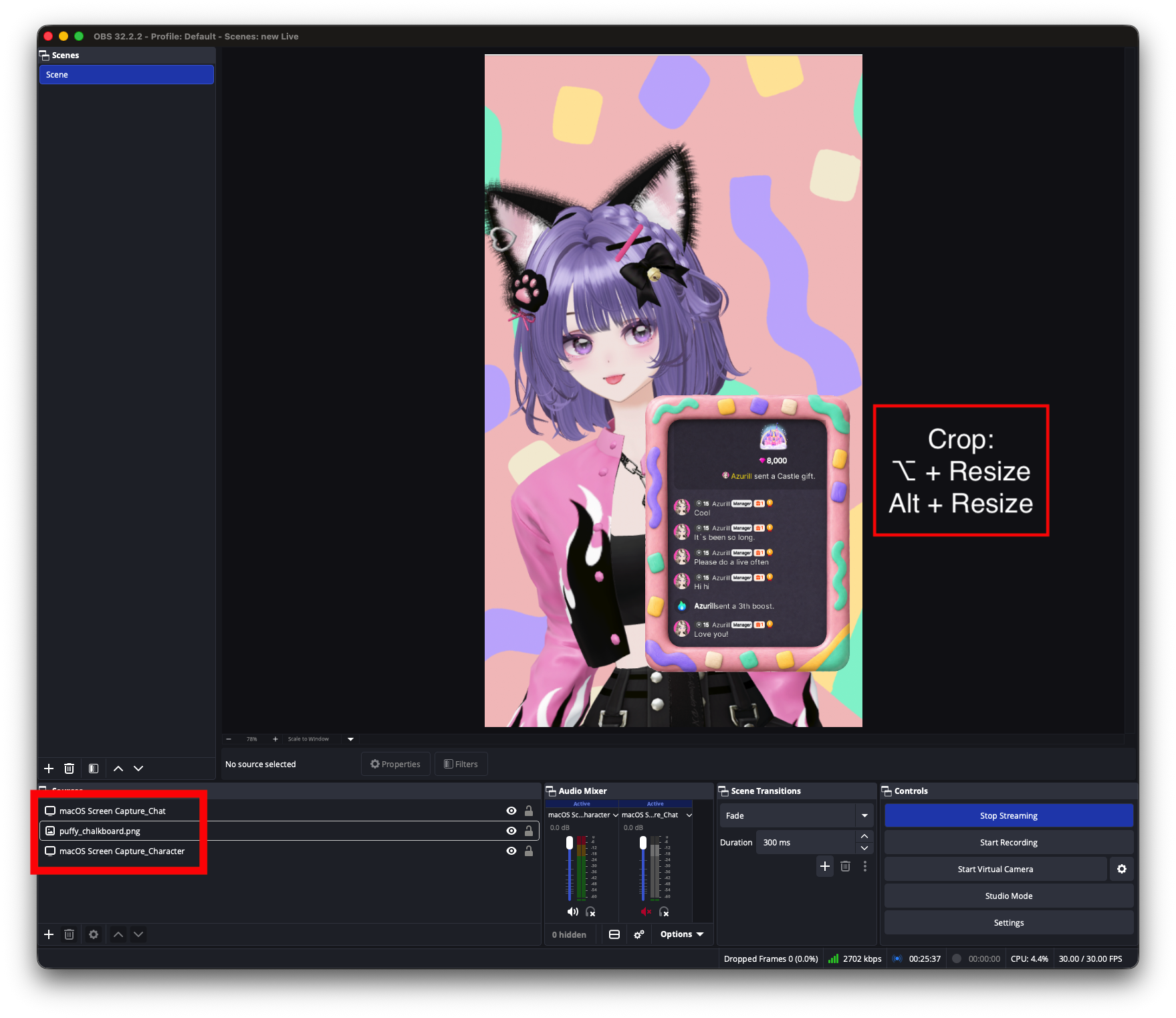
You can also adjust the chat box background transparency using the transparency slider👏
3) Start Your Live Stream
Once all your settings are complete, it’s time to enter your stream info!
Click the red LIVE button in the center of the screen.
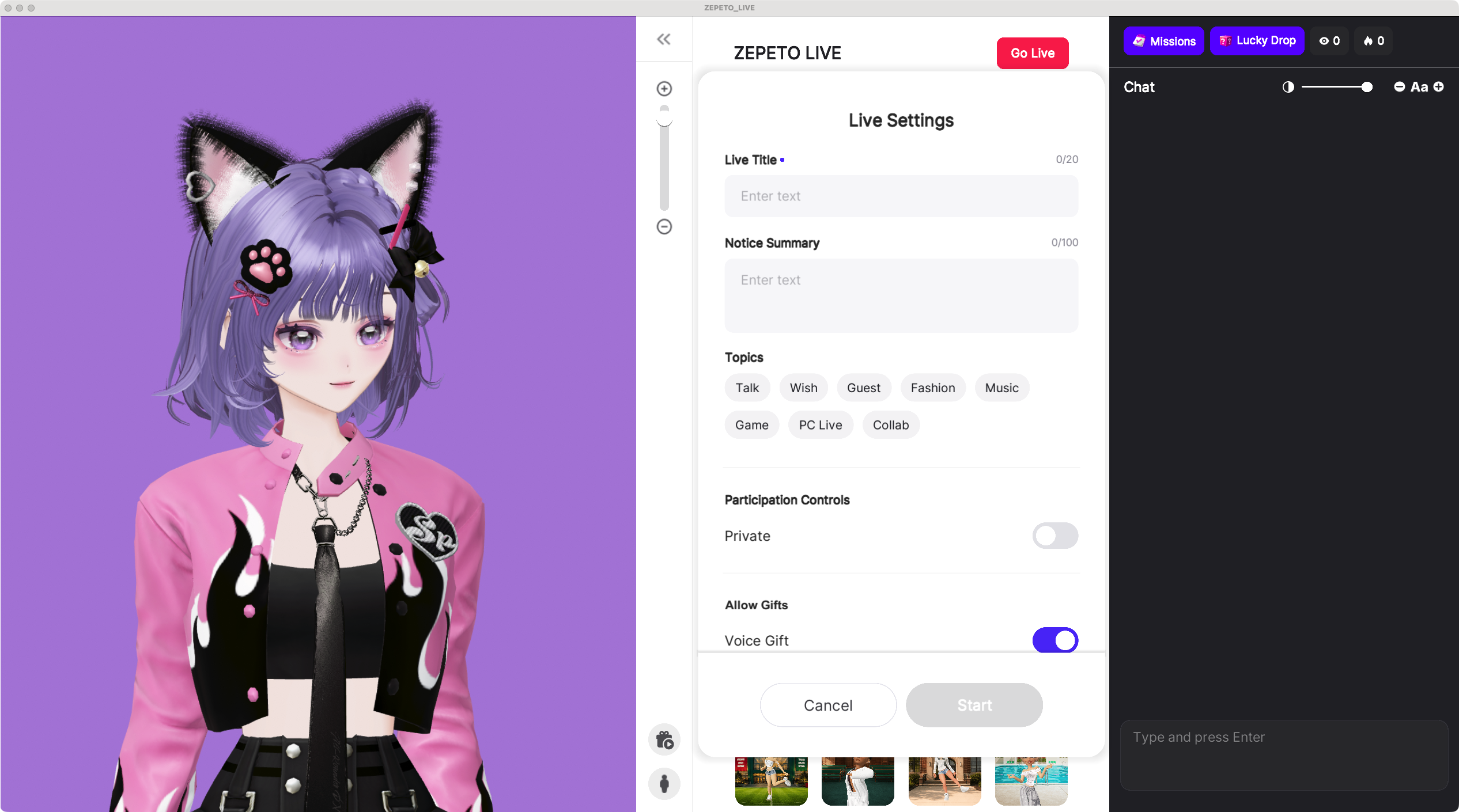
Fill in your live stream title and announcement.
Then choose your category: Wish, Talk, Gaming, Fashion, Music, or Guest.
Setting the right category helps viewers find your stream more easily!
You can also choose whether your stream is public or private, and whether you want to enable support/donations.
⚠️ Note
- You can’t start a live stream without a title (must be between 1–20 characters).
- The announcement can be up to 100 characters.
- You can edit your stream info even after going live.
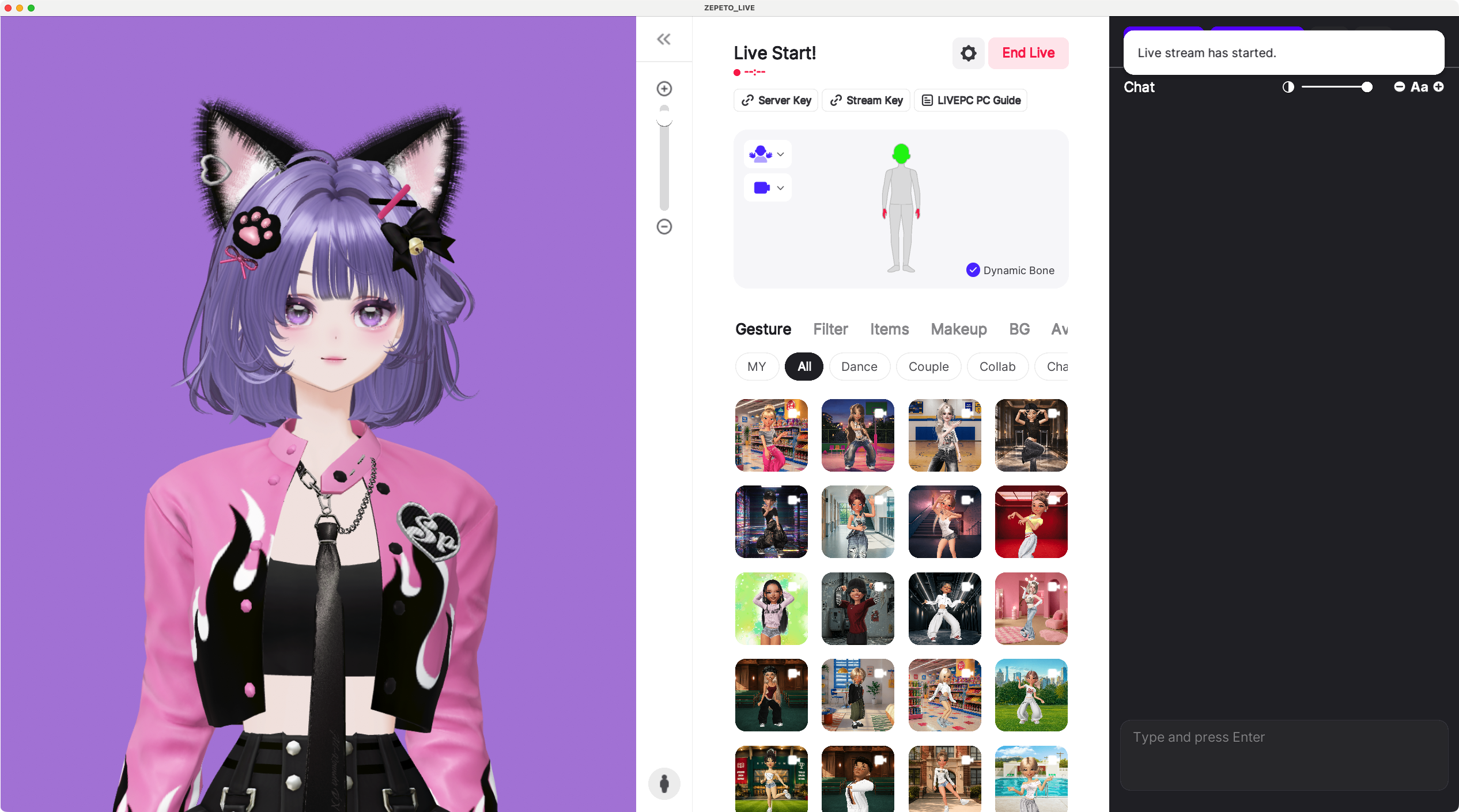
Once you’ve entered the info, click the Start button!
But wait—your stream isn’t live just yet.
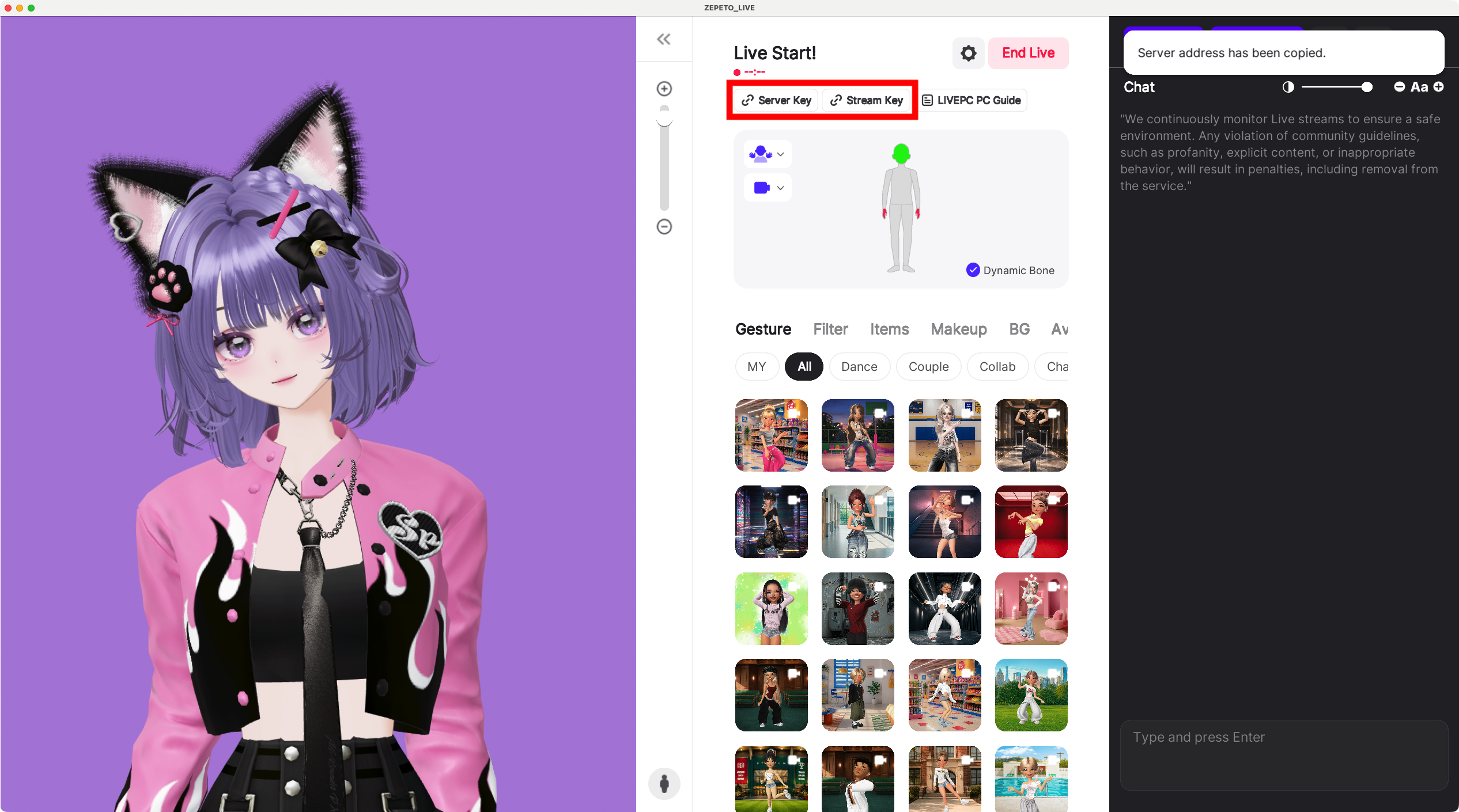
You now need to copy the Server and Streaming Key into OBS.
Click the Server and Streaming Key buttons to copy each one.
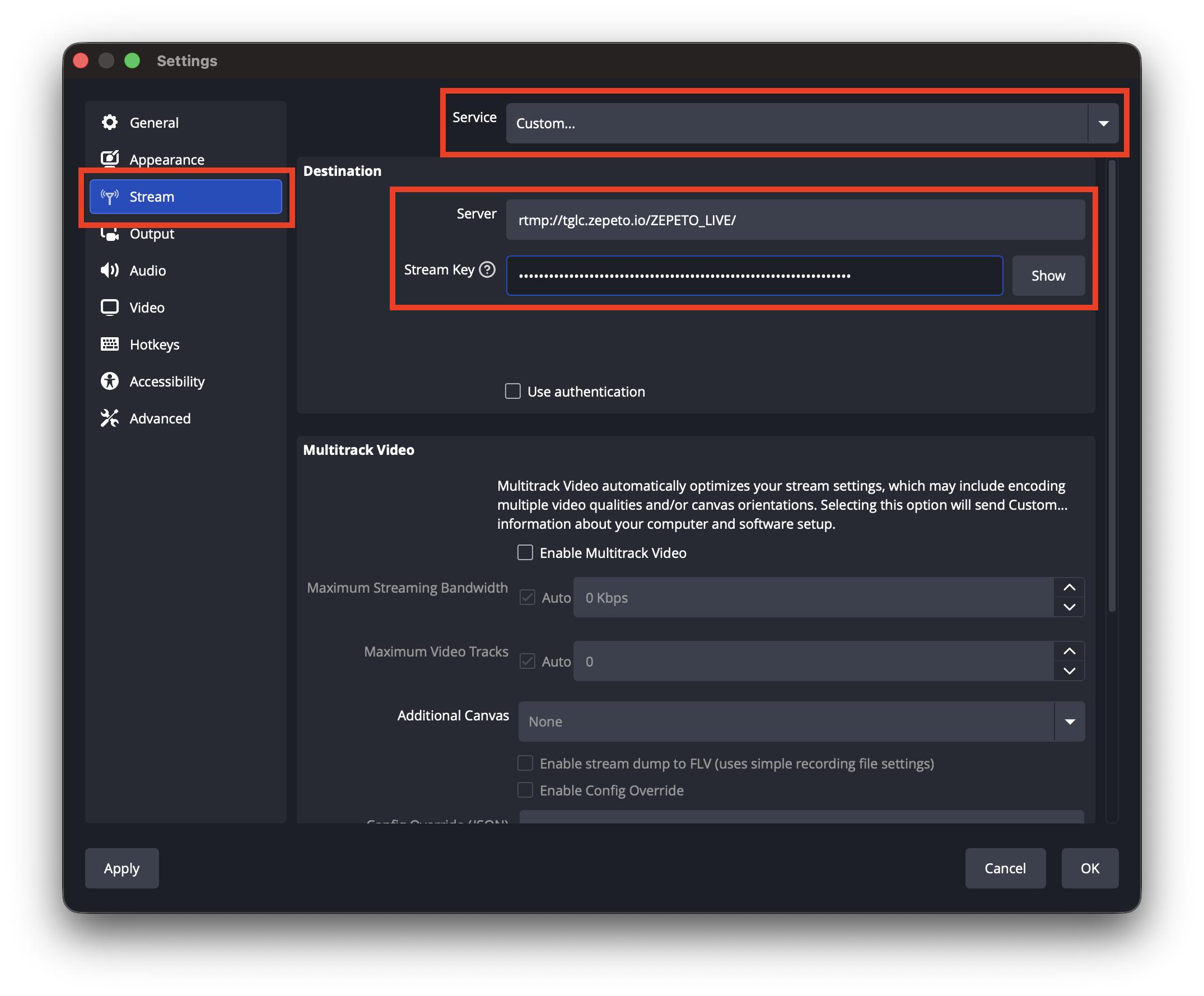
Go back to OBS, open Settings > Stream, set Service to Custom, and paste in the Server URL and Streaming Key you copied from the ZEPETO LIVE PC program.
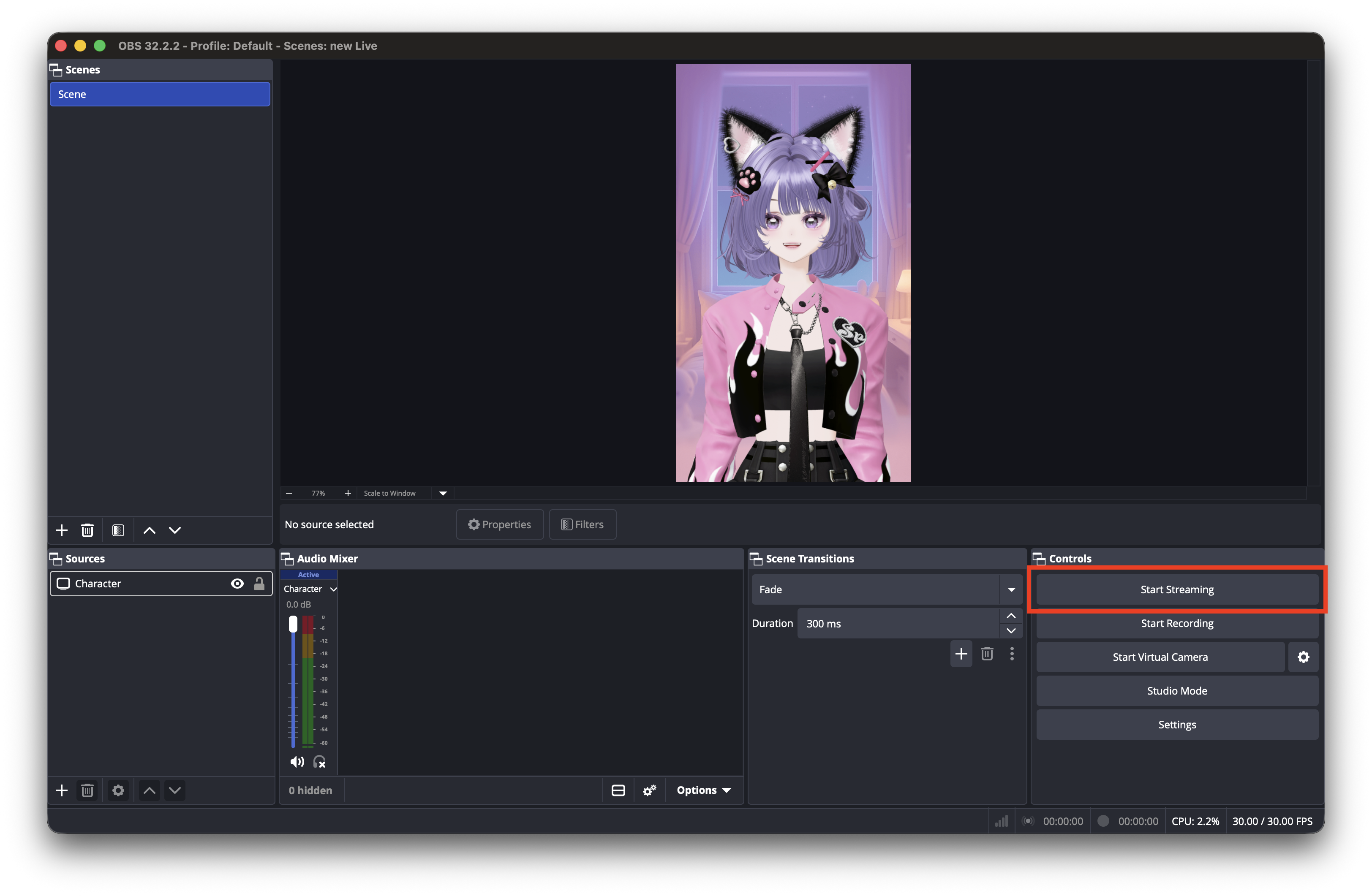
Finally, in the OBS main window, click Start Streaming. Your stream will now be live, and viewers can watch it on the ZEPETO mobile app! 👏
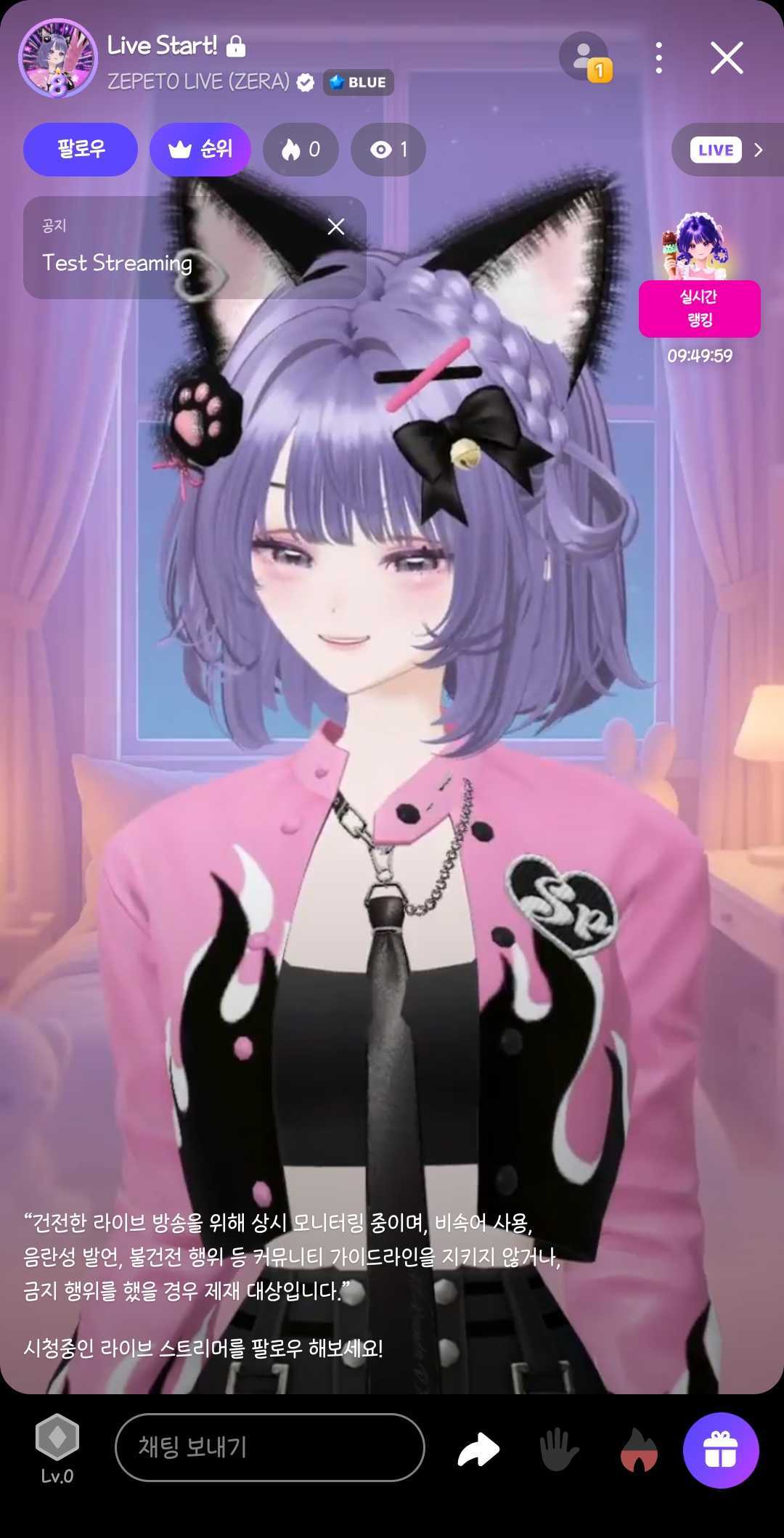
Now it’s your time to shine!
Have fun and connect with your viewers for an awesome streaming experience.
4) During Your Live Stream
You’ve successfully started your stream with the LIVE PC program—congrats! 🥳
Now let’s explore how to make the most of the LIVE PC features while you’re streaming. Let’s go!
4-1) Using ZEPETO LIVE PC While Streaming
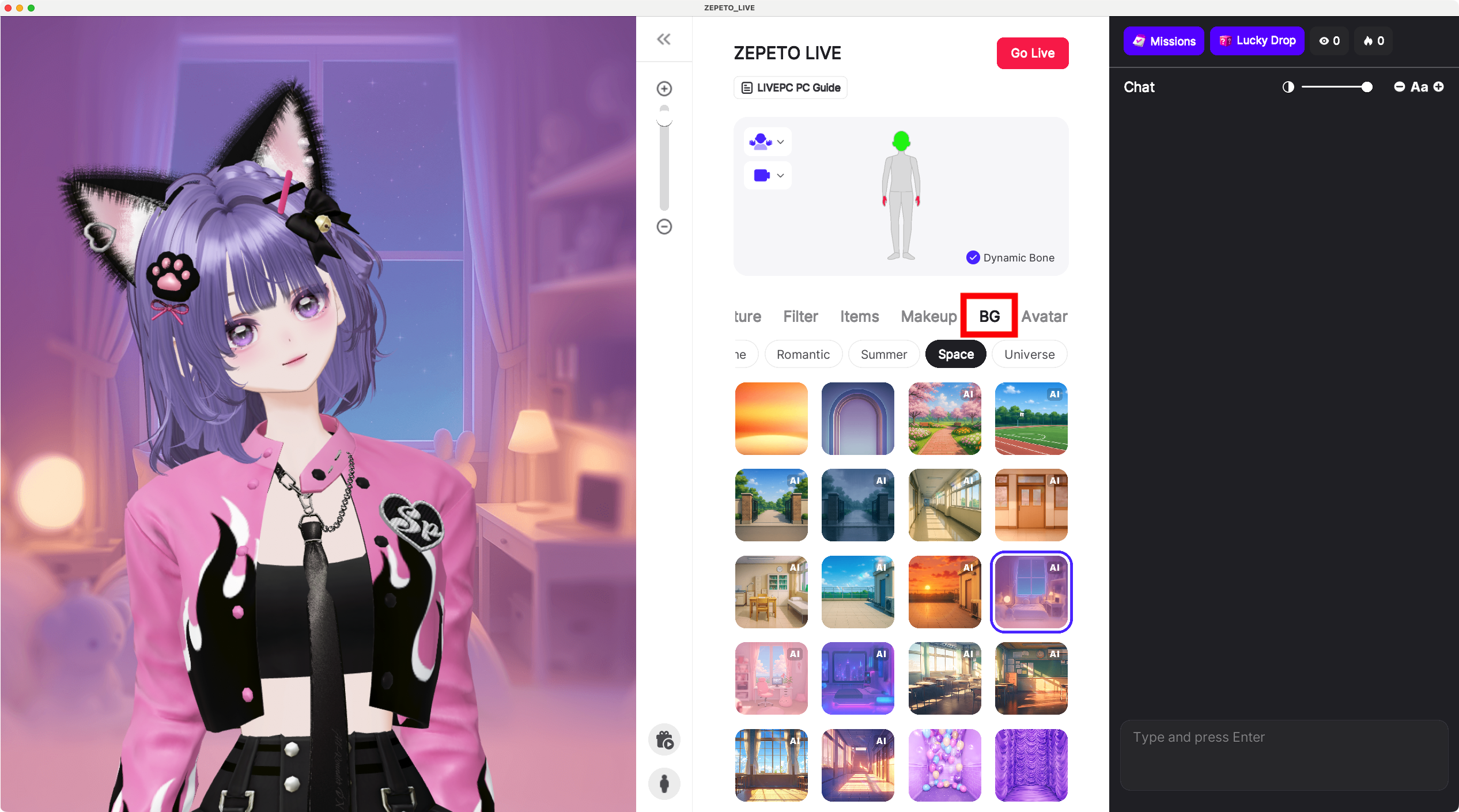
- Change your background! You can switch up the background anytime during your stream to match the vibe you want.
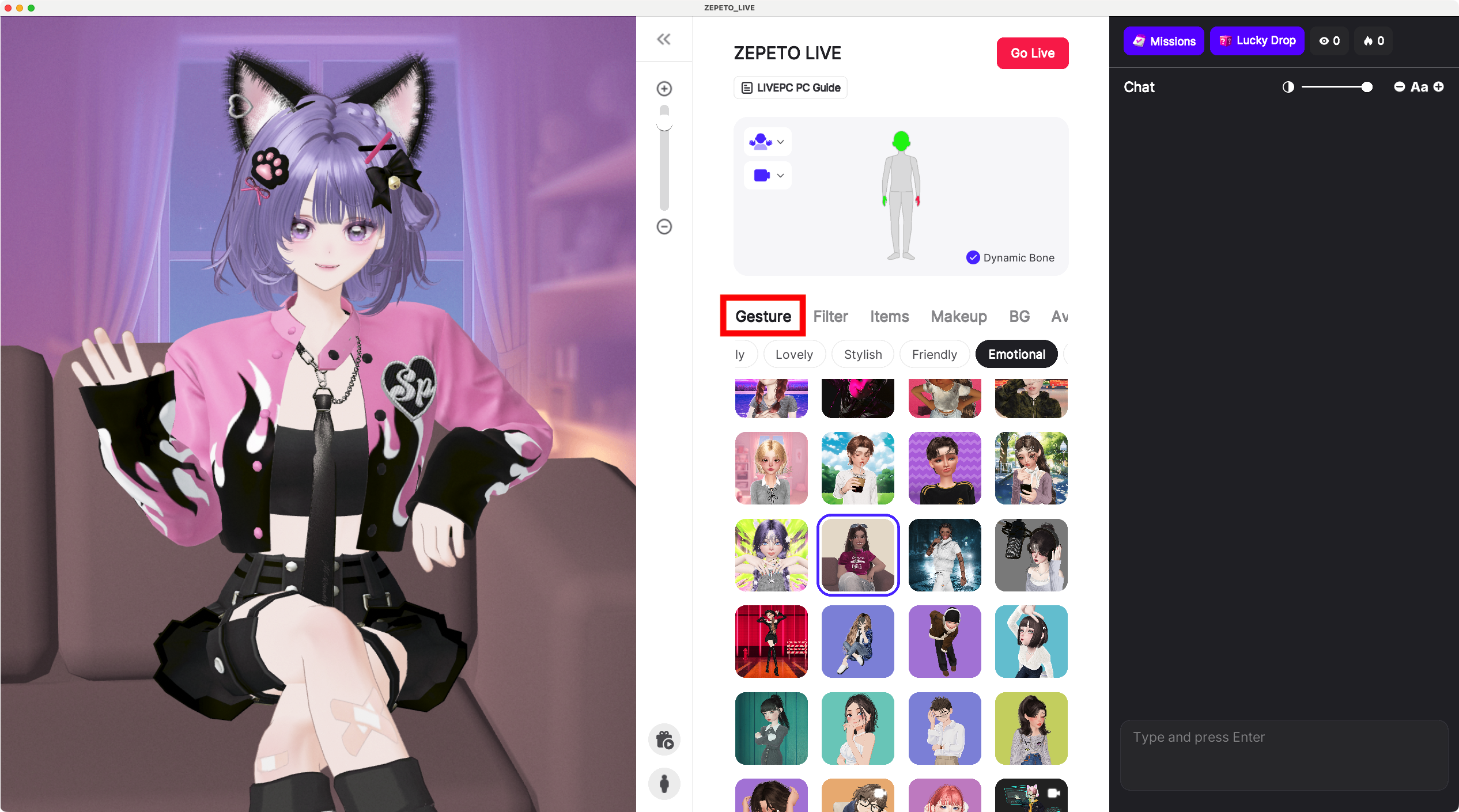
- Try different gestures! Use a variety of gestures during your live session. You can even add your favorites to a quick-access list.
- Want to cancel a gesture? Just click it again!
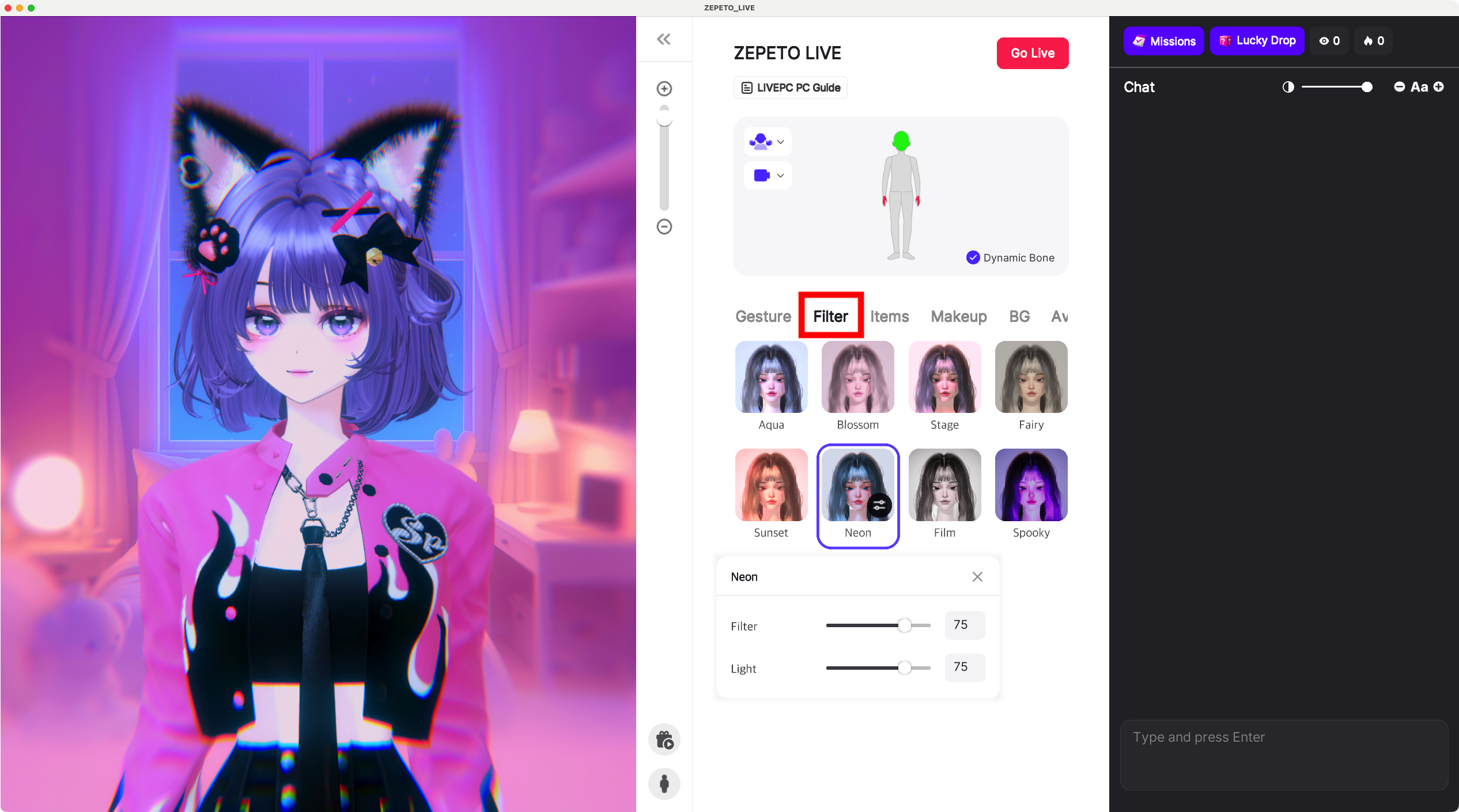
- Apply filters to create your own unique mood and look.
📘 Tip!
You can also change your outfit and makeup during the stream. Mix it up anytime!
4-2) Sending a Wish Gift in PC Live
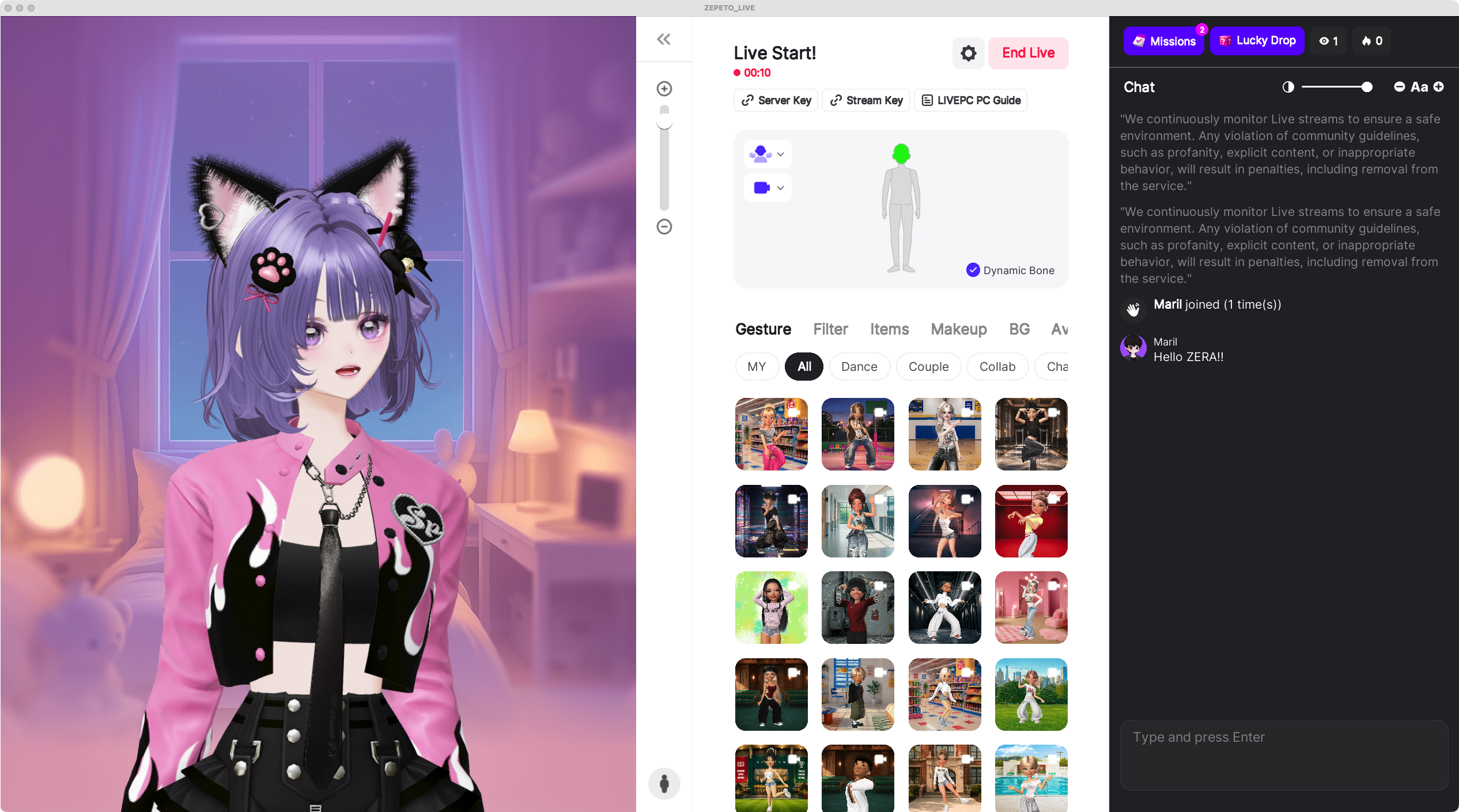
A viewer just joined your stream!
Why not send them a Wish gift to thank them for their support?
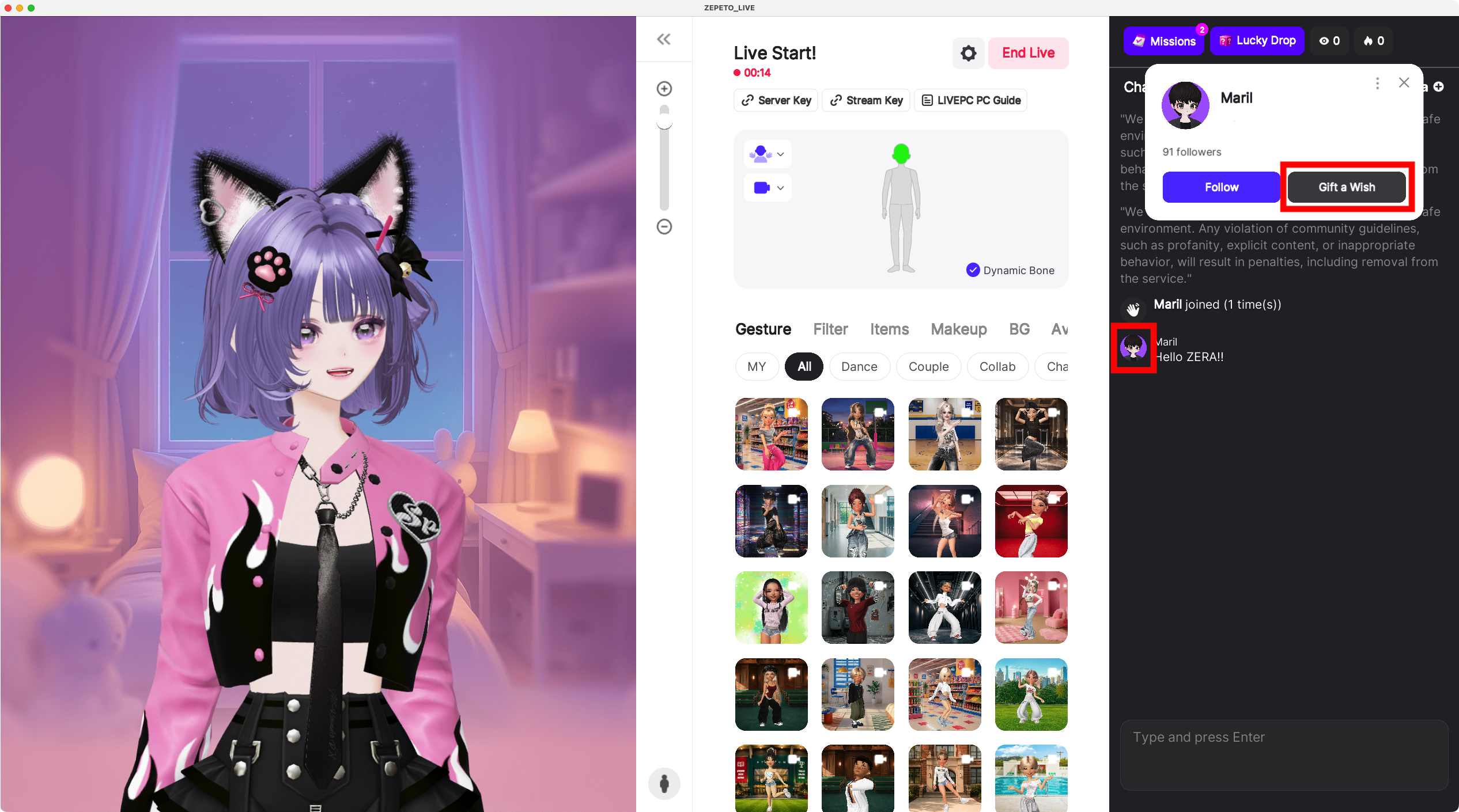
Click the profile picture of the viewer in the chat whom you’d like to gift.
A pop-up will appear—click on 'Gift a Wish'!
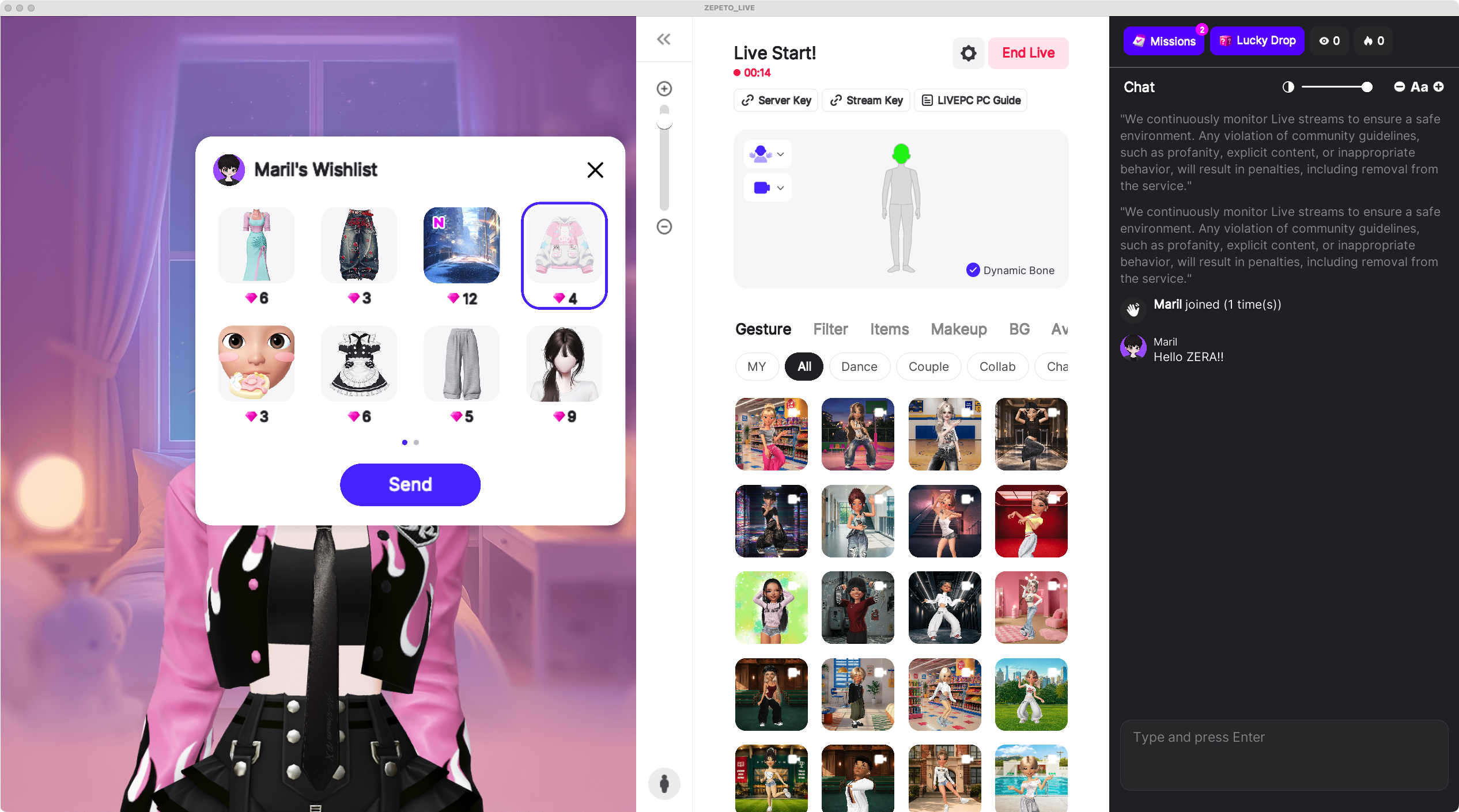
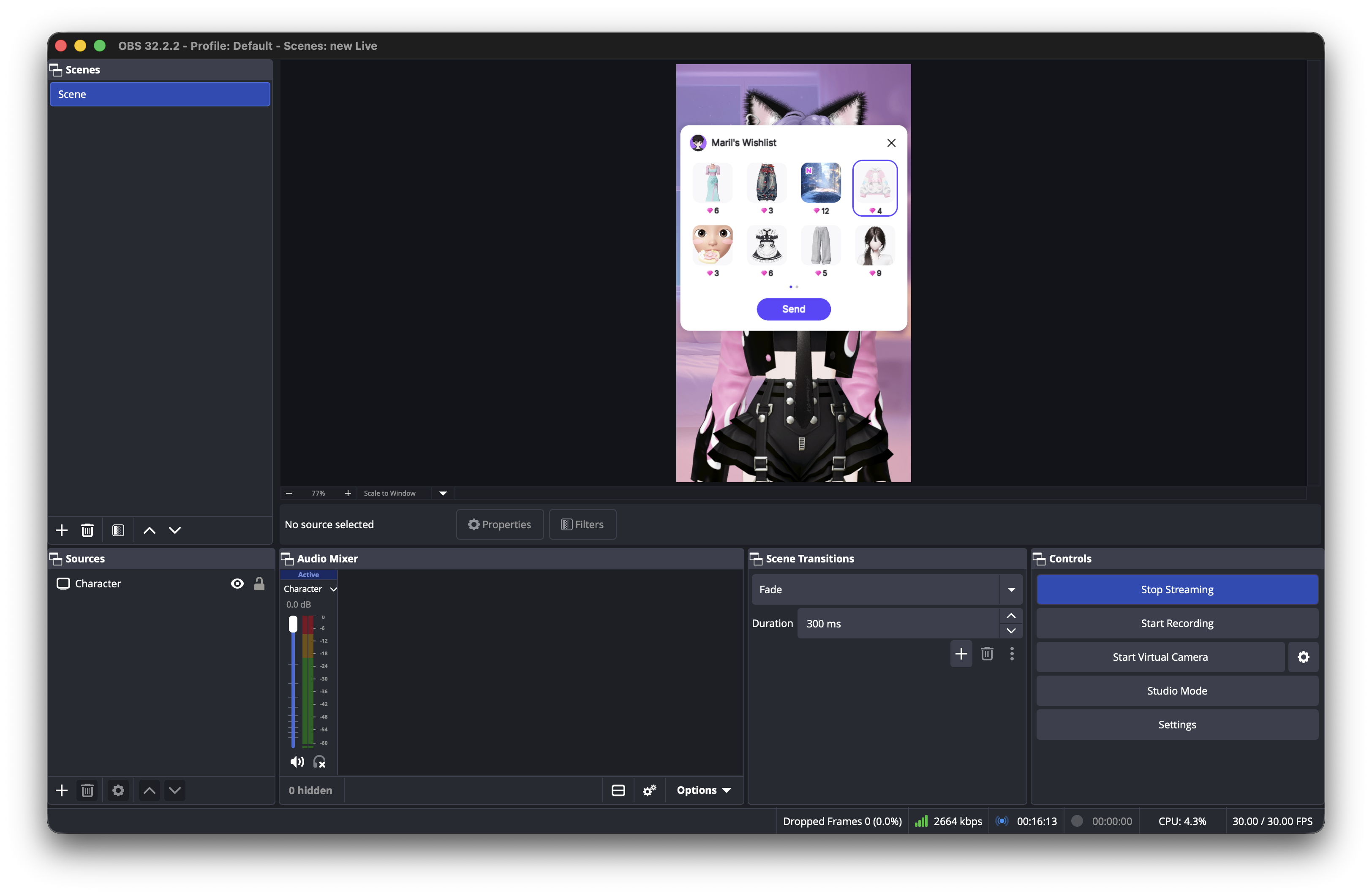
Once you click Son 'Gift a Wish', the viewer’s Wish list will appear above your avatar on screen.
Yes—it’s all visible on stream! Use the Wish gifting feature to add a fun and interactive touch to your live session!
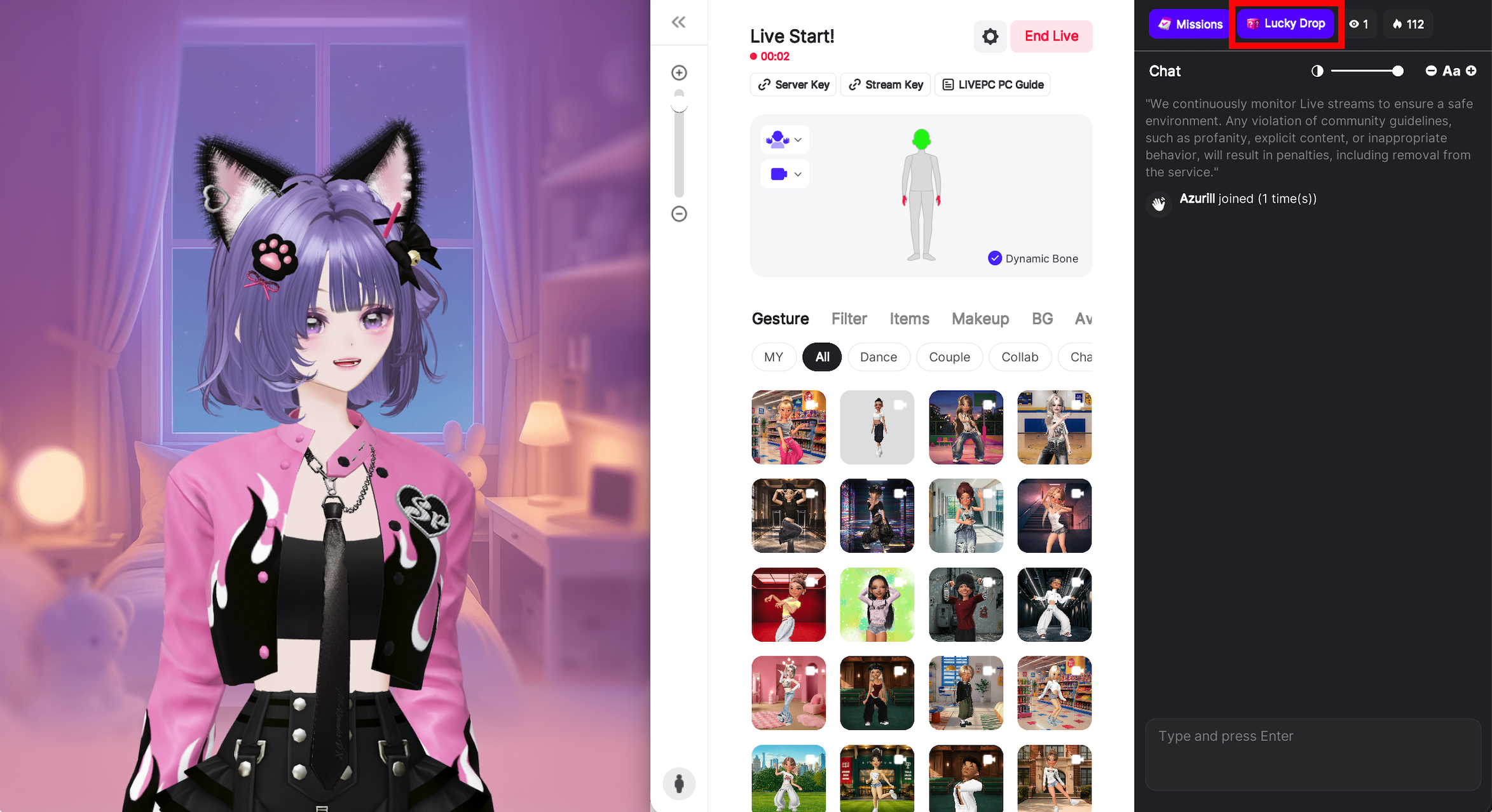
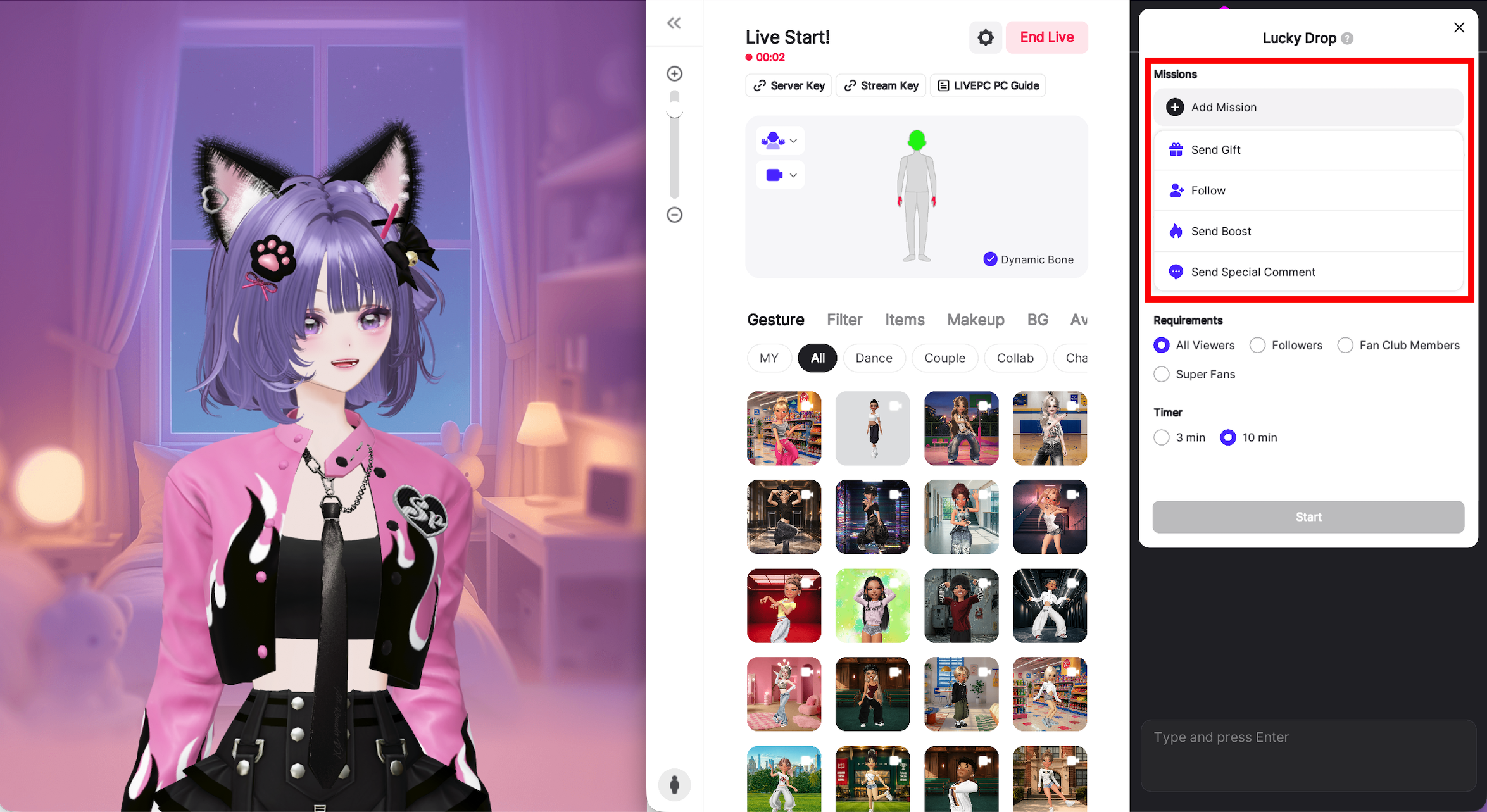
4-3) Using the Lucky Drop Feature on PC Live!
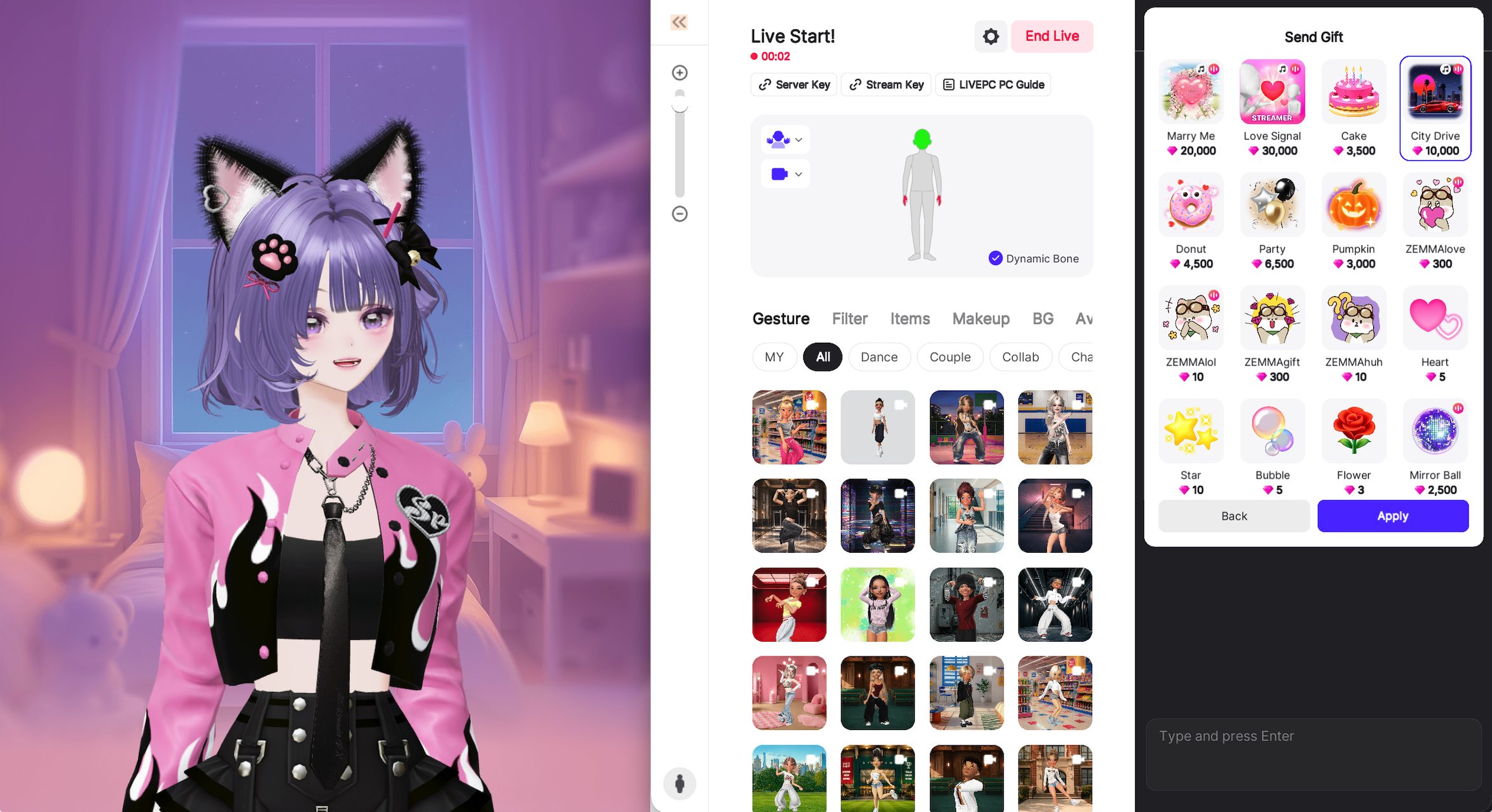
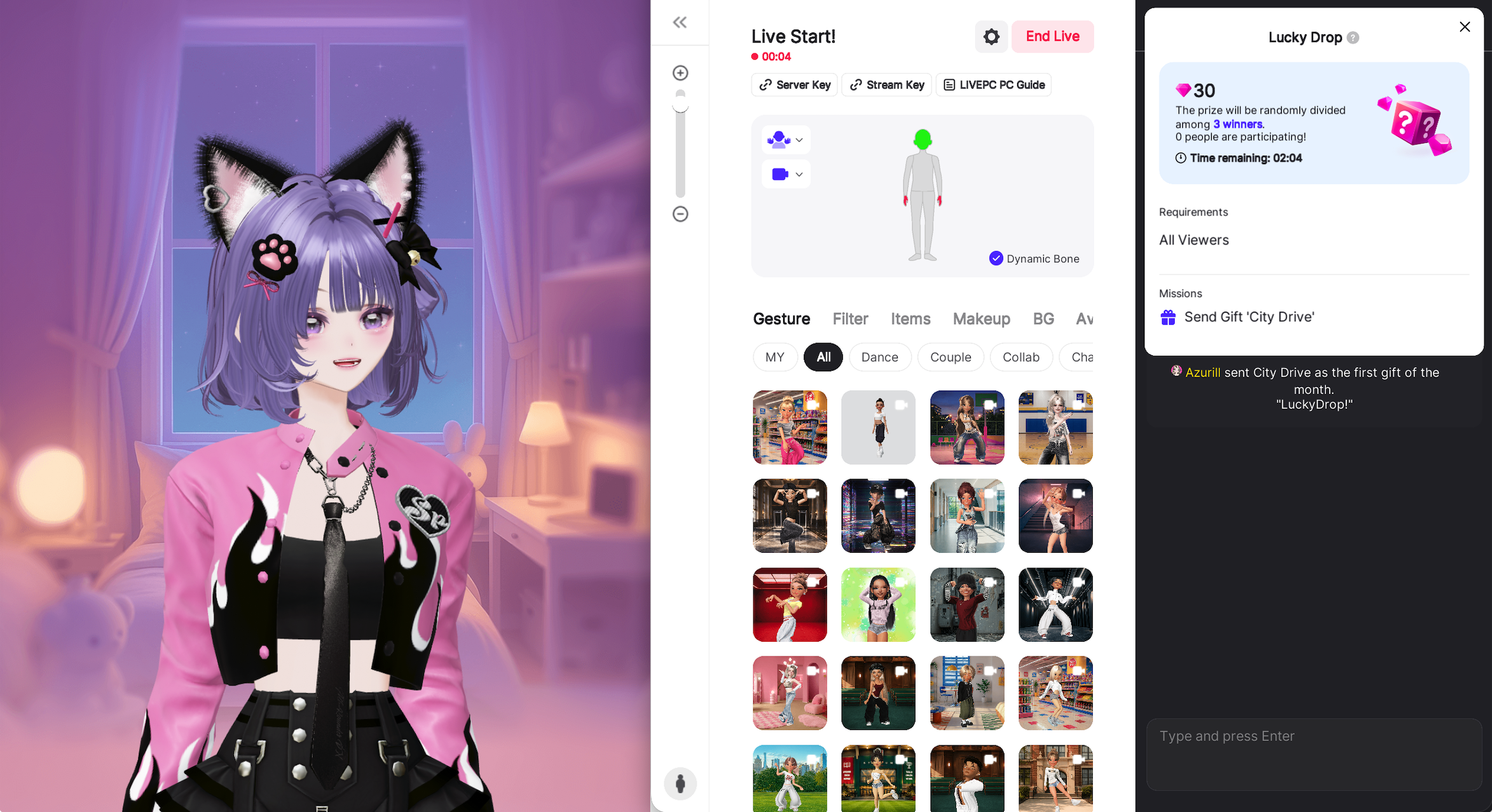
Surprise ZEM gifts and fun missions all at once! Give back to the fans watching your live stream while turning up the room's energy.
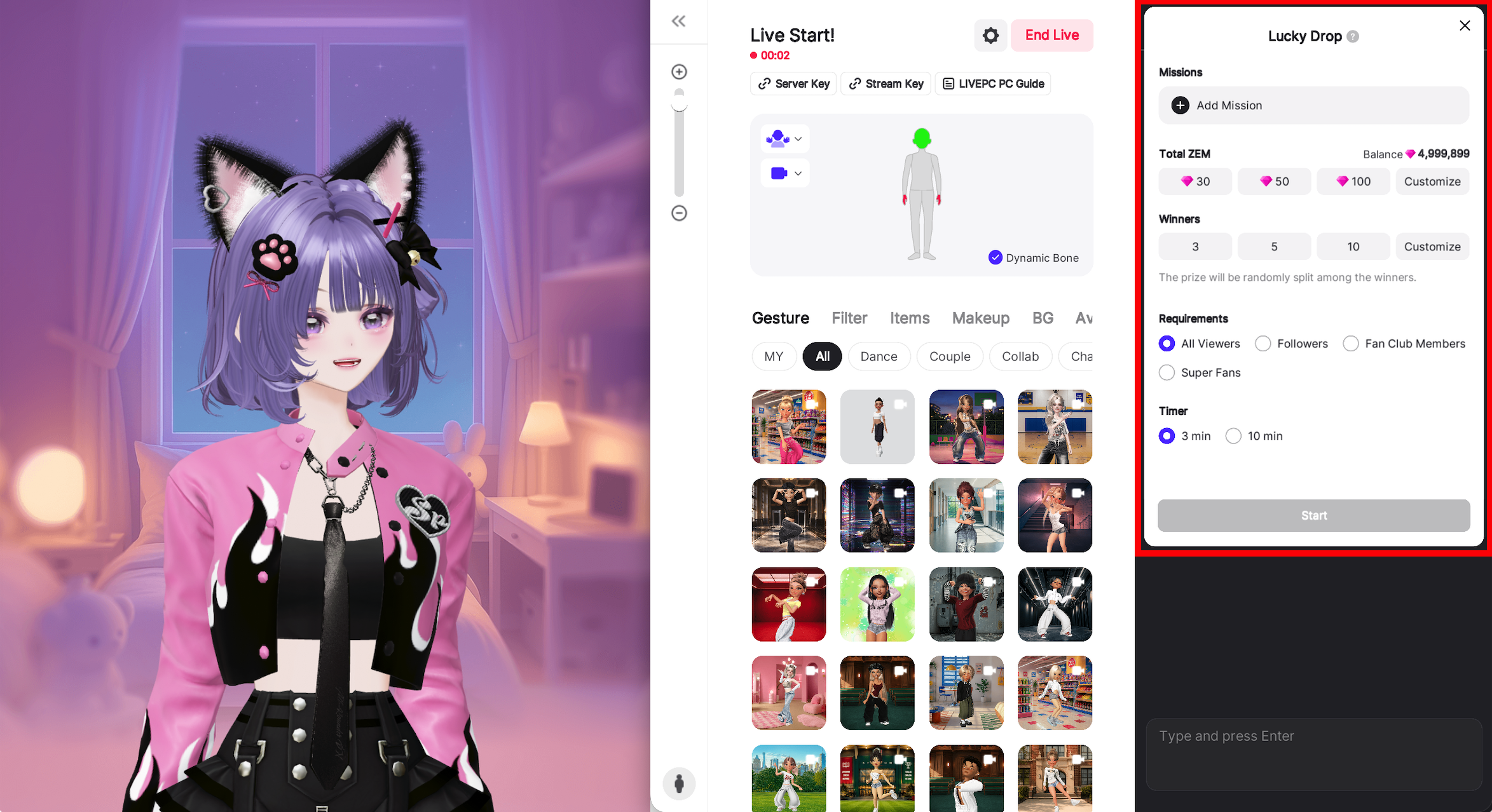
Freely set the total ZEMs, number of winners, and timer. Customize the Lucky Drop conditions to perfectly match the scale of your stream.
Choose the perfect mission—from Follows and Boosts to Custom Comments! Pick a mission that fits your stream's vibe to get your viewers interacting in real time.
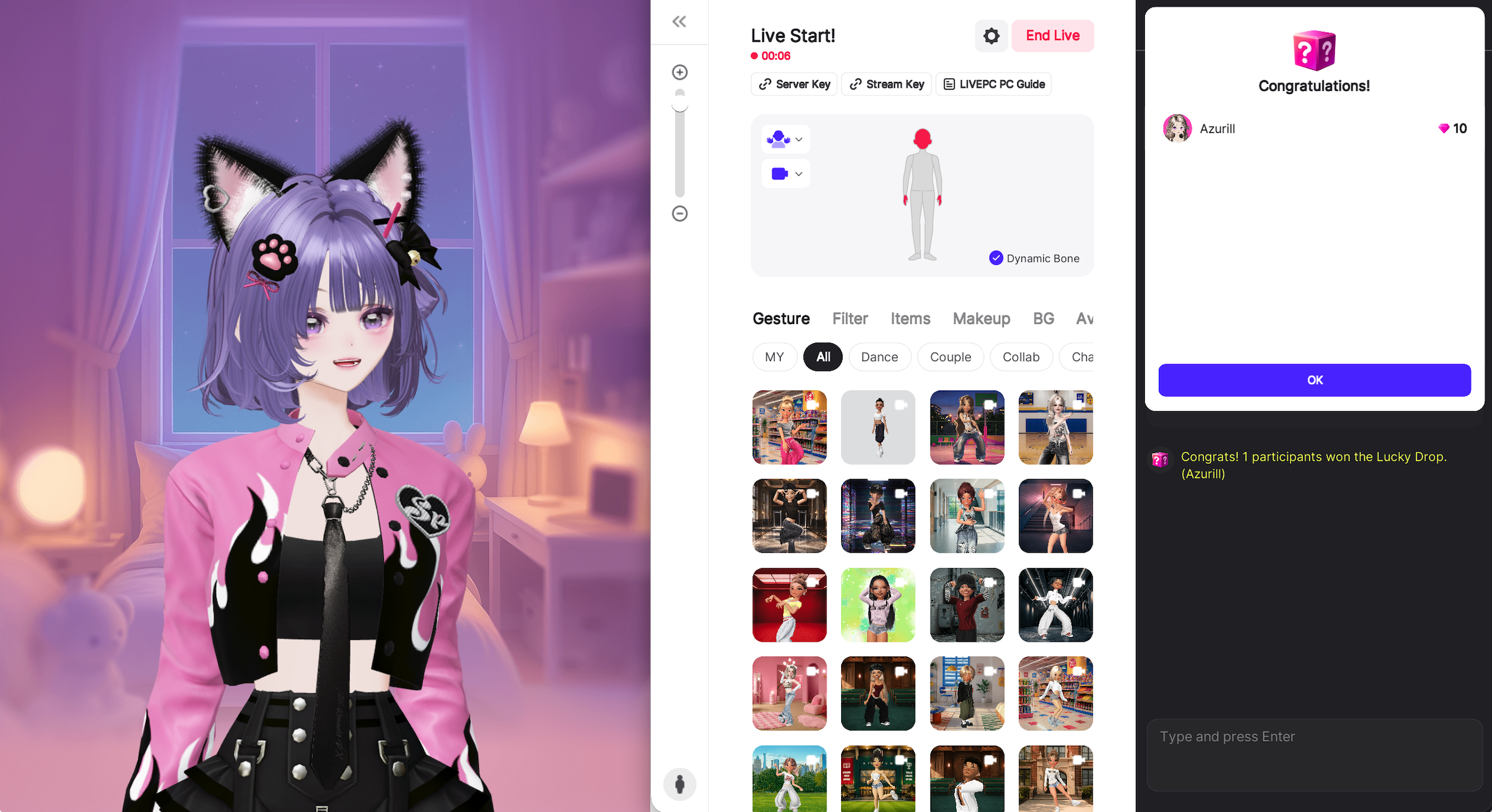
The countdown begins! Who will be the lucky winner? Once the timer ends, ZEMs will be randomly distributed to viewers who completed the mission!
4-4) Assigning a Manager for Your Live Stream
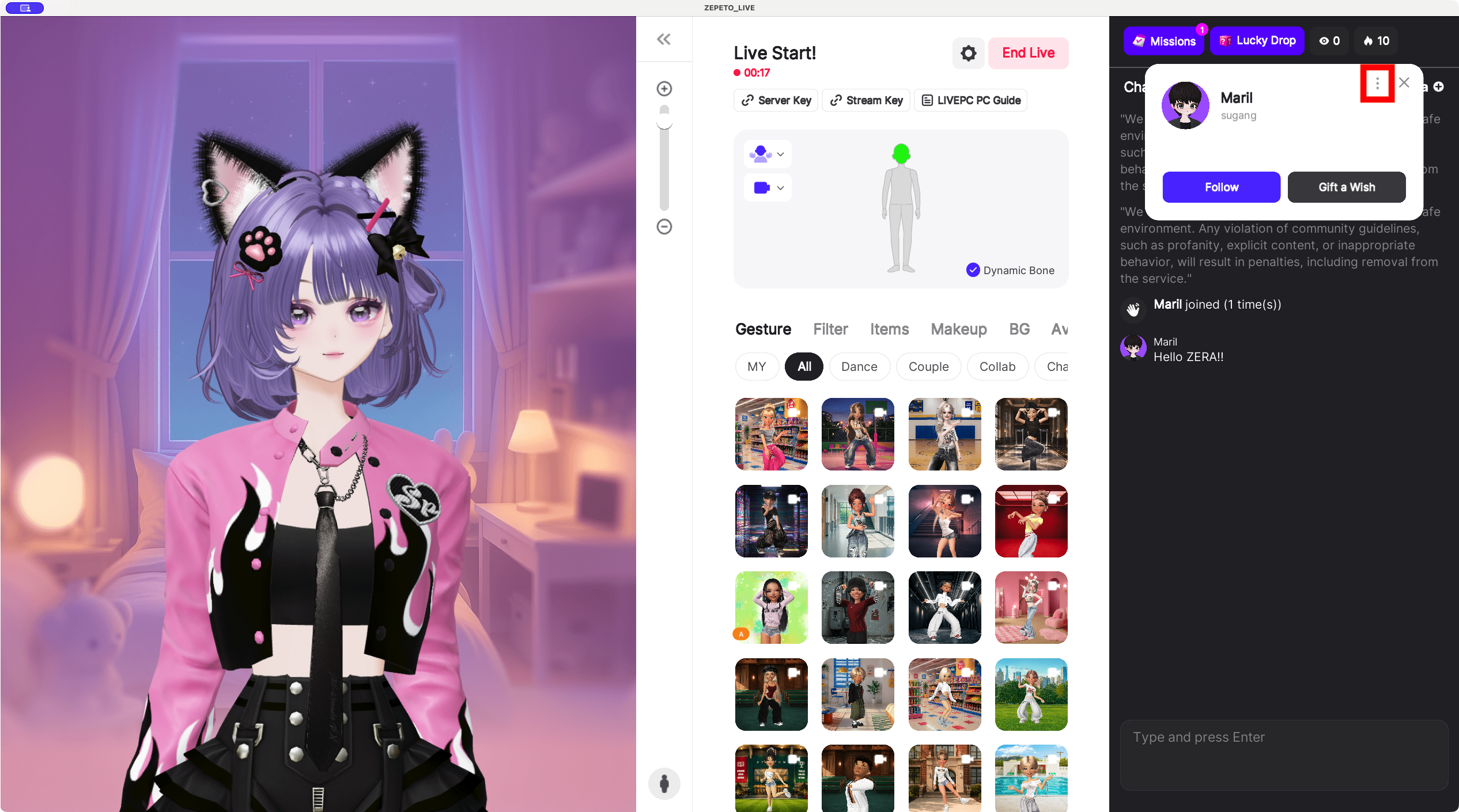
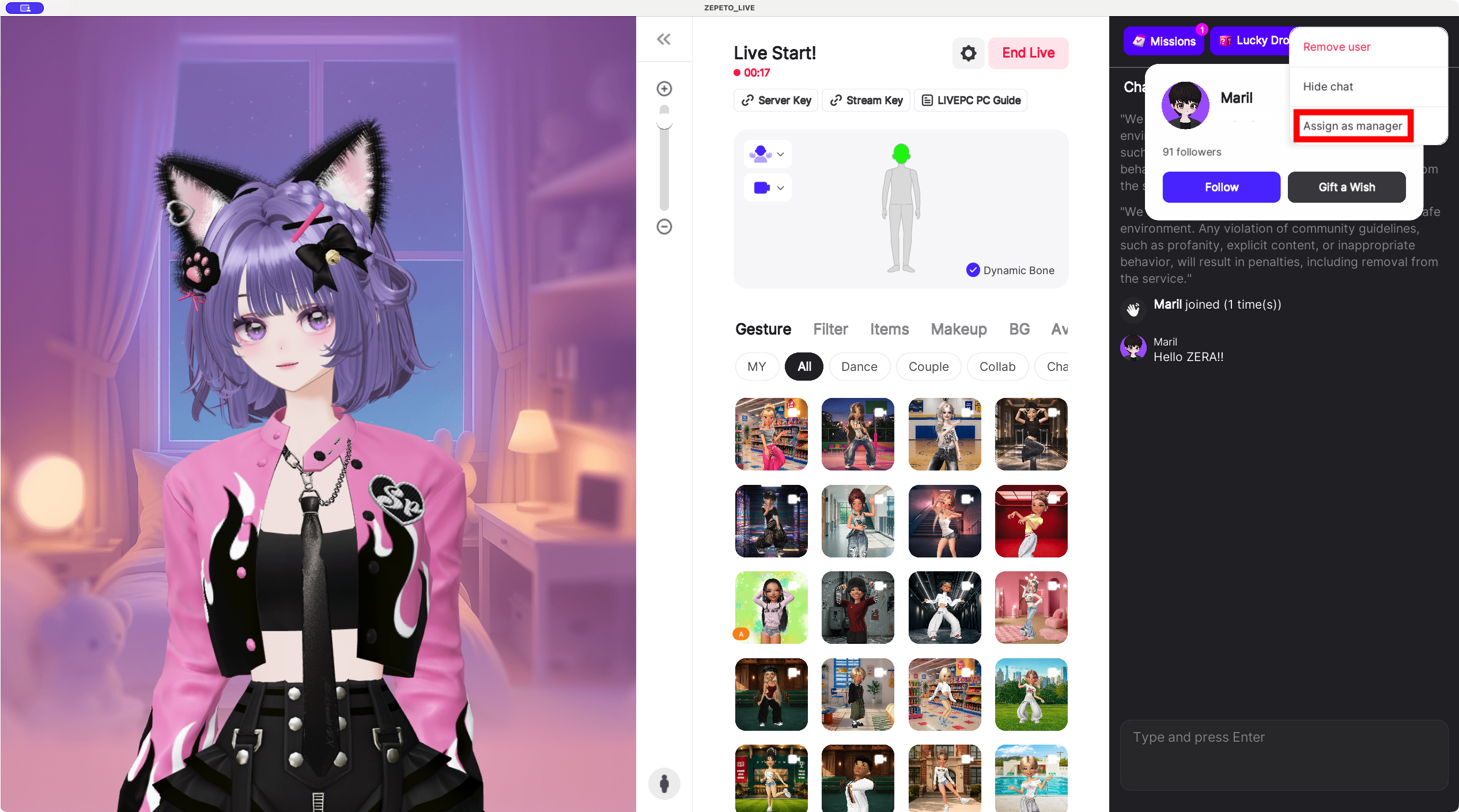
Need someone to help manage your stream?
Click a viewer’s profile picture in the chat, then tap the three dots and select Set as Manager.
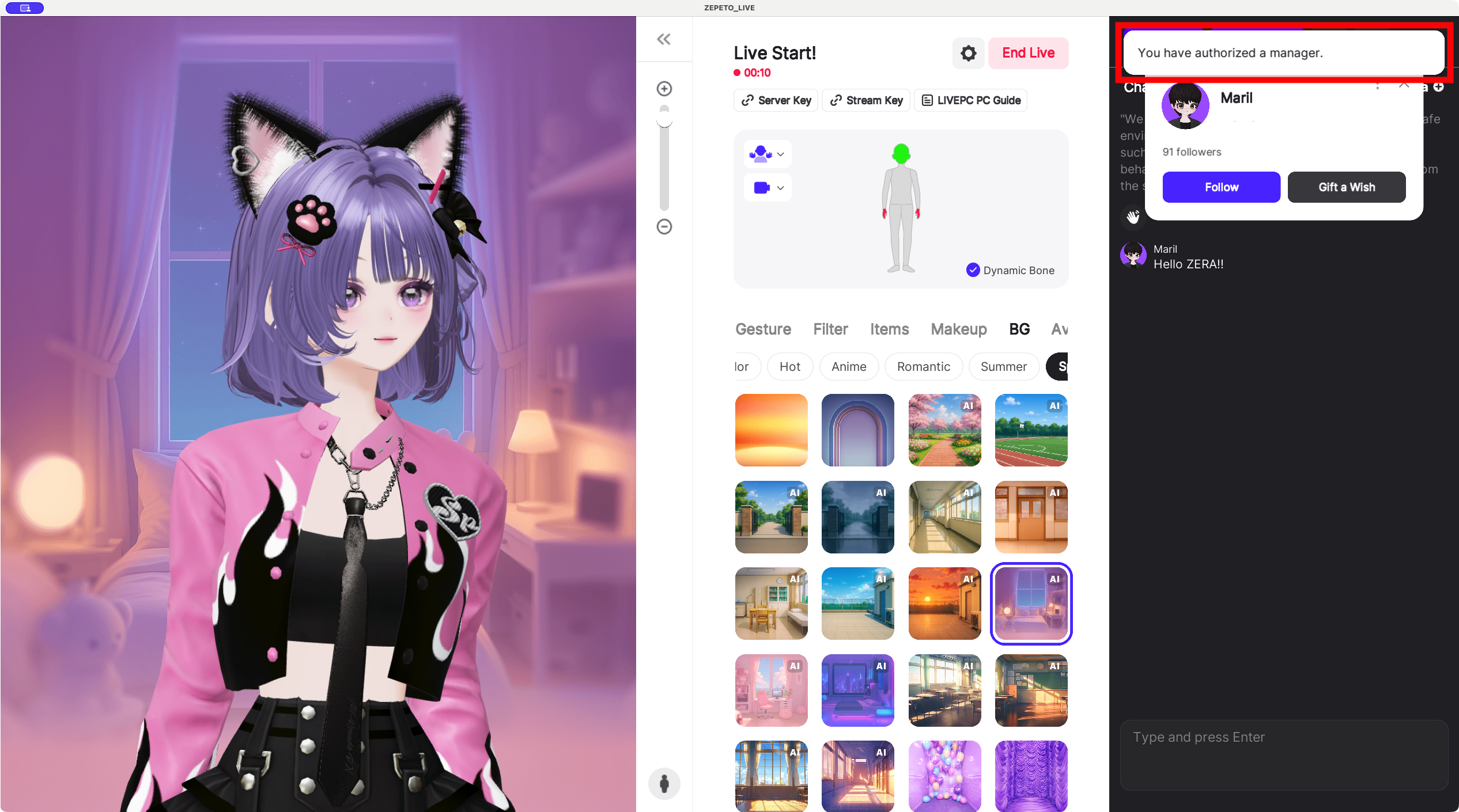
That’s it—just one click!
You can also remove a manager the same way.
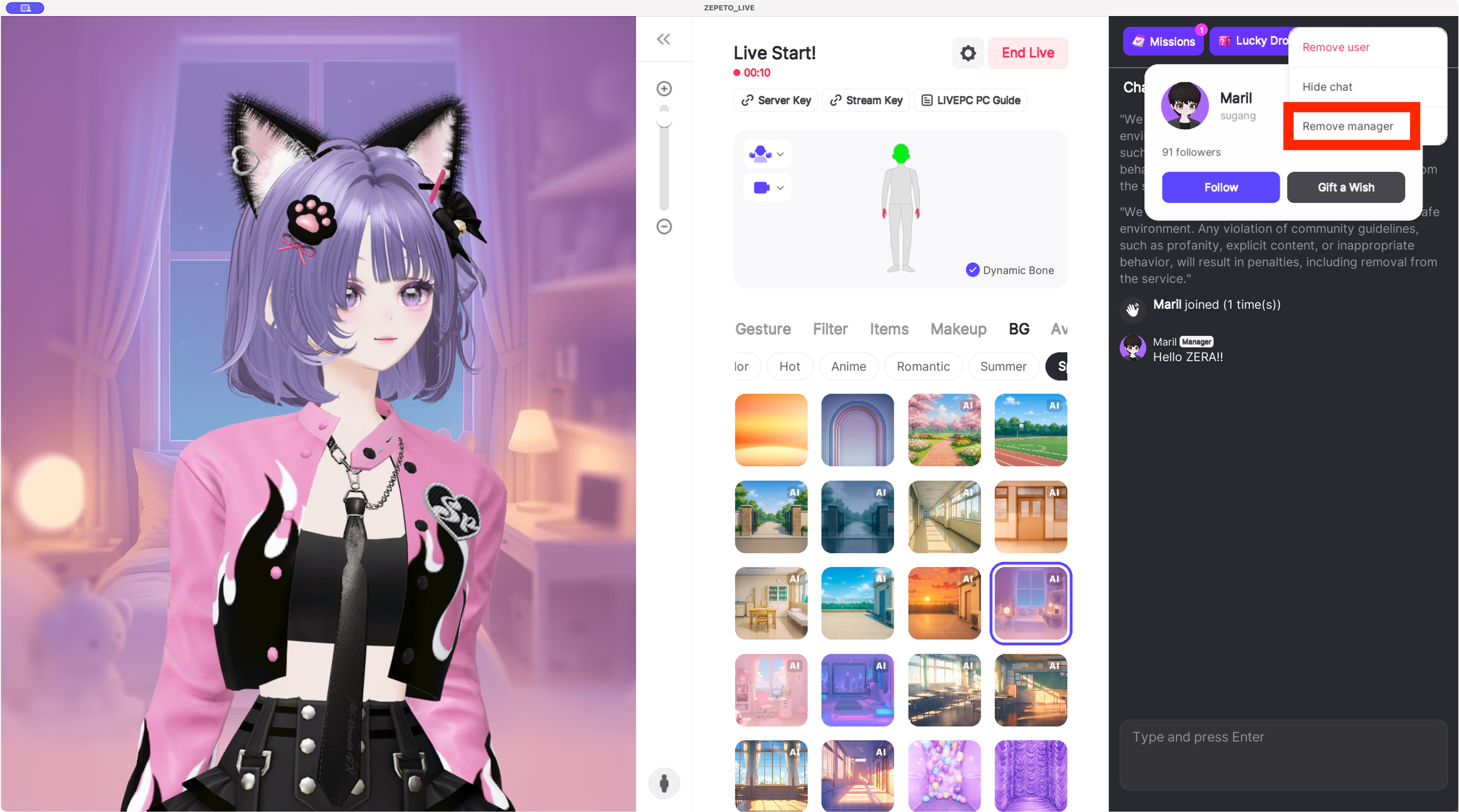
📘 Tip!
Managing your viewers during a stream helps create a smoother, safer live experience. Don't hesitate to assign a manager when needed!
Function | Description |
|---|---|
Hide Chat | Hides a specific user's chat messages from all viewers. |
Remove Viewer | Removes users who are disrupting the stream. |
Report | Report users who need to be moderated during the live stream. |
Block | In the final step of reporting, you’ll have the option to block the user too—use it if needed. |
5) Ending Your Live Stream
Ready to wrap up your stream?
Click the End Live button in the center of the screen.
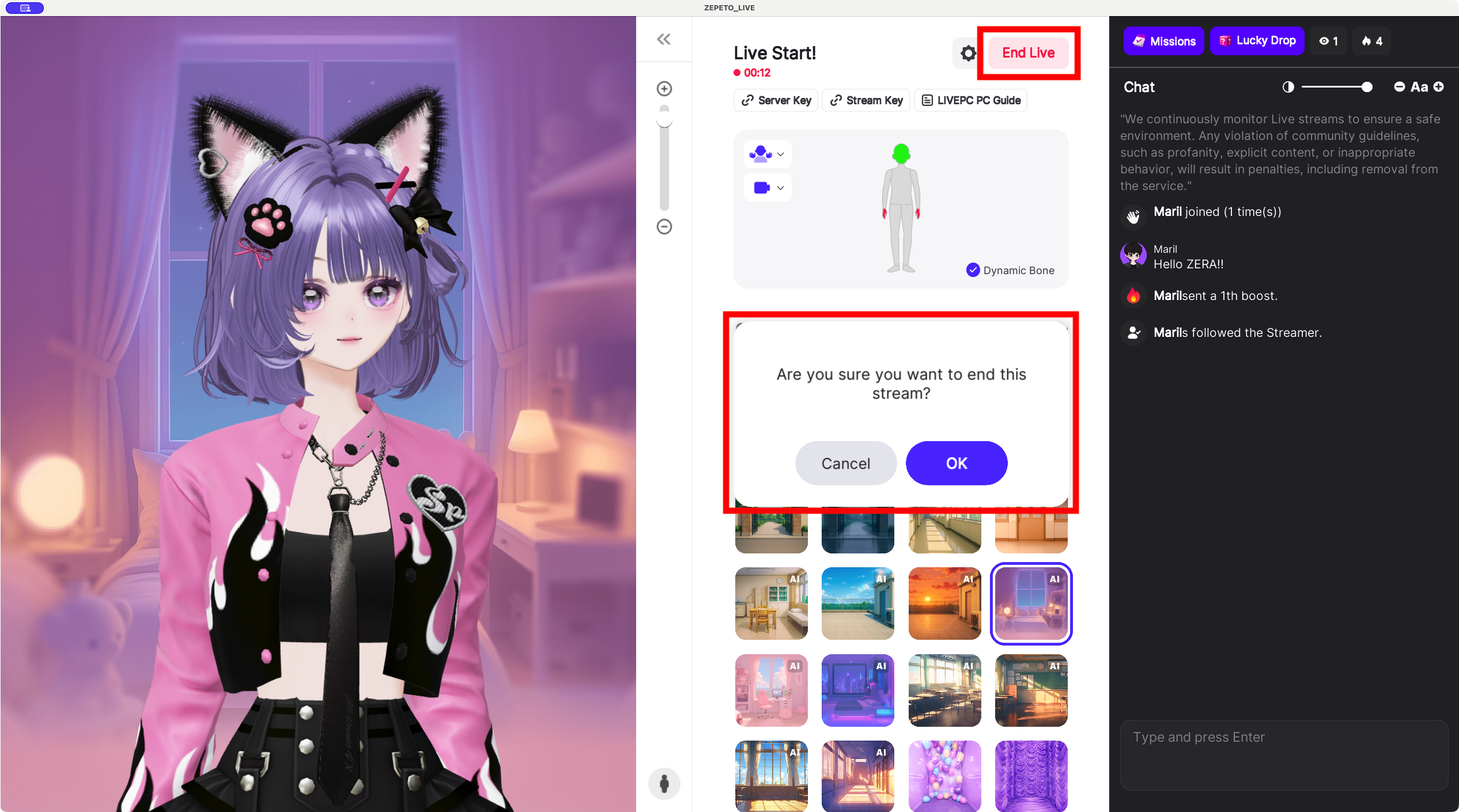
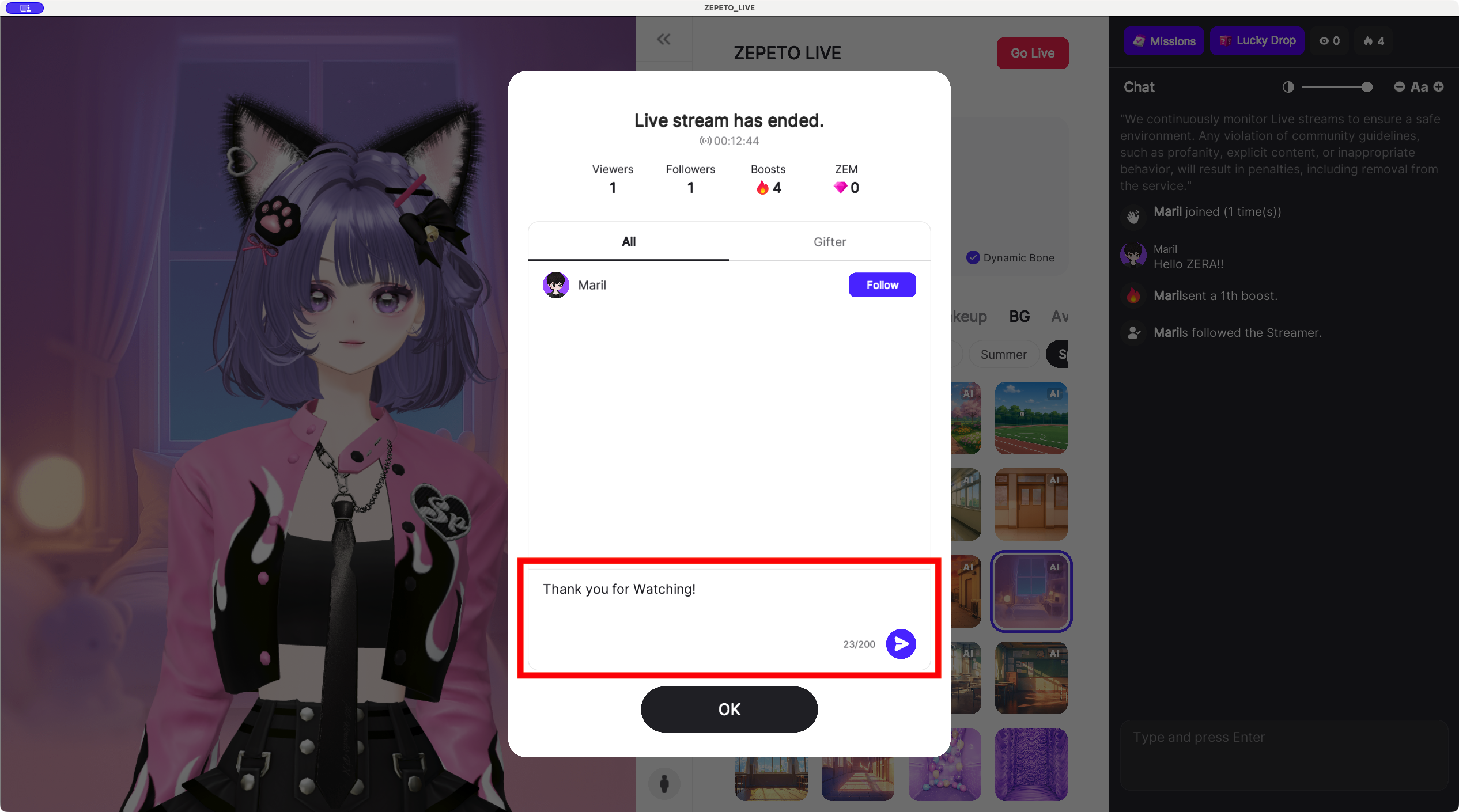
Your ZEPETO LIVE stream has now ended!
After the stream, send a thank you message to the precious viewers who made your live special!
You can select your target audience and send a message:
- All: Top viewers who supported your Live through Boosts and Gifts.
- Gifter: Top supporters who sent Gifts during your Live.
💌 Tip! Messages can be up to 200 characters.
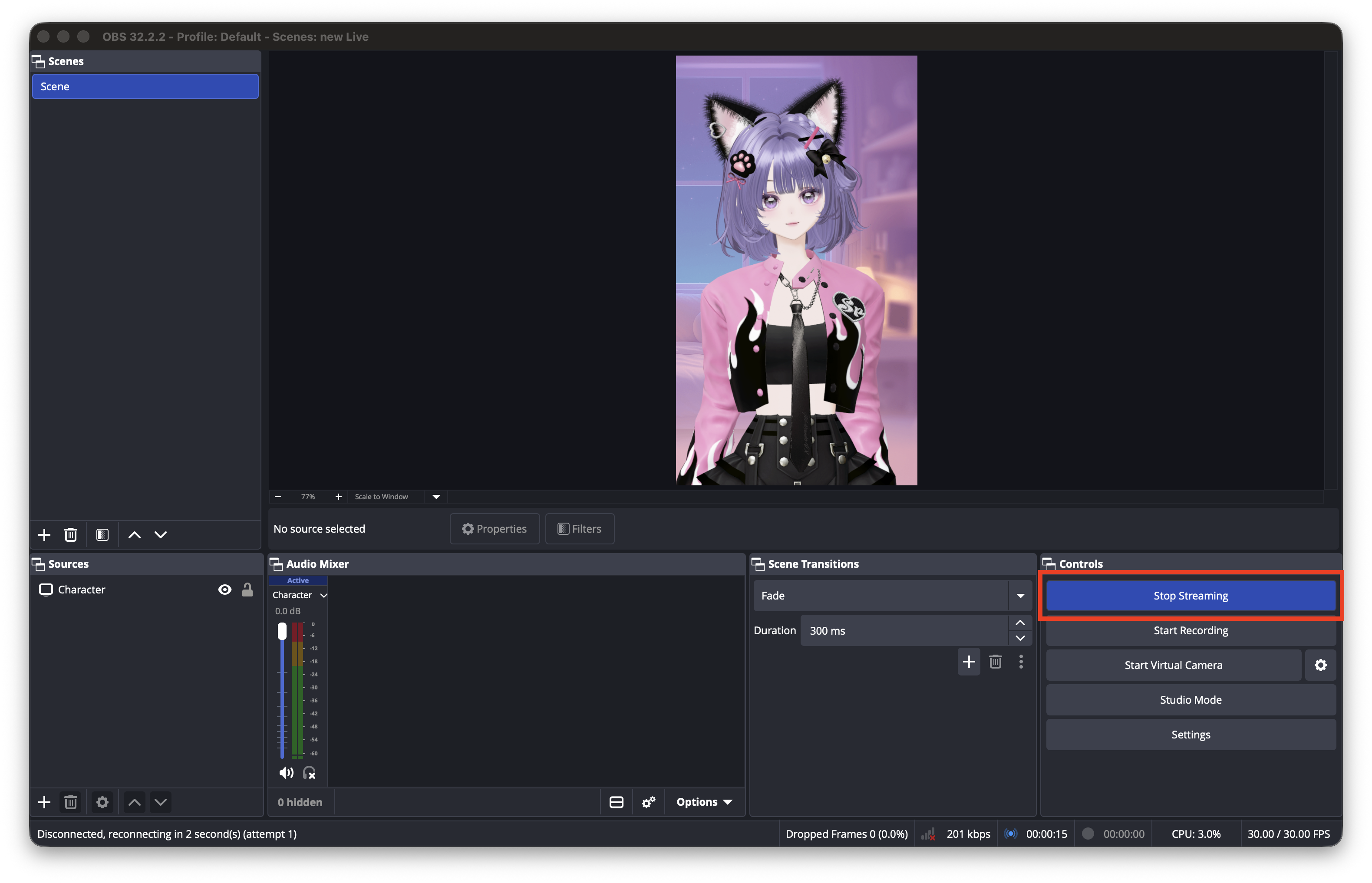
Don’t forget: Click Stop Streaming in OBS Studio to fully end your broadcast!
Welcome to the world of ZEPETO LIVE!
Great job following along with the guide 👏
You’ve now mastered everything you need to know about ZEPETO LIVE!
Head over to LIVE and show off your creativity to the fullest!
If you have any more questions, feel free to check out the ZEPETO LIVE Help Center.