Creating AI Items with Chat GPT
Hello 👋
Did you know that if you're a ZEPETO user, you can create items in just 3 seconds using ChatGPT on your mobile device?
Create items in just 3 seconds with GPT! Here’s how it works🪄
STEP 1 : Download the Template
Log in to Zepeto and download the template for the item you want to create.
(When you download a template in the app, it will be saved to your photo album)


STEP 2 : Set Up AI with Training Prompts
If you copy the [GPT Training Prompt] and paste it into your personal ChatGPT, it will automatically be configured as a GPT dedicated to creating Zepeto items. Copy the [GPT Training Prompt] right now and send it to GPT!
STEP 3 :Tell this GPT what design you want to create using the downloaded template
Next, upload your template to GPT, describe the design you want to create, and your item is ready! Submit an image of your finished item via the Zepeto app! Once your item is approved, it will go on sale immediately!
Using the examples below, you can see the actual item creation process and the process for submitting items within the app,
Check out these popular design prompts that you can use right away😍
Item Creation Process & Prompt Examples
ㅣ(With Reference Photo) : Generate Items Using Photos & Prompts
1. Mermaid skirt
- Materials: Please prepare three types of photos as shown in the table below
Image1 | Image2 | Image3 |
|---|---|---|
Item Template Image (When you download a template from the app, it will be saved to your photo library.) | Here's what the avatar looks like with the texture image applied (you can take a screenshot when downloading the template in the Zepeto app) | A photo of the design you want to create |
 |  |  |
- Prompt
- Production Process
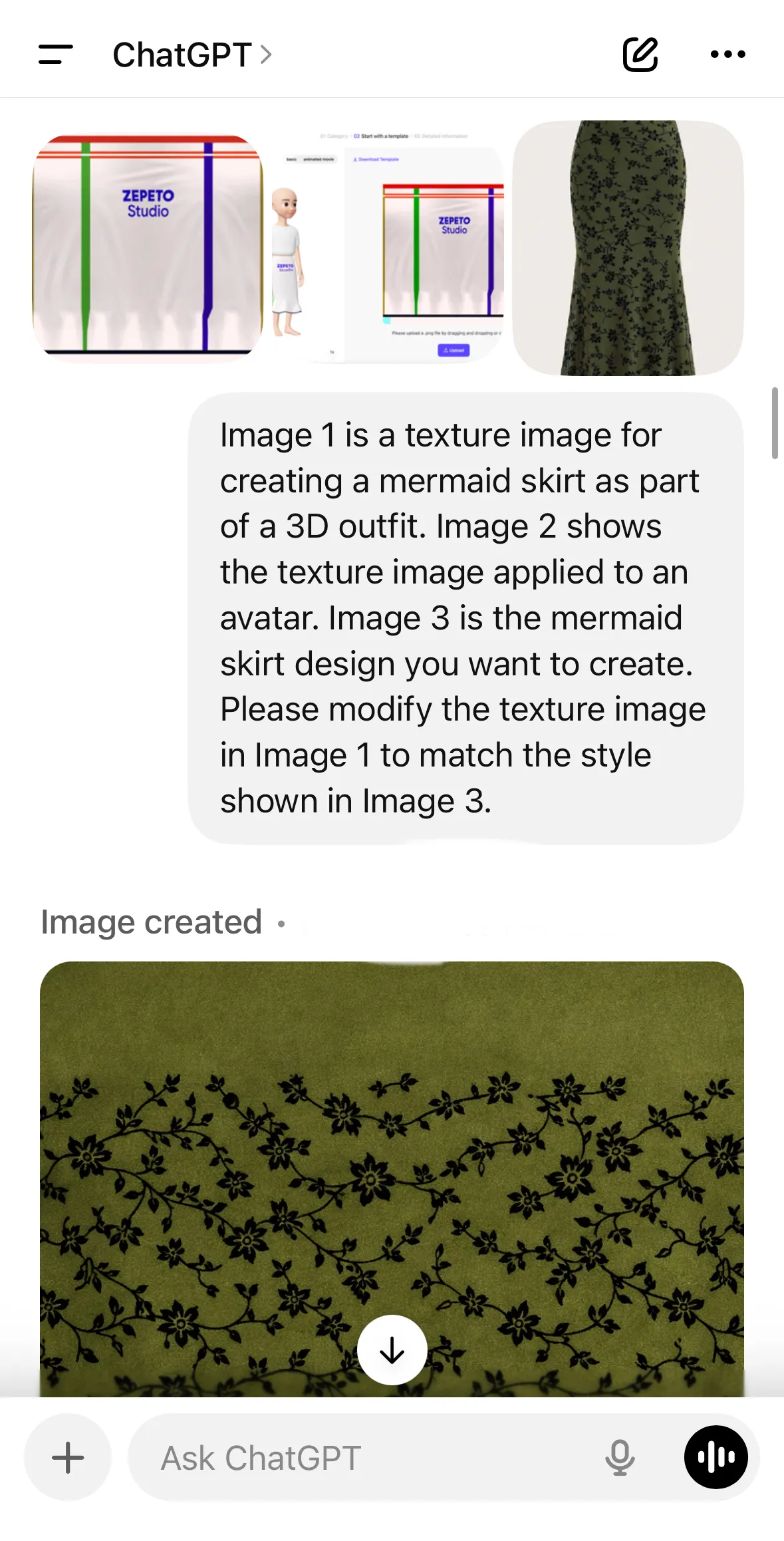
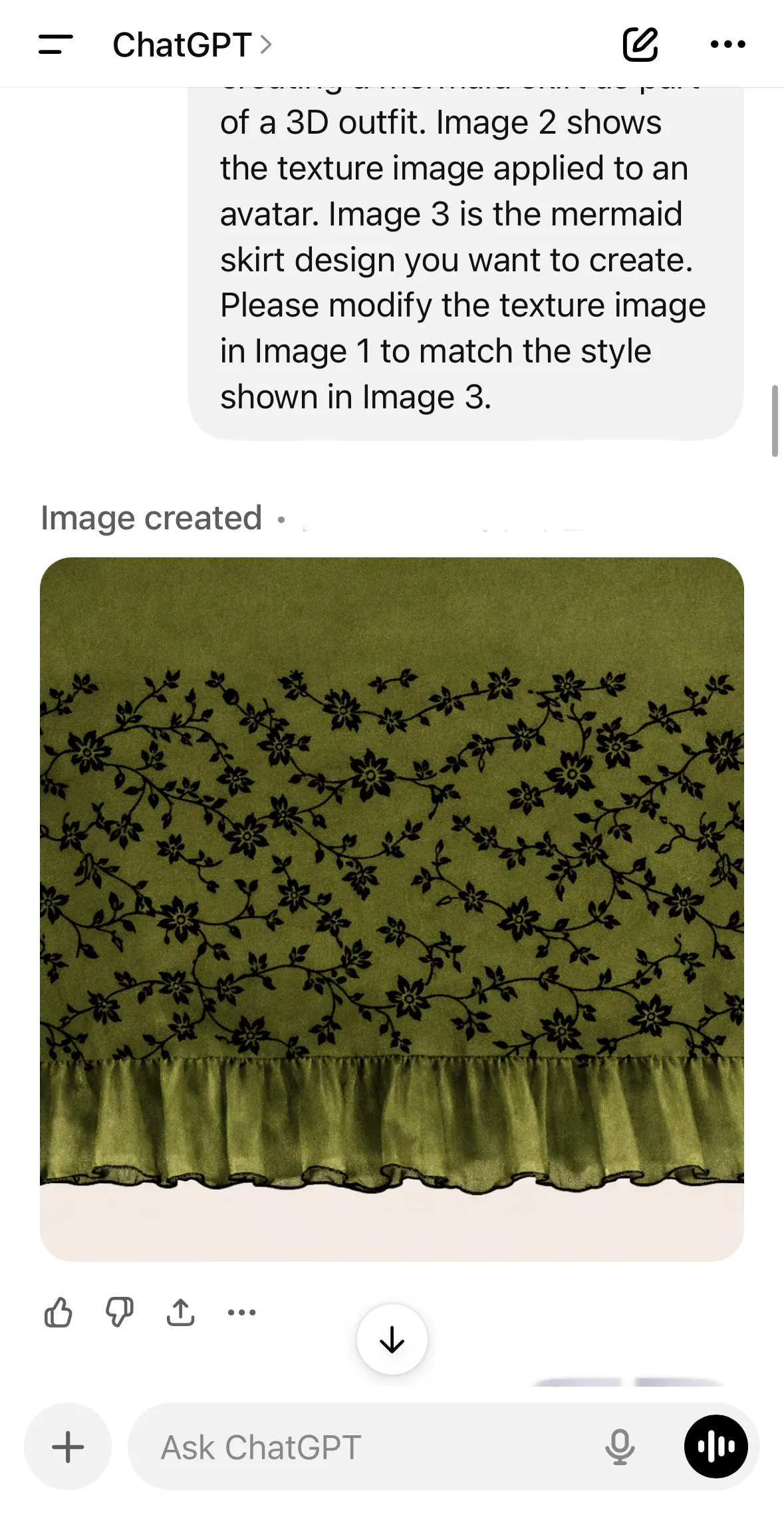
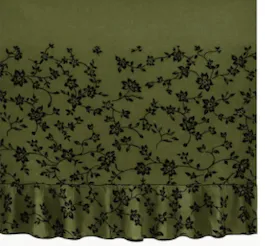
- Production Results

2. Knee-high socks
- Materials: Please prepare three types of photos as shown in the table below
Image1 | Image2 | Image3 |
|---|---|---|
Item Template Image (When you download a template from the app, it will be saved to your photo library.) | Here's what the avatar looks like with the texture image applied (you can take a screenshot when downloading the template in the Zepeto app) | A photo of the design you want to create |
 |  |  |
- Prompt
- Production Process

- Production Results


ㅣ(Without Reference photo) : Generate Items Using Prompts Only
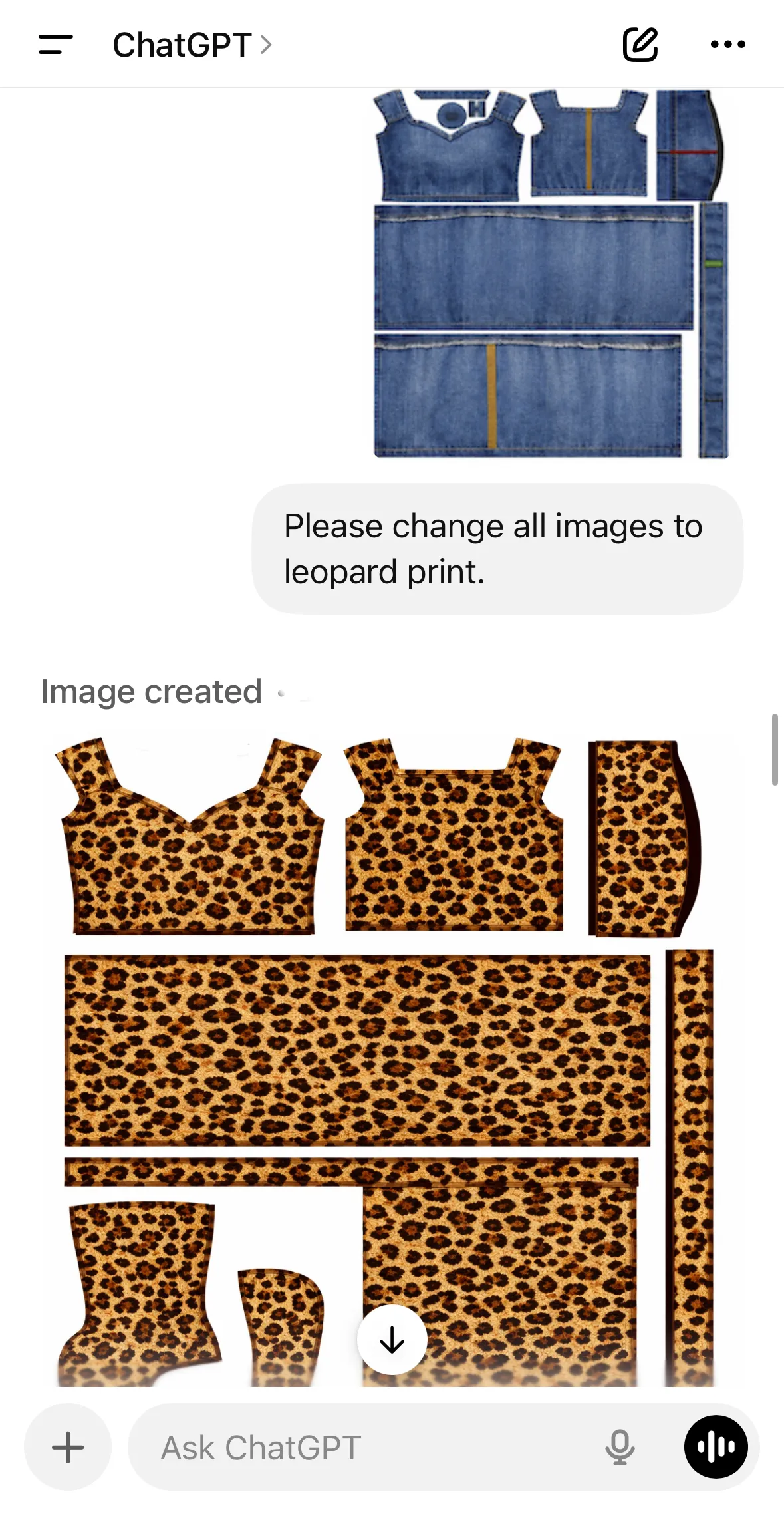
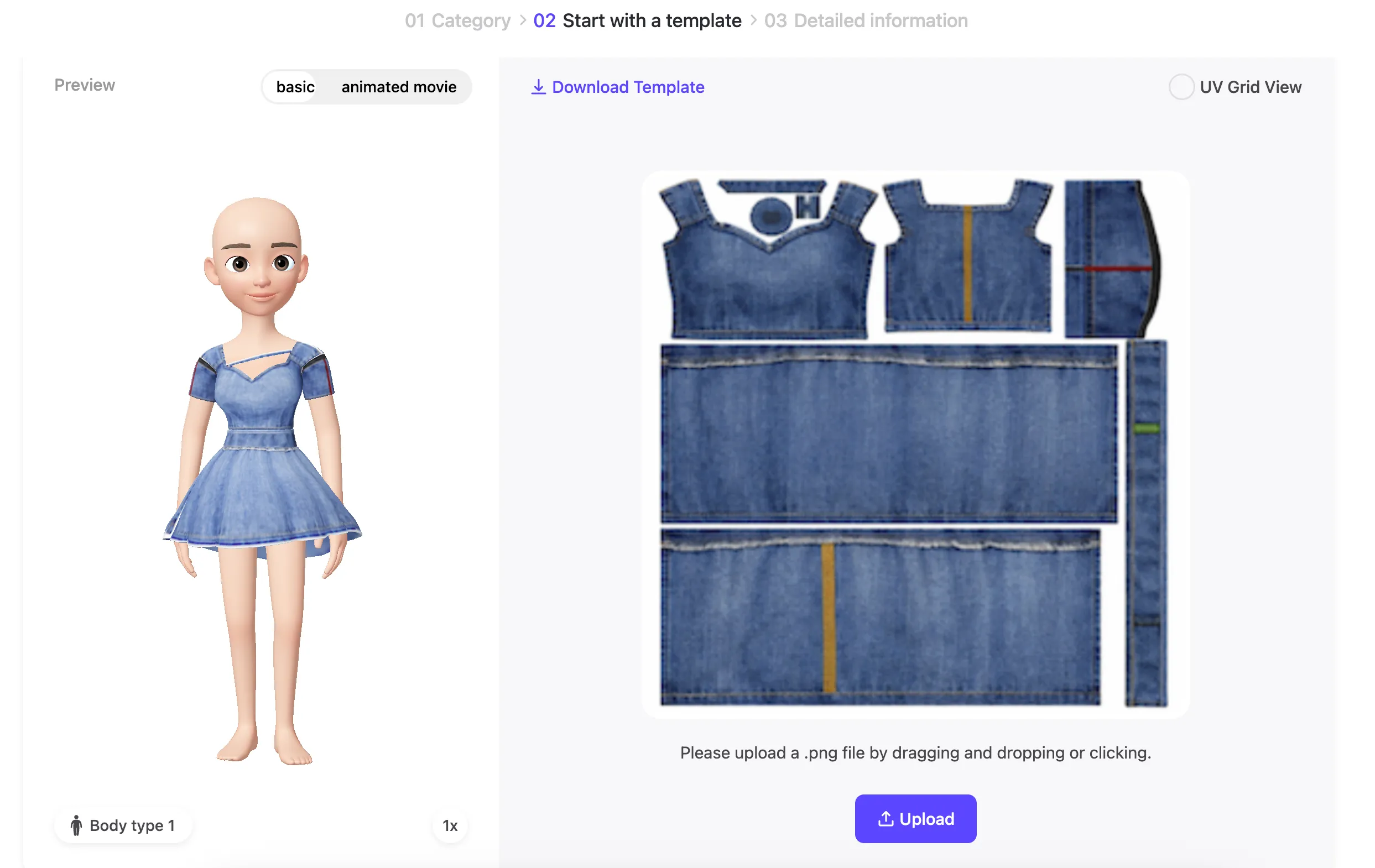
- Belline Dress (Blue Dress → Leopard-Print Dress generated consecutively)
- Materials: Item template images
Image1 |
|---|
Item template image (When you download a template from the app, it will be saved to your photo library) |
 |
- Prompt
→ At this point, if you change the "leopard print" to the pattern you want to create, you can generate an image with that pattern!
- Production Process
 |  |  |
|---|
- Production Results

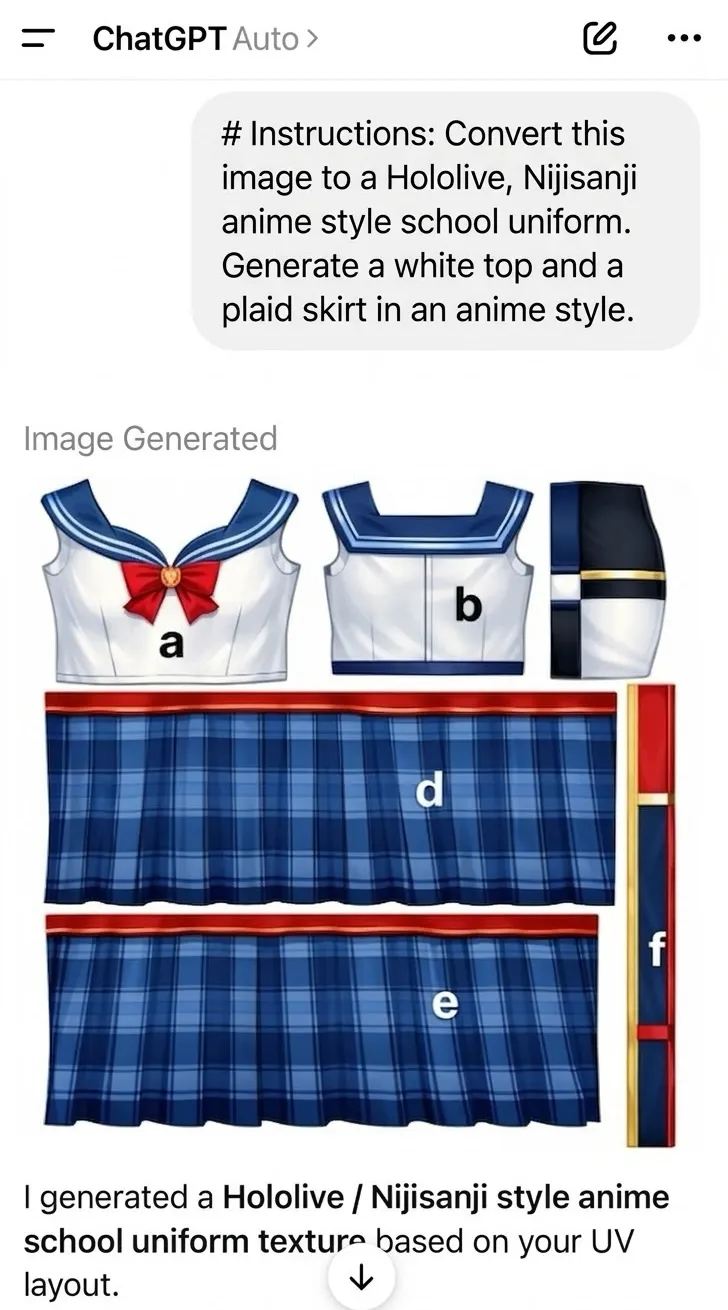
2. Tracksuit
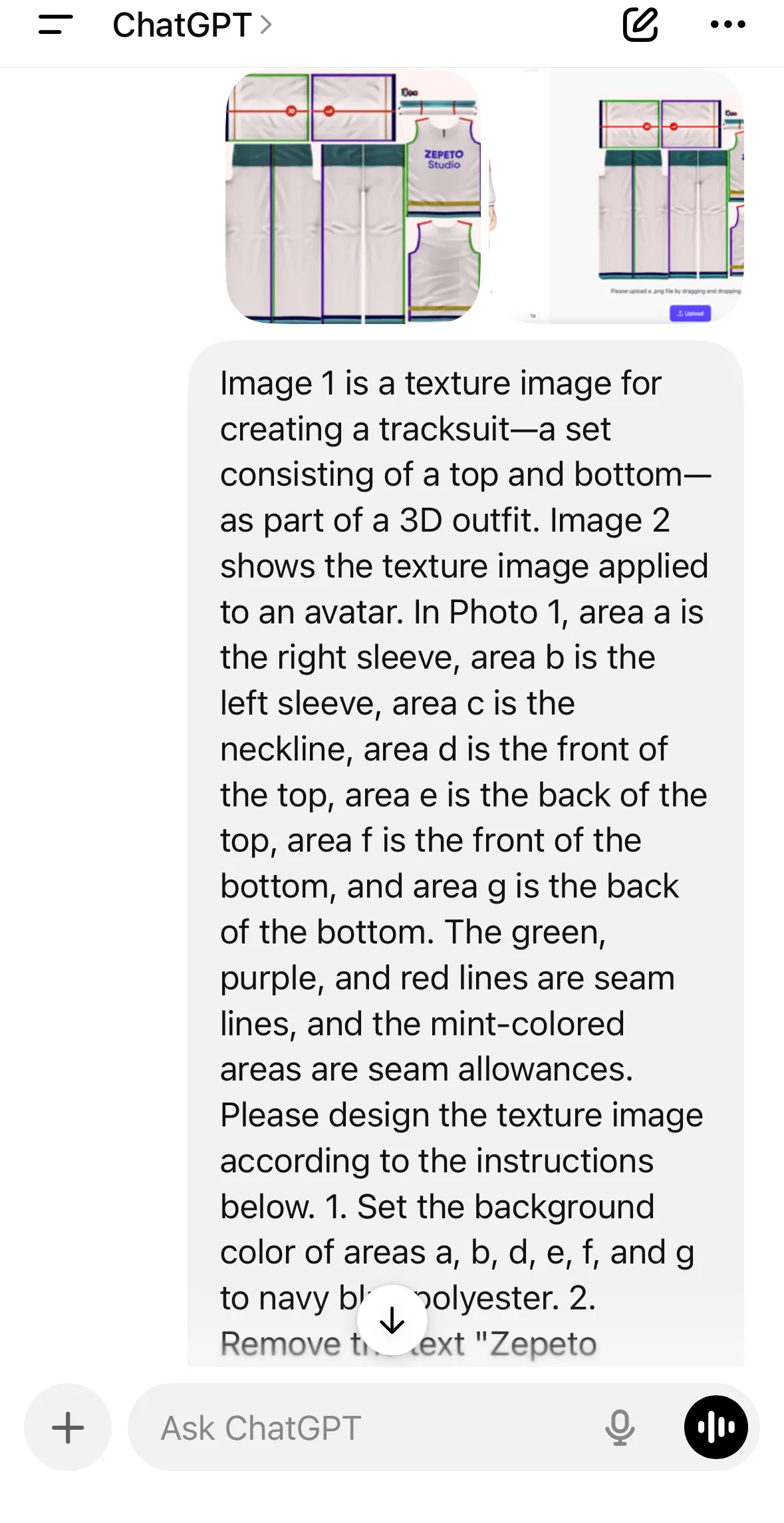
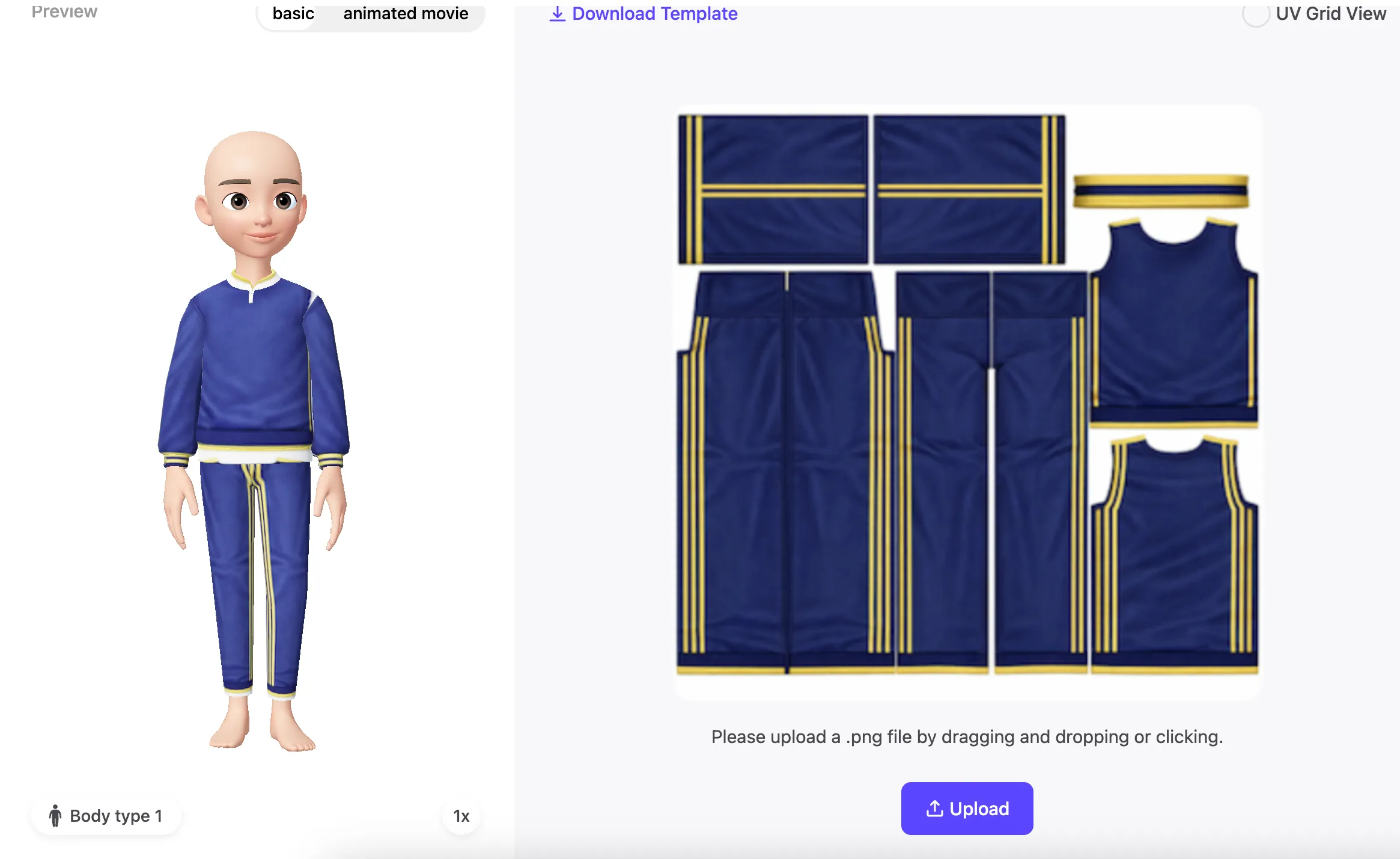
- Materials: Please prepare two types of photos as shown in the table below
Tip! To improve the accuracy of your design, try using text to define specific areas within the template. Once you’ve defined the design areas with text, GPT’s design accuracy will improve significantly!
Image1 | Image2 |
|---|---|
Image of an item template with sections marked by letters (When you download the template from the app, it will be saved to your photo library. After downloading the item template, please mark the sections using letters or other symbols.) | How the texture image looks when applied to an avatar (You can take a screenshot when downloading a template in the Zepeto app) |
 |  |
- Prompt (Advanced Version)
- Production Process

- Production Results
After selecting the area, issue the command (recommended) | |
|---|---|
Production Process | |
 |  |
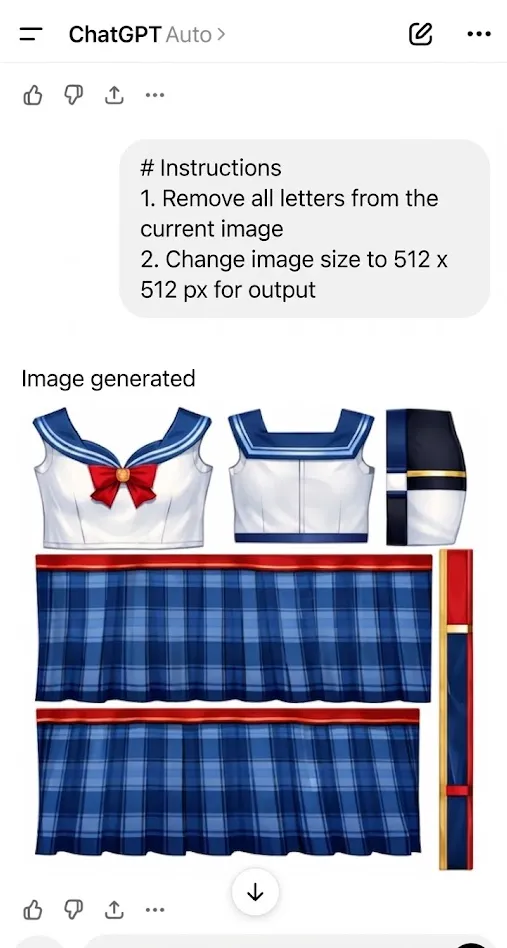 |  |
After selecting the area, issue the command (recommended) | ||
|---|---|---|
Actual product  | | |
When issuing a command without specifying a scope (not recommended) | ||
|---|---|---|
Production Process | The outfit GPT wanted to create | |
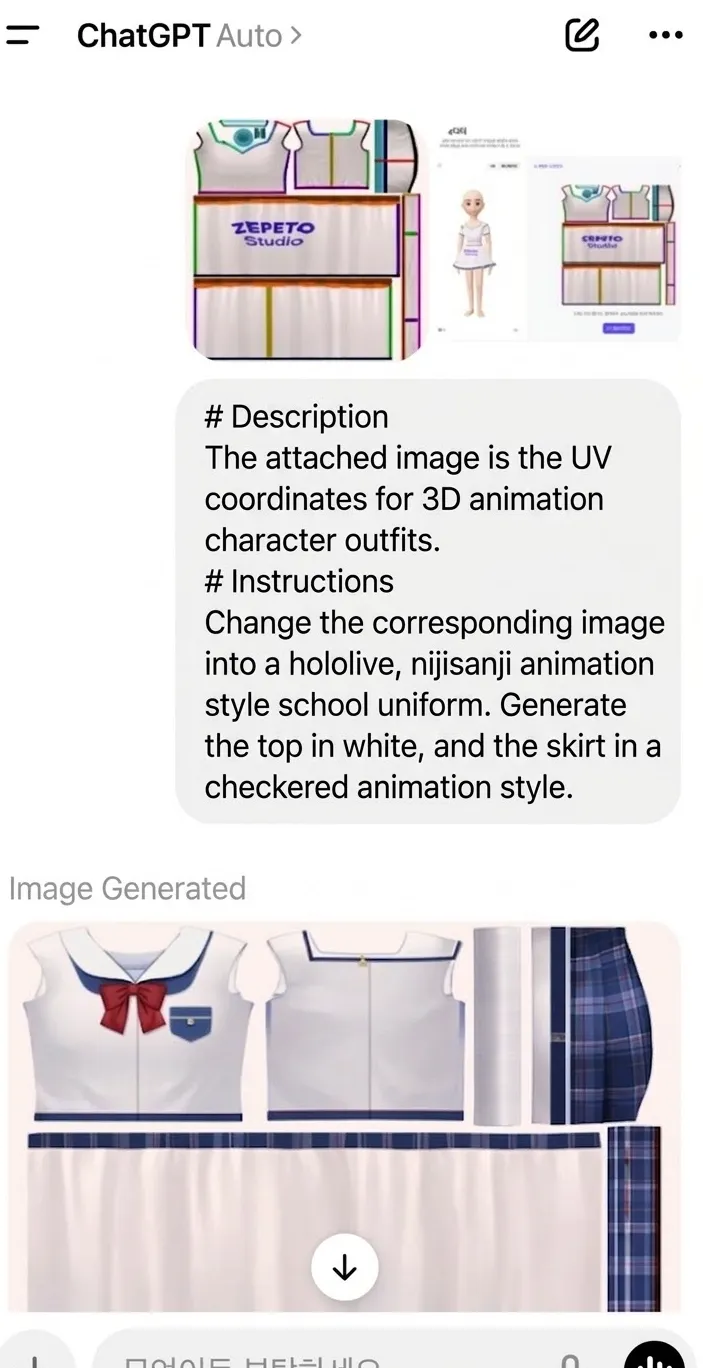 | 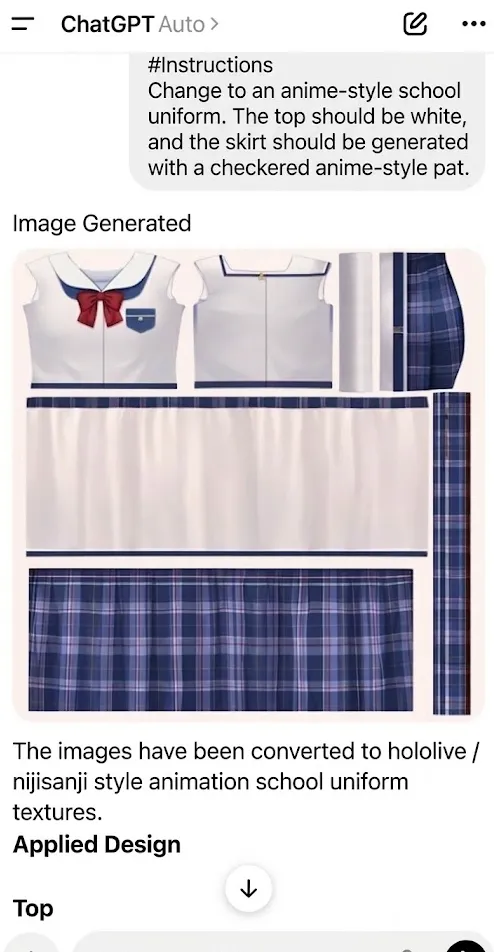 | 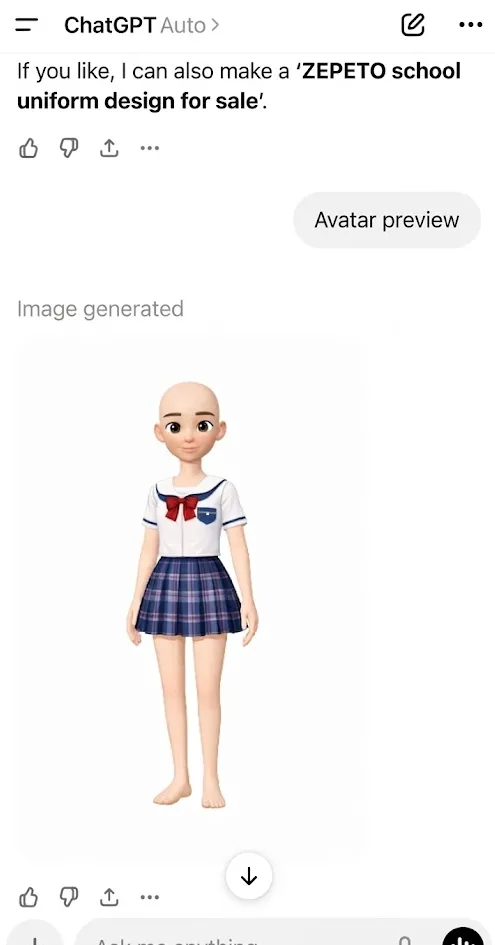 |
When issuing a command without specifying a scope (not recommended) | ||
|---|---|---|
Actual product 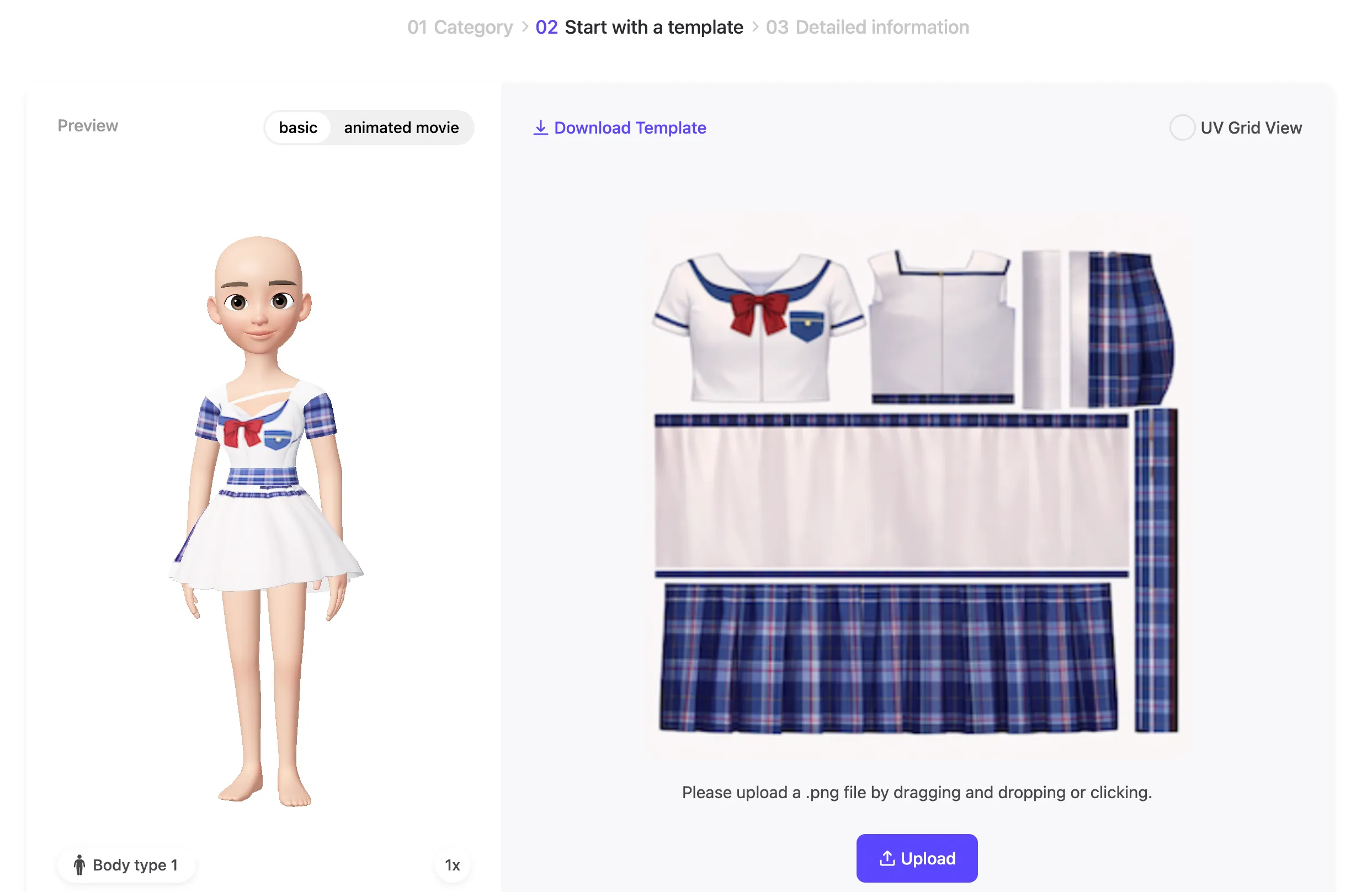 |
STEP 4: Resize Images for ZEPETO Submission
- Materials
Images of the items created
- Prompt
📍 Tip : If you want to resize an image, don’t include this request with other instructions—GPT produces better results when you make this request on its own!
Please request the image resize as a standalone command along with the final, completed image!
(Not recommended Example) Example of what not to do: Change the skirt portion of this texture image to a leopard print, and resize the image to 512 x 512 px.
→ If commands to resize images are mixed in with other commands, the image size won't be reduced properly.😭
How to Submit Items
Description | Image |
|---|---|
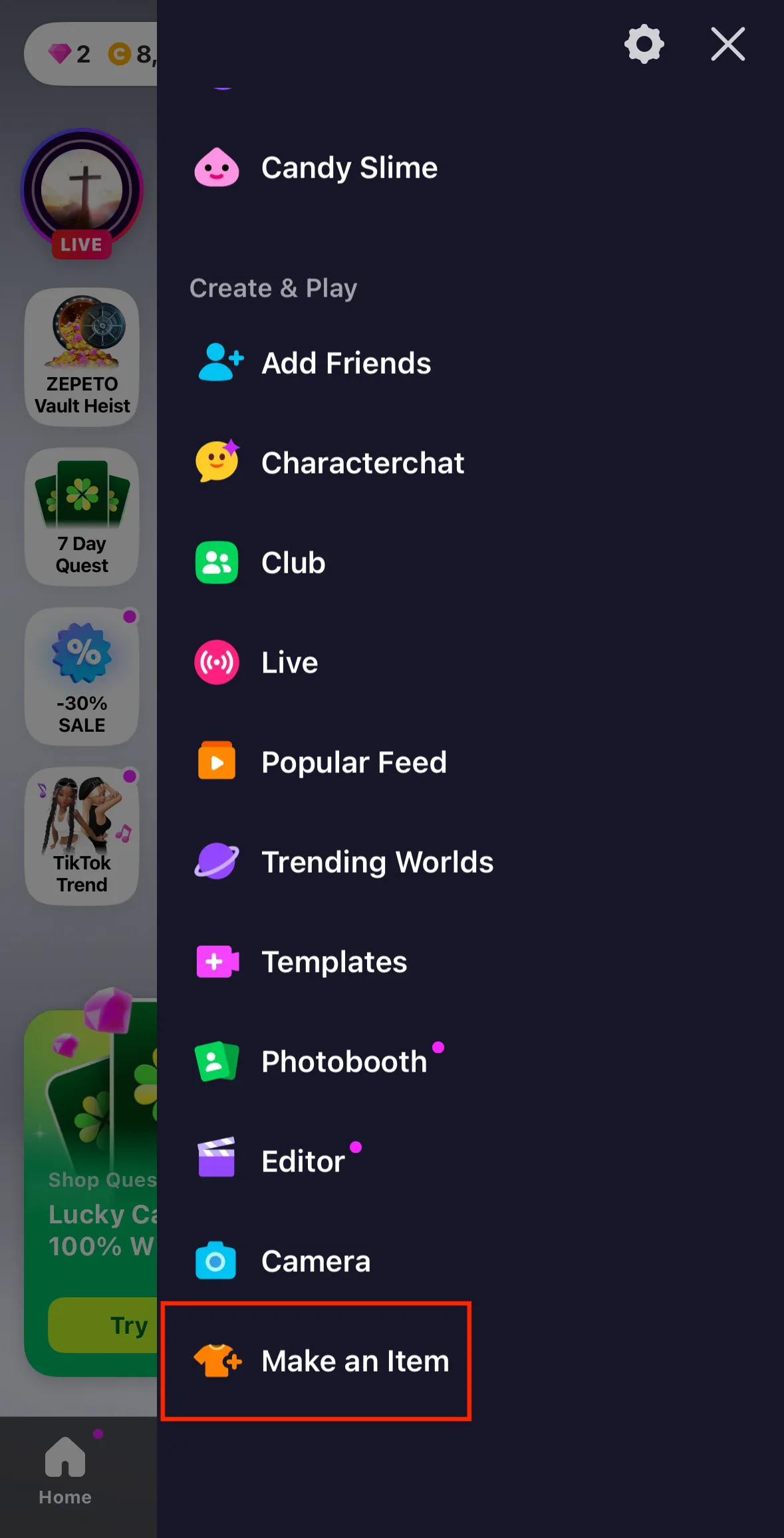
Tap the menu button in the upper-right corner of Zepeto, then tap "Create Item." |  |
Click on the item you want to submit. | 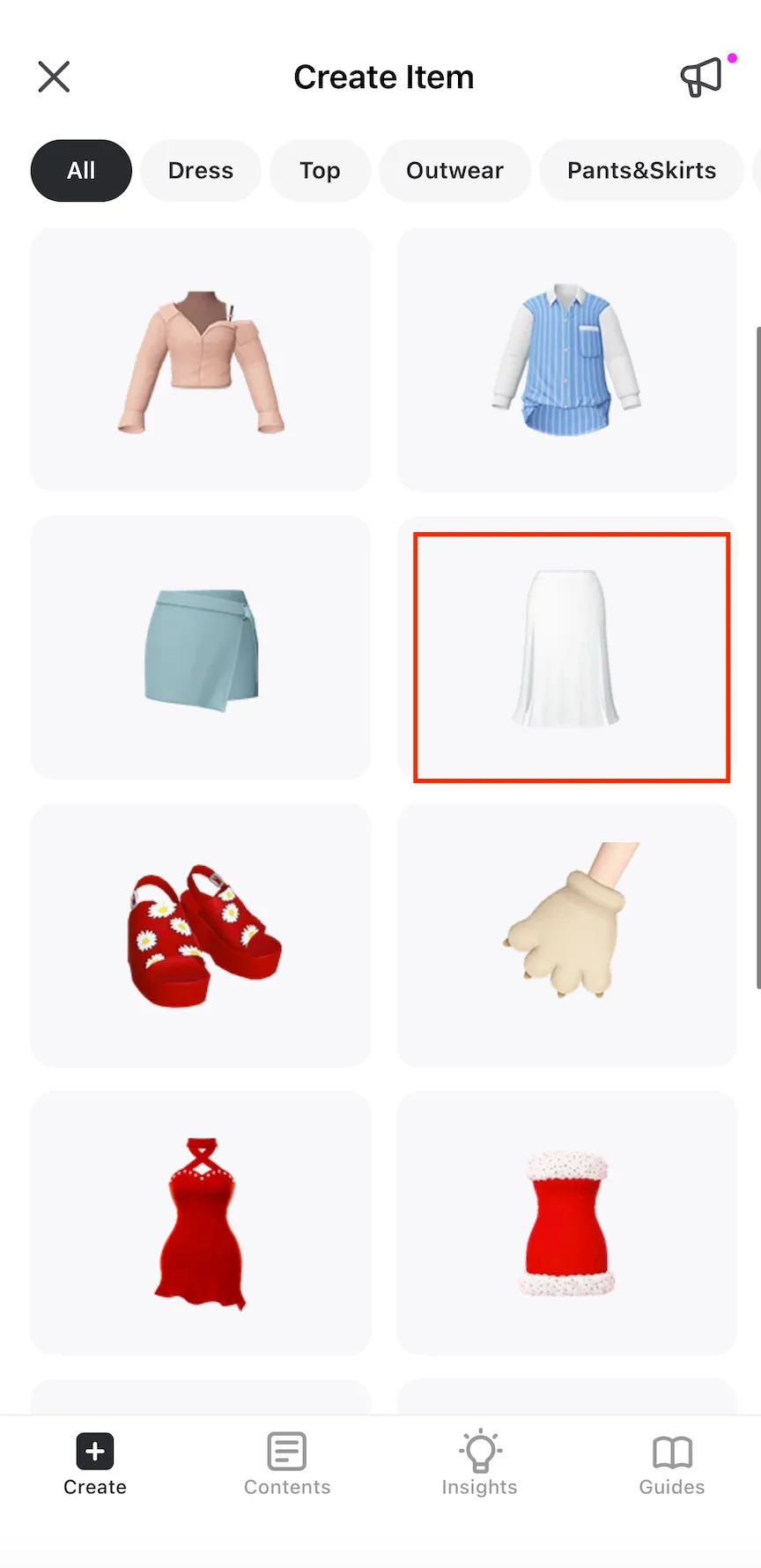 |
Click 'Edit'. | 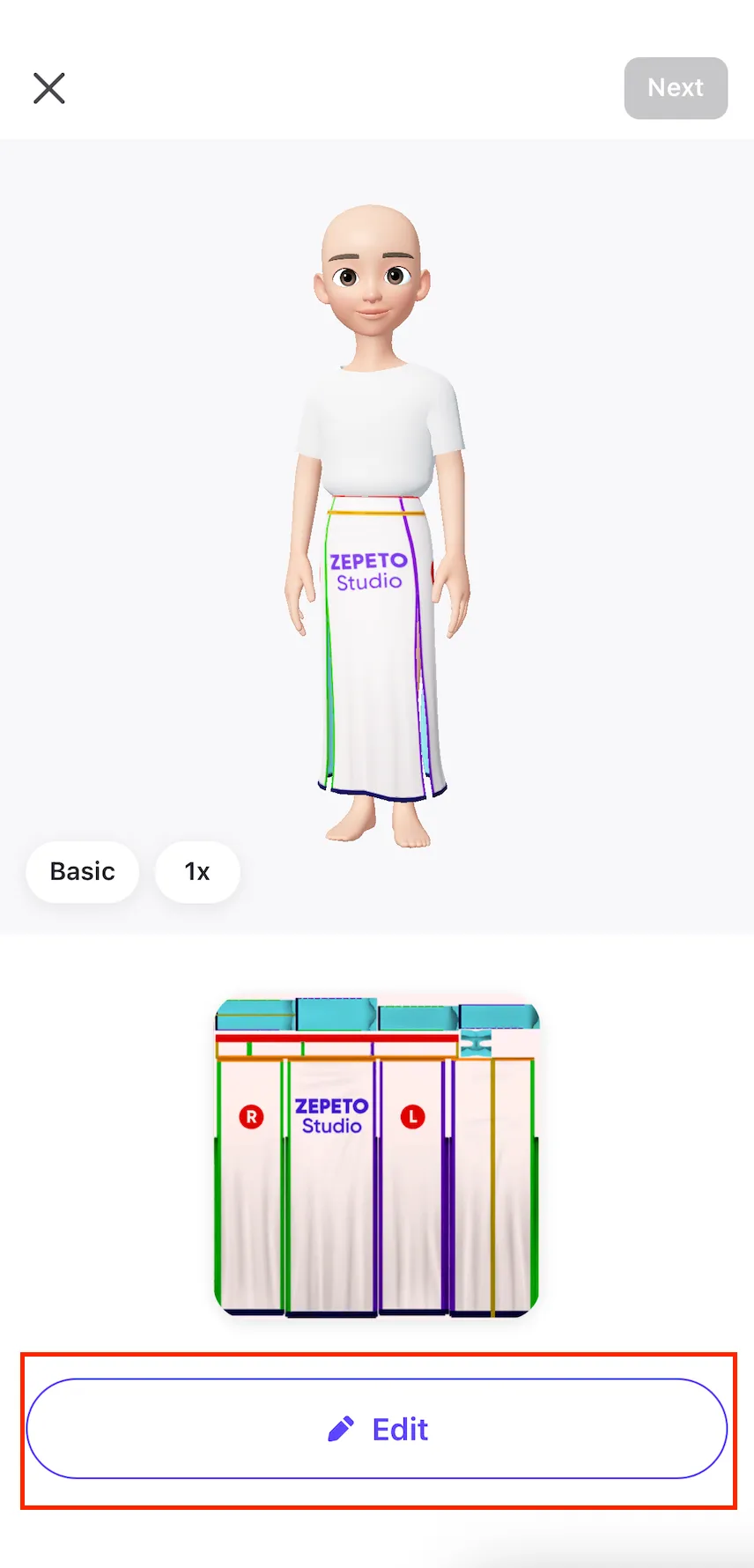 |
Click "Upload". | 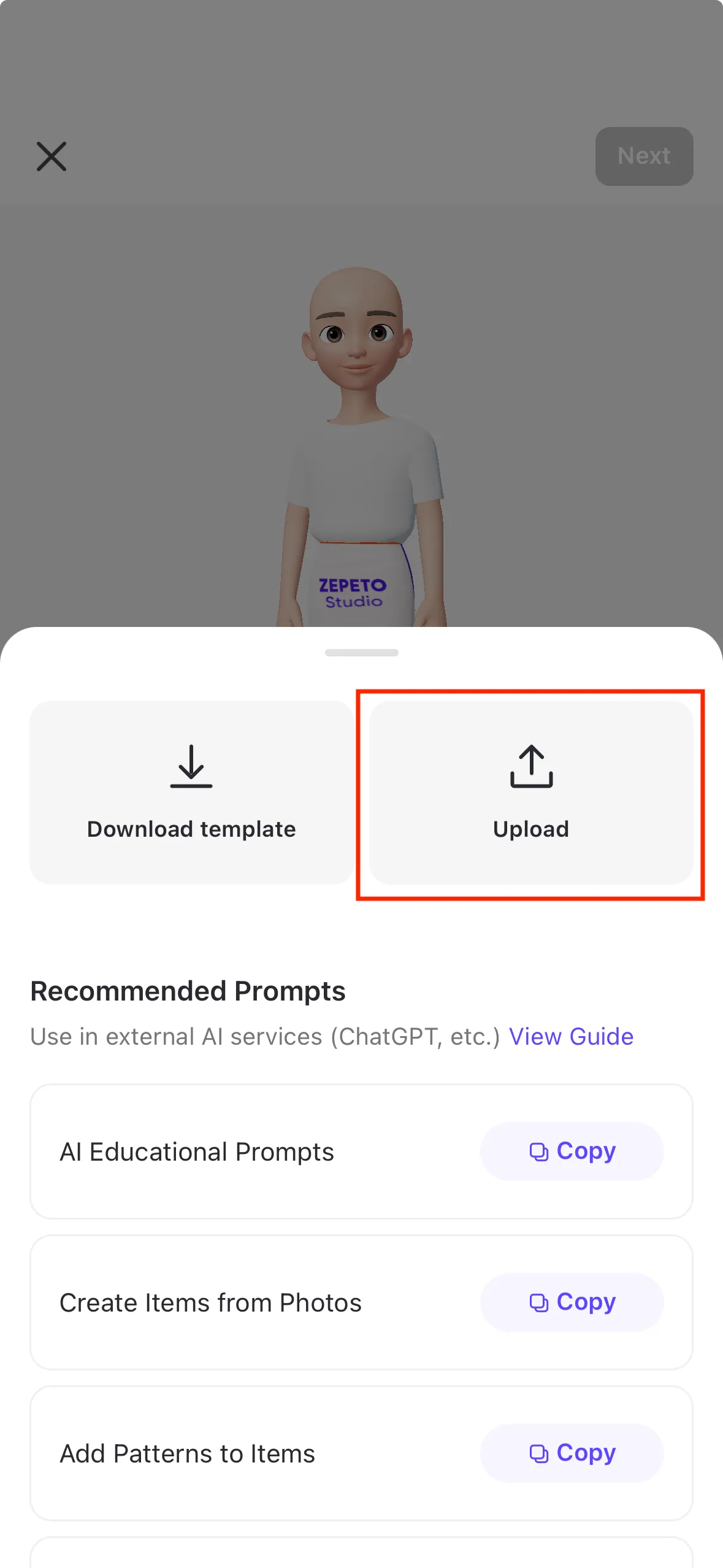 |
Select the image you want to submit and preview how it looks on your avatar. | 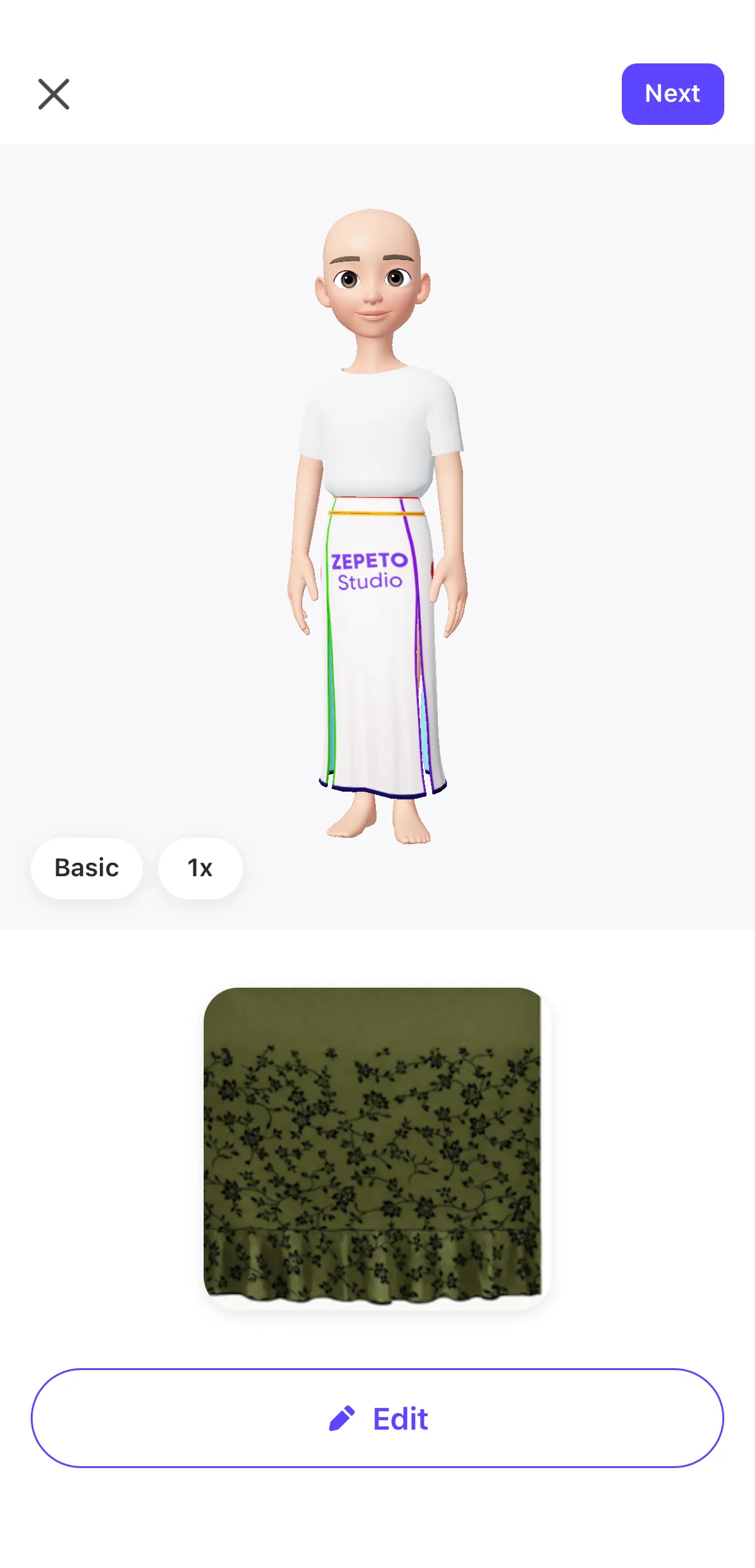 |
Please enter the item details. (name, price, tags, etc.) | 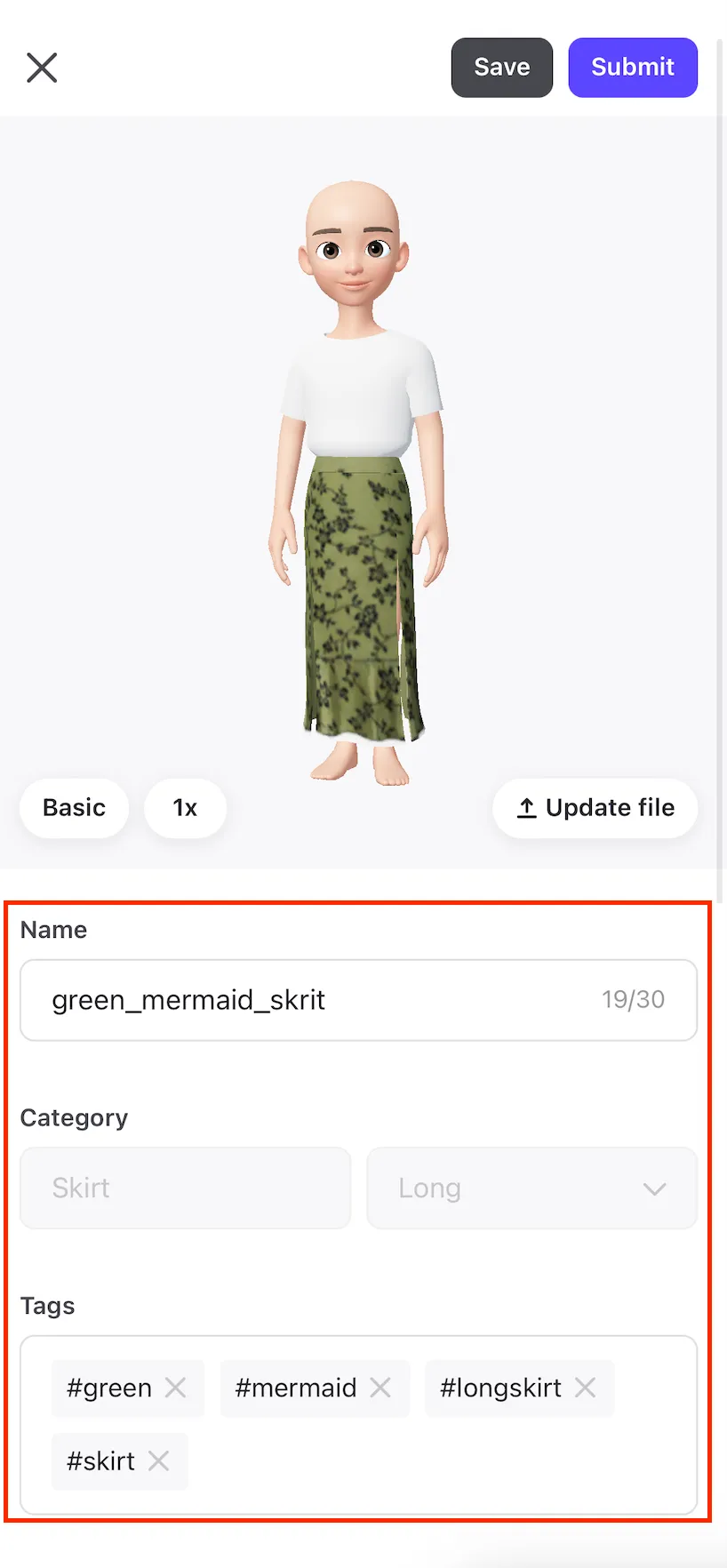 |
Click "Submit" in the upper-right corner. | 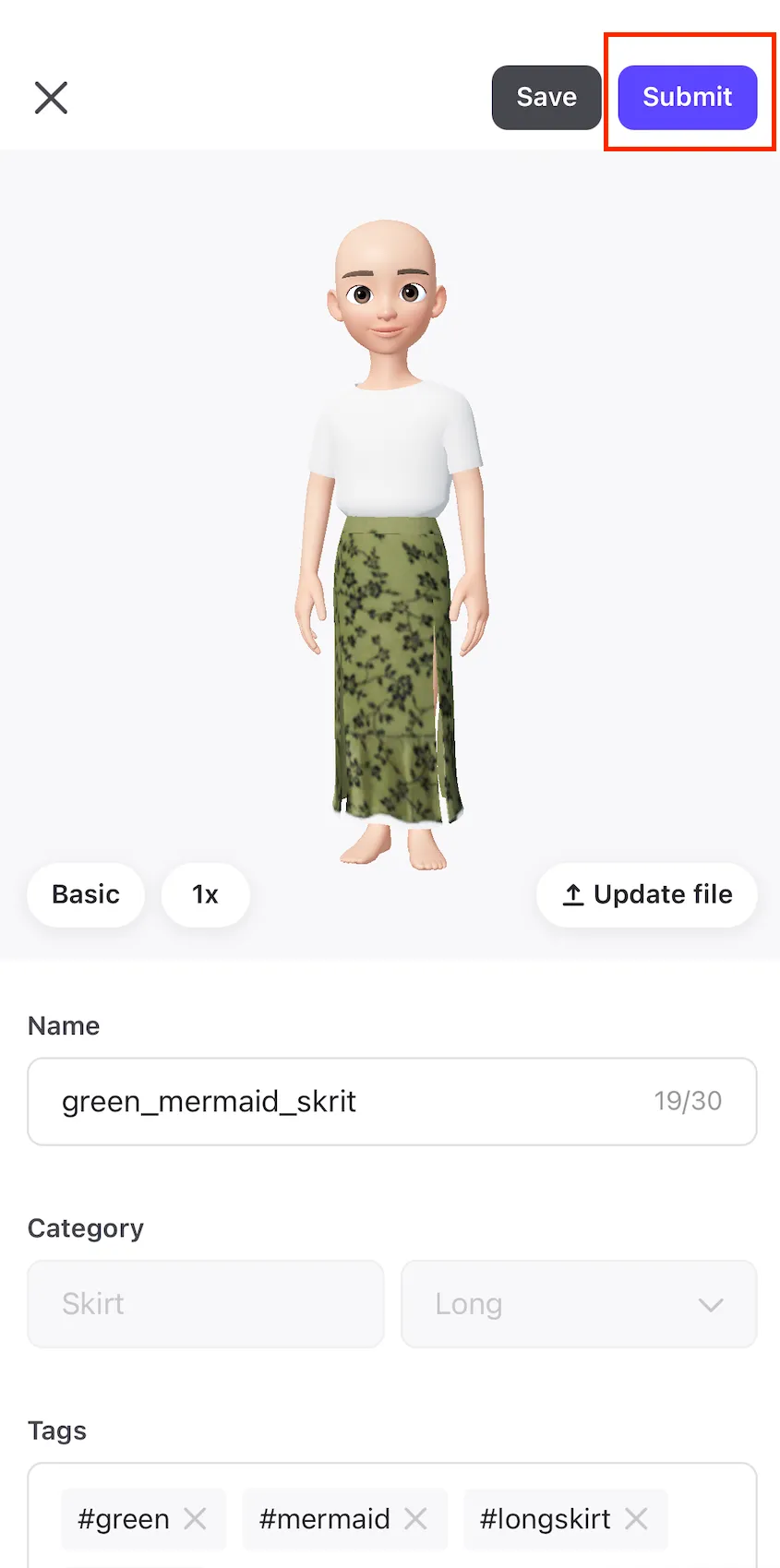 |
After reviewing the review guidelines, click "Submit for Review" below. | 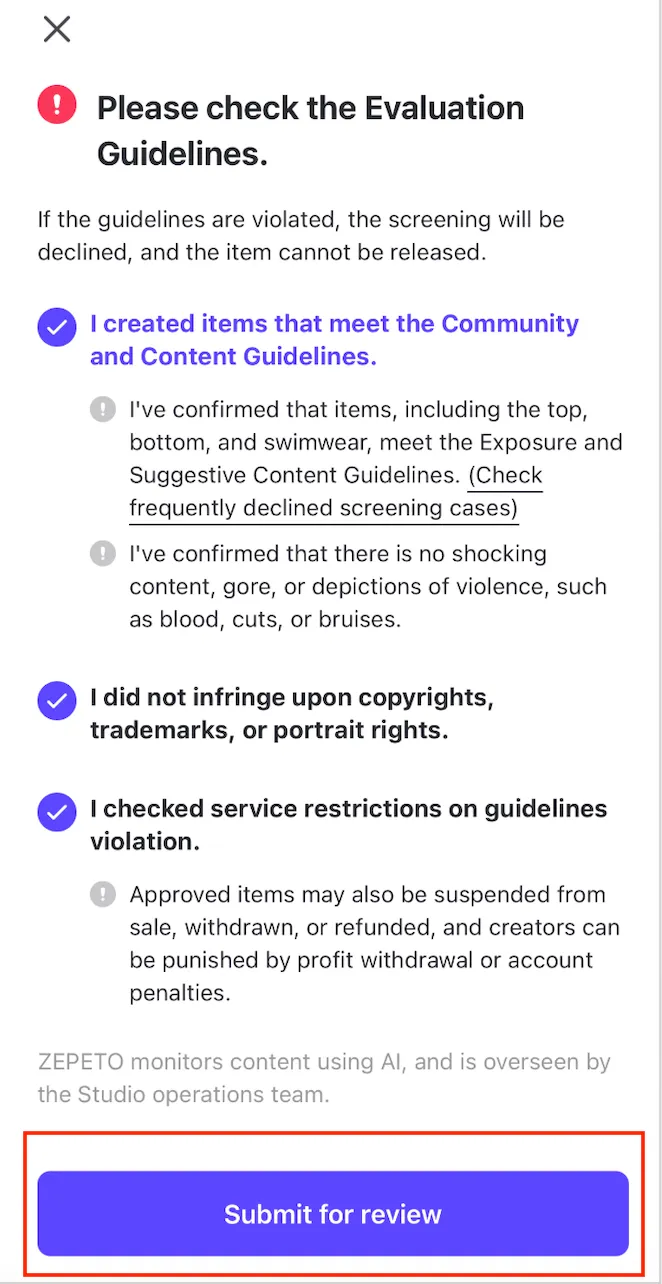 |
Once you see the message "Submitted," your item has been successfully submitted! | 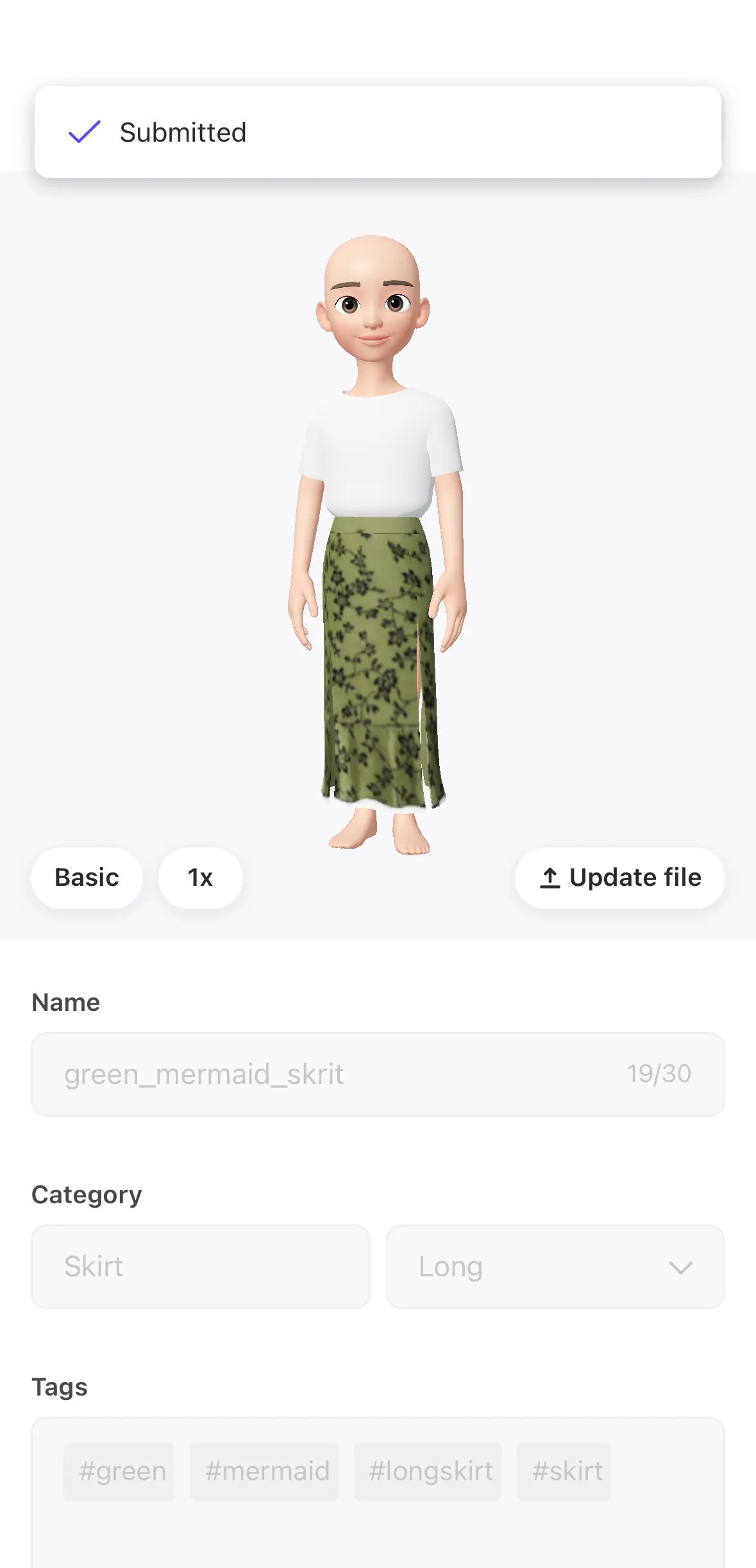 |
Using the templates and prompts provided by Zepeto, create your own items easily and conveniently on your mobile device!🪄