[Live] Ready, Set, Broadcast!
Launching your first live stream?
With content, avatars, and fan interaction to manage, it can feel overwhelming.
But don’t worry — it doesn’t have to be perfect. Let’s walk through it together, one step at a time.
Before You Start
You need 100 followers to unlock live streaming!
Q: How can I gain 100 followers?
A: Try joining other broadcasts as a guest, participating in Lucky Drops, or supporting streamers to get noticed!
- Appearing as a guest in other streams helps raise your visibility.
- Completing Lucky Drop missions is a great way to quickly boost your followers.
- Sending donations puts your name on the streamer’s supporter rankings.
After the stream, don’t forget to check your follow notifications — you’ll likely see that your follower count has grown!
Users under the minimum age required for live streaming in their country cannot host live broadcasts. (This is based on the age provided when signing up for ZEPETO.)
1.Set a Theme
Here’s the kind of content you can create on ZEPETO Live
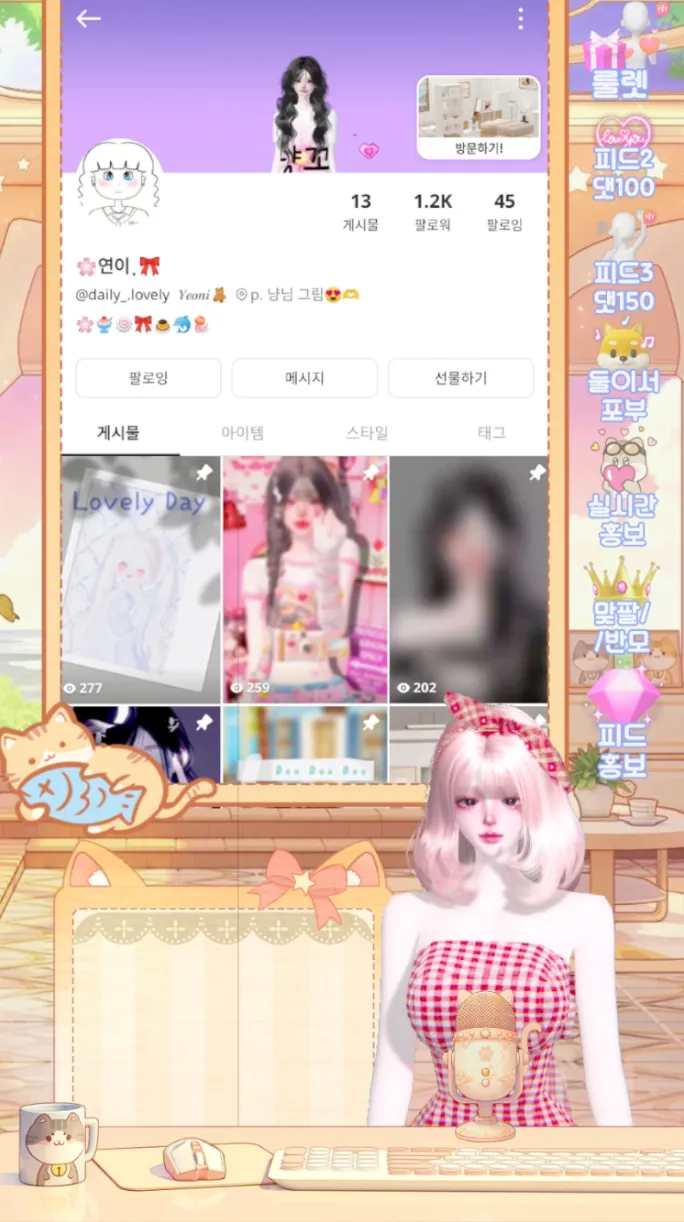
1) Interactive Streams: Feed Tours & Guest Shows
- Feed feature 🌸냥nyang 𝑳
- Explore viewers' feeds live and chat as you go.
- Add reactions and commentary to keep things fun and lively!
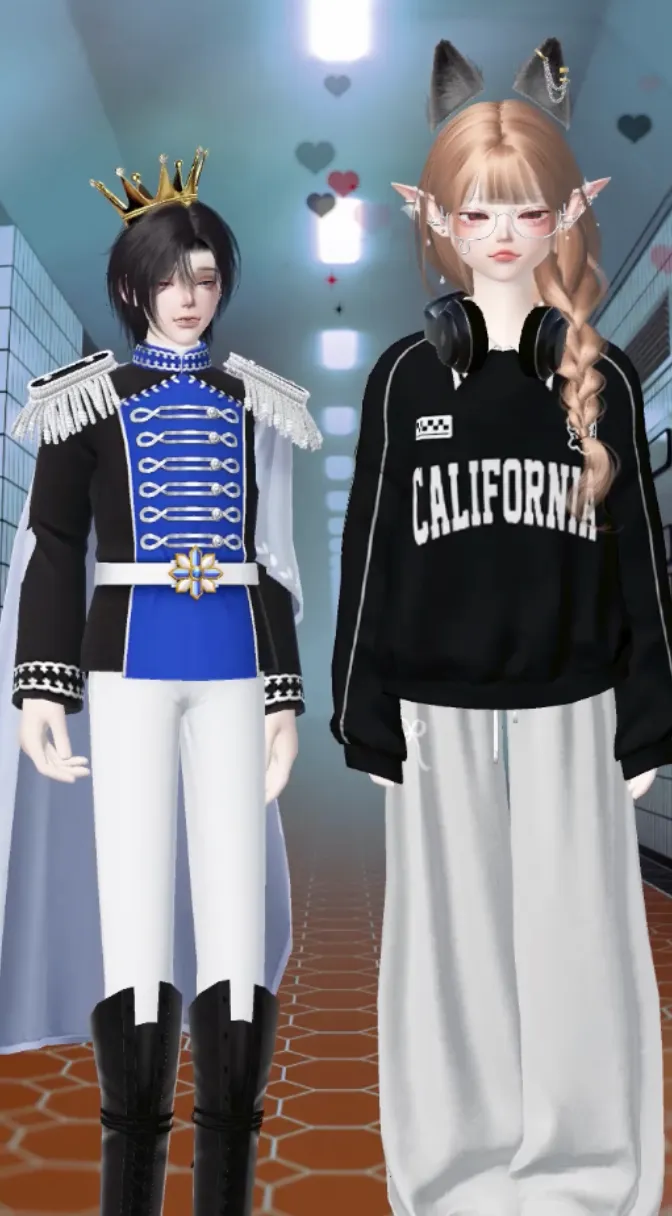
- Guest live 伊織 < iori >
- Plan a theme and invite guests to join your stream. Example: Host a fashion or singing contest, invite participants, and choose a winner!
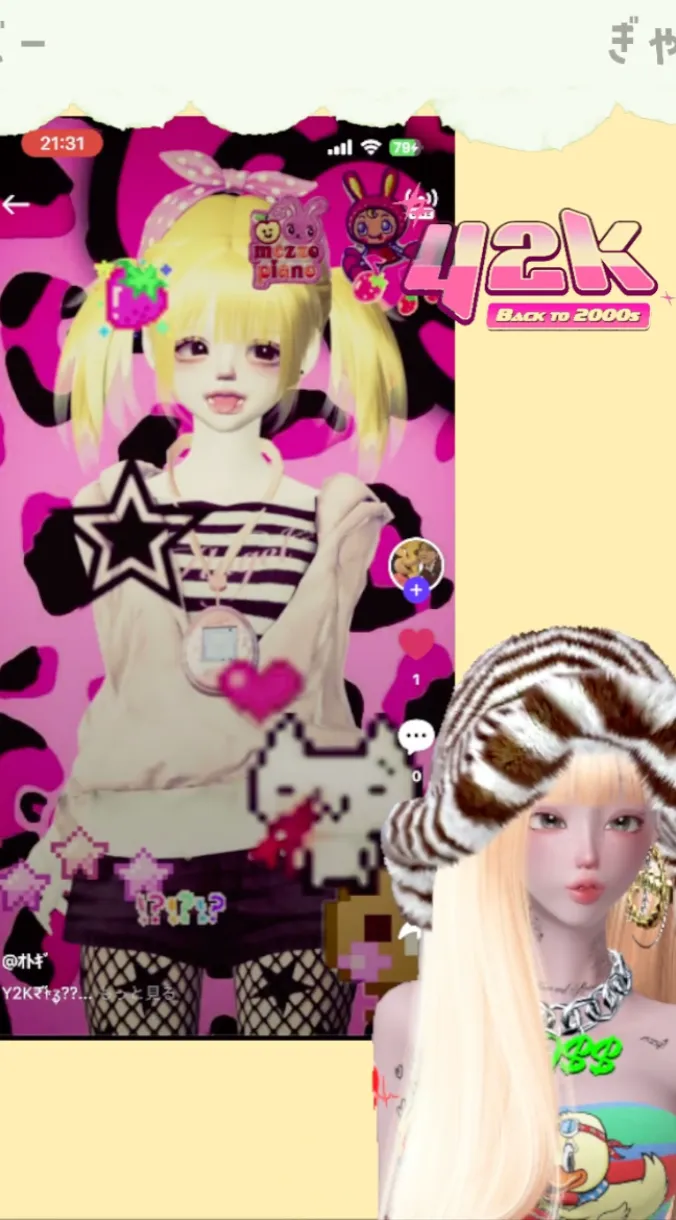
- Concept/Themed live 🌙月山-Tsuki×Yama-
- Tired of doing the same content every day? Try planning a unique concept and go live with it! e.g. Hosting a Y2K-themed live? Play retro games, show off Y2K fashion, or sing 2000s hits / use them as BGM.
ZEPETO Live is now accepting applications from streamers who want to host themed broadcasts! Check the Discord channel for details. (link)
If going live feels overwhelming or awkward, preparing a short script can really help. Write down a few lines or key topics in advance and guide your live with confidence!
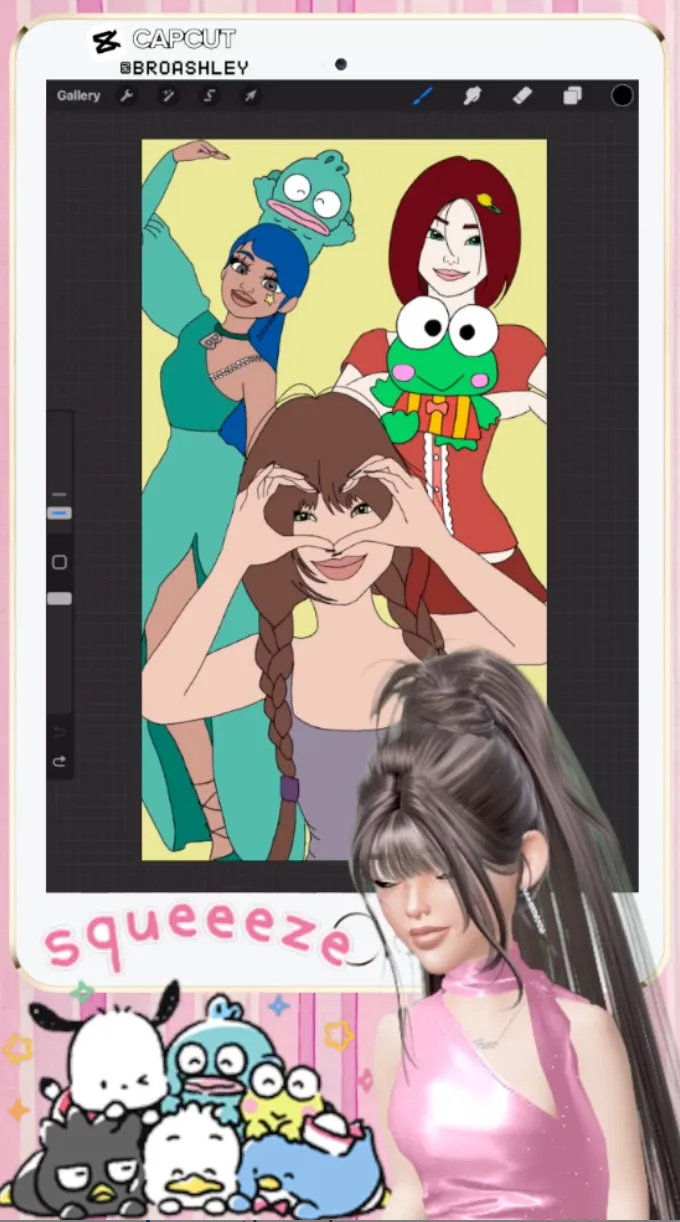
2) Talent Streams: Art / Music / Unity
- Art 🍒 Cherry 🍒
- Music 정샛별
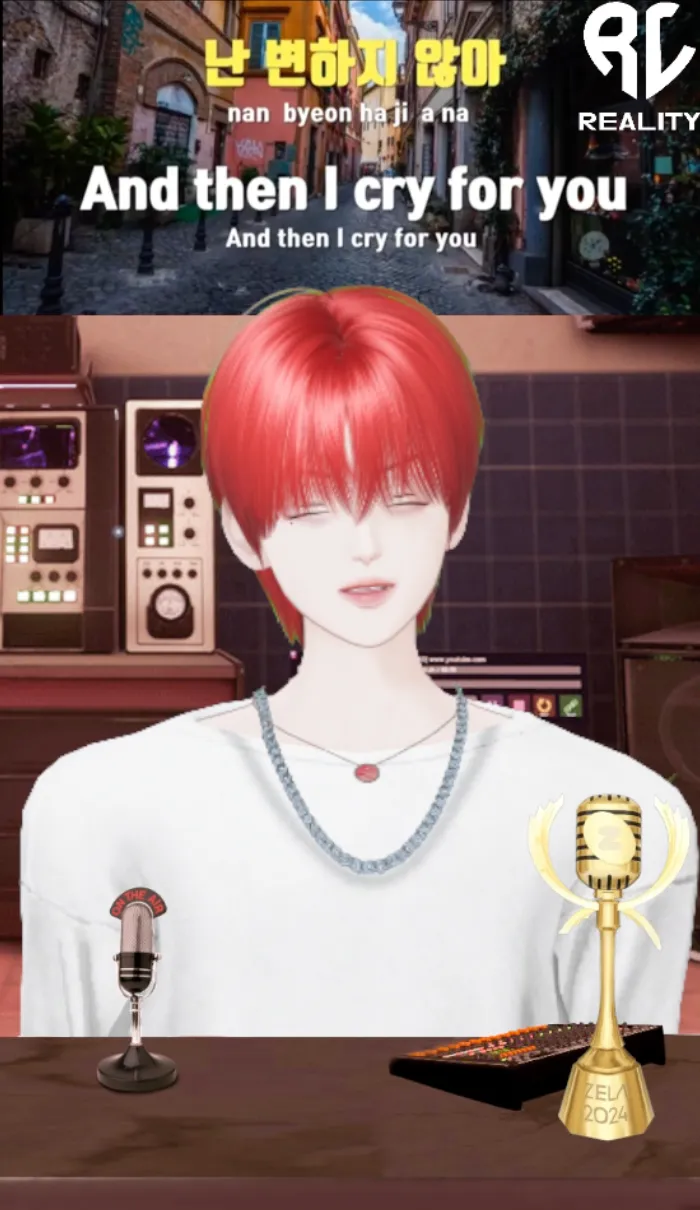
- Unity 🎐나기ᴾᴺ
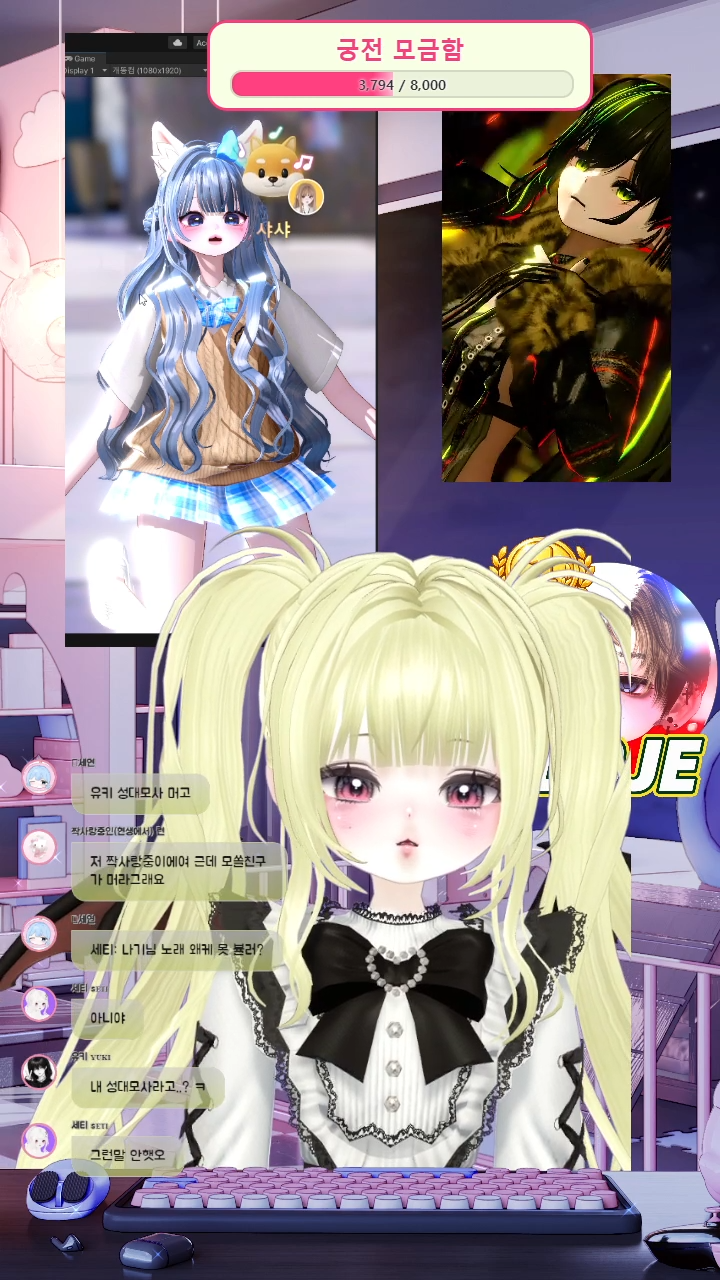
What’s a Unity Stream?
- Use Unity to take creative photos or record custom motions for your viewers.
- This helps you decorate your feed beautifully!
- Show your creative process in real time and share useful tips along the way!
3) Game Content (PC Streaming)
- Game JЖJЖJ
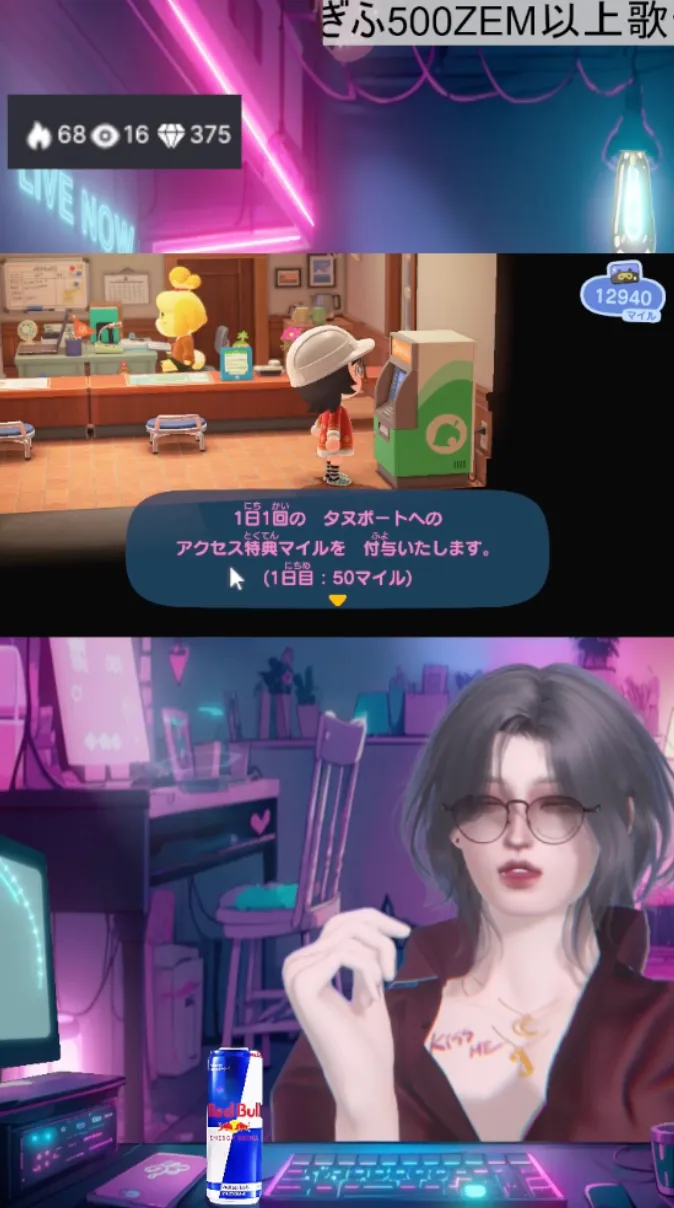
- Minecraft Stream with Donation Integration 진사운드꒙🐥
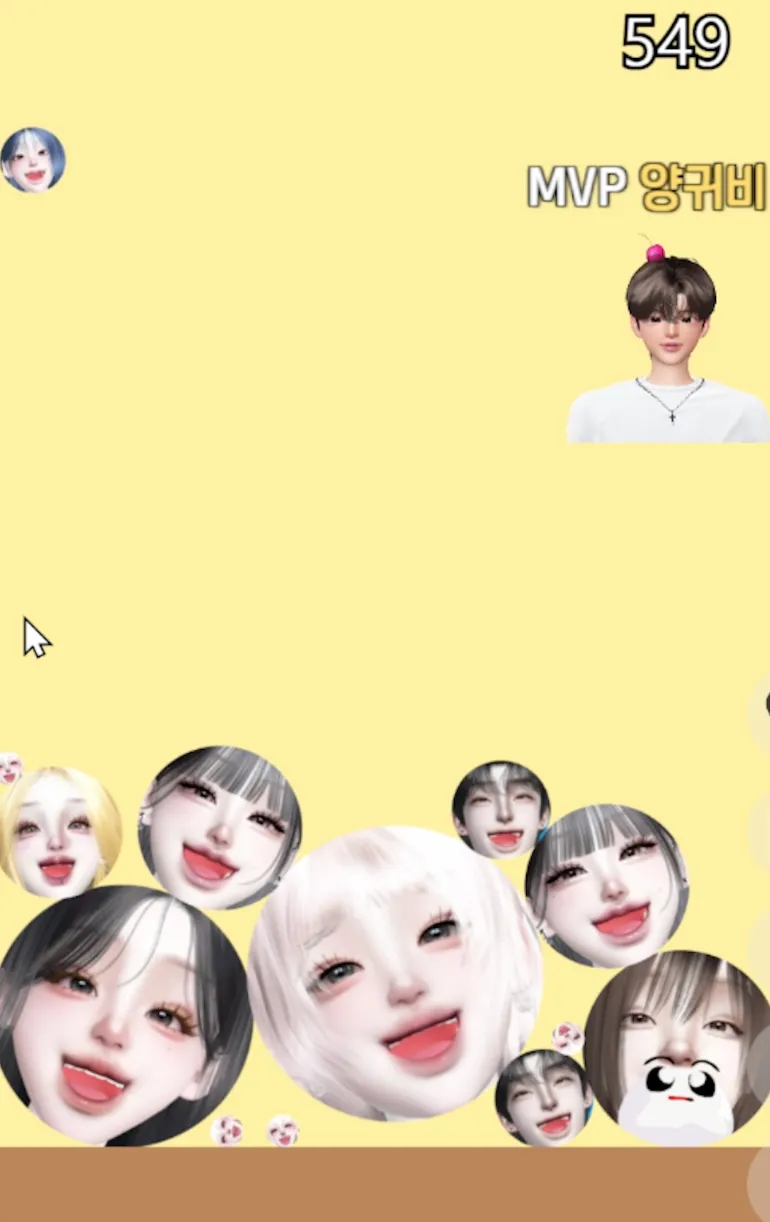
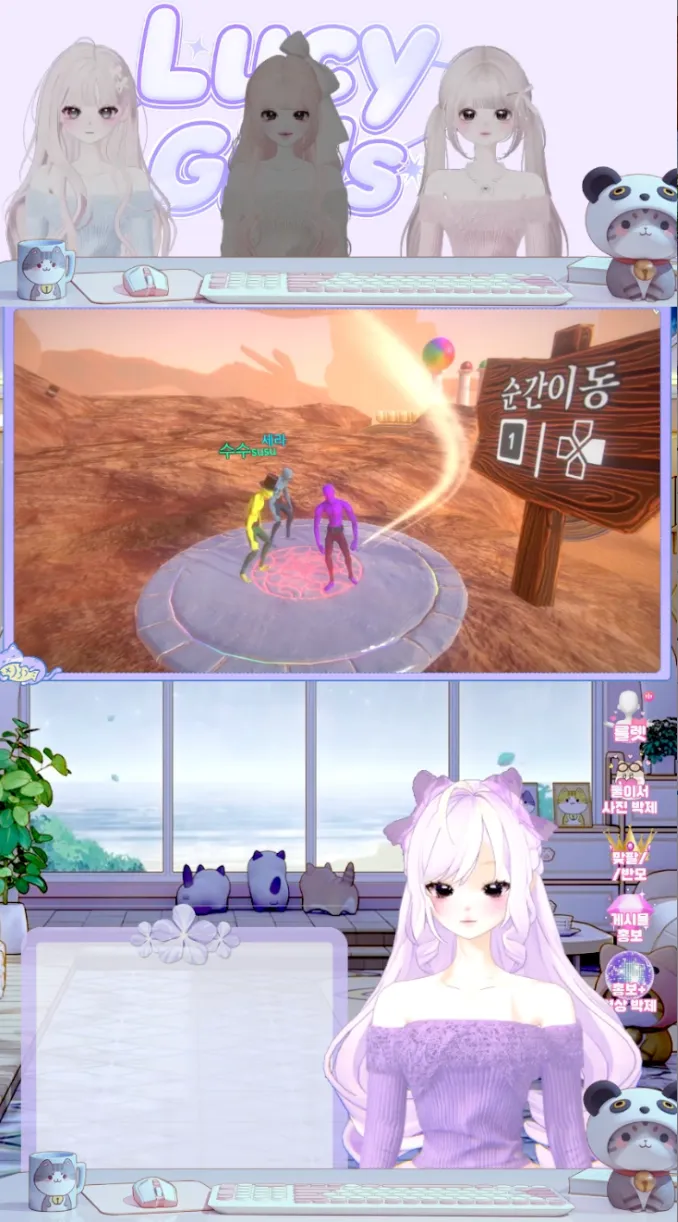
- Collab Game Stream 루시걸즈
- Game streams are mostly done on PC. You can even co-stream games with other creators using PC Live~!
Want to stream from PC?
- Check out the ZEPETO LIVE PC guide!
- On PC, you can do even more: play background music, use drawing tools, share your game screen, and more.
4) Contest Streams: Fashion / Singing, etc.
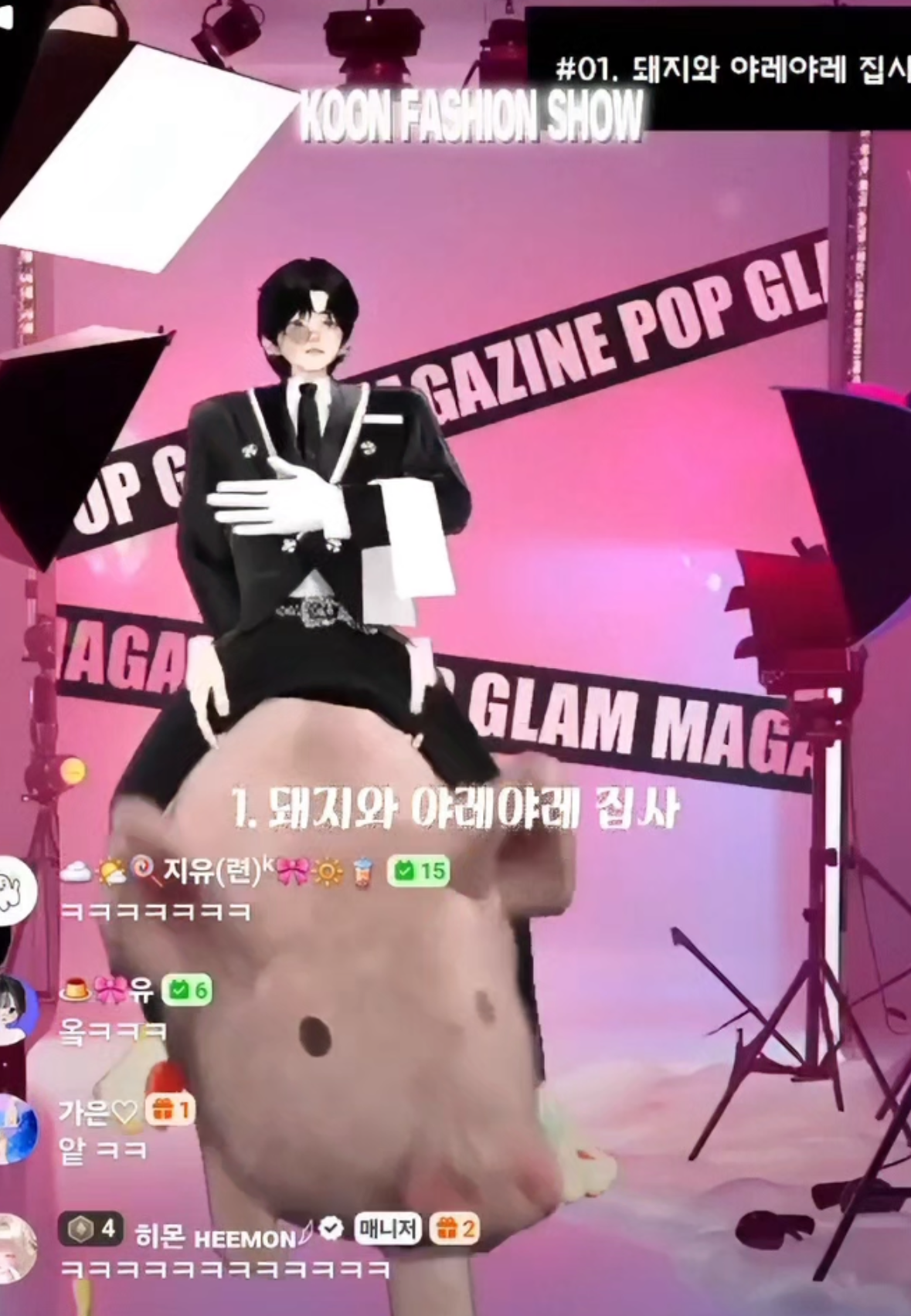
- Fashion Contest 쿤KUN𓆪
- Choose a theme and have participants prepare outfits. Watch together and vote for the winner!
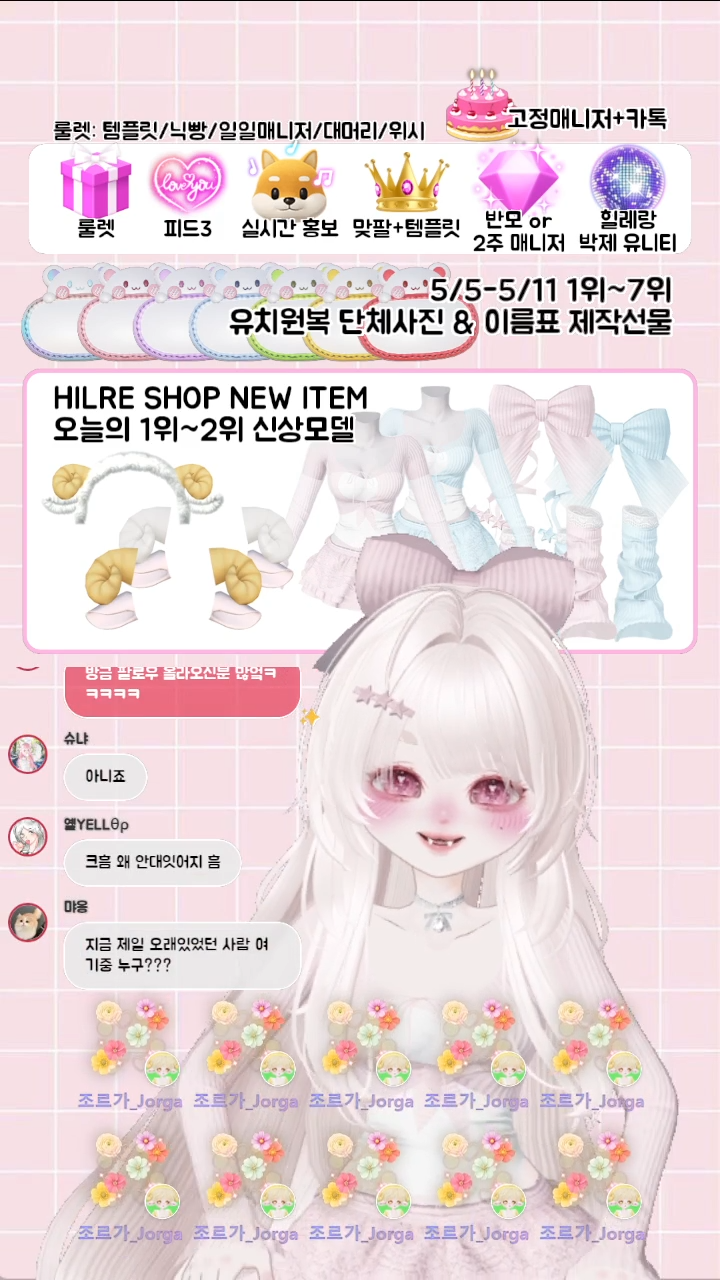
- As a creator, you can also host a model search for items or outfits you designed!
- Model Audition 힐레
- Singing Contest 설이
- Pick a song line, collect voice clips from participants, listen together, and choose a winner!
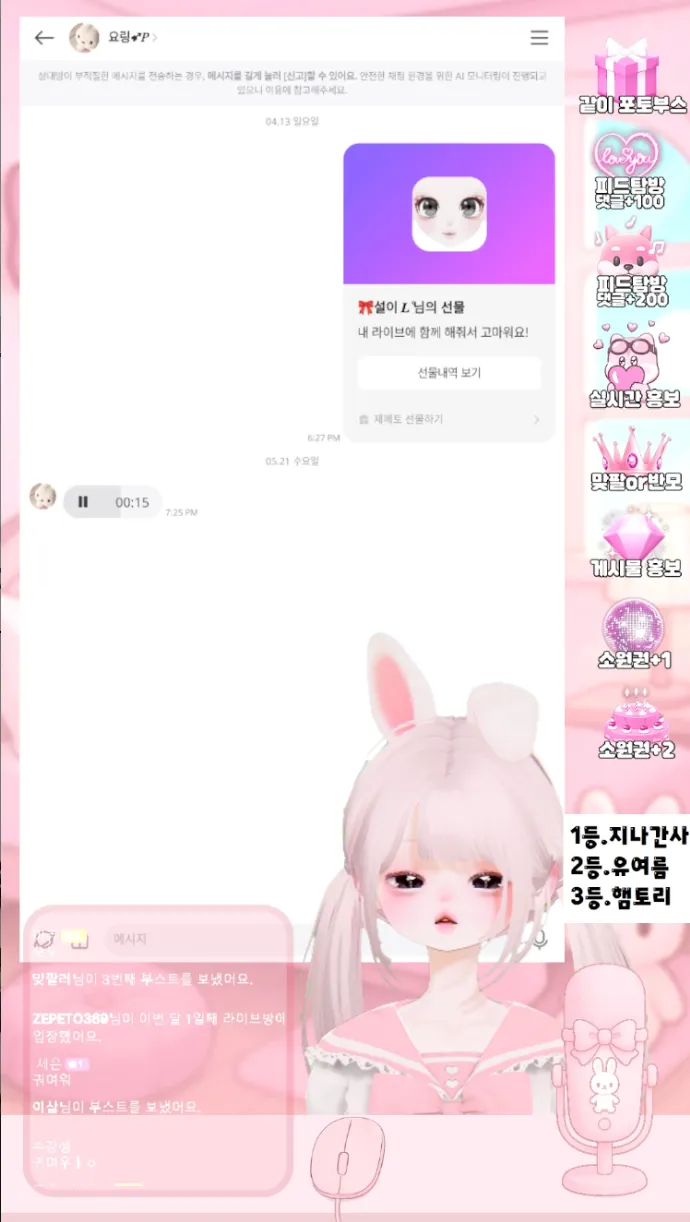
Contest Features You Can Use
- Entry ticket settings: Require donations to participate
- Priority pass: Let participants change their queue position with support items
5) Wish Gifts & Reactions / Rewards
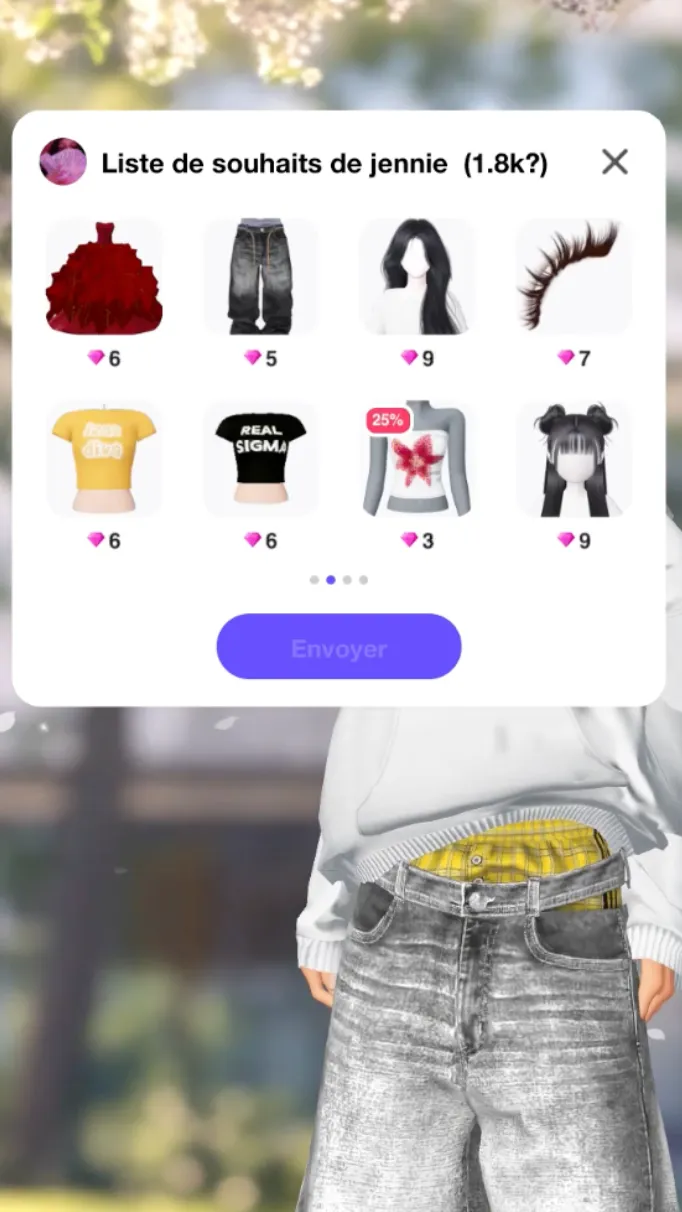
- Wish Live ՏⱭƝƬӀ
- Chat with viewers while looking through their wish items — this alone can be a fun and cozy stream.
- Or surprise a fan with a gift from their wishlist!
- Reaction Live 리즈ʟɪᴢ 🥨
- Set special messages, reactions, or rewards based on the support item level! e.g. 75 ZEMs: Spin the roulette, 125 ZEMs: Take a photo booth shot!, 250 ZEMs: Follow-back or casual friend add)
- Save your costumes ahead of time for reactions. Wearing something funny, like a hippo or mackerel, can be fun too!
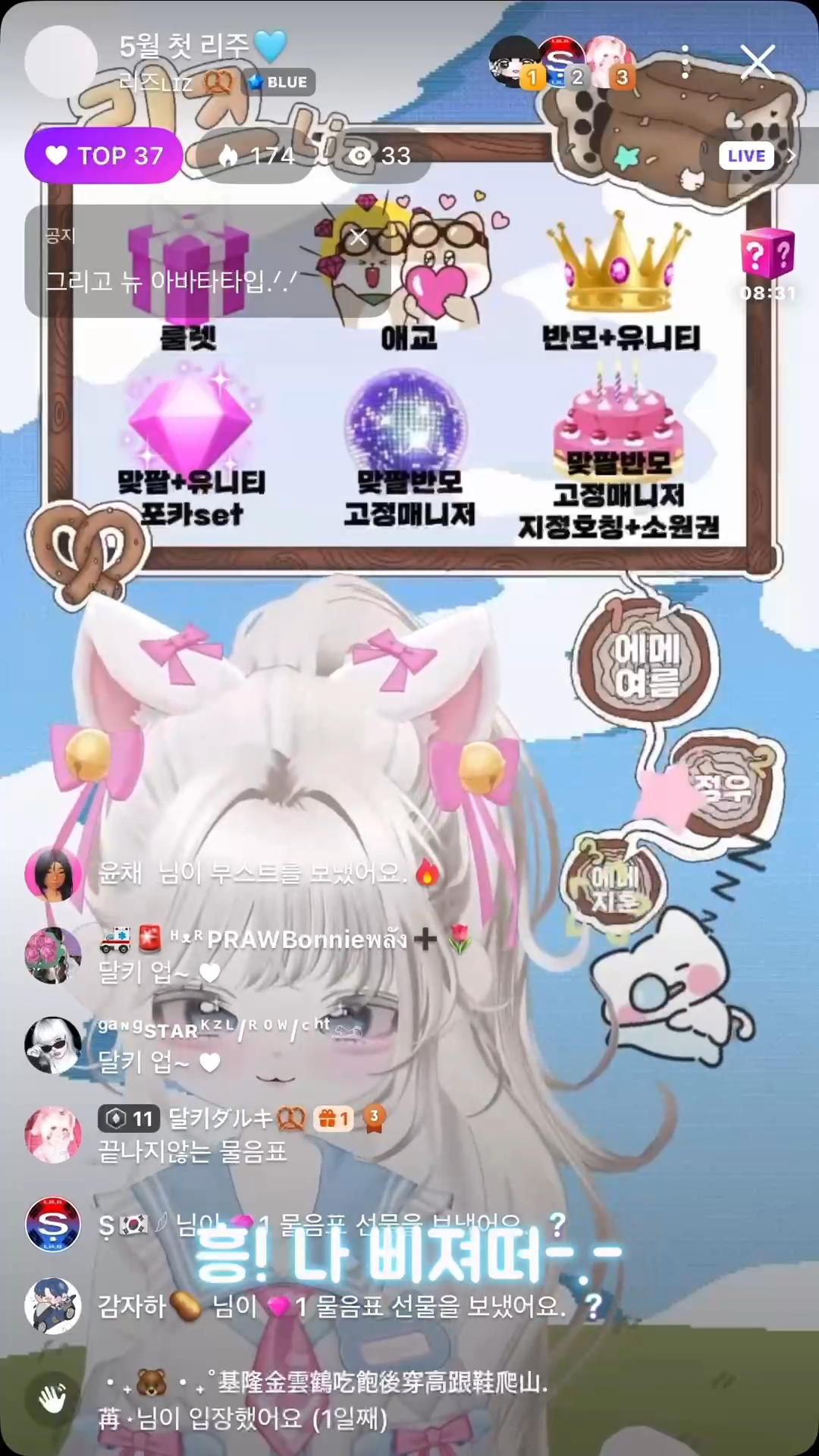
- Roulette: Add high-value rewards fans can win through donations!
- Photo Booth: Post pics taken with fans on your feed — it’s a great memory maker!
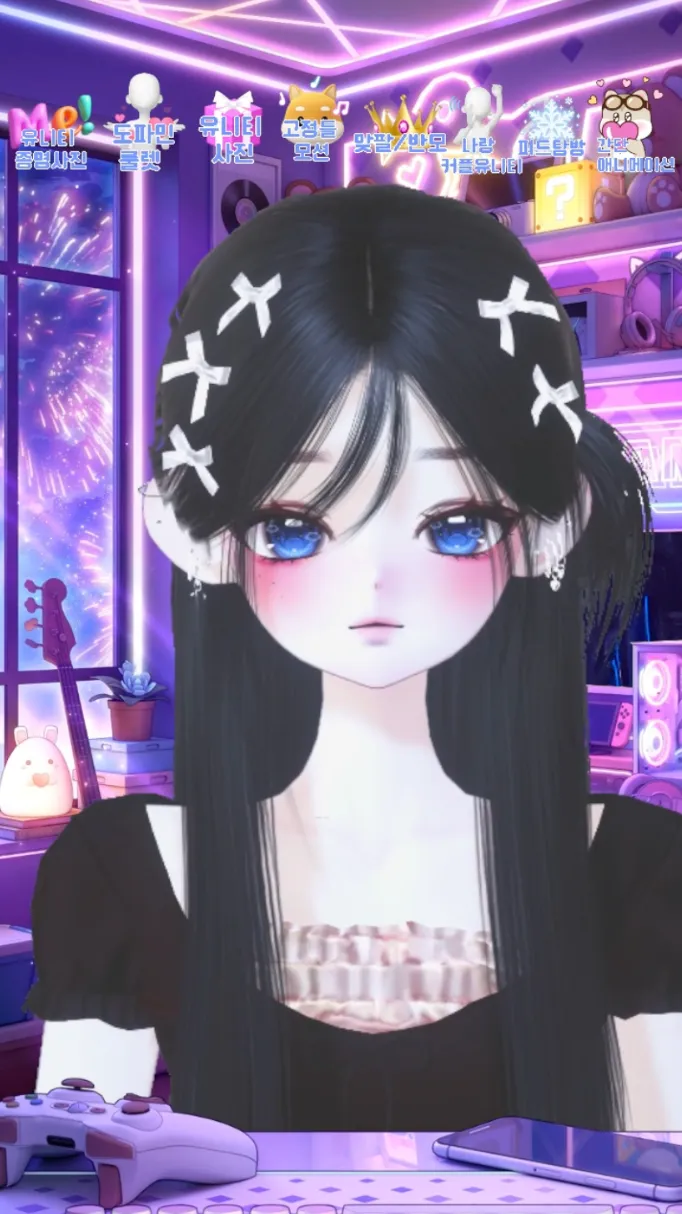
- Live Menu Example 🥞경구 𝑳 ͨ
6) Battle Broadcasts
Compete in real-time battles with various themes! Whether it’s quizzes, styling, games, or reactions—turn any topic into a competitive battle. You can match with your friends or be randomly paired with streamers from around the world!
Make it even more fun by setting rewards or penalties based on the battle results!
7) Shopping Live Stream
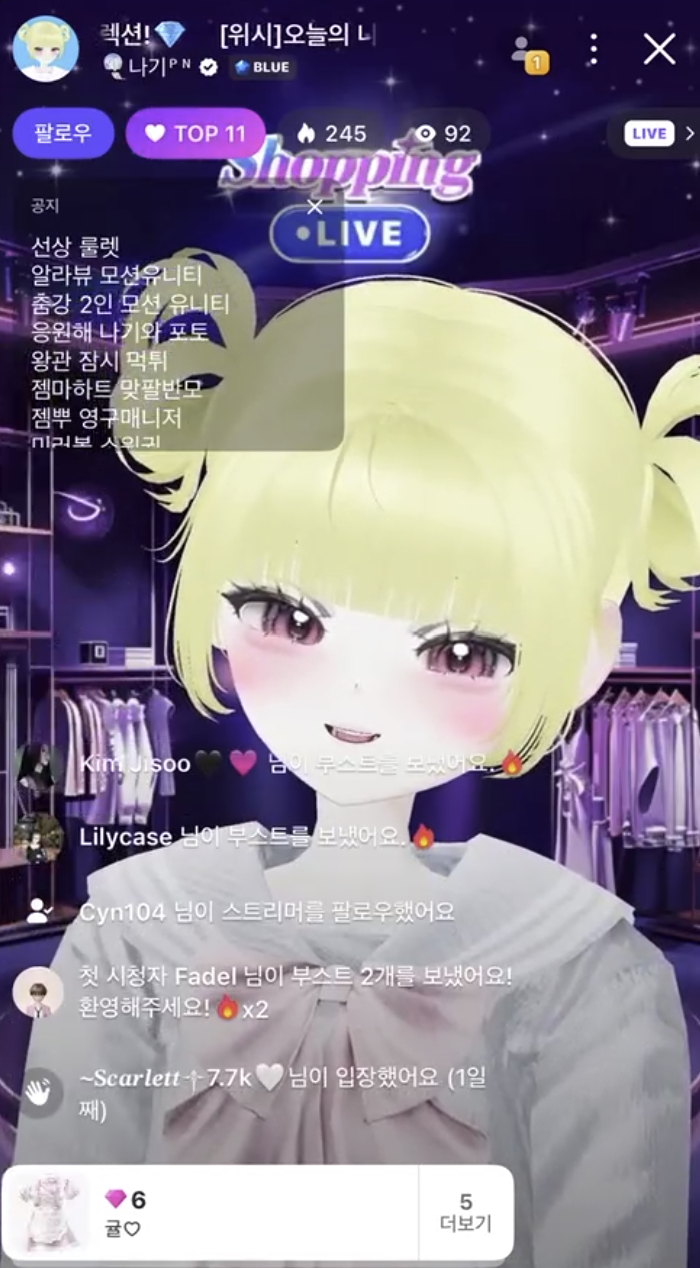
- Shopping Live Stream 🎐나기ᴾᴺ
🛍️ Sell items through Shopping Live! You can introduces the items you want to recommend to your viewers live and center! Try on the items yourself during the stream and share various styling tips!
TIP: Promote the items you created yourself through Shopping Live!
8) Lucky Drops
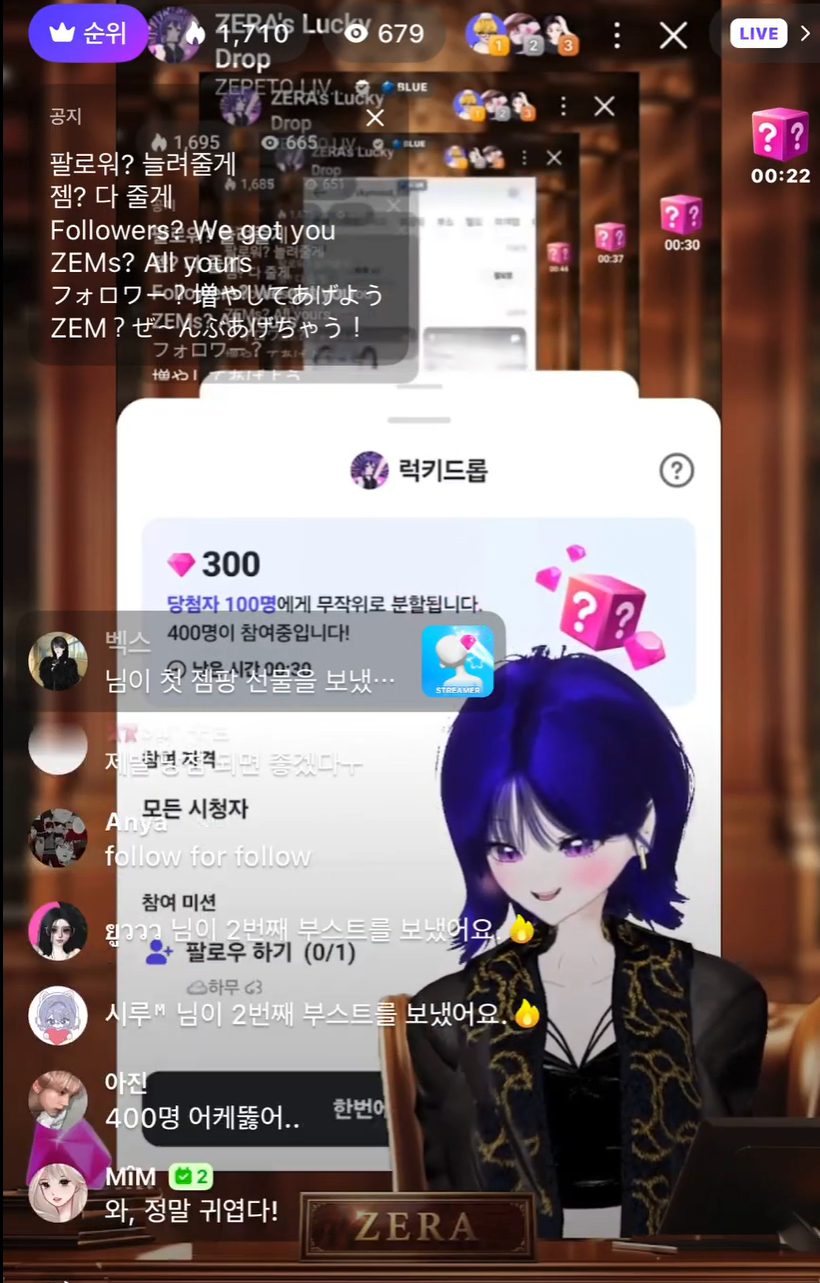
🍀 Gift good luck to your viewers with Lucky Drops! When a streamer sets up a mission with a Zem prize, viewers who complete that mission will receive random Zems! Use Lucky Drops to encourage viewer participation and make your stream even more fun.
TIP: Set "Follow" as a Lucky Drop mission! It’s a guaranteed way to boost your follower count in no time.
2. PC Streaming & Mobile Screen Sharing Feature
On PC Live, you can create more diverse and dynamic broadcasts. (Refer to the PC Guide) For example, you can showcase activities inside ZEPETO in real time such as feed exploration, item shopping, and world adventures! Now, with the screen sharing feature on mobile live, you can easily and conveniently stream the same types of broadcasts! Here’s how to use screen sharing 👀
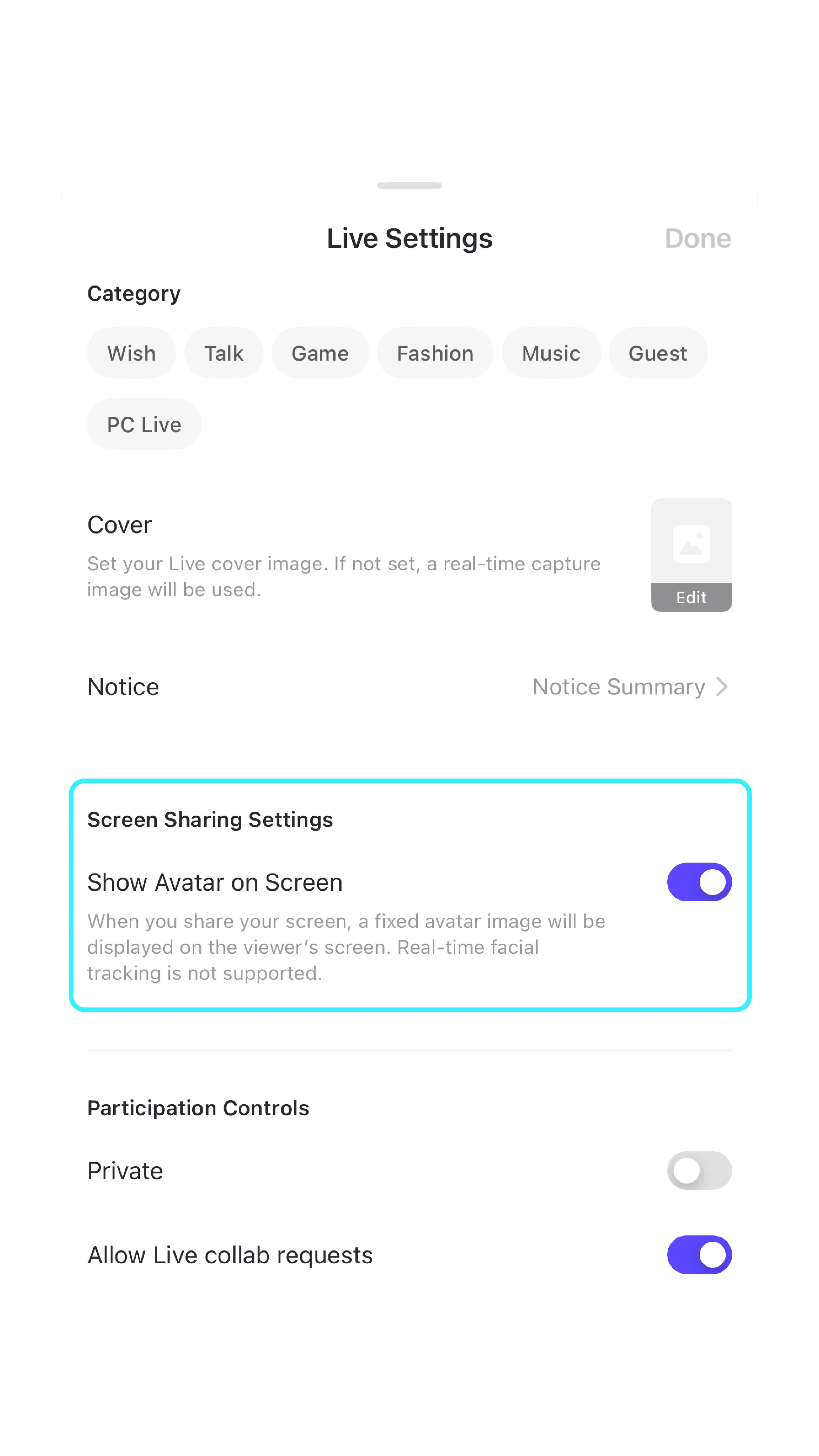
1) When setting up your live for the first time If you’d like your avatar to appear along with your shared screen, enable “Show Avatar Together.” If disabled, only the shared screen will be displayed without your avatar.
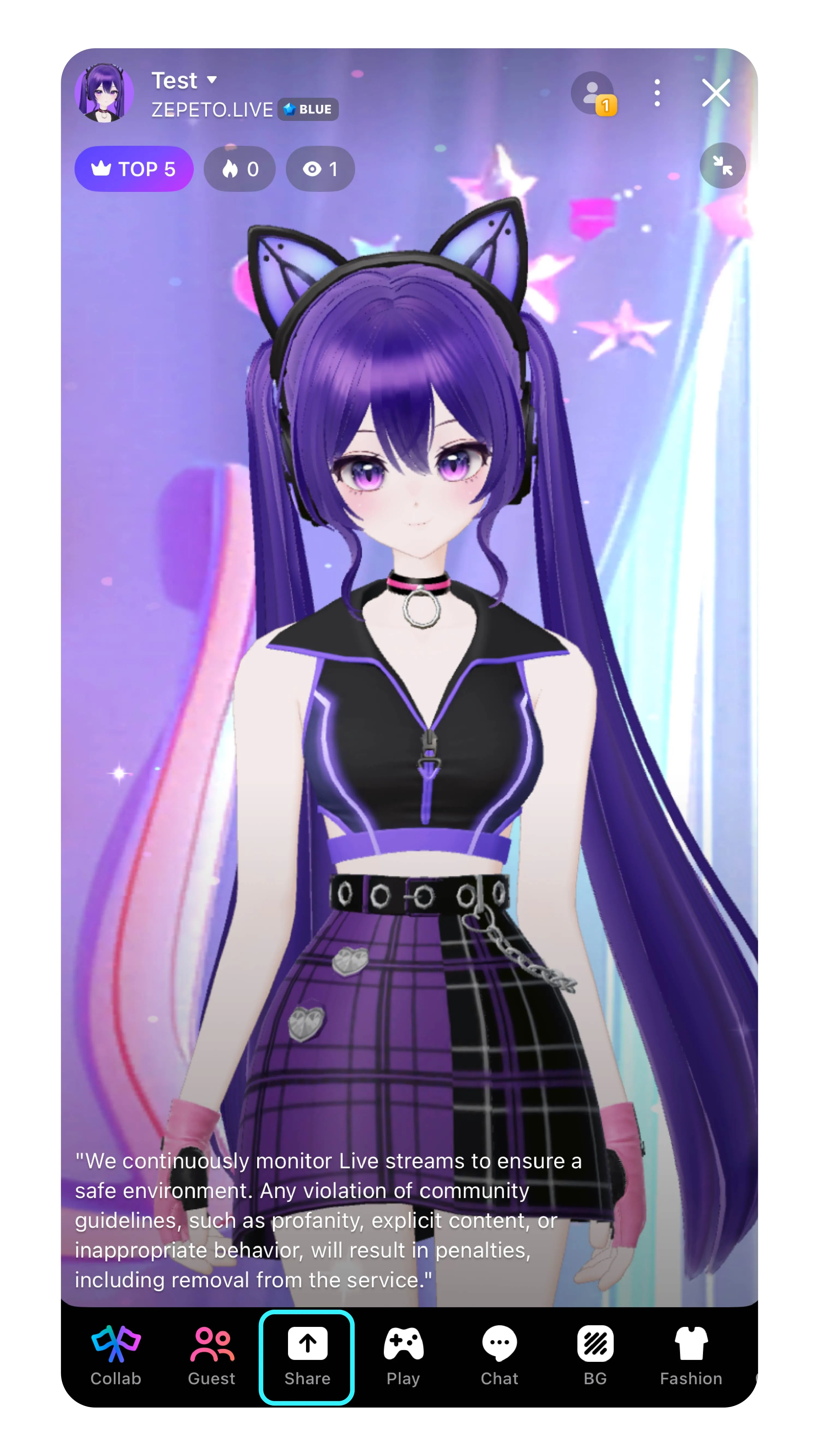
2) Once your live has started, tap the screen share button at the bottom to begin sharing! When using screen sharing, make sure to turn on Do Not Disturb Mode so that other app notifications don’t appear.
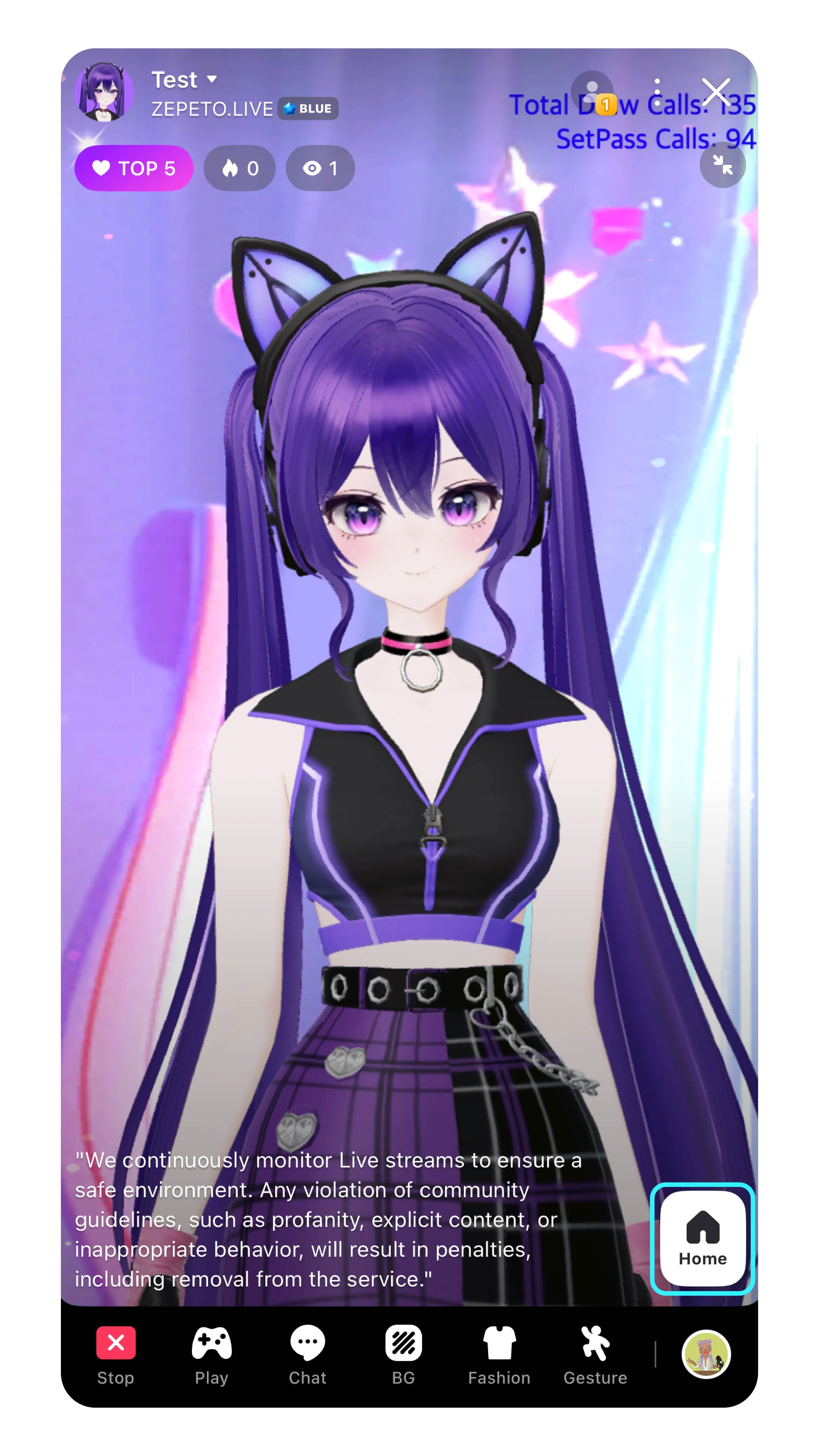
3) Ta-da! Now the exact screen you see will be streamed directly to your viewers. Tap the HOME button on the bottom right to go back to the ZEPETO home screen!
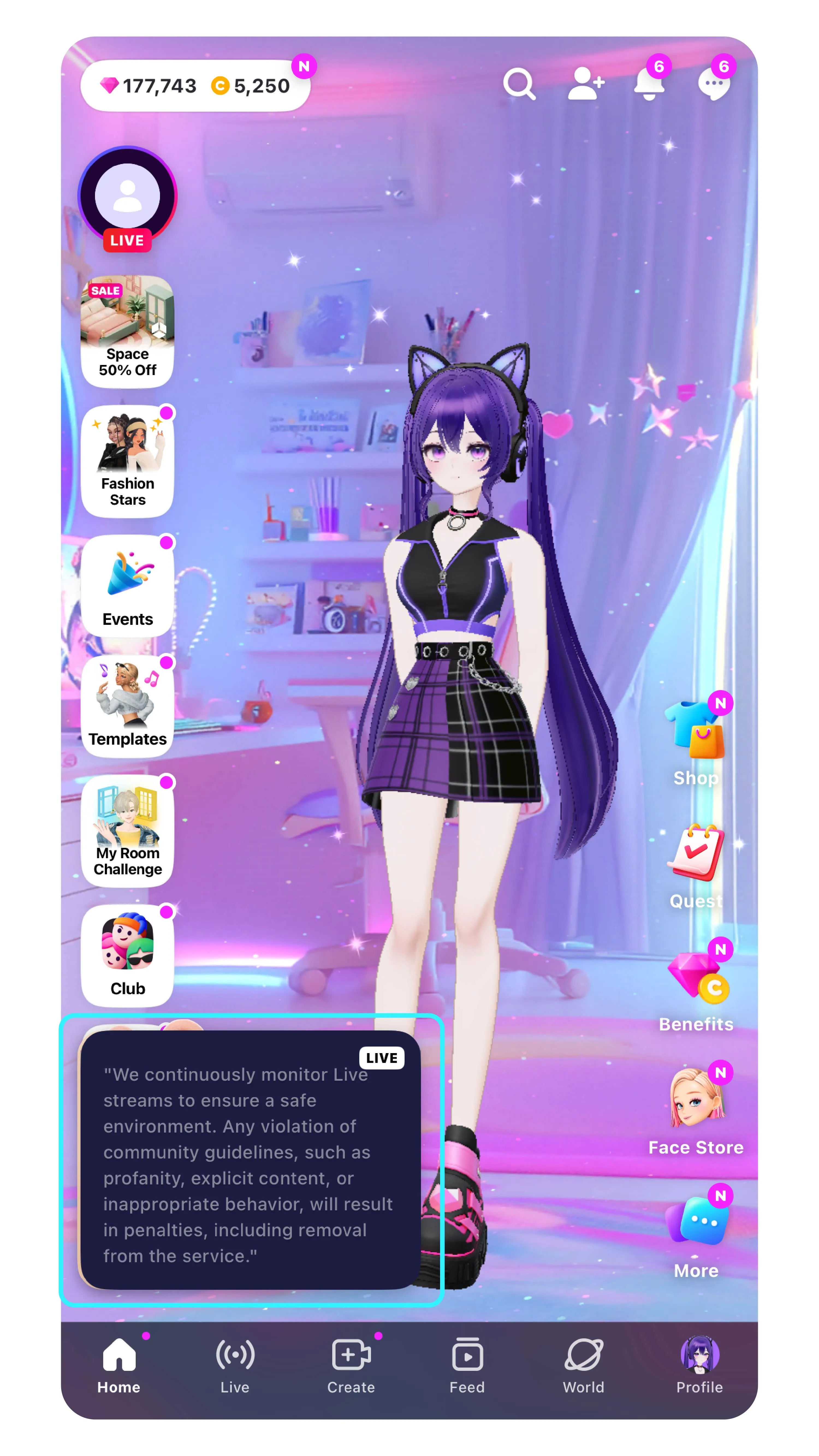
Check out the different types of content above and start your own fun live show!
From the square box at the bottom left, you can view real-time chats from your viewers. You can also drag the chat window to move it around—or even hide it!
3. Your Avatar = Another Side of You!
Your avatar is the first impression of your stream.
- Set your RP (Role Play) concept
Examples: Bunny, cat, astronaut, maid — choose a theme that fits your style! → It’ll make support reactions and your stream’s story easier to build.
- Pick your signature color
→ Choose a main color that matches your vibe, voice tone, or personal favorite — and style your avatar around it.
💡 LIVE TIP! A must-know for every VTuber!
TIP 1) Create a Stream Schedule
Why is it important?
Post a 'Stream Schedule' on your Feed so your fans always know when to tune in!
- Setting a fixed day and time makes it much easier for viewers to remember.
- Share your streaming hours frequently on your Feed, and don't forget to pin the post!
![스케줄 예시 [라쮸]님](https://cdn.images.archbee.com/J13bHMYnEsO_46SqFvReX-PmJ0sPSsBDxS7kXkcPoMO-20250609-054009.jpg?format=webp "스케줄 예시 [라쮸]님")
TIP 2) Create Hot Clips of Your Stream!
Show off your best highlights as Hot Clips! 🔥🎬
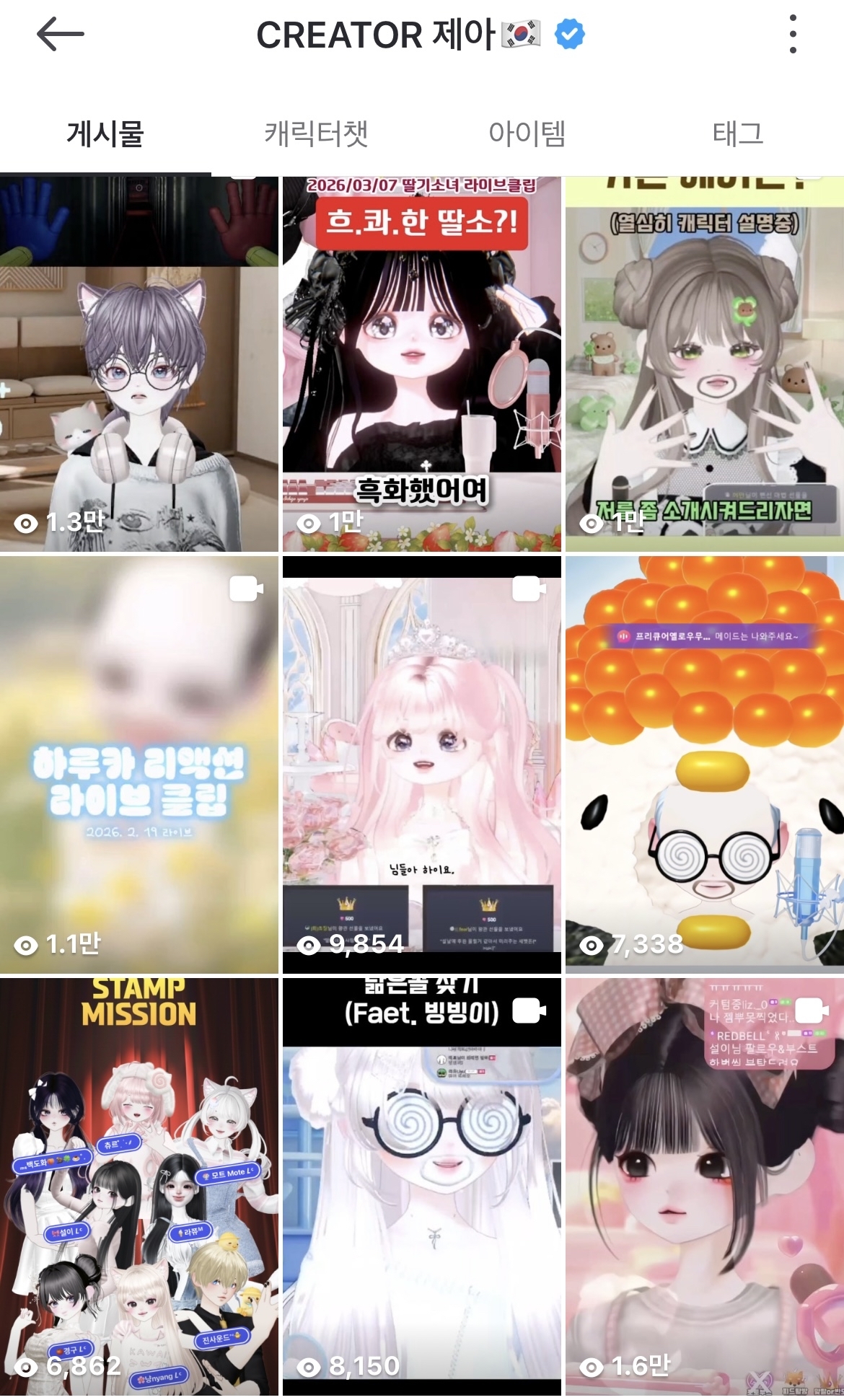
Hot Clips are the perfect way to showcase the amazing vibe of your stream and the fastest shortcut to attracting new viewers. Why not edit the funniest, most epic moments from your live stream and post them right now? Don't forget to include the mandatory hashtag: [ #clip_live ]!
With just one well-made Hot Clip, you might get lucky and see your stream featured right on the Live Home main page!
TIP 3) Make a support board with the Photo Booth
Your viewers are sending you support—make it count!
If you're not sure how to react, why not make your own Support Board for your live stream? ✨
TIP!
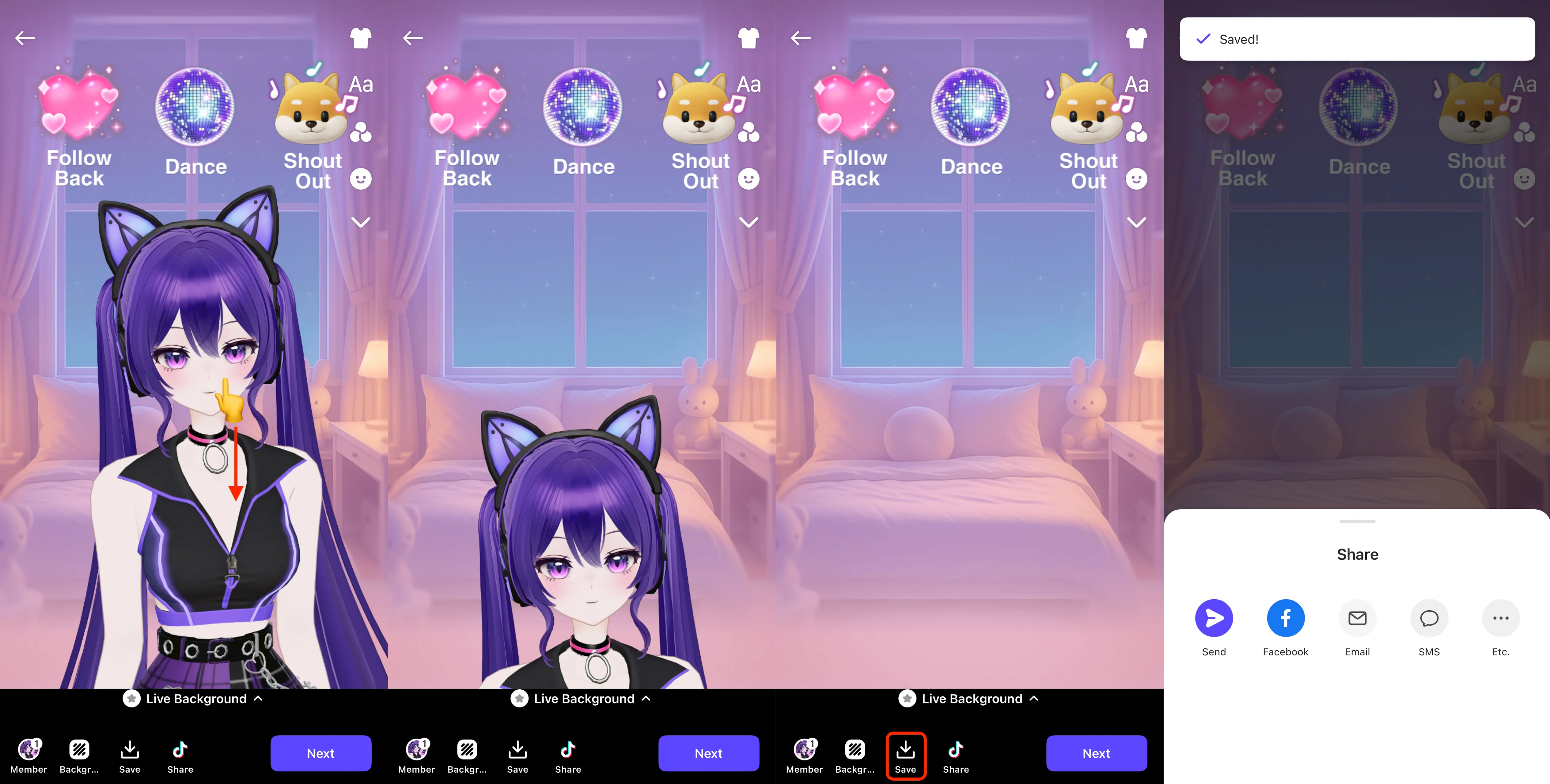
Use the Photo Booth to create an image that's the perfect size for your live background.
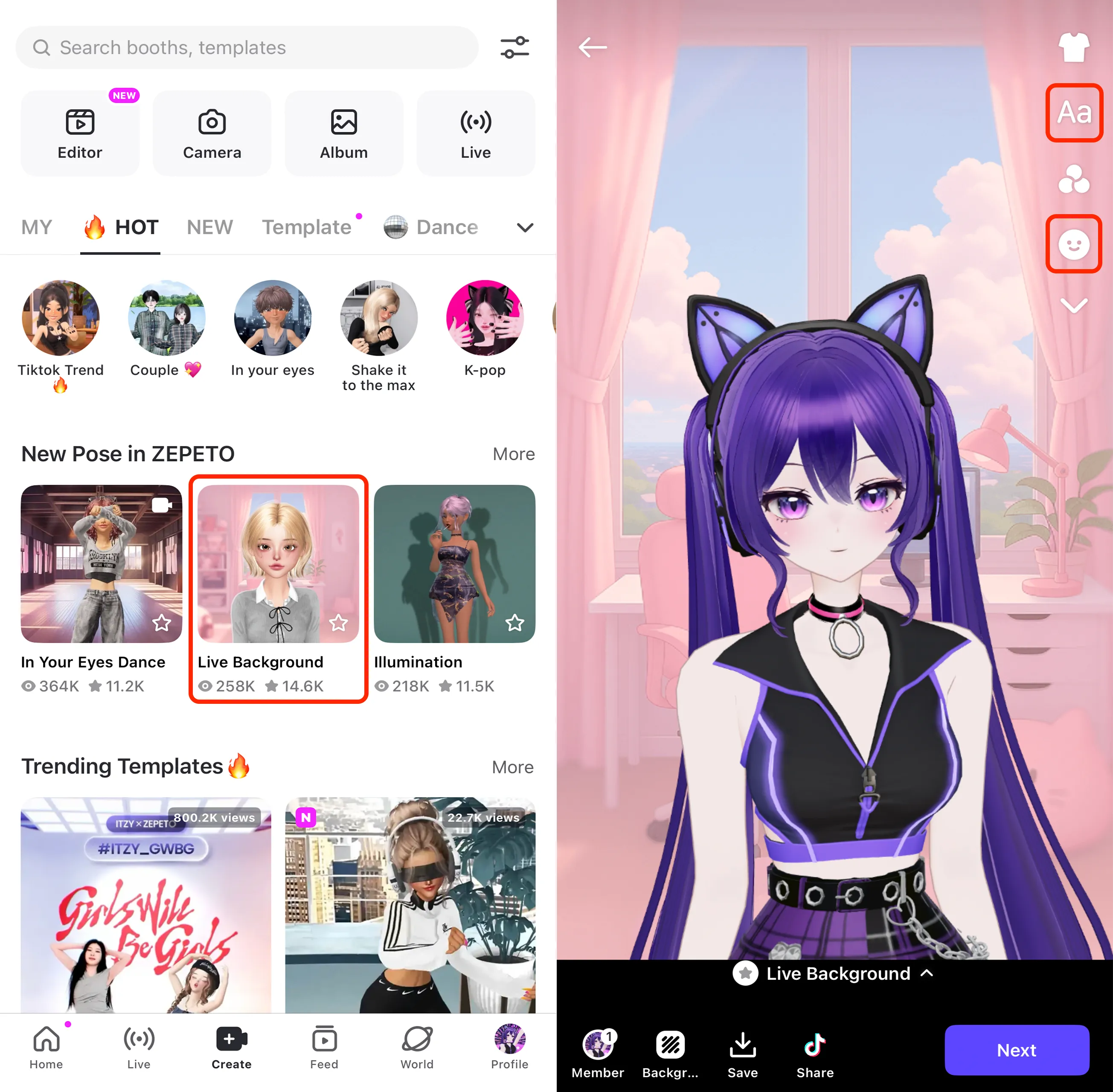
Step 1: Go to the Create tab and choose the Live Background booth. Tap the sticker icon in the top right.
Step 2: Switch to the LIVE tab to find stickers for support items used in ZEPETO Live.
- Tap the text icon to write your custom reaction for each gift.
- Common reactions include follow-back, feed tour, casual chat, and roulette.
- You can also change the background or upload your own image from the gallery!
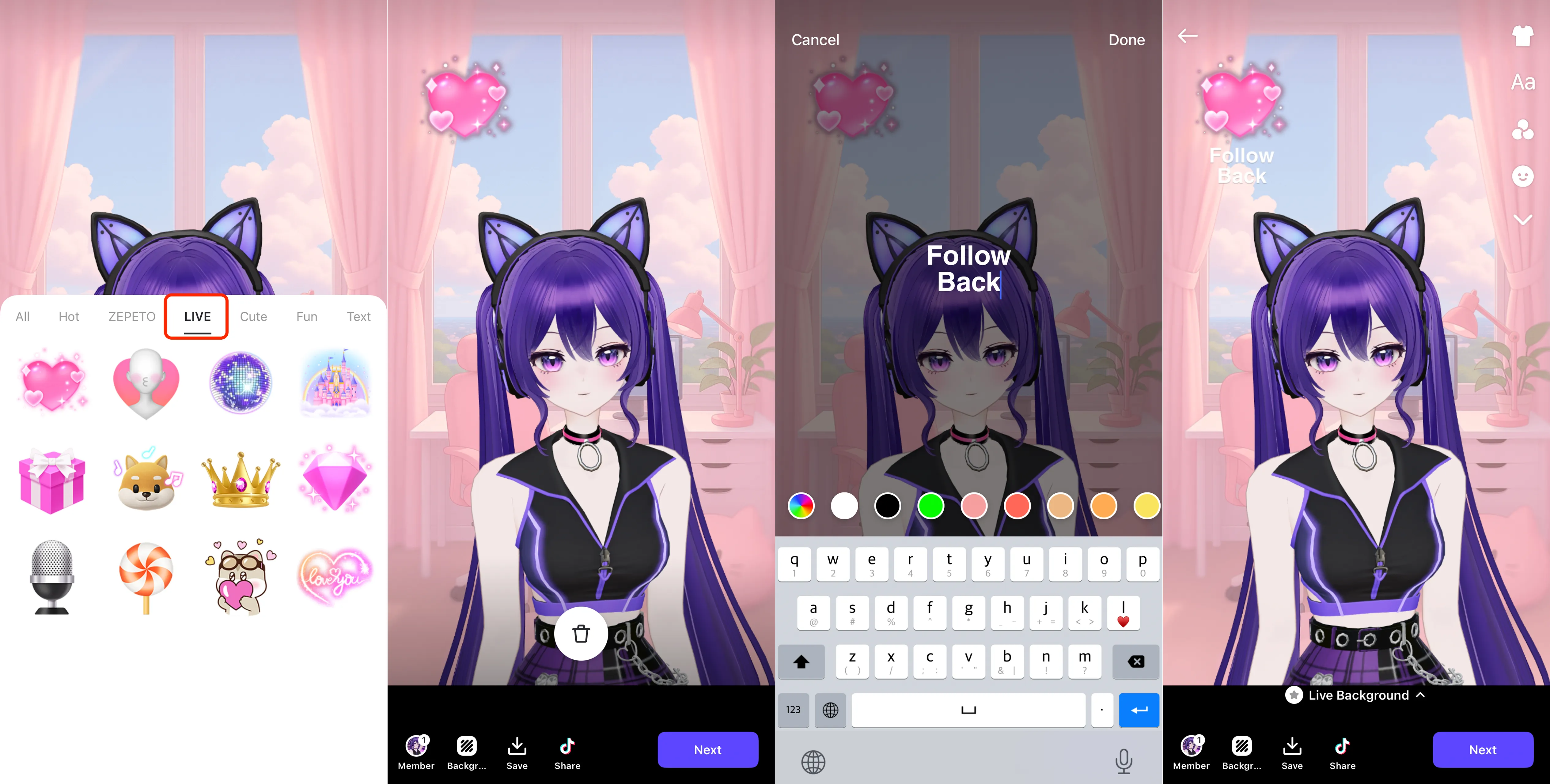
Step 3: Check that your avatar isn’t covering the board. Drag it off-screen to keep the board clear. Then tap [Save] to store the image in your gallery.
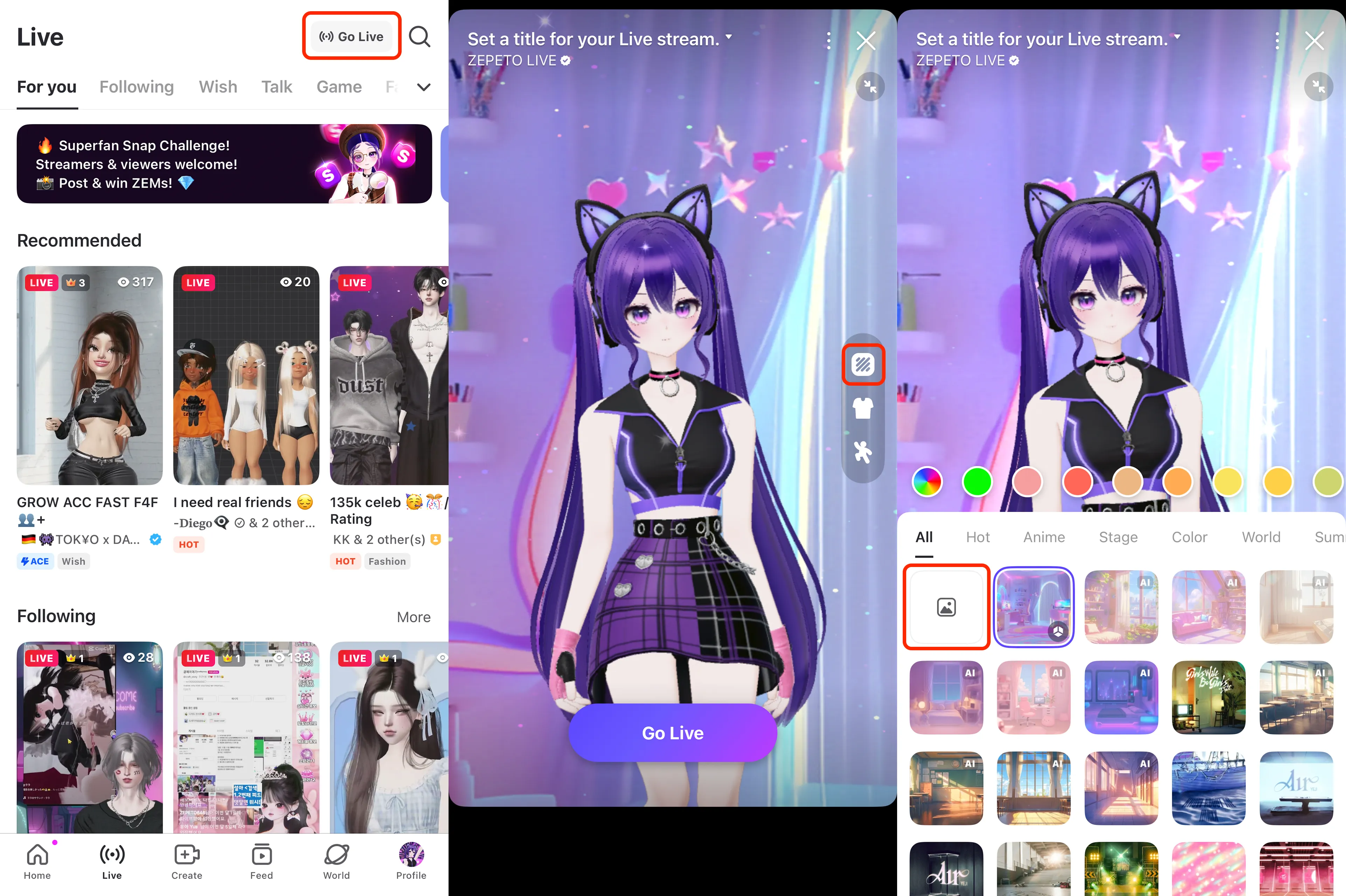
Go Live! Head to the Live tab and tap [Start Live]. Click the background icon at the top of the gray boxes. Select [Gallery] and choose your saved support board image.
Now your stream has your custom support board! Adjust your avatar’s position or size so the board is easy to read.
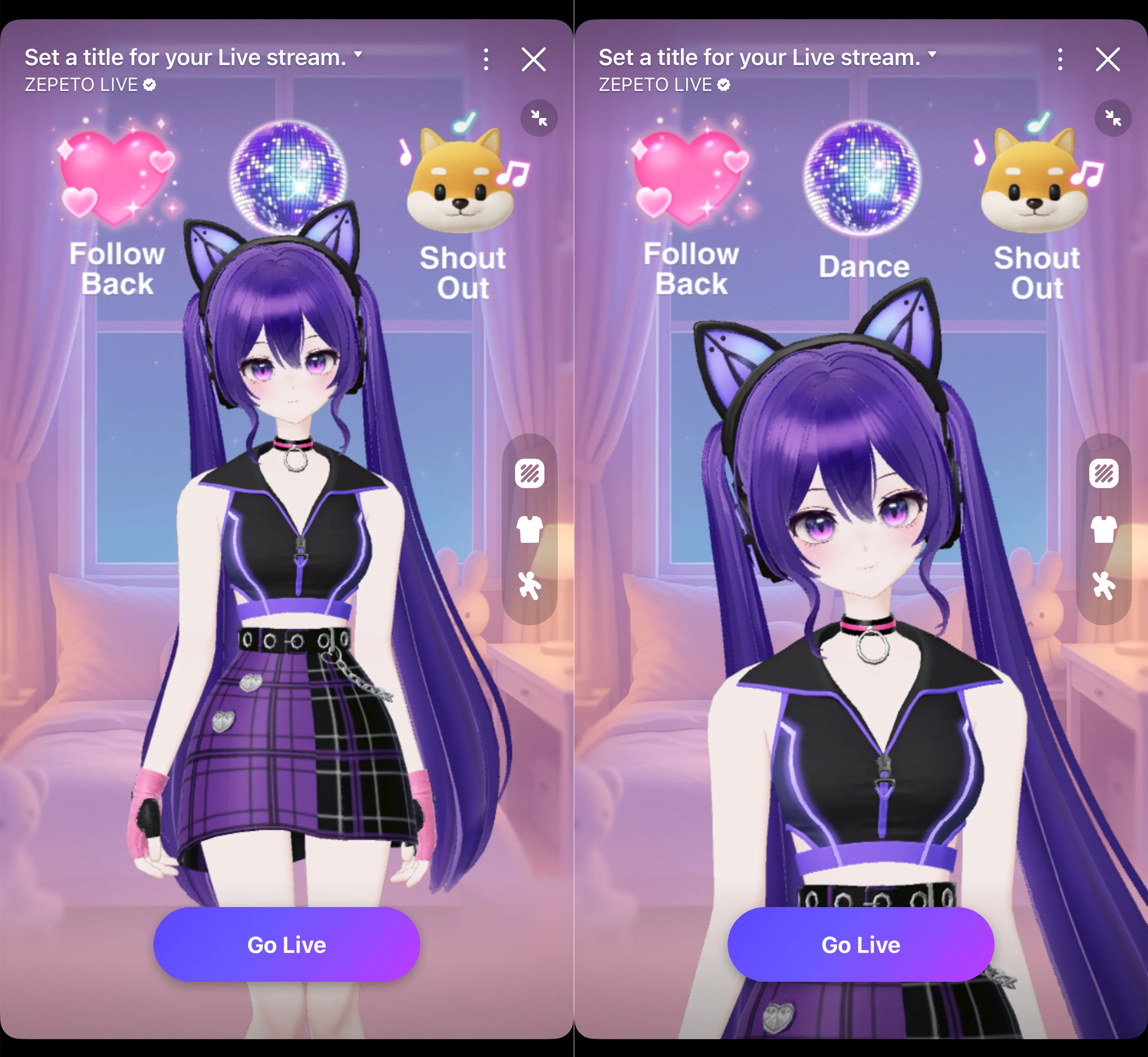
And you’re ready! Don’t forget to follow the reactions you wrote on your board when you get support. It’s a fun way to connect with your viewers and make your stream even more exciting!
TIP 4) Get Closer to Your Fans!
Create personalized support reactions - When you receive a gift, react right away — whether it’s a thank-you, a fun line, or even a song!
Build stronger fan connections with these ideas:
- Name Your Fans Come up with a fan nickname — it’s even more fun if you create it together!
- Choose Your Signature Emoji Pick an emoji (or a combo) that represents you. Fans can use it in comments to show support!
- Send a Thank-You Message After Your Stream After ending your broadcast, tap the Send Thank-You Message button to show your appreciation.
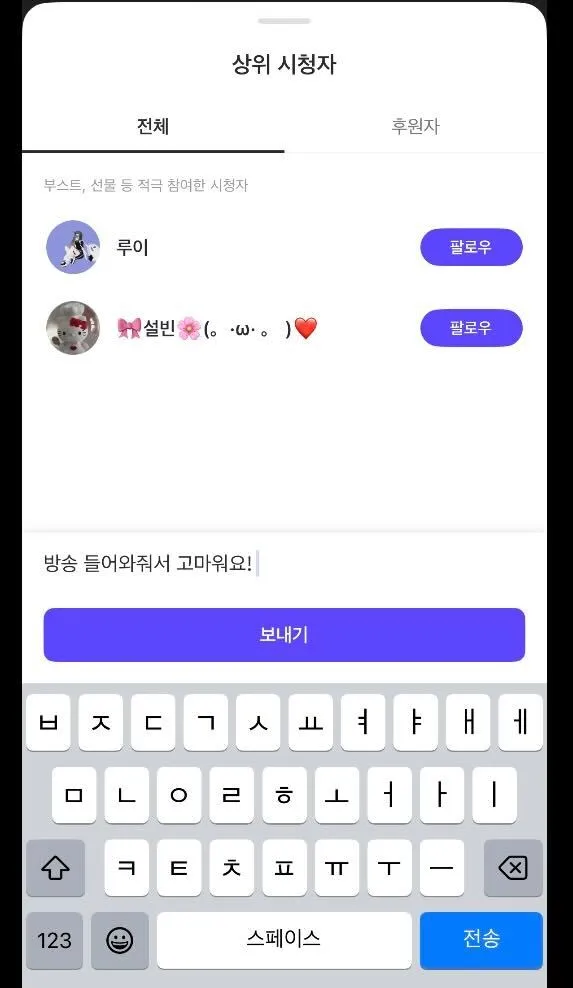
- Displaying Supporter Avatars Set up your Live screen to evenly display your supporters' Avatars and nicknames! You can gather the Avatars of your supporters as well as the fans cheering you on in the background.
TIP 5) The Best Way to Introduce Yourself: Clips & Feed Posts
- Capture the best moments of your stream and upload them as clips to your feed.
- Even on days when you’re not live, viewers can still get a feel for your content!
Share your clips on YouTube or TikTok too!
![Clip Example – [설이]](https://cdn.images.archbee.com/J13bHMYnEsO_46SqFvReX-FmMy_JJ2-wz_QLkXEZC21-20250609-054114.jpg?format=webp "Clip Example – [설이]")
Feed Clip Tips
- Size: 1024 x 1820
- Frame Rate: 29.7 or 30 fps
- Editing Tip: Leave space on the sides — some areas may be cropped.
- Subtitles: Avoid placing text over default UI zones.
Got Fan Club Access?
If you have fan club privileges, create a ZEPETO Club to keep connecting with your fans even when you’re not live.
Share updates, set rules, post announcements, run Q&As — all in one place!
Join the official live account fan club @zepeto.live to see how a fan club is run and managed! You can also enjoy creating and running your very own fan club!
TIP 6) Share Your Live Stream—No App Needed!
Want more viewers? Share your web link with friends—no app needed! Even friends who don’t use ZEPETO can watch with just one link!
https://web.zepeto.me/en/live
TIP 7) Set Up an Intro Waiting Screen Before Live
Before starting your Live, display an intro video or waiting screen to give viewers time to gather!
Tip: Waiting times that are too long can get boring. Try changing up your BGM to match your Live concept every day!
4. Collab Streams with Fellow Creators = Double the Fun!
Streaming with fellow creators makes your content more fun — and helps you grow together!
- Use the guest feature to go live with other streamers.
- It adds variety to your content and can attract new fans too!
5. Study Popular Streams!
- Keep an eye on how top streamers create content and interact with their viewers.
- Notice how they craft eye-catching titles and maintain smooth, engaging communication.
And don’t forget to analyze your own streams!
- After your broadcast, go to Studio Console > Content/Insight > Live to check your performance stats. Use viewer feedback to improve and plan your next strategy!
- You can also check insights in the app: Settings > Become a Creator > Live > Insights
6. Ready to Cash Out Your ZEMs?
You can withdraw once you've earned 5,000 ZEMs or more!
Application Period: 23rd–28th of every month Limit: Only one withdrawal per month
Payout Date: By the last week of the following month Example: If you apply in March, you’ll receive payment by the last week of April.
How to Withdraw:
- You must be registered on ZEPETO Studio
- Go to Menu > Payouts > Request Payout
- If you haven’t submitted your personal info, complete it to finish the process
For full details, check the [ZEM Payout Guide]
Quick Recap: ✅ Get 100 followers to start streaming! ✅ Create your own content — from chats and talents to games and contests ✅ Stay close to your fans with schedule sharing, fan name & emoji, and highlight clips!
Welcome to the World of ZEPETO LIVE!
Take that excitement and turn it into your very own amazing live stream!