Configure SSO
Cross River SSO
Cross River offers you the option to access Cross River applications with your own SSO (Single Sign On) login system. Benefits of SSO include a more seamless and cohesive user experience, as well as higher levels of security.
We support both OIDC and SAML configurations.
These instructions explain how to configure SSO on the Cross River side. You also need to configure this SSO connection on your specific identity provider side, for example, EntraID.
Your Org Management Admin user configures SSO on the Cross River side.
Verify SSO enabled
If the option for SSO Settings appears on the navigation of the Org Management screen SSO is enabled for your organization. If SSO is not enabled, open a support ticket using Cross River ServiceNow.
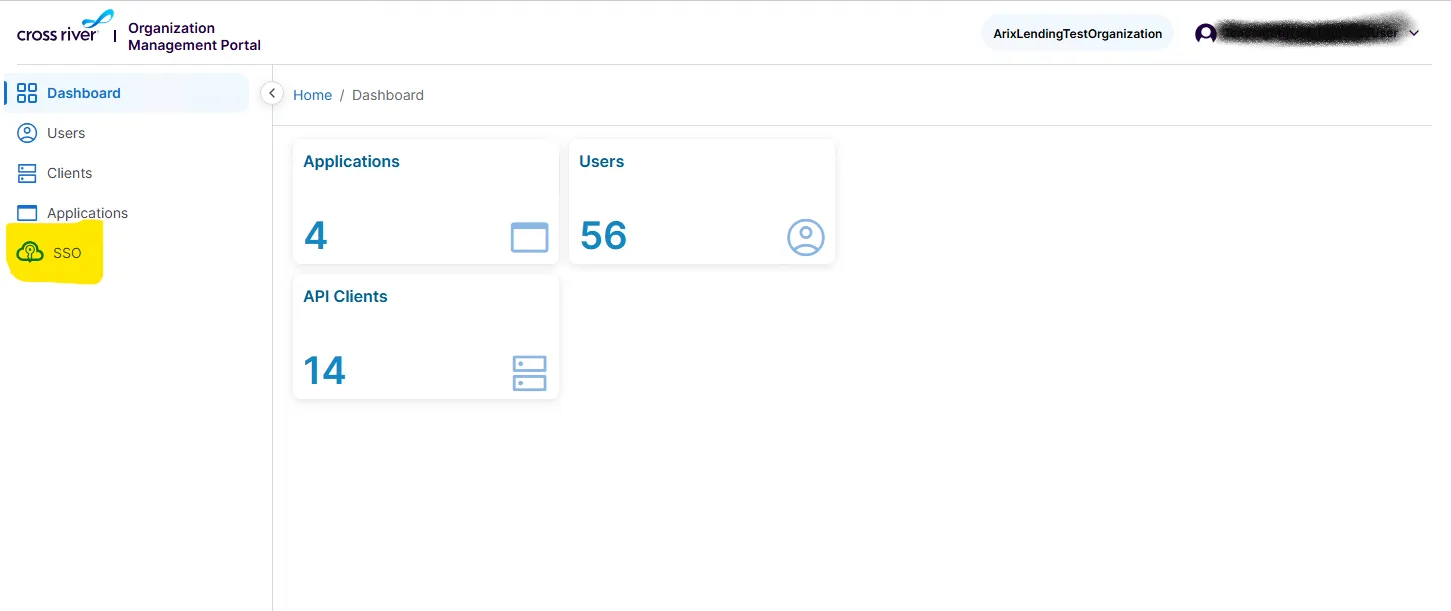
Configure Cross River-side SSO connection
Configure your SSO connection as follows:
Click SSO in the navigation pane, and then click Configure.
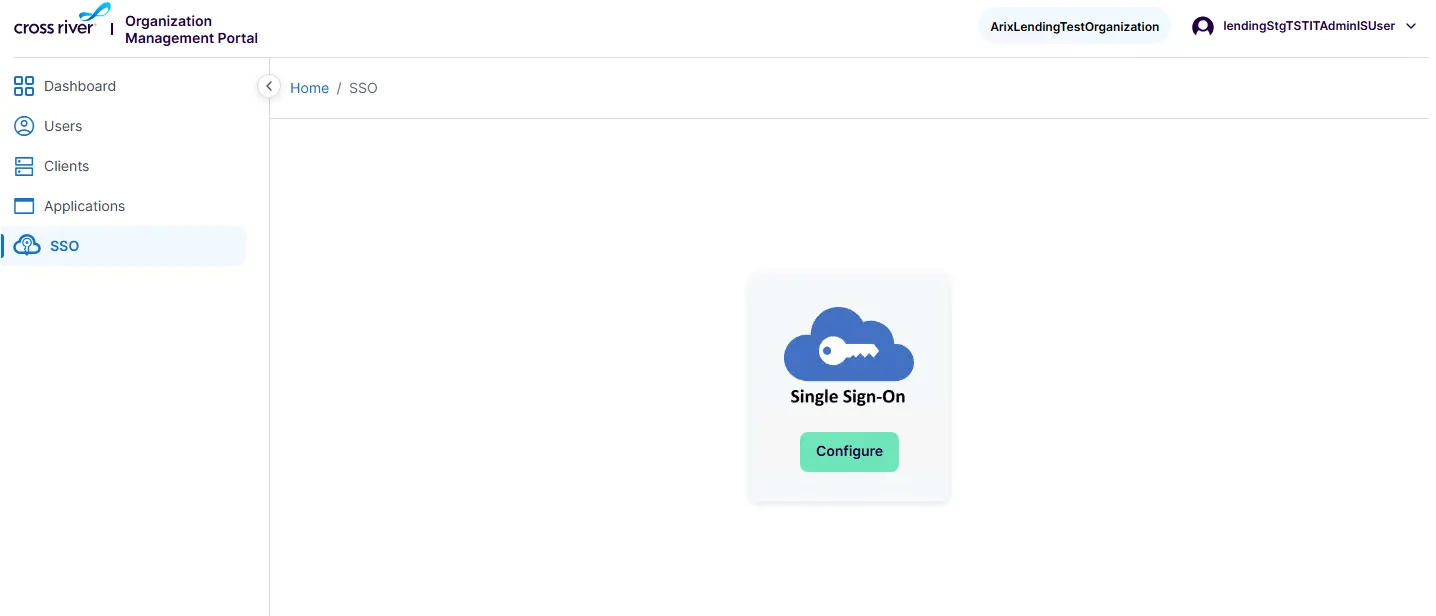
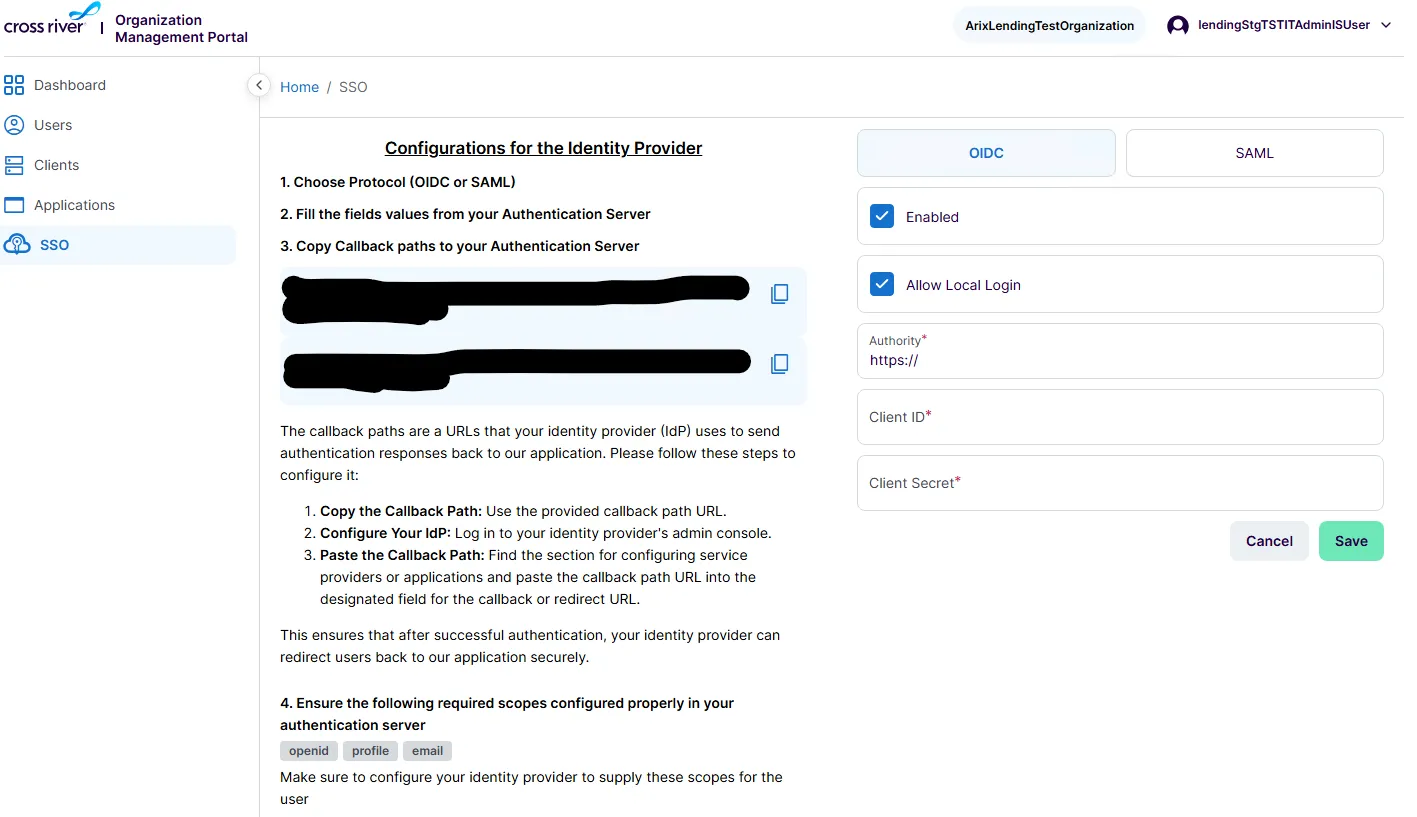
The SSO Configuration Panel opens. Select which type is required: OIDC or SAML. Fill in the fields according to the instructions on the page and click Save.
OIDC tab
SAML tab
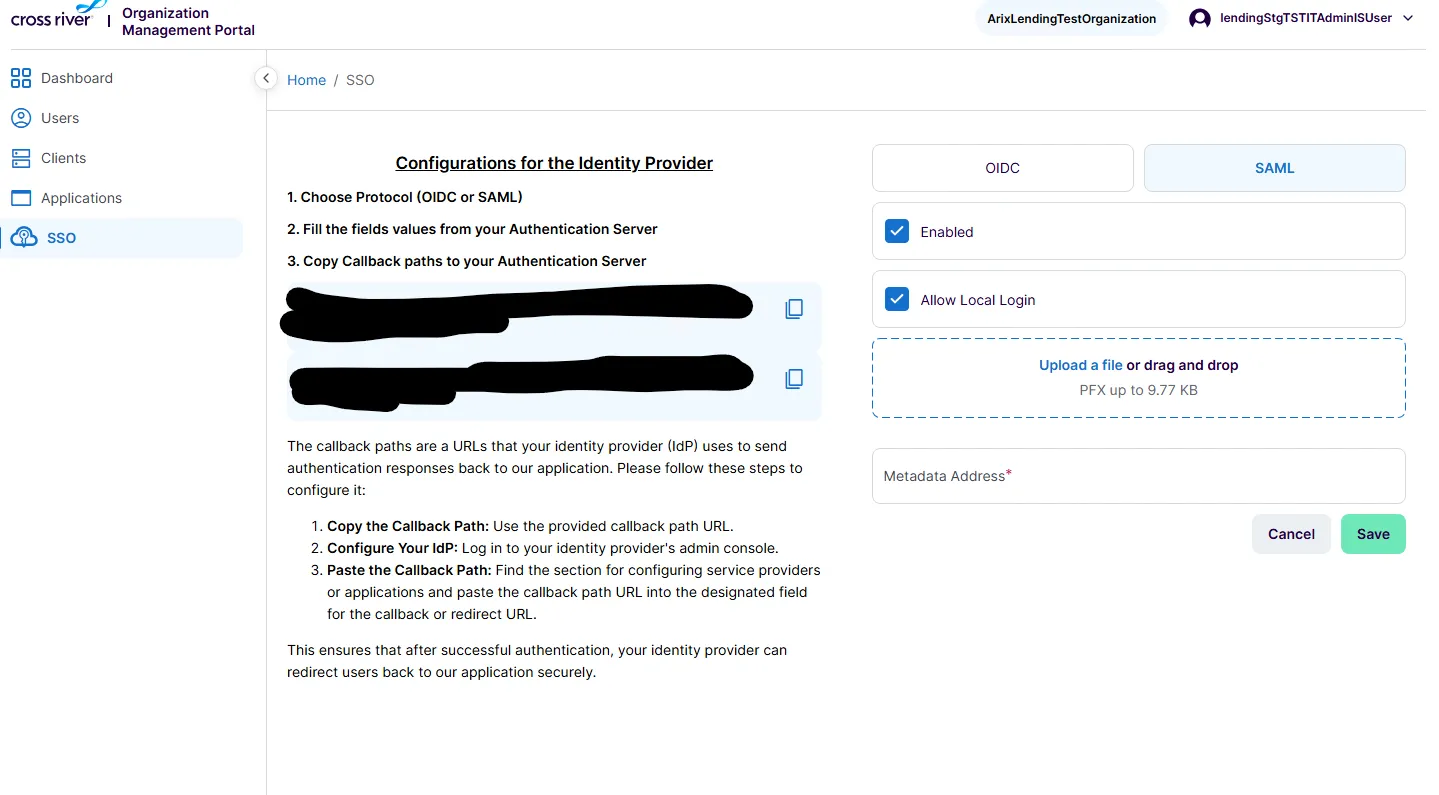
Be sure to add the callback paths to your authentication server.