
View as another user
Users with the appropriate permission can view ChartHop as a different user to verify what they can view. This is especially helpful for administrators who want to test or understand what an employee is seeing when they ask a question. When using View as, the administrator can only view as people who they can already access sensitive data to .
For example, after inviting new users, you can use the View as feature to view ChartHop as that user to preview what data they have access toto explore what data they have access to. You can also use View as to verify that a form or survey you've assigned to a user or group of users is displaying for the appropriate users. However, they cannot take actions, such as filling out a form, as that user.
Caution: View as is a very powerful permission. It should be granted with caution.
View as example
Example: If a people ops business partner has the People Ops Admin role but with a filter that only allows them that access department="Sales,Marketing,Operations", they will only be able to view as users in those 3 department since they only have access to sensitive data for those departments. However, if Finance rolls up to Operations, then they would be able to view as an Operations leader and then view data for the Finance team.
Example: If a people
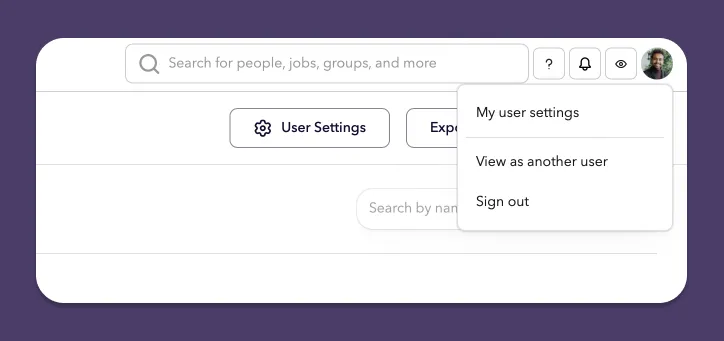
To view as another user:
- Select your profile icon in the upper-right corner and choose View as another user.
- In the View as dialog, enter the name of the user that you'd like to view as.
- To stop viewing as the user you selected, select your profile icon and choose Stop viewing as.