
Time off for employees
Time Off Policies
ChartHop current supports unlimited and upfront balances for time off.
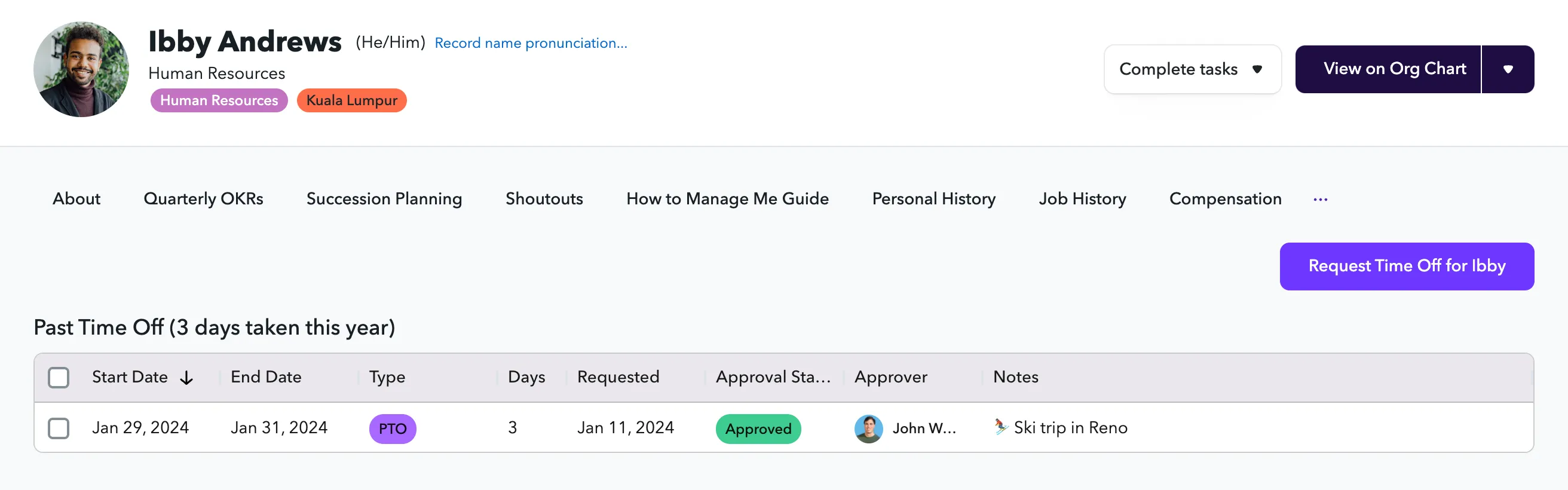
Request time off
You are able to add request time off via your ChartHop profile. The ChartHop administrators at your company have configured the policies that apply to you. Your request will be sent to to the proper person for approval usually it will be your manager.
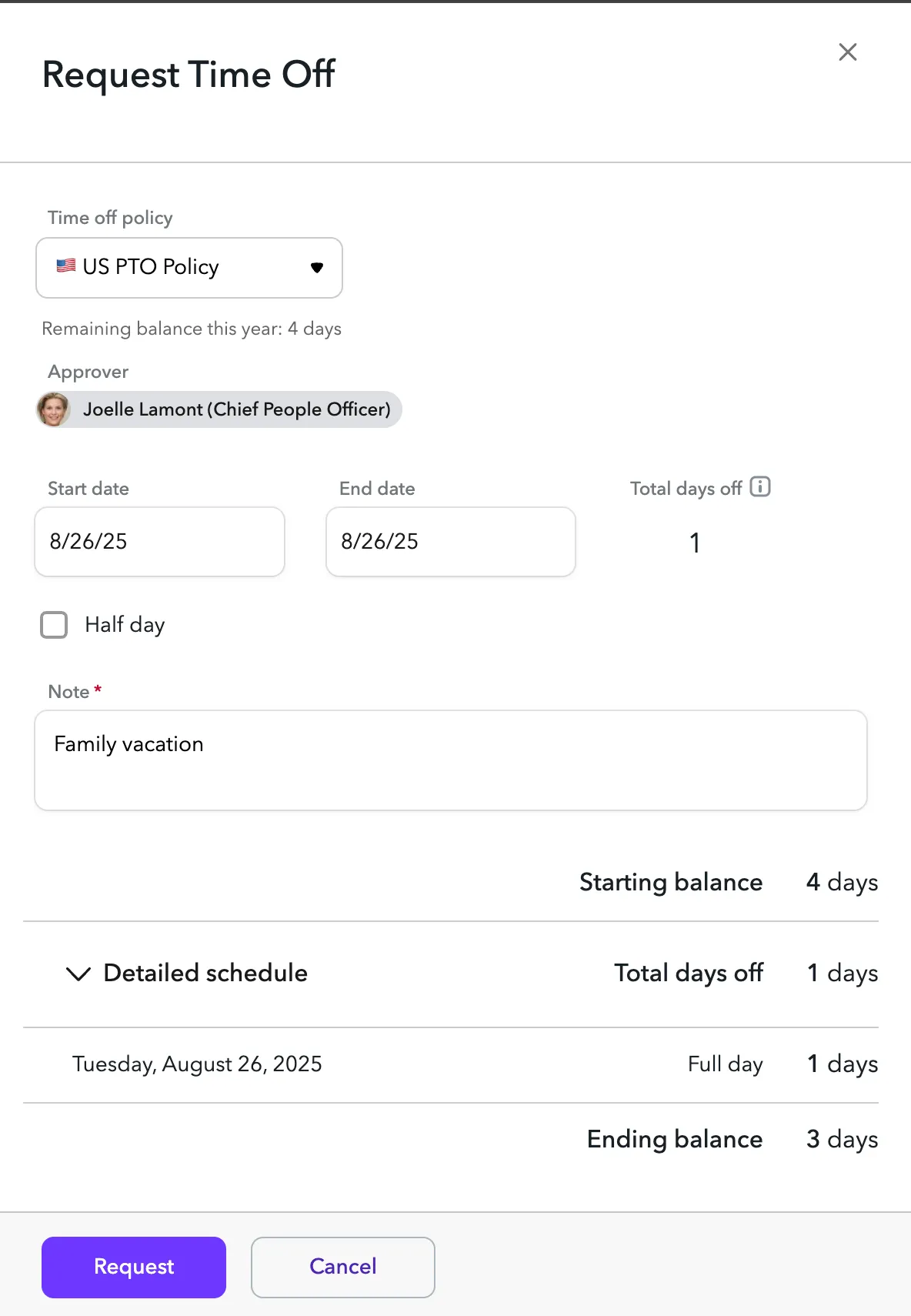
To request time off:
- From the left sidebar, select My Profile.
- Go to the Time off tab.
- Click Request time off.
- Complete the time off request form
- Select the Time off policy to request from
- Set the Start Date and End Date.
- If allowed by the policies, you may select a half or partial day.
- Add a Note
- Your request will be sent to the listed approver and you will receive a notification when the request has been approved.
If allowed in your policy, you may request a partial day off.

To request a partial day:
- Click the > icon to view the Detailed Schedule
- Use the "Full day" dropdown to select the amount of time that you would like to take off. The availible options have been selected bt your administartor.
- You will se the days off reflected in the total to the left.
ChartHop Time Off does have details on your working schedule, so you cannot set that in the request. Please use the Note and other work calendar tools to communicate that with you manager.
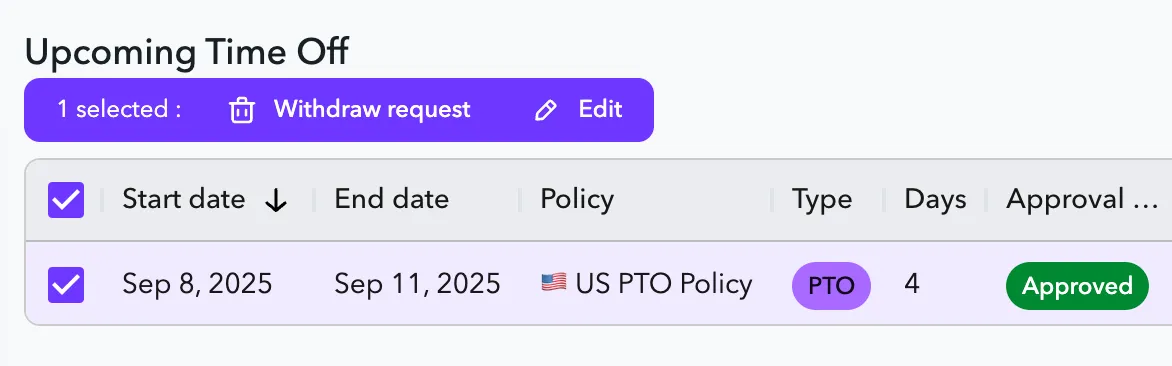
Edit future time off requests
If you need to make an update to a time off request that is in the future, you may do so. After you edit the request, the request will be sent for re-approval. You are not able to edit time off that is in the past.
To edit a future time off request from the profile:
- From the left sidebar, select My Profile.
- Navigate to the Time off tab
- Locate the Upcoming Time Off and select the request that you would like to edit.
- Update the policy, start date, end date or note. Then click, save.
- Your request will be sent for re-approval.
Approve or reject a time off request
As a manager, you will receive time off requests to approve or reject for your direct reports.
You can approve or reject via the ChartHop Slack app or from the time off profile tab.
To approve or reject a time off request from the profile:
- From the left sidebar, select My Profile.
- Go to the Time off tab
- Select the request that you would like to approve or reject using the checkbox on the left of the table.
- Click Approve in the actions buttons at the top of the table
- Add an approval note and click Approve or Reject to submit the approval.
Approve or reject a time off from Slack
If your organization has the ChartHop Slack App installed, you will receive PTO approval requests over Slack.
When an employee submits a request, as an approver, you will receive a message that looks like this:

Click the Approve button to approve the request.
You will then see a confirmation message:
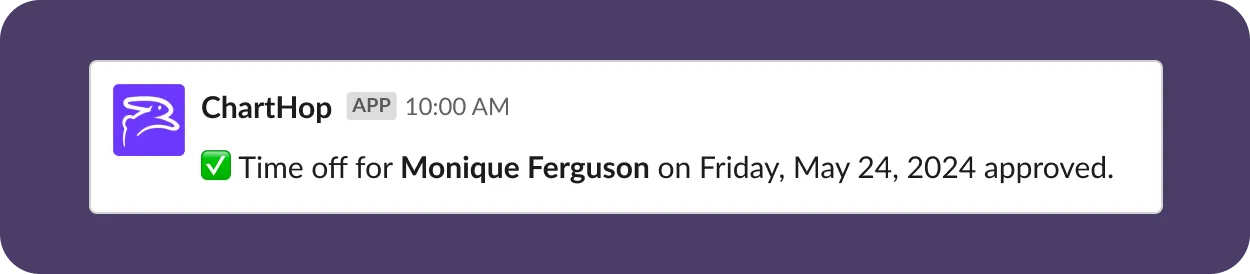
The person who requested the time off will also receive a confirmation of the approval in Slack.

Cancel or delete a time off request
To delete a time off request:
- Go to your profile
- Select the Time off tab
- Select the request that you would like to delete using the checkbox on the left of the table.
- Click Delete in the actions buttons at the top of the table
- Type DELETE and confirm the deletion of the time off request.