
Signing a document
If you need to sign a document in ChartHop, your will receive a notification via email or Slack and you will see a task in your ChartHop dashboard. Click the Review and Sign button to be taken to the signing page.
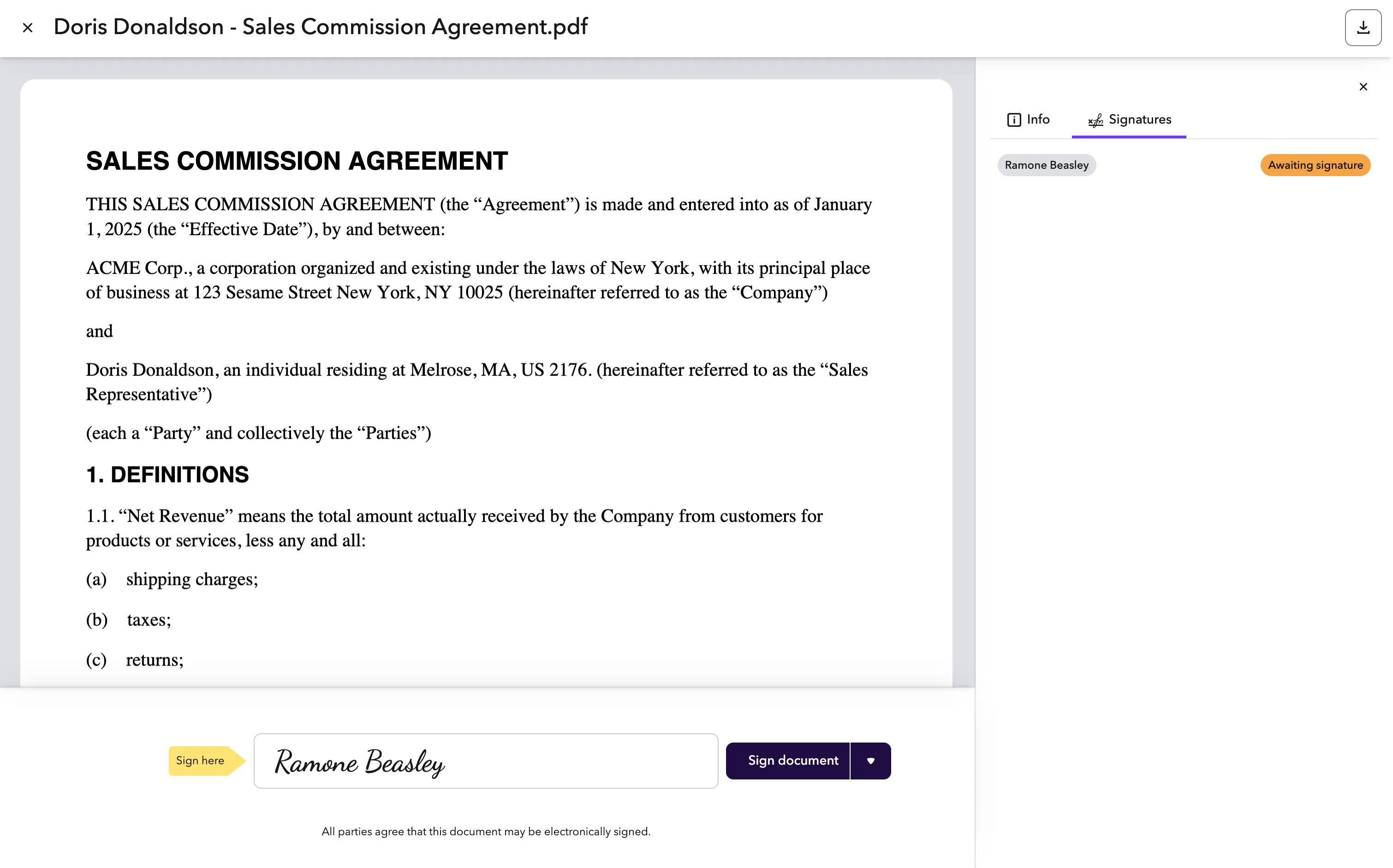
Signing a document
When you receive your document, please review it carefully and understand what you are signing in full, as it is a legally binding e-signature.
To sign a document:
- Click the Review and Sign button to view the document.
- Review the document.
- Type your name into the box labeled Sign here.
- You can sign with any case sensitive combination of your First Name or Preferred First Name and Last Name or Preferred Last Name.
- Click Sign document.
- You have now signed the document.
You can now:
- View your signature at the bottom of the document.
- Check your email for a confirmation and signed copy.
- Download the signed document via the download button in the top right corner of the page.
Signing a document with QES
If you company is using Qualified Electronic Signatures (QES), for your signature, then you will be redirected to a page hosted by BoldSign to sign the document. Once you have signed you will be redirected back to ChartHop.
Declining to sign
If there is something incorrect about the document, like a misspelling of a name or incorrect details, you have the option to Decline to sign the document.
Declining to sign will cancel the signature request and notify the person who requested the signature from you with the reason that you provide.
To decline to sign a document:
- Click the Review and Sign button to view the document.
- Review the document.
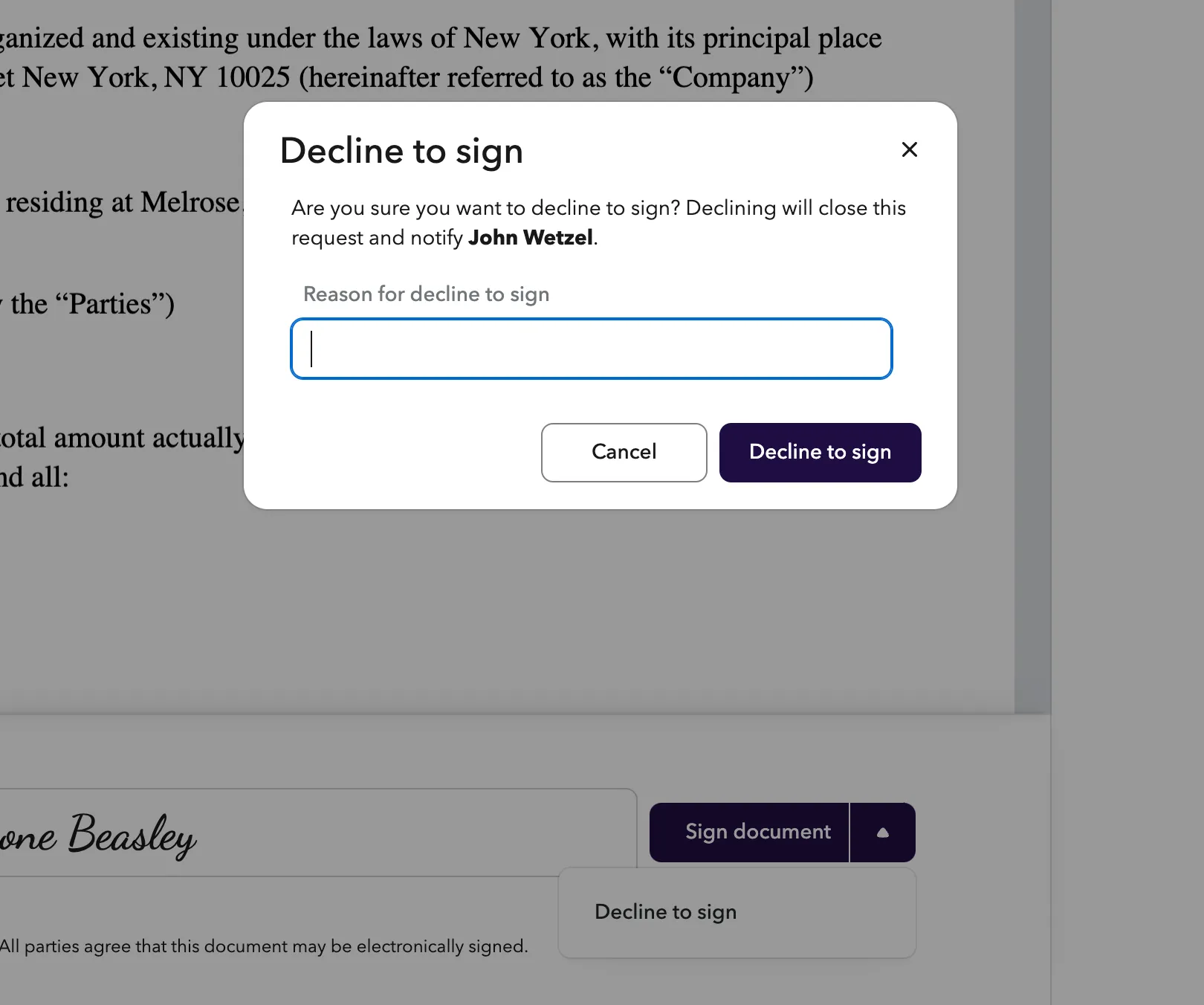
- Click the 🔽 next to Sign Document, then select Decline to sign.
- In the confirmation dialog, add a reason for declining to sign the document then select Decline to sign.
- The person who requested your signature will then be notified.
Viewing your signed document
There are several ways that you can view your signed document:
- Email — A copy is emailed to you immediately after you sign a document. If you need to search your inbox, use the following details:
- Subject: Signature Completed: {Document Name}
- Sender: ChartHop <[email protected]>
- ChartHop Profile — If you signed a document about yourself, you can find it under My Profile > Files tab of your ChartHop profile. If you signed a document about someone else, you can navigate to the Files tab on their profile to see the document.
To view more information about signatures, you can read: About ChartHop Signatures