Change payment details
You can change your payment information at any time.
accepts the following payment methods:
- Credit/debit card
- Digital wallets: Apple Pay, Google Pay, Amazon Pay, and Cash App Pay
- Link (for one-click checkout)
- Klarna (to pay in installments or via custom financing)
- ACH direct debit (US bank accounts): Valid for monthly and annual subscriptions only
For more information on payment options, see the FAQsFAQs below.
Available methods may vary based on your region.
Enter payment details
To add or update a payment method:
In the left sidebar, click Org.
Under My plan, click Subscription.
Click Update payment method, or Add payment method if you're on a Free plan.

Under Select new payment method, select your new payment type.

Available methods may vary based on your region.
In the checkout screen, enter the required information.
Click Save.
Once you complete the instructions, a notification confirming the change appears in the lower-right corner.
Enter ACH direct debit (US) details
In the left sidebar, click Org.
Under My plan, click Subscription.
Click Update payment method, or Add payment method if you're on a Free plan.
Under Select new payment method, select Link.
In the checkout screen, enter your payment details and select Bank.
Click Save.
Once you complete the instructions, a notification confirming the change appears in the lower-right corner.
Manage payment methods
You have the following options for managing existing payment methods:
- Set a different payment method as a primary payment method or for extra credits
- Remove a payment method
The first payment method added is the primary payment method. By default, the primary payment method covers subscription and extra credit costs.
Set a different payment method as the primary method
To set a different payment method as the primary method:
In the left sidebar, click Org.
Under My plan, click Subscription.
Click Update payment method.
Next to the payment method you want to set as primary, click the three-dot menu.
Select Set as primary method.

Set a different payment method for extra credits
To set a different payment method for extra credits:
In the left sidebar, click Org.
Under My plan, click Subscription.
Next to the payment method you want to set for extra credits, click the three-dot menu.
Click Set for extras.
Remove a payment method
Your subscription requires at least one primary payment method. You must add another payment method before removing your primary payment method.
To remove an existing payment method:
In the left sidebar, click Org.
Under My plan, click Subscription.
Next to the payment method to remove, click the three-dot menu.
Click Remove.

Change your billing address
If you're an organization owner or admin, you can change your billing address in at any time.
In the left sidebar, click Org.
Click on your profile and go to Organization settings > Change billing details from the dropdown menu.
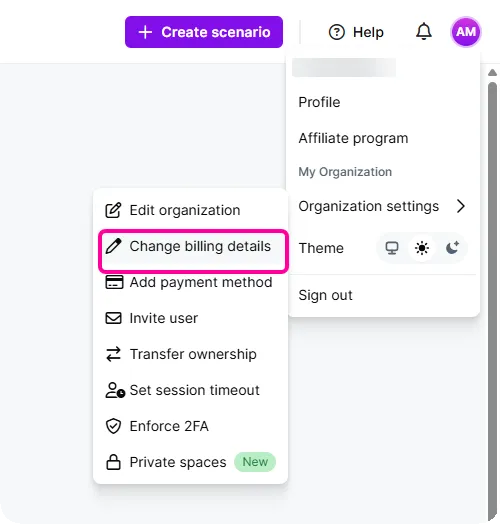
Enter your information in the allocated spaces (email, name, address).
If you have a company account, select Yes under I am a business.
If you want to issue the invoice to your company (and not to you personally), make sure to add your company name and Company Tax ID.
Click Save.
The new billing information is automatically reflected in your next invoice.
Only customers in the US pay sales tax. We calculate sales tax based on your zip code.
Change your billing email
By default, sends invoices for payments to the email address the organization owner provided when creating the organization.
If you're an organization owner or admin, you can change your billing email in at any time.
To change your billing email:
In the left sidebar, click Org.
Click on your profile and go to Organization settings > Change billing details from the dropdown menu.
In the dialog, update the Email field with your new billing email, and update other fields if needed.
Click Save.
Your new billing email is automatically applied for your next invoice.