
View survey responses
After you have collected responses for a survey, you are able to view a summary responses immediately.
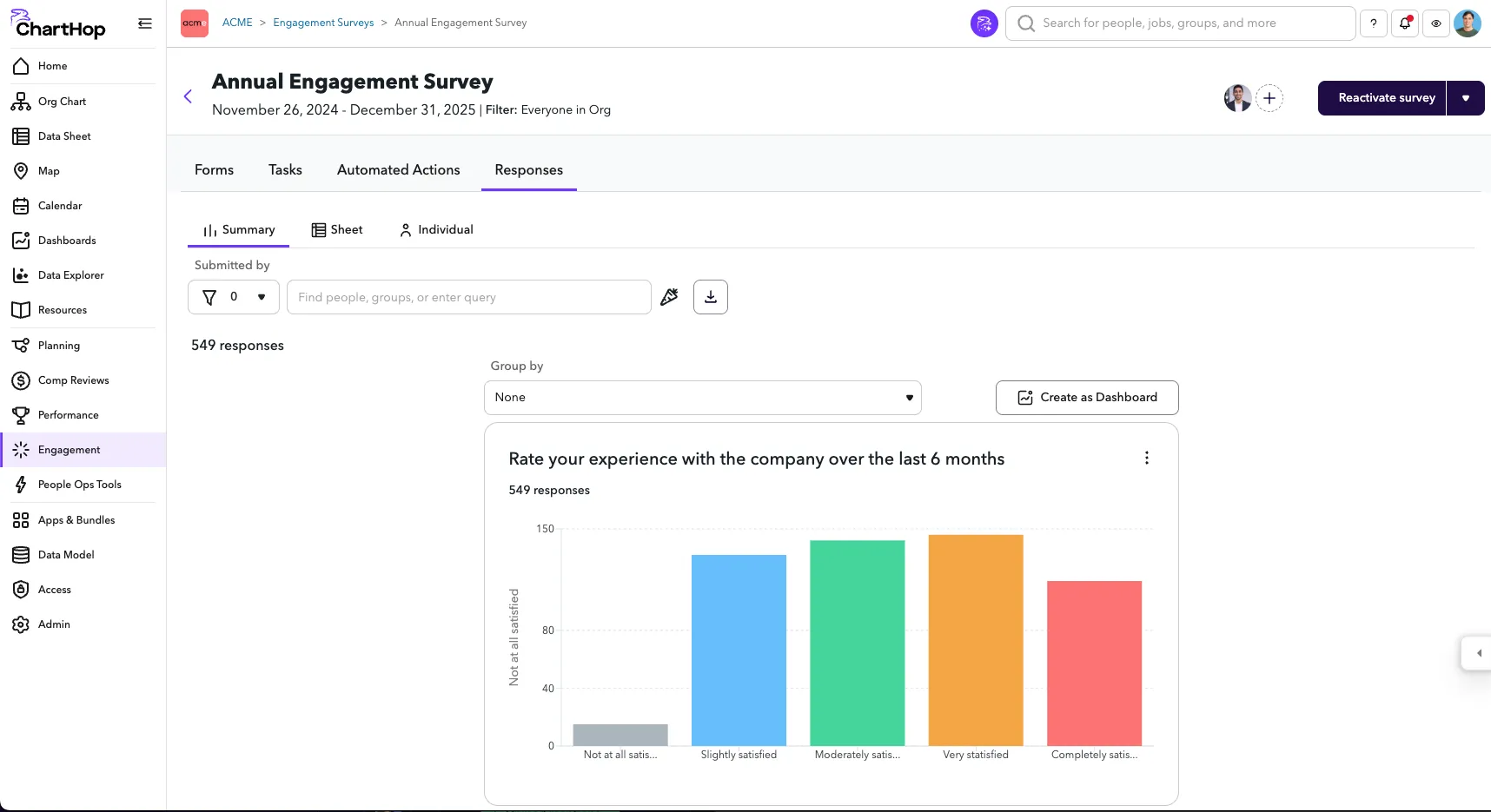
View a summary of survey responses
To view a summary of the survey responses:
- From the left sidebar, select Engagement.
- Select the Survey that you want to view.
- Select the Responses tab. The Summary sub-tab will be selected automatically.
- If your survey has more than one form, select the form in the dropdown.
All available responses to the survey will be displayed in a default chart type.
Net promoter questions will also display the NPS value for that question.
If you would like to do additional analysis or share the responses with others, you can copy the response to a Dashboard.

Create as Dashboard
Create a Dashboard of responses
To create a Dashboard of the survey responses:
- On the Responses tab of the Survey.
- Click the Create as Dashboard button.
- A dashboard will automatically be created using the default charts for each question. Within the dashboard, you can then modify the chart type, add headers & text blocks, reorganize and then share. If you apply a Group By — that will be copied over as well.
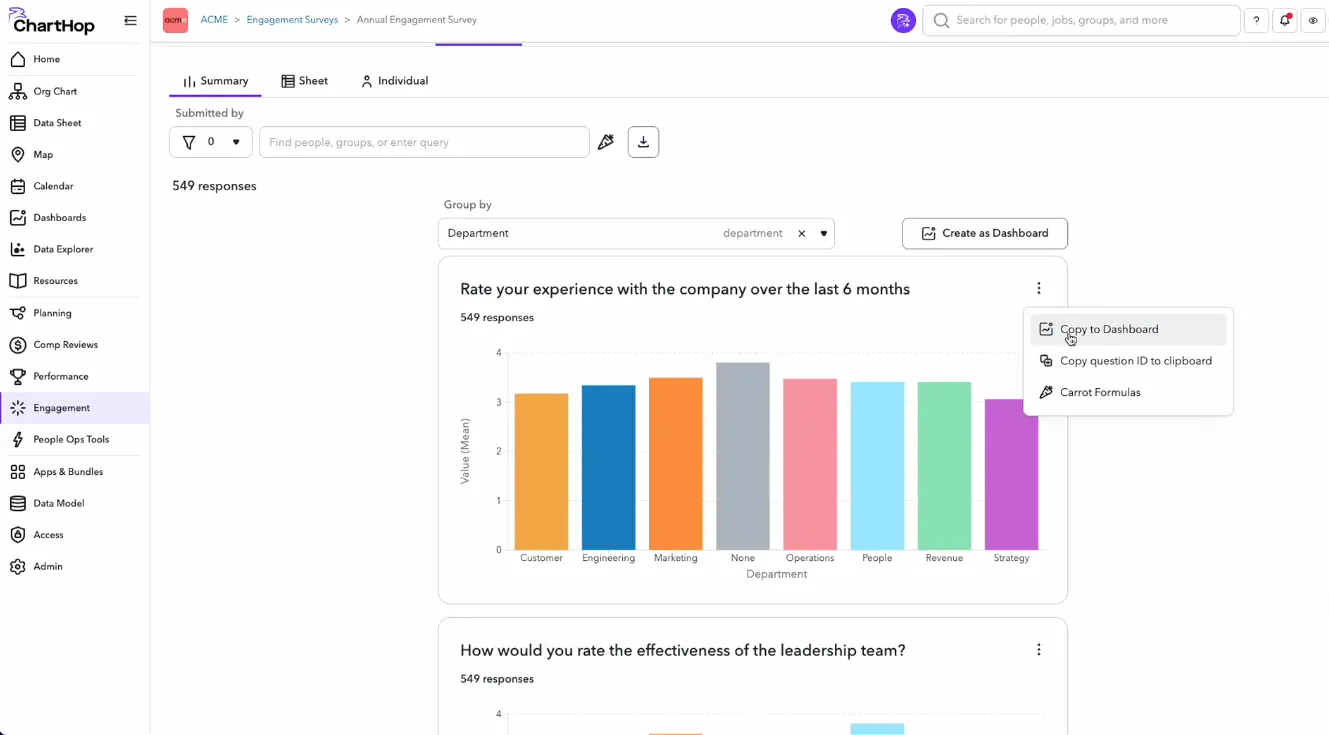
Copy chart to dashboard
If you just want to bring over an individual chart, you can also copy a chart to a dashboard.
- On the Responses tab of the Survey.
- Click the ⠇menu button. Then select Copy to Dashboard.
- In the Copy to Dashboard dialog, select the Dashboard that you would like to copy the chart to.
- Select Copy Chart. The chart will then by added to the end of the Dashboard

Sheet view of Non-Anonymous Survey Responses
View individual form responses
To view individual survey responses:
- From the left sidebar, select Engagement.
- Select the Survey that you want to view.
- Select the Responses tab.
- Select the Data Sheet or Individual sub-tab.

Individual Response view of Non-Anonymous Survey Responses
Roles: Owner | Technical owner | People Ops Admin