
Calibrations
Overview
Calibrations let you compare and align ratings across your organization by meeting with different groups- like a department or team- to review and adjust employee assessments together.
What are calibration views?
When you click the Calibration tab in a performance review, you land on a list of views. Each view is a focused workspace showing the employees and data relevant to a specific calibration meeting. For example, one view for Sales, another for Engineering, another for your direct reports.
Every review starts with two default views:
- Full team overview: every employee in the review. This works exactly like the calibration screen did before, so reviews already running aren't affected.
- My Team: employees who roll up to you.
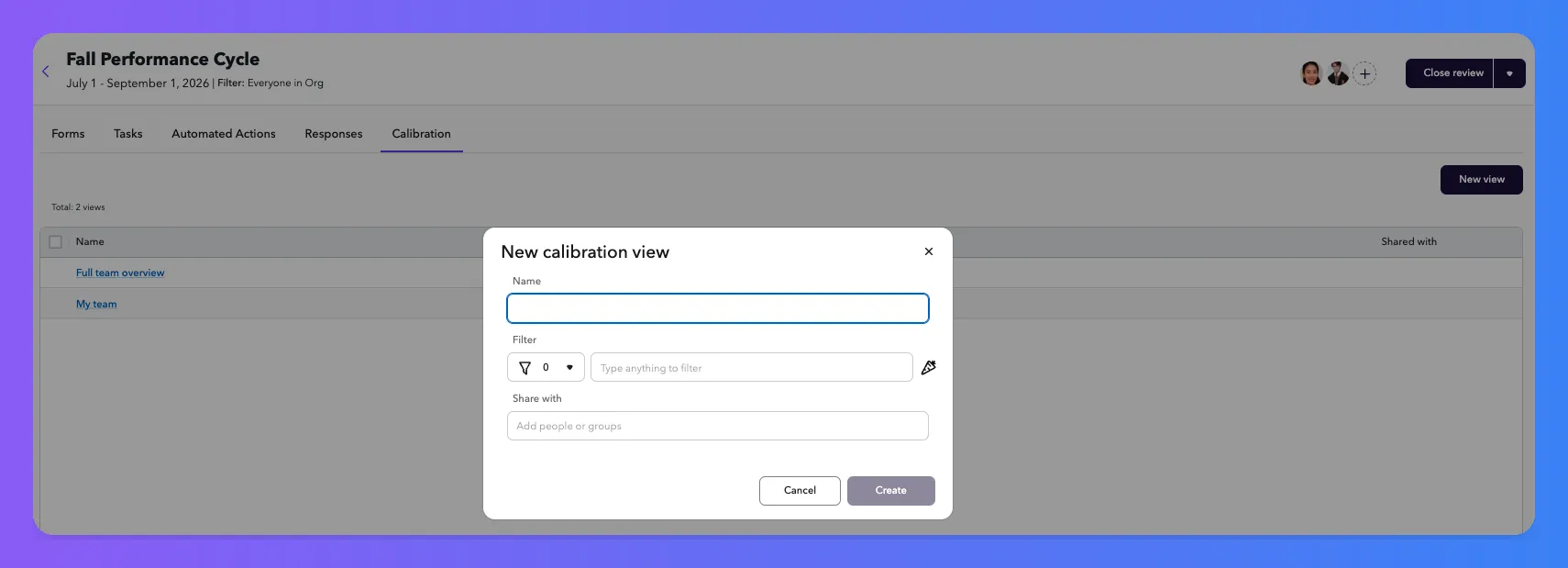
Set up your views before the meeting
Create views for each calibration meeting you'll run. We recommend doing this before your sessions start so you can simply click to load the right view during each meeting. Anyone who is an OWNER or EDITOR of a performance review can create calibration views.
Create a view
- From the view list, click New View.
- Choose a filter to define which employees appear (for example, department:Sales or under:jsmith).
- Pick the columns you want to display, like manager rating, pre-calibrated value, and compensation band.
- Choose who you want to share that view with.
- Name the view and save it.
Views are data sheet views, so you can sort, filter, and adjust columns the same way you do elsewhere in ChartHop.
Edit, duplicate, and delete views
- Open a view and adjust its filter, columns, or name, then save your changes.
- Duplicate a view to use it as a starting point for a new audience.
- Select multiple views from the list to delete them in bulk.
Share a view
Share a view with the people running calibration sessions with you, like department heads or calibration facilitators. Sharing supports two access levels:
- Owner: can change the view's name, filter, and who it's shared with.
- Limited viewer: can open and work in the view, but can't change the name, the filter, or the share list.
Sharing a view doesn't grant data access
View sharing controls who can open the view. It doesn't change what anyone can see or edit in ChartHop. If someone doesn't have permission to edit an employee's review responses, sharing a calibration view with them won't change that. Set up the appropriate access roles for anyone who needs to make calibration edits.
Calibration-only access
You can share a calibration view with someone who isn't a participant in the review itself. When they open the review, they'll see the review's name and only the calibration views shared with them-nothing else from the review.
This is useful for calibration facilitators or leaders who need to run a session without access to the full review.
Data in your calibration view
The calibration view combines ChartHop fields and data from forms submitted as part of this review. Unlike the data sheet, this view pulls data that hasn't been released yet, allowing you to run calibrations before ratings go live.
Only employees with submitted responses appear in the view. If you don't see someone listed, check the Form responses sheet to confirm their review form was completed.
Default columns
- Person
- Title
- Department
- Compensation band
- All single-select, multi-select, or numeric scale questions from forms used in the review (for example, "Manager Review" or "Self Rating")
- When multiple people submit the same form about one person (like peer reviews), all values appear in the same cell
Add more columns
You can add any additional ChartHop fields, like Manager, Tenure, or Last Promotion Date.
Choose which fields are editable
By default, all form questions and ChartHop fields in your view are editable during calibration. You can highlight the columns you want calibrators to focus on or change during this cycle.
Click the settings icon in any column header to select what fields you want highlighted.
Smart calculations
Any smart calculations or smart bucket fields that use fields updated during the review will reflect the new data.
Run your calibration meeting
- Everyone invited to the meeting can open the calibration view shared with them.
- Discuss ratings and make adjustments as a group.
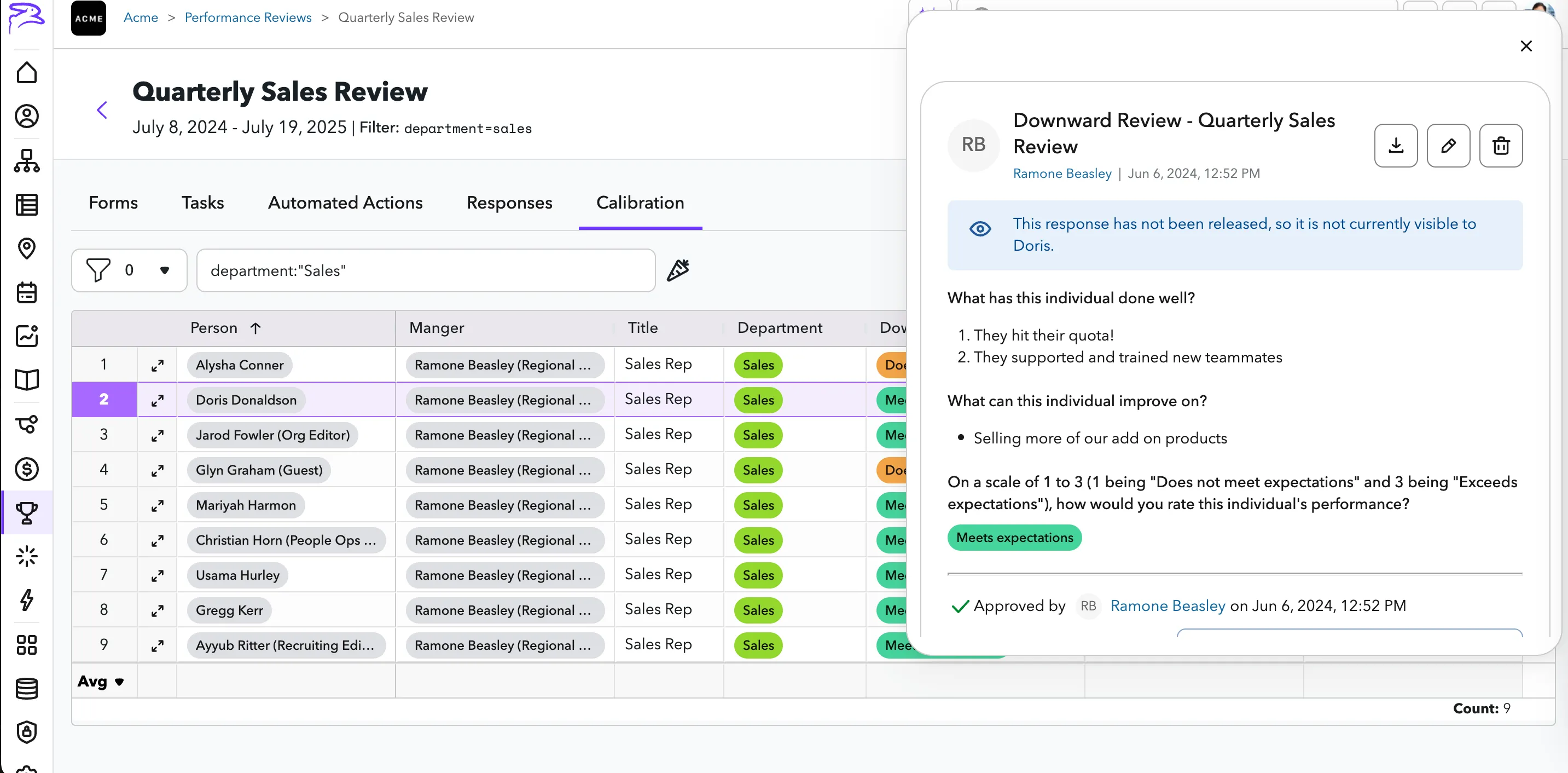
View and edit form responses
During calibration, you may need to drill into the specific responses submitted for an employee.
- Click the expand icon in a person's row to see their form responses.
- View which responses have been approved or released.
- If you have access, you can approve or release directly from this view.
To update a rating or other data, click the expand icon, find the form with the rating, and edit it. Note that any form edits will show as edited by the person who made the change. If you want to avoid displaying an admin edit, have the original submitter make the change instead.
Download a view as a CSV
Export any calibration view to a CSV to work with the data offline or share a snapshot outside ChartHop. Open the view and click the download option in the toolbar.
FAQs
Will this change anything for reviews we're running right now? No. The Full team overview view is the same calibration experience you had before. Nothing about existing functionality changed.
Who can create views? Anyone who has OWNER or EDITOR access in a review can create views. What they can see and edit inside a view is still governed by their ChartHop permissions.
Can a limited viewer edit employee responses? Only if their ChartHop permissions already allow it. The limited viewer role restricts changes to the view itself, not calibration edits.
Do I still need to use browser bookmarks? No. Views are now saved in ChartHop, so you don't need browser bookmarks anymore. Just create your views in advance and click to load them during your meetings.