MOKA TV with BrightSign
This document describes how to update BrightSignOS and the MOKA firmware on the MOKA TV with BrightSign.
Download Links
If you are already familiar with the update process, the download links are provided here for easy access. Otherwise, please follow the directions below.
- For MOKA TV DS60P models, select the XT5/XD5/HD5/HS5/LS5 player family.
- For MOKA TV DS60PX models, select the XS6/XD6/HD6 player family.
MOKA firmware .zip file (V8-AM963BS-0020036)
Prerequisites
MOKA TV with:
- MOKA firmware version: V8-AM963BS-0020015 or later
- BrightSignOS: 9.0.159 or later
Connect to the MOKA TV
Before updating BrightSignOS or the MOKA firmware, you must first connect to the MOKA TV:
Connect the MOKA TV to a LAN (Local Area Network) using an Ethernet cable. Power on the MOKA TV.
Determine the MOKA TV'sIP address and the BrightSign serial number:
- Boot up the MOKA TV without a microSD card. The microSD slot is located on the bottom face of the TV next to the Power button.
- Wait for the MOKA TV to boot up completely. This may take up to several minutes. When the boot up is complete, the MOKA TV will display the BrightSign splash screen.
- Within a few seconds of the splash screen appearing, the MOKA TV's IP address and BrightSign serial number will be displayed along with a message that reads, "Please insert storage device."
Write down the IP address and BrightSign serial number.
Install the microSD card, taking care to insert the card in the proper orientation as shown by the graphic next to the microSD card slot.
Connect your computer to a LAN on the same subnet as the MOKA TV.
Local DWS
The MOKA TV'sDiagnostic Web Server (DWS) can be accessed over the local network and provides access to various settings and functions. These include the ability to update BrightSignOS as well as the MOKA firmware.
Local access to the Diagnostic Web Server (DWS) is disabled by default as of BrightSignOS 9.0.218 (on the 9.0 branch) and BrightSignOS 9.1.75 (on the 9.1 branch). In BrightSignOS versions prior to these, local access to the DWS was enabled by default. To enable local access to the DWS, see DWS: Local Access.
Note that some specially configured players have the external microSD card port and USB storage disabled at the factory (SKU: SVC-internal-storage-only). For these players, the DWS remains on by default.
If you are running a version of BrightSignOS where local access to the DWS is disabled by default, you must first enable local access to the DWS. To do this, refer to this page.
After local access to the DWS has been enabled, it can be accessed by following these steps:
Enter the player's IP address that was previously written down into your web browser's address bar. Note that there will be a redirect to a secure web connection (i.e., https://{player-ip}).
At the authentication prompt, enter the requested username and password as follows:
- username: admin
- password: the serial number of the MOKA TV
Upon authenticating, you will be presented with the MOKA TV’sLocal DWS.
Update BrightSignOS
Method 1 (Recommended)
This is the recommended way to update BrightSignOS. Note, however, that this method can only be utilized with BrightSignOS version 9.0.189 or higher.
Insert a blank microSD card into the microSD slot located on the bottom face of the TV next to the Power button.
Go to the Advanced tab of the DWS.
In the BrightSignOS Update section, choose the desired update option and click Update.
A confirmation message will appear indicating that updating the OS will cause the player to reboot. Click OK to continue with the OS update process.
The MOKA TV will reboot to complete the update process.
Method 2
As mentioned above, Method 1 is the recommended way to update BrightSignOS but requires BrightSignOS version 9.0.189 or higher. If your BrightSignOS version does not meet this requirement or you prefer not to use Method 1, the alternative steps below can also be used to update the OS.
This method requires manually downloading the BrightSignOS file. Note that BrightSignOS is specific to each hardware model family. Refer to the Download Links section above.
Go to the BrightSignOS section of https://www.brightsign.biz/resources/software-downloads/ and select the appropriate model family for your MOKA model. Refer to the Download Links section above.
Download the appropriate OS file. This file will have a .bsfw extension.
Place the .bsfw file in the root directory of a blank microSD card.
Insert the microSD card into the microSD slot located on the bottom face of the TV next to the Power button.
Go to the Reboot Player section under the Control tab of the DWS, click Reboot, and then OK on the confirmation dialog to begin the BrightSignOS update process.
The MOKA TV will reboot to complete the update process.
Update the MOKA Firmware
The MOKA firmware can be updated using the player's Diagnostic Web Server (DWS). The DWS can be access locally (i.e., over the local network) or remotely (i.e., over the internet).
With local access of the DWS, the firmware can be uploaded to the player either from your computer or by download from a URL. Due to max file size limitations, URL download is the only option available for firmware updates when accessing the DWS remotely.
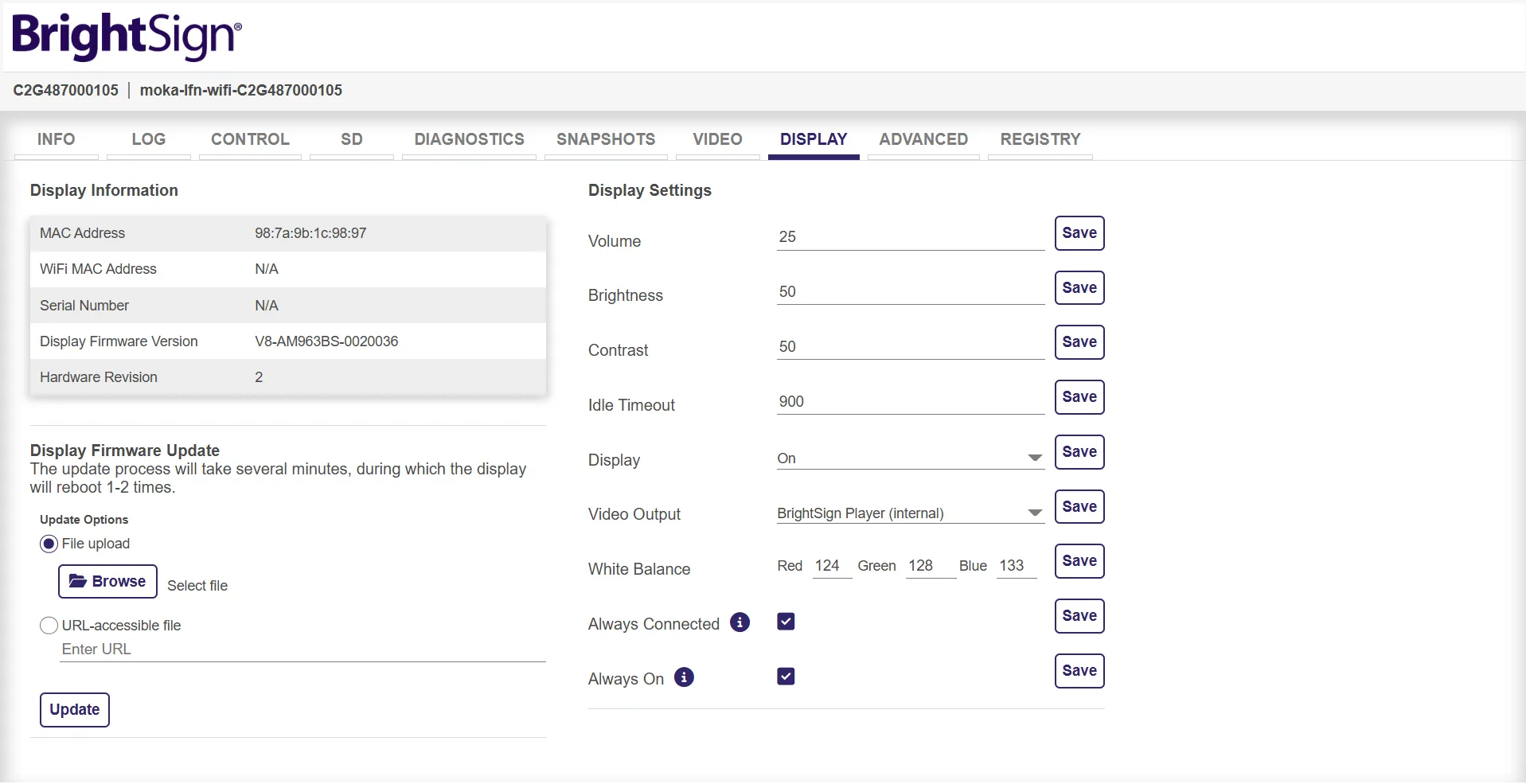
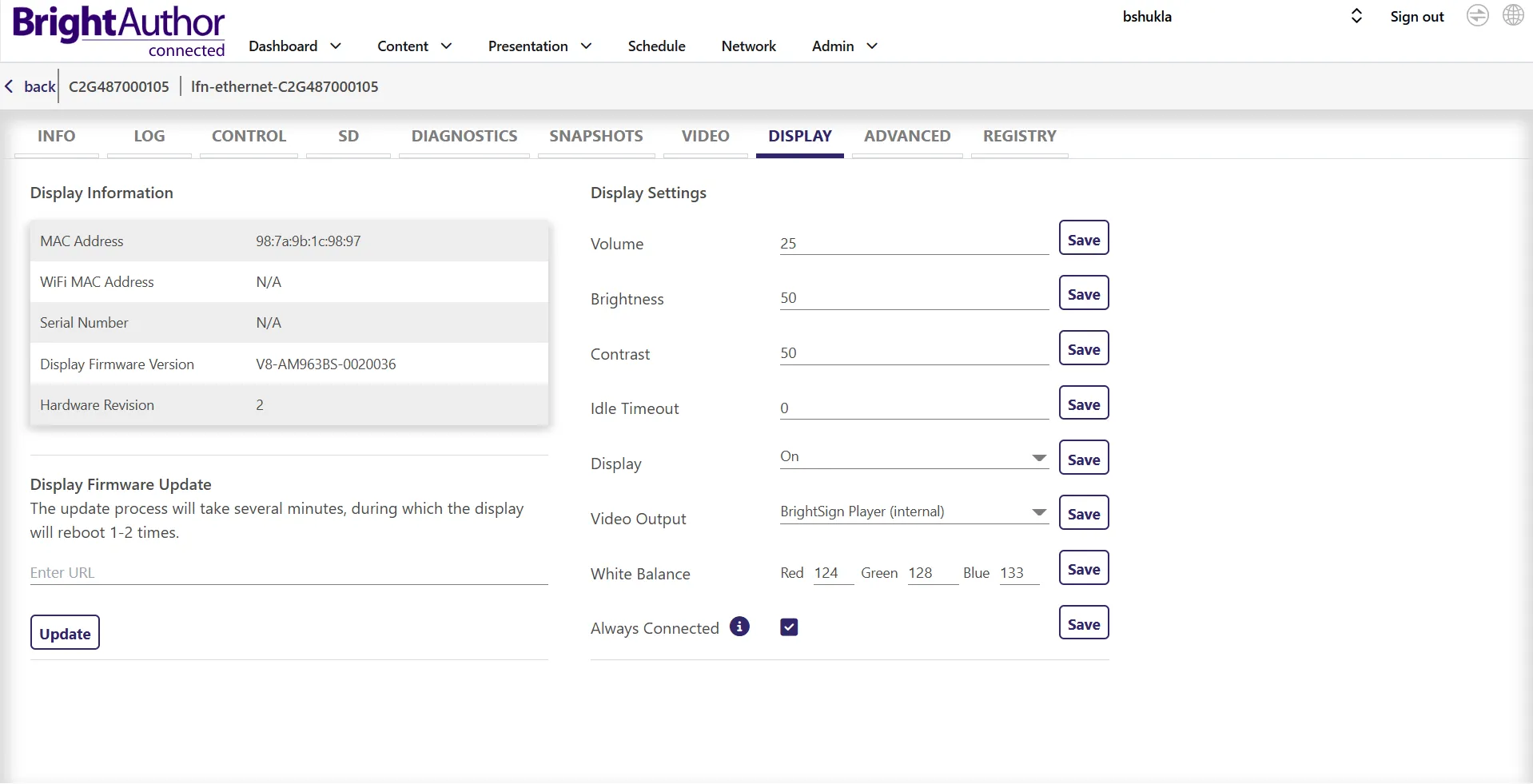
Go to the DWS and click the Display tab.
File Upload (for local DWS access only)
- Download the MOKA firmware .zip file to your computer. A download link for the latest version is provided above.
- Under the Display Firmware Update section, select the File Upload option. Browse to select the downloaded MOKA firmware .zip file.
- Click Update.
URL (either local or remote DWS access)
- Under the Display Firmware Update section, enter the URL where the MOKA firmware file resides. A download link for the latest version is provided above.
- Click Update.
After the file has been downloaded, the MOKA TV will show a success message indicating that the firmware update process has begun.
A series of reboots may occur while the MOKA firmware is being updated. Make sure that power remains connected throughout this process.
Once the process is complete and the MOKA TV has completely booted back up, you can confirm that the MOKA firmware has been updated by checking the Software Version under the System > About section of the display. The Display Firmware version can also be found in the DWS > Display tab.
Always Connected
It is highly recommended to enable the Always Connected option to ensure that the MOKA TV is remotely accessible which allows content downloads, software updates, and remote management. This setting uses more power when enabled than when disabled.
There are two ways to enable the Always Connected feature:
MOKA TV’s IR Remote
- Click the Settings button (gear icon) on the remote control.
- Navigate to System > Power.
- Enable Always Connected.
DWS
- Go to the DWS > Display tab.
- Enable the Always Connected option and click Update.
Always On
Enabling this is recommended for digital signage use.
When enabled, pressing the Power button on either the remote control or the display itself will have no effect. The display will remain powered on, allowing content display and downloads, software updates, and remote management. This setting uses more power when enabled than when disabled.
When disabled, pressing the Power button turns the display and network connection on and off.
There are two ways to enable the Always On feature:
MOKA TV’s IR Remote
- Click the Settings button (gear icon) on the remote control.
- Navigate to System > Power.
- Enable Always On.
DWS
- Go to the DWS > Display tab.
- Enable the Always On option and click Update.