Switch Presentations
1 min
In BrightSign Author, you can use the Switch Presentation functionality to switch from one presentation to another. This is useful if you want to change the zone layout without having to manually republish the presentation. All presentations must use the same resolution, otherwise the player will need to reboot to change its resolution. To do this:
- Select the Zone in the Presentation tab. Go to Zones > Properties > Type to choose the zone type of the master presentation.
- Double click to edit the zone.
- Change the Zone from Simple to Advanced. Any zone can be Advanced except for Ticker and Background Image zones.
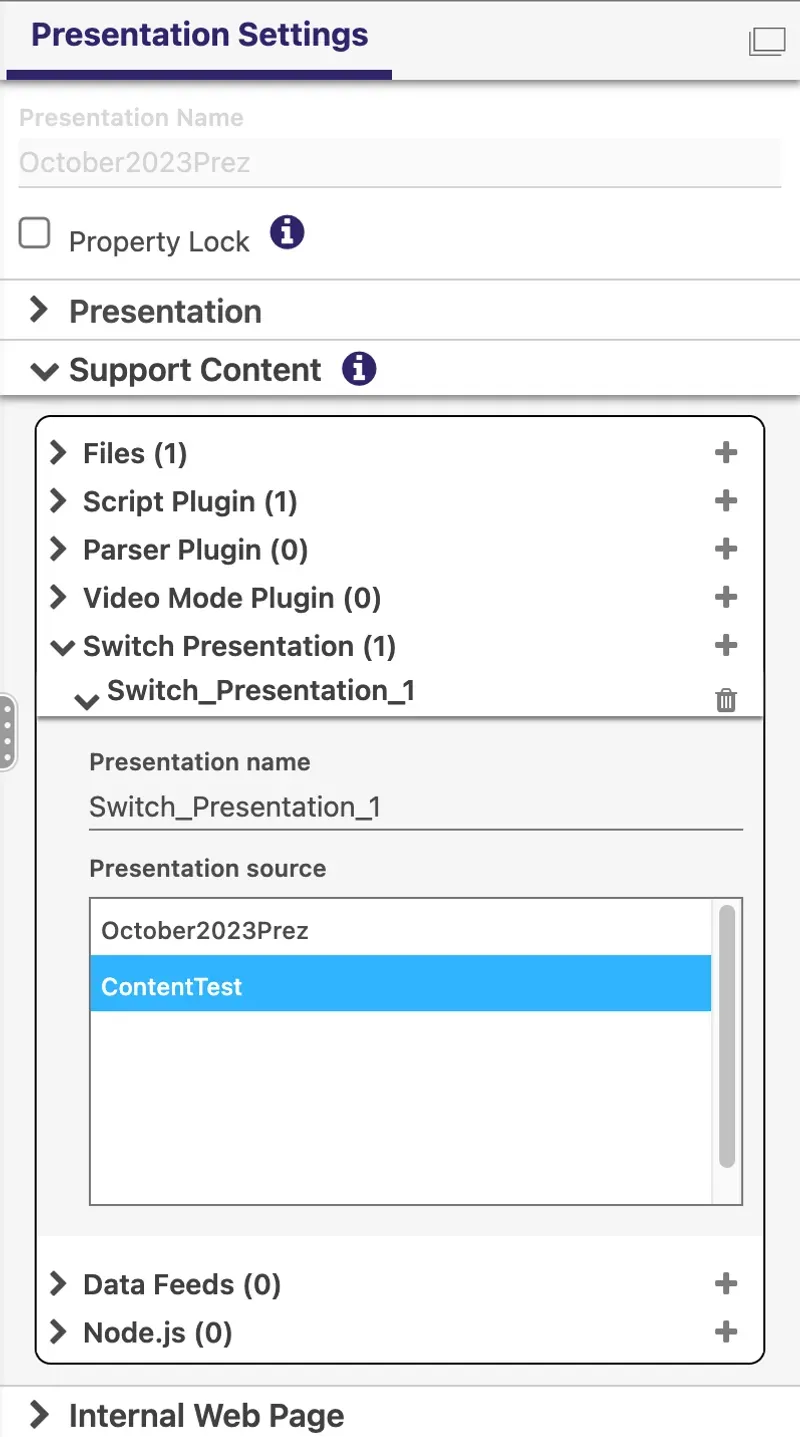
- Go to Presentation Settings > Support Content > Switch Presentations. Select the plus sign to add a presentation (see Image 1).
- Enter a Presentation Name (this can be different from its saved name).
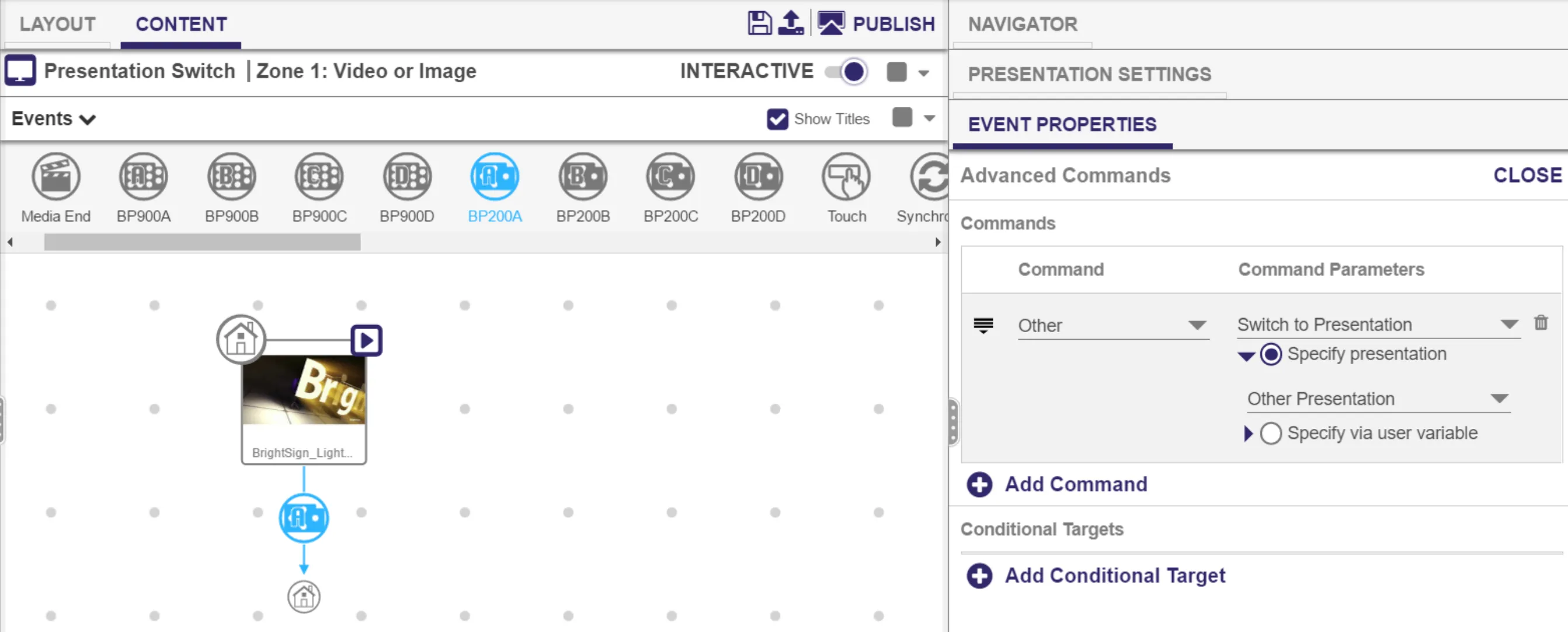
- In the center panel, select the event on which you want to switch presentations. Go to Event Properties > Advanced. In Image 2, a BP200 event is the trigger to switch from one presentation to another.
- Select Add Command and select Other as the Command. Switch to Presentation as the Command Parameter.
- Use the Specify a Presentation drop down list to select the presentation to switch to, or select Specify via user variable to use a user variable to determine the presentation.
Image 1
You can use the Switch to Presentation command to link together as many presentations as needed. All presentations added to the Switch Presentations tab under Support Content will publish with the master presentation.
Image 2