Dashboard and Menus
Dashboard
Use the Dashboard to get a status overview of your players and jump into common BrightSign Author tasks. Some of the tasks will be greyed out until you Connect to BSN.Cloud and sign in to your account (in the upper right corner).
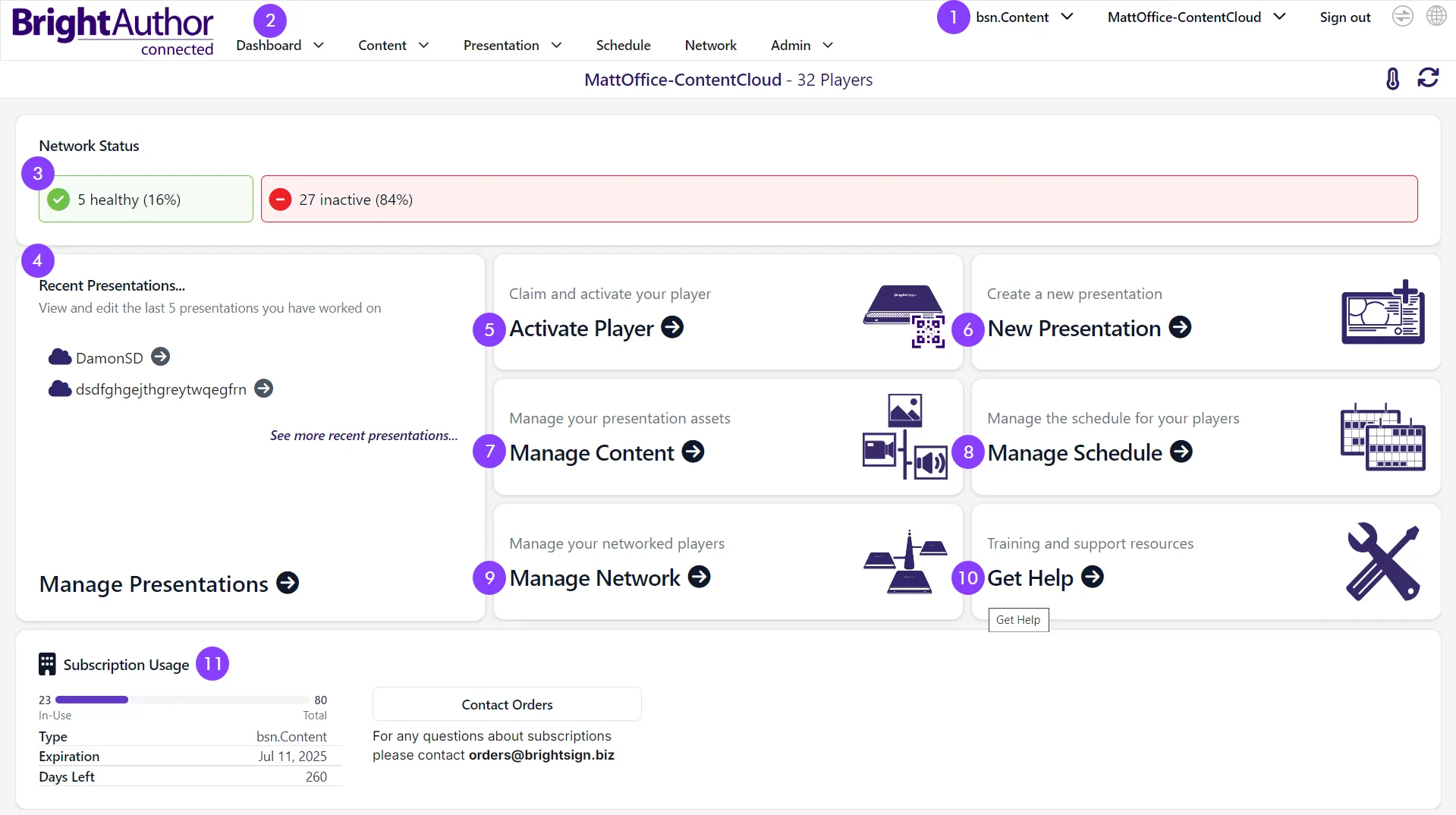
1. Content Mode
This drop-down menu enables switching between content that is Local (stored on your computer) and BrightSign Author Plus (bsn.Content), which is stored on BrightSign Cloud:
Local: Author presentations using content files located on your Mac or PC, and publish them using the Standalone, Local Network, or Web Folder Publishing Modes. Presentations authored with Local content cannot be directly accessed when BrightSign Author Plus (bsn.Content) mode is selected; content must first be uploaded to BrightSign Cloud before it can be accessed.
BrightSign Author Plus: Author presentations and feeds using content files that have been uploaded to your BrightSign Cloud network. This option requires a BrightSign Author Plus subscription. Presentations authored with this mode cannot be accessed when Local content mode is selected.
This drop-down menu is only available in the desktop, not the browser, version of BrightSign Author.
2. Nav Bar
Use the Nav Bar to navigate among the different sections of BrightSign Author. Select the down arrow next to a heading to see additional options (for example, the dropdown menu under Dashboard allows you to access info about the Network Status and BrightSign Cloud Status).
3. Player Status Overview
This bar provides a quick overview of player health. Players must first have been added before their health can be displayed. The following statuses can appear in the status-overview bar:
Icon | Interpretation |
|---|---|
 | Healthy: The player has checked in less than 5 minutes ago. |
 | Connection Lost: The player has not checked in for 5 to 15 minutes. |
 | Inactive: The player has not checked in for 15 or more minutes. |
 | Disconnected: The player has no subscription, or its subscription has expired. This only applies to BrightSign Author Plus networks. |
Click the Player Status Overview bar to jump to the Network tab, where you can get more detailed information about the current status of your players
4. Recent presentations
This pane provides a list of recently created/edited presentations. As noted above, you will only see locally saved presentations when Local content is selected. Select Manage Presentations >> to see all saved presentations.
5. Activate Player
Activate a player for BrightSign Cloud.
6. New Presentation
Create a new presentation.
7. Manage Content
Manage content on your BrightSign Cloud network (this feature does not apply to local storage).
8. Manage Schedule
Create or modify presentation schedules for players.
9. Manage Network
Manage players that have been added to your BrightSign Cloud network.
10. Get Help
Link to training and support resources.
11. Subscription Information
This section provides the following dynamic subscription information:
- The subscription type
- The total number of subscriptions available and the number that are in use
- The number of days remaining on those subscriptions
- The expiration date of the BrightSign Author Plus subscriptions
Menu Items
When BrightSign Author is launched, three menus will appear in the menu bar along the top of the window. These menus offer additional functionality.
BrightSign Author
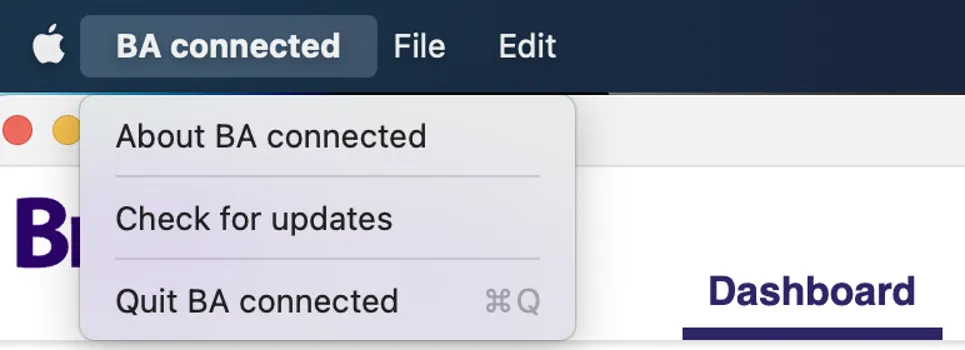
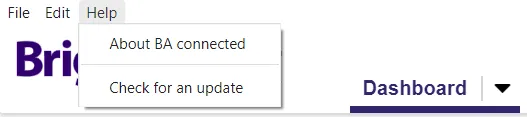
About BA connected
Displays which version of BrightSign Author you are running, as well as copyright information.
Check for Updates...
This allows you to see if there are new BrightSign Author versions, and to update BrightSign Author if you choose to do so.
Quit BA connected
Use this, or the corresponding key command, to quit the application.
File
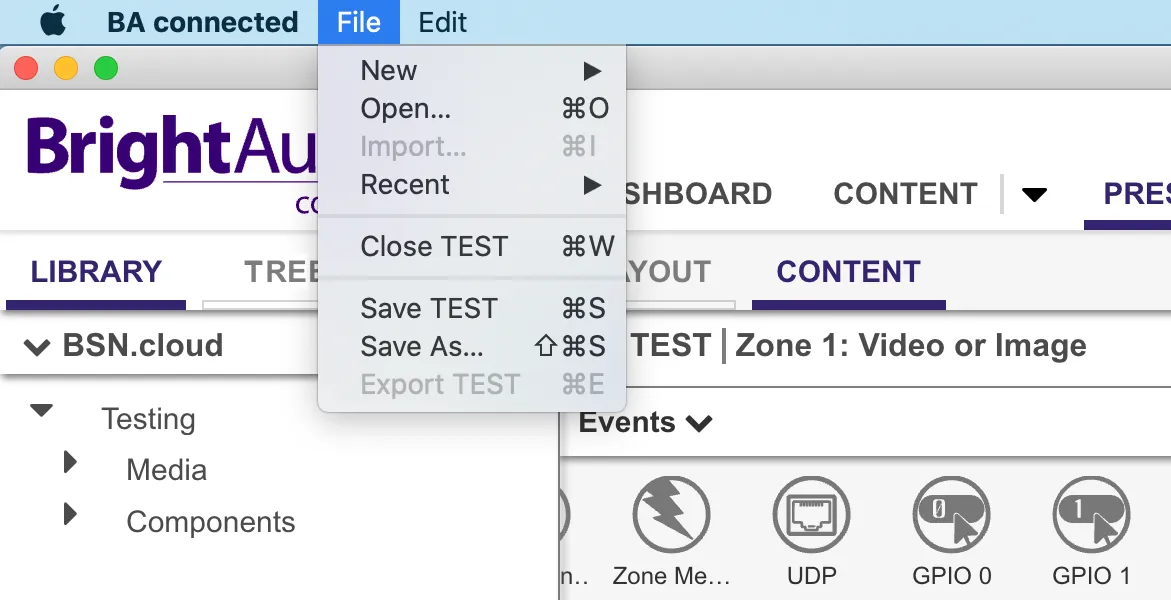
New/Open/Import/Recent
These tools allow you to create a new presentation or schedule, open or import an existing presentation, and list recent presentations that can be reopened. As of version 1.37.1, projects with User Events can be imported, such as BrightAuthor .bpf presentations that include User Events. This is useful for migrating projects from BrightAuthor Classic to BrightSign Author.
Close
This allows you to close the current presentation.
Save / Save As... / Export
These tools let you to save or export the current presentation, or to save it with a new name.
Edit
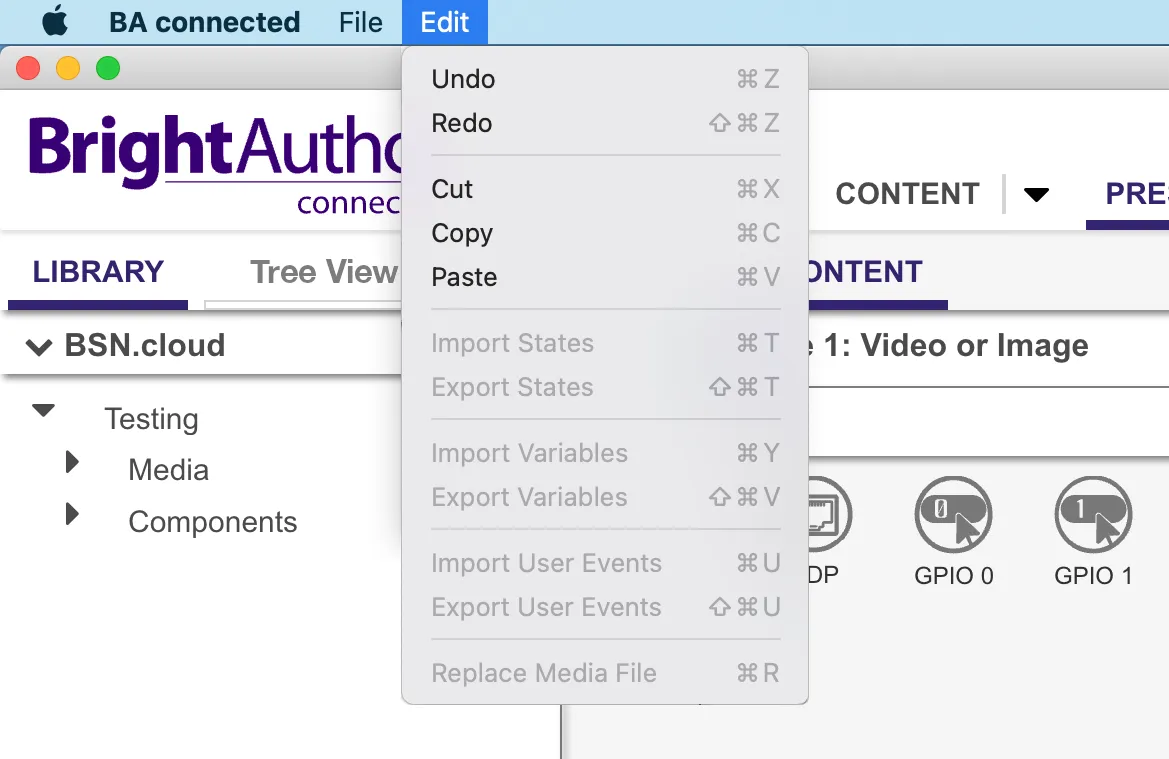
Undo/Redo
These tools allow you to undo or redo a previous action in the application.
Cut / Copy / Paste
These tools let you cut, copy, or paste information within the presentation.
Import States / Export States
These tools let you import and export presentation states.
Import Variables / Export Variables
These tools allow you to import and export user variables, which can save time when you are creating multiple presentations that use the same set of variables.
Import User Events/Export User Events
These tools allow you to import and export User Events from BrightAuthor or from another BrightSign Author presentation. This can save time when you want to reuse events.
Note that you must be in Local ContentLocal Content mode to import and export User Events.
Replace Media File
This allows you to replace files within media states, but only in a local presentation. You will be prompted to save any unsaved changes.