Sleep / Wake a Display
You can enable or disable PowerSaveMode in BrightSign Author by attaching a wake or sleep command to a State or an Event like a button press.
CEC Commands
CEC commands can be used in various ways to turn the display on or off.
Attaching to States
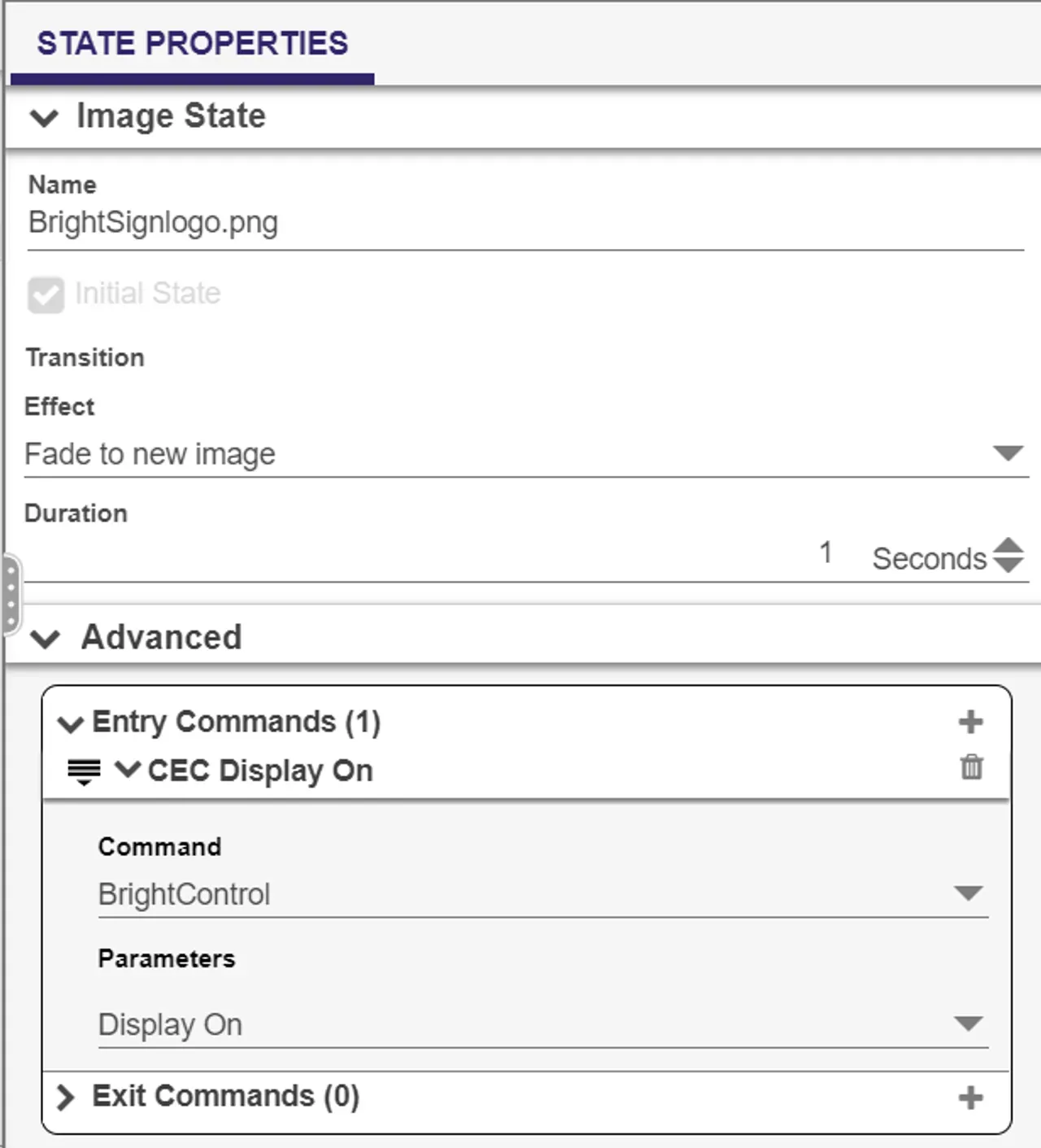
CEC commands can be attached to a State. In this example, a CEC command is attached to an Image State.
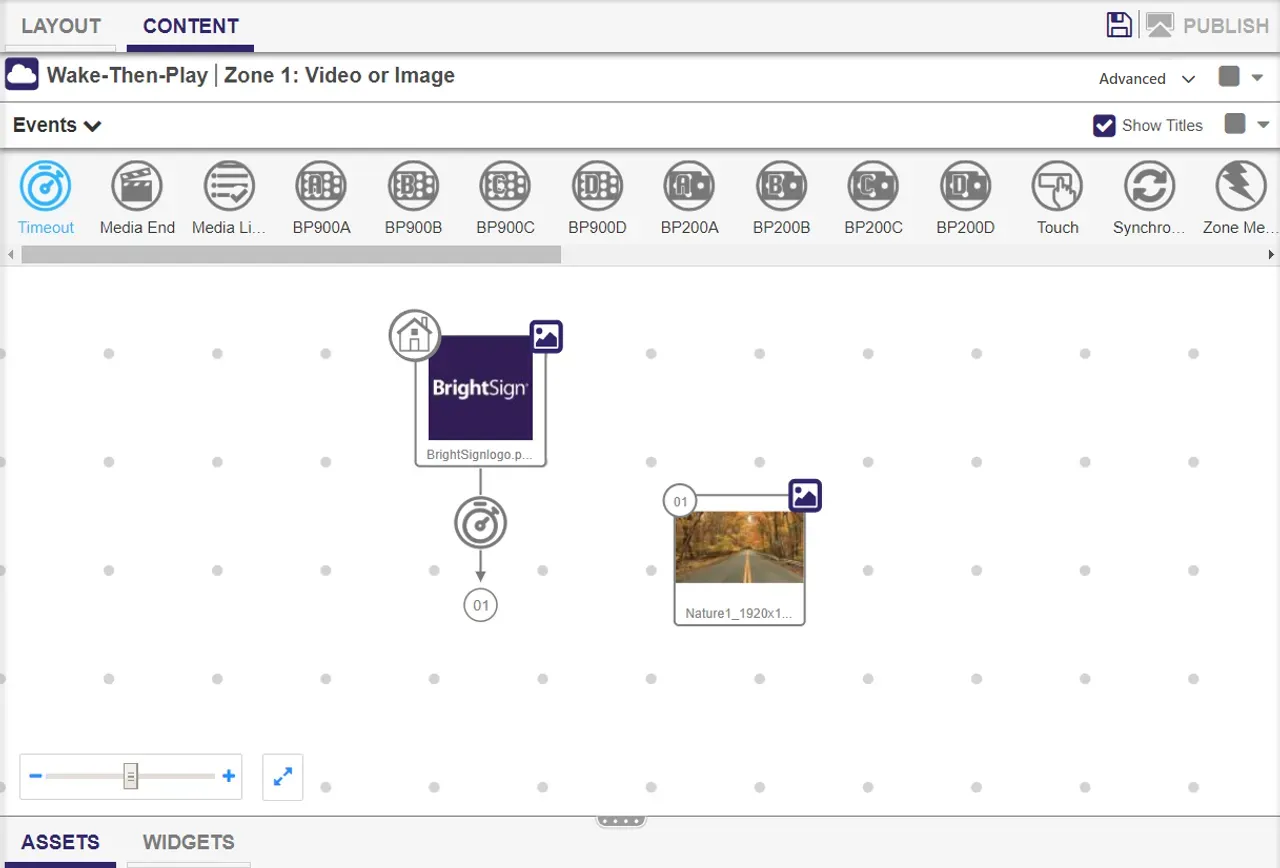
To schedule your screen to wake at a certain time:
- Create an Advanced presentation.
- Add a Timeout Event to the content and select the image (see above).
- Open the Advanced window under State Properties
- Add a BrightControl command. The settings, when applied to the example presentation shown above, will show the BrightSign at startup, then time out to the next image. Each time the scheduled presentation begins playback, it will enter the Image State (with the BrightSign logo) and power on the display.
Attaching to Events
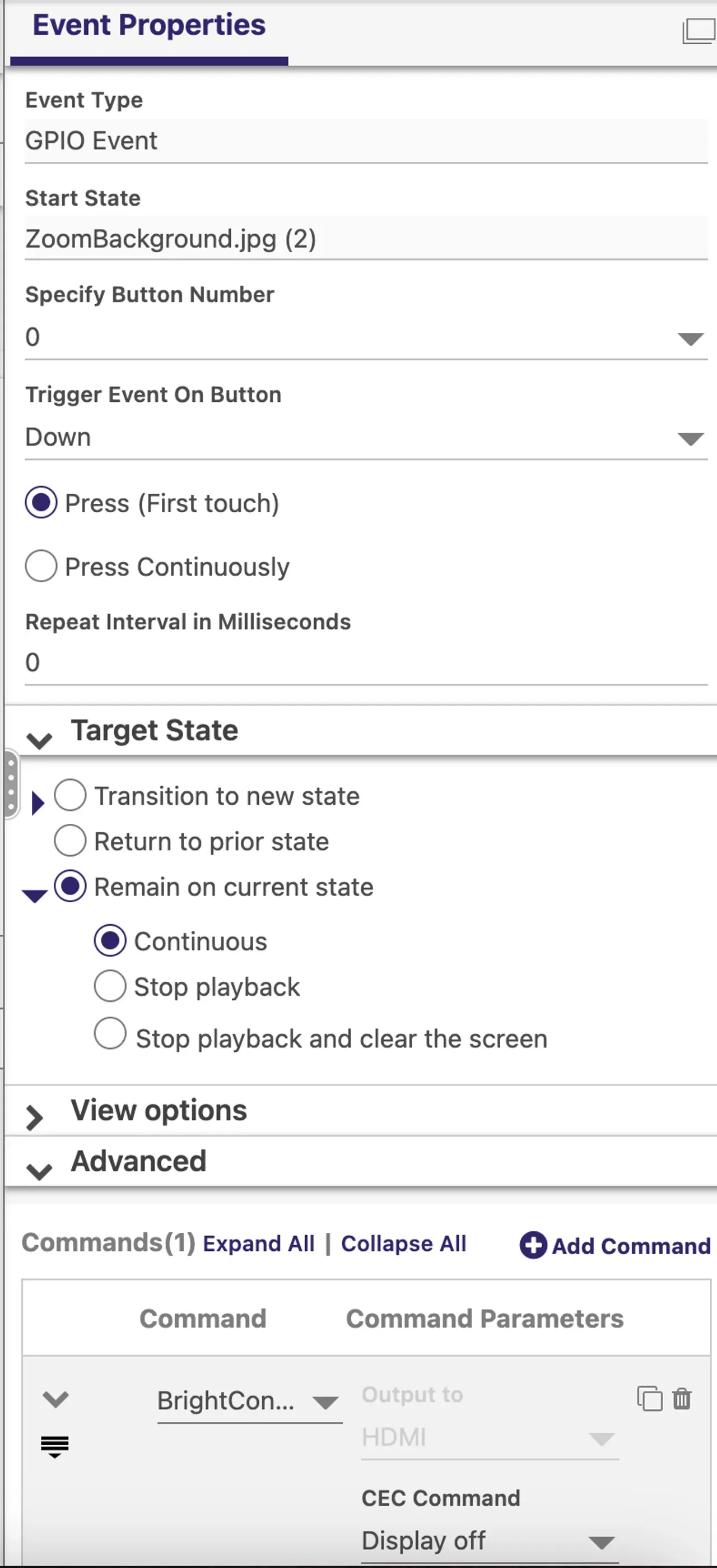
CEC commands can be attached to Events. In this example, a CEC command is initiated from a GPIO Event, in this case a button press.
To turn the monitor off at a certain time:
- Create an interactive playlist with a logo or blank image.
- Attach a GPIO Event to the content.
- Set the Event Properties as shown in the image at right.
- Open the Advanced panel and add a BrightControl command to turn off the display as shown in the image.
Note that the BrightControl command uses HDMI’s CEC commands and thus only works with HDMI-to-HDMI connections. It does not work for HDMI-to-DVI connections because DVI does not support CEC commands.
Monitor Power Save Mode
For HDMI-to-DVI connections where BrightControl commands don’t work, you may be able to use the “monitor power save mode” command to sleep or wake a display by turning player output on or off. These commands work with both HDMI-to-HDMI and HDMI-to-DVI connections.
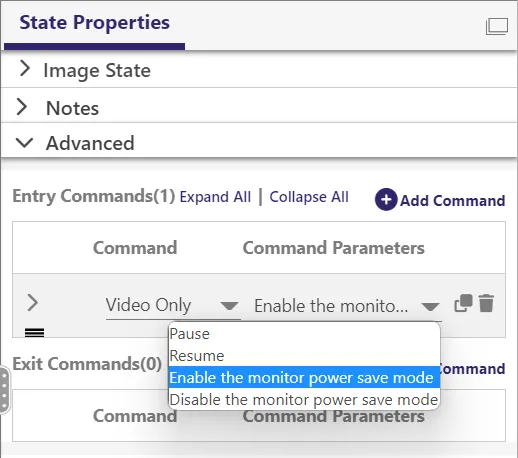
Enable the monitor power save mode
This setting turns the player video output off.
Disable the monitor power save mode
This setting turns the player video output back on.
Note: With some displays, a “monitor power save mode” command may cause the display to switch to another input or produce an “idle” or “no signal” screen rather than making the display go to sleep. Be sure to test this functionality with the intended display to ensure it functions as desired.