Migrate Local Setups from BrightAuthor Classic to BrightSign Author
4 min
This page describes how to migrate Local File Network, Simple File Network, or Standalone players from BrightAuthor Classic to BrightSign Author/BSN.Cloud using a plugin. Presentation content must be moved separately (see this page for more information).
Player Setup
Prerequisites
- Your players must be Series 3, 4, 5, or 6.
- Your players must be connected to the internet.
- Your players must have been set up using the Local File Network, Simple File Network, or Standalone methods.
- The player must have a current BOS version. You can download the latest from this page or follow these instructions to update the BOS.
BrightSign Author Setup
To create a Setup File in BrightSign Author and add it to your players:
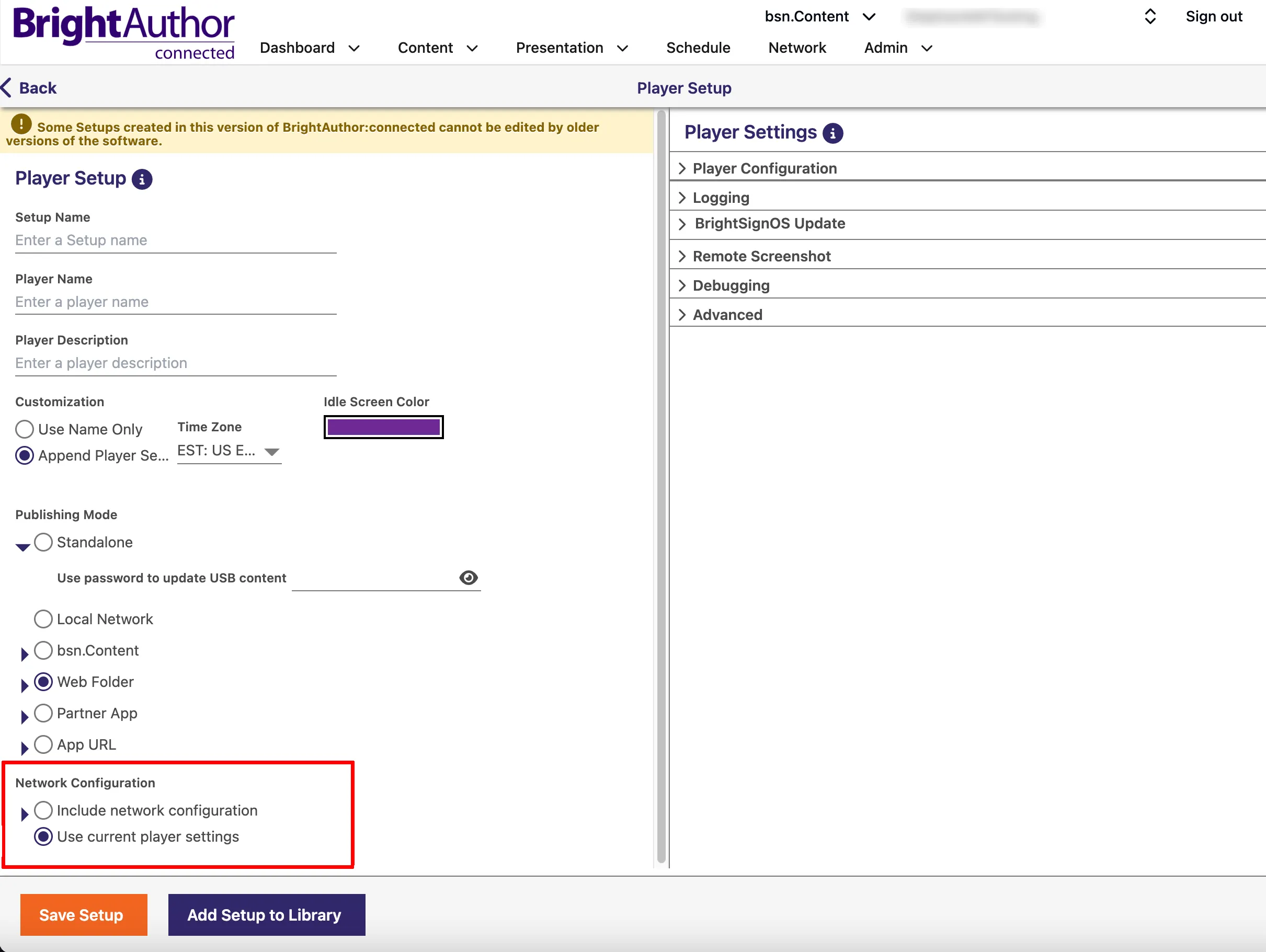
Image 1
- Install BrightSign Author on your computer (see this page).
- Create a BSN.Cloud network in BrightSign Author by selecting Register in the sign-in screen.
- Go to Admin > Setup and create a setup for a single player (it will be applied to multiple players). In the new setup, under the NetworkConfiguration section (see Image 1), make sure to Use current player settings (if you select Include network configuration, players could lose their internet connectivity). Check that BSN.Cloud is enabled in the Advanced section.
- Click on the Save Setup option and save the setup package to a separate folder on your computer.
- Select Add Setup to Library.
- Find the player serial number(s) either from the back of the player(s) or through the local Diagnostic Web Server (DWS) at their IP address. You could also publish a presentation containing a system variable (serial number) to display the serial number on the connected screen.
- Use the Add Player button in Admin > Provision toadd all the players and their serial numbers.
- Go back to Admin > Provision, and apply the setup package to all the player serial numbers as shown in Image 2, below.
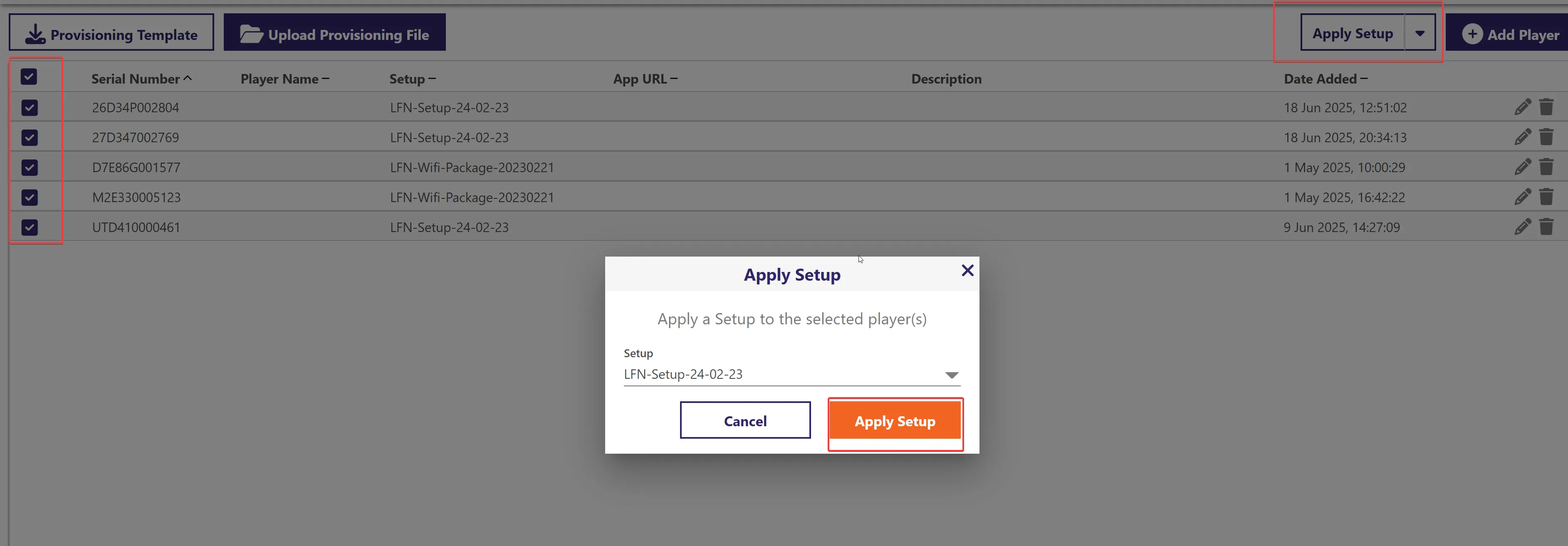
Image 2
Publishing the Setup
To publish the Setup package to the players through BrightAuthor Classic and switch the players to BrightSign Author:
- Download this file to your computer, unzip it, and copy only the autozip.brs to the folder you created in step 4, above.
- Create a .zip file that contains the autorun.brs, autozip.brs and all the other setup files at the root (not inside another folder).
- Open a presentation in BrightAuthor Classic and go to File > Presentation Properties > Files.
- Use the Add File button to add the autorun.zip to a presentation.
- Under File > Presentation Properties > Autorun > Script plugin> Add Script Plugin, add the plugin named setup_plugin (from the autozip.zip folder you downloaded in step 1) using the name "setup". See Image 3, below, for reference.
- Publish to the players. Once the player(s) receive that publish they will reach out to BSN.Cloud and appear under the Network tab. Note that these ports and URLs must be available. The player will reboot a couple of times and apply the BrightSign Author Setup File. The display will indicate when the process is complete and the player will appear in the Network tab.
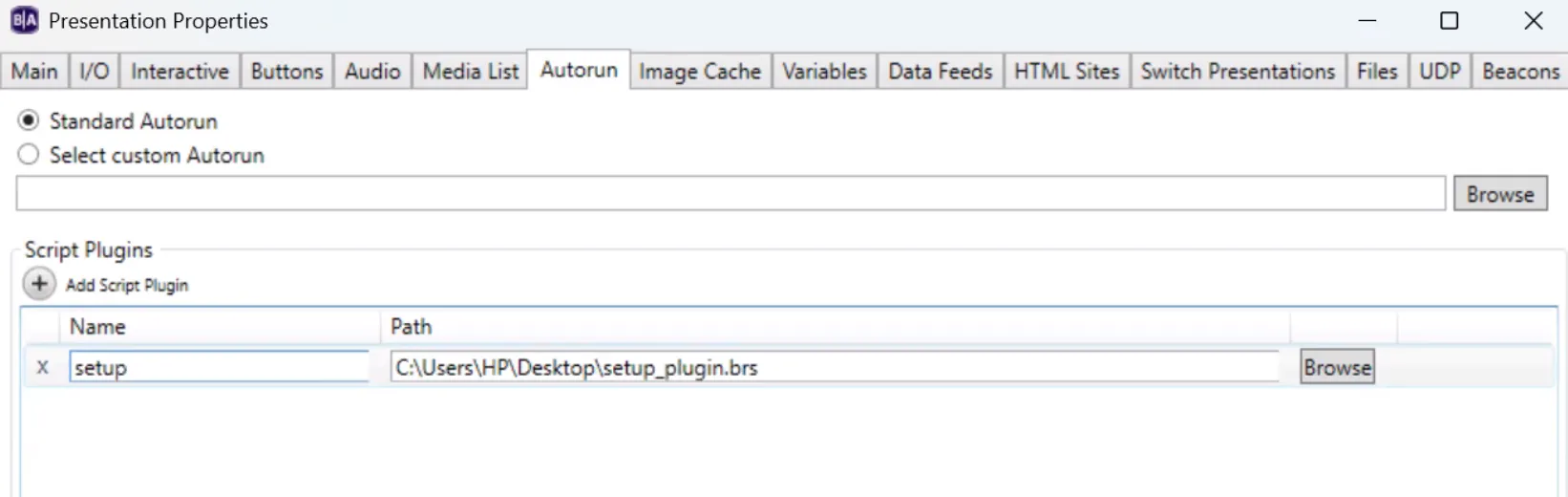
Image 3