GPS Event

The GPS Event enables dynamic content changes based on geographic location. For example, one video can be set to play while the player is in one geographic location, and when the player enters another geographic location, another video is displayed.
Advanced Zone Type
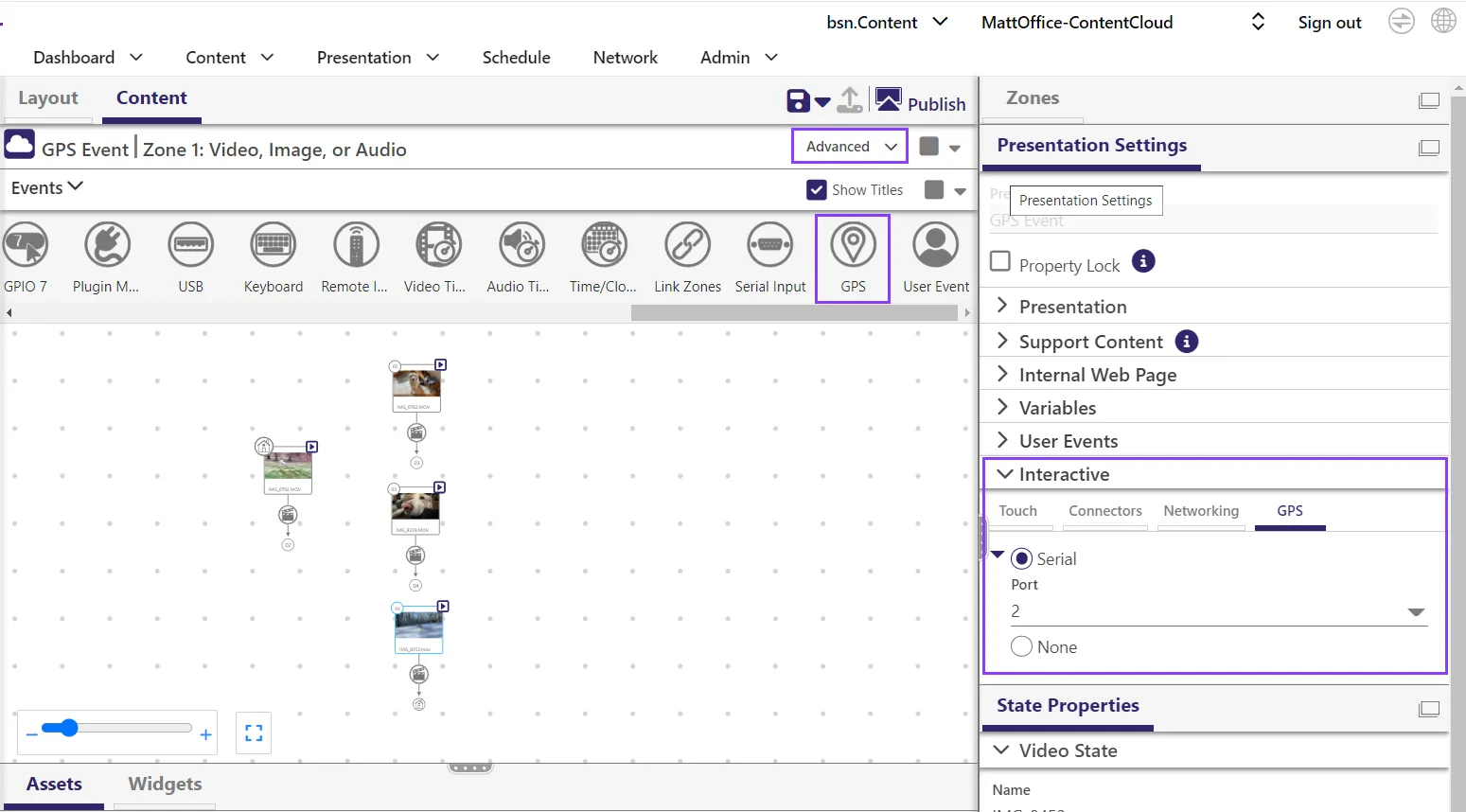
GPS Events can only be applied to an Advanced Zone (as opposed to a Simple Zone) as shown above.
Set the GPS Port
The icon for the GPS Event will be grayed out until it is specified where the GPS is plugged in (Presentation Settings > Interactive > GPS as shown above). Serial port 2 is the player's USB port which is where the GPS device should be plugged into.
Create GPS Events
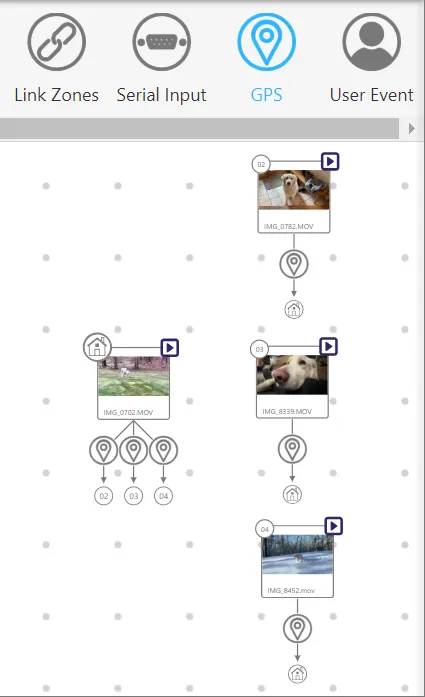
Once the GPS port has been defined, the GPS Event icon will no longer be grayed out. The GPS icon can now be clicked and be used to trigger GPS Events. When active, the icon will turn blue as shown.
In this example, GPS Events have been created by clicking-and-dragging from the Home (leftmost) video to each of the videos on the right. In addition, a GPS Event is created for each of the right videos by clicking-and-dragging from each of those videos back to the Home video.
Entry & Exit Regions
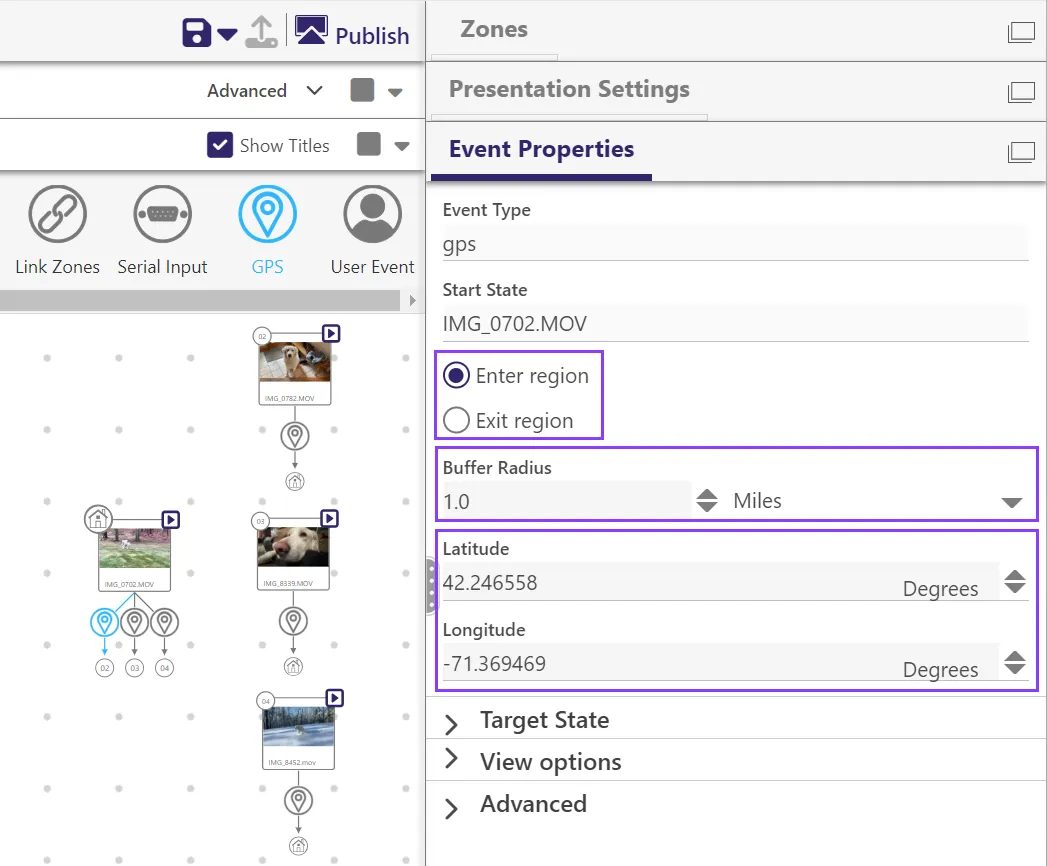
Each GPS Event must have either an Entry region or an Exit region. The Entry region is defined by a circular region, with radius set by the Buffer Radius, around specified Latitude and Longitude coordinates. The Exit region is set with similar parameters.
If a GPS Event has an Entry region set, that event will be triggered when the player enters the Entry region. Similarly, if a GPS Event has an Exit region set, that event will be triggered when the player exits the Exit region.