Display YouTube Videos
YouTube content can be displayed on any BrightSign player. This is done using an HTML5 State. To do this, you must construct an embedded player URL from the standard YouTube URL for the page. The process is different depending on whether you are playing a single video or a playlist.
Note that not all YouTube videos can be embedded, and some aren't in a compatible format for our players.
As of late 2025, you must include an HTTP Referer request header when embedding videos, otherwise YouTube will return a 153 code error. For instructions on how to do this, see this BrightSign GitHub page.
Link Type
To determine if your link is for a single video or a playlist, check the YouTube URL. If it contains list=something, it's a playlist. Otherwise, it's a single video.


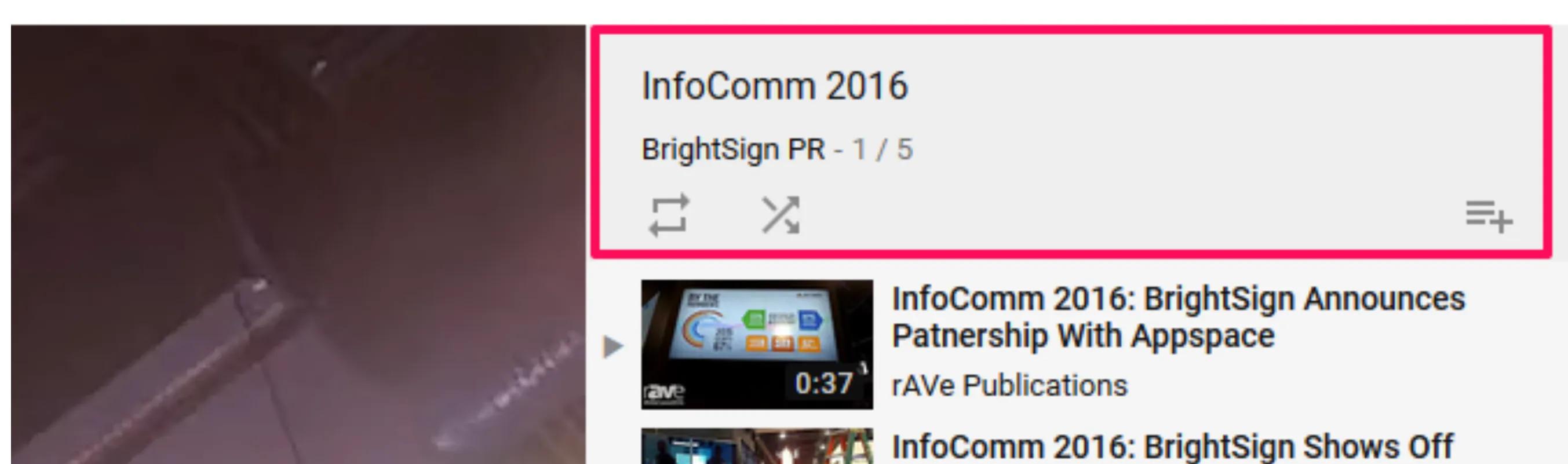
Another indicator that it is a playlist is if you can see the playlist name and author listed, and can see shuffle and repeat icons and can add it to the library (see the example image below):
Single Video URL
Open the YouTube video or playlist in a web browser and find the URL in the address bar as shown in Image 4:

The base URL is https://www.youtube.com/embed/. The following elements will be appended to the base URL.
- Append the video ID from the current URL to the base URL. The video ID appears after the v= in the current URL. For the image above, the video ID is y1XxnZA1yiQ and the link would now be: https://www.youtube.com/embed/y1XxnZA1yiQ
- Append ?playlist= to the end of the URL. For example, the link would now be https://www.youtube.com/embed/y1XxnZA1yiQ?playlist=
- Add the playlist id. This is the same as the video ID for single (not playlist) videos: https://www.youtube.com/embed/y1XxnZA1yiQ?playlist=y1XxnZA1yiQ
Add parameters to control the video:
- Add &autoplay=1 to automatically start playing the video without interaction: https://www.youtube.com/embed/y1XxnZA1yiQplaylist=y1XxnZA1yiQ &autoplay=1
- Add &rel=0 to the end of the URL to eliminate related videos appearing at the end of the video: https://www.youtube.com/embed/y1XxnZA1yiQ?playlist=y1XxnZA1yiQ&autoplay=1&rel=0
- Add &controls=0 to turn off video controls as they aren't useful in a non-interactive environment: https://www.youtube.com/embed/y1XxnZA1yiQ?playlist=y1XxnZA1yiQ&autoplay=1&rel=0&controls=0
- Add &showinfo=0 so video info and titles are not displayed: https://www.youtube.com/embed/y1XxnZA1yiQ?playlist=y1XxnZA1yiQ&autoplay=1&rel=0&controls=0&showinfo=0
- Add &loop=1 to loop the video when it reaches the end: https://www.youtube.com/embed/y1XxnZA1yiQ?playlist=y1XxnZA1yiQ&autoplay=1&rel=0&controls=0&showinfo=0&loop=1
In BrightSign Author State properties > Source > Site Source, paste the new URL into a HTML 5 widget as shown in Image 5:
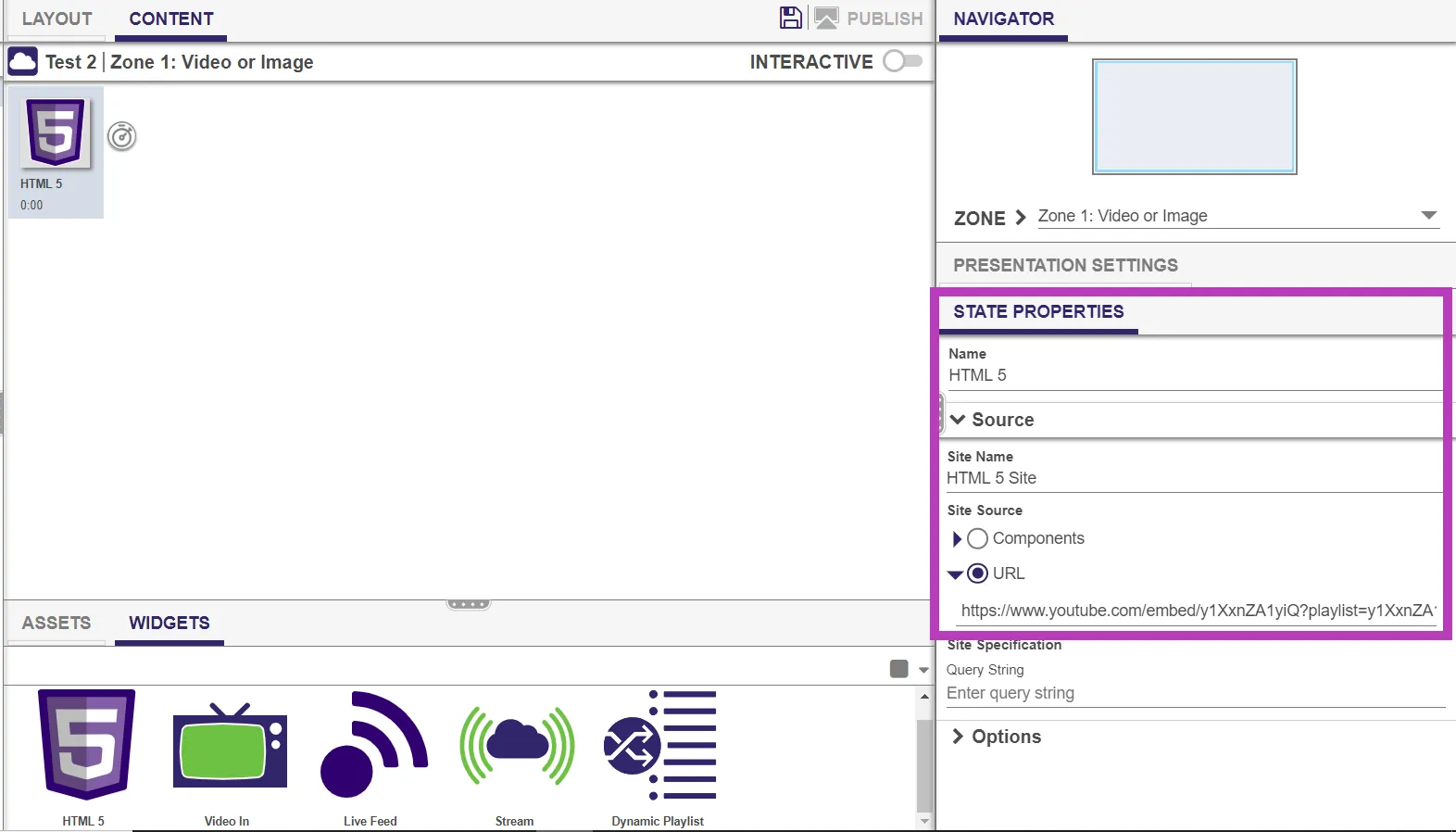
In State Properties > Source > Options, ensure that Enable BrightSign JavaScript objects, Enable native video playback, and Enable cross domain policy checks are all enabled.
BrightSign Author does not know when a YouTube video ends. If you want your presentation to move to a different state after the video is complete, make sure that there is a Timeout Event set to the HTML 5 state.
Publish the presentation.
Multiple Video (Playlist) URL
Open the YouTube video or playlist in a web browser and find the URL in the address bar, as shown in Image 6:

The base URL of the new URL you will construct is https://www.youtube.com/embed/. Add the following elements to that base URL:
- Add the video id to the end of the new base URL. The video id appears after v= and before & in the original URL. For the image above, this would be: https://www.youtube.com/embed/Zsqr1HVnuDE
- Add ?listType=playlist to the URL: http://www.youtube.com/embed/Zsqr1HVnuDEk?listType=playlist
- Add the playlist id, which appears after the list= in the original URL as well as &list=: https://www.youtube.com/embed/Zsqr1HVnuDE?listType=playlist&list=PL1QgAgqcnXH\_faB-fdX1hYaW1DVoMBC02
Add parameters to control the video:
- Add &autoplay=1 to automatically start playing the video without interaction: https://www.youtube.com/embed/Zsqr1HVnuDE?listType=playlist&list=PL1QgAgqcnXH\_faB-fdX1hYaW1DVoMBC02&autoplay=1
- Add &rel=0 to the end of the URL to eliminate related videos appearing at the end of the video: https://www.youtube.com/embed/Zsqr1HVnuDE?listType=playlist&list=PL1QgAgqcnXH\_faB-fdX1hYaW1DVoMBC02&autoplay=1&rel=0
- Add &controls=0 to turn off video controls as they aren't useful in a non-interactive environment: https://www.youtube.com/embed/Zsqr1HVnuDE?listType=playlist&list=PL1QgAgqcnXH\_faB-fdX1hYaW1DVoMBC02&autoplay=1&rel=0&controls=0
- Add &showinfo=0 so video info and titles are not displayed: https://www.youtube.com/embed/Zsqr1HVnuDE?listType=playlist&list=PL1QgAgqcnXH\_faB-fdX1hYaW1DVoMBC02&autoplay=1&rel=0&controls=0&showinfo=0
- Add &loop=1 to loop the video when it reaches the end: https://www.youtube.com/embed/Zsqr1HVnuDE?listType=playlist&list=PL1QgAgqcnXH\_faB-fdX1hYaW1DVoMBC02&autoplay=1&rel=0&controls=0&showinfo=0&loop=1
In BrightSign Author State properties > Source > Site Source, paste the new URL into a HTML 5 widget as shown in Image 5, above.
In State Properties > Source > Options, ensure that Enable BrightSign JavaScript objects, Enable native video playback, and Enable cross domain policy checks are all enabled.
BrightSign Author does not know when a YouTube video ends. If you want your presentation to move to a different state after the video is complete, make sure that there is a Timeout Event set to the HTML 5 state.
Publish the presentation.
Reference Table
These are the most commonly used parameters:
Parameter | Description | Values |
|---|---|---|
autoplay | Auto-start video on load | 1 = autoplay, 0 = manual start (default) |
controls | Show or hide player controls | 0 = hide, 1 = show (default) |
loop | Loop video or playlist | 1 = loop, 0 = no loop (default); requires playlist=VIDEO_ID |
playlist | Comma-separated video IDs for looping | First video plays from URL, rest from playlist |
rel | Show related videos after playback | 0 = same channel only, 1 = show all (default) |
showinfo | Show or hide video info and titles | 0 = hide, 1 = show |
start | Start playback at specific time (sec) | Positive integer (e.g., start=30) |
end | Stop playback at specific time (sec) | Positive integer (e.g., end=60) |
fs | Show fullscreen button | 1 = show (default), 0 = hide |
disablekb | Disable keyboard shortcuts | 1 = disable, 0 = enable (default) |
Other
- See YouTube's Player Parameters page for more URL parameters.
- These steps to create a single or playlist URL outline the parameters used for a non-interactive display. Different parameters are needed if you want to display the video interactively.