Display a Google Calendar
1 min
BrightSign players can display a Google Calendar in an HTML5 State. To display a Google Calendar in full-screen mode (1920x1080):
- In Google Calendar, go to My Calendars (on the left side directly below the overview of the current month). Find the calendar to display.
- Hover your mouse over the calendar name and click Options for "Name of Calendar" > Settings and sharing.
- Check the Make available to public box and click Ok.
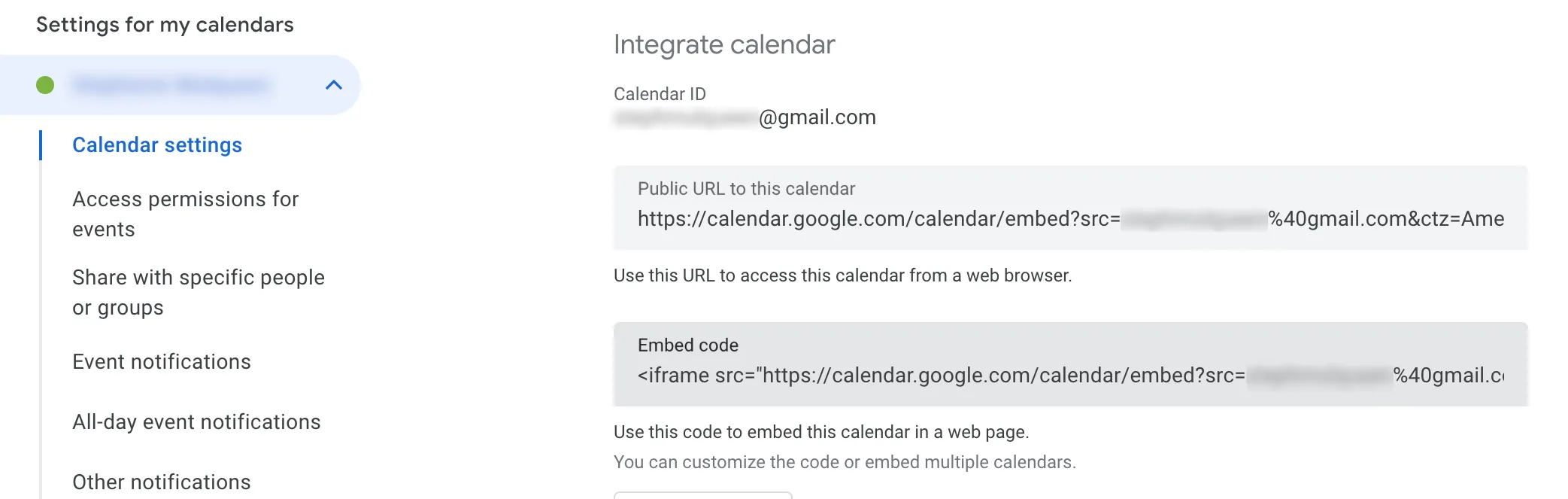
- Scroll down to Integrate calendar and copy the URL in Public URL to this calendar (see the Image below).
- If you are using BrightSign Author, paste the URL from Google Calendar into the URL field in State Properties > Source > Site Source in your HTML5 state.
- If you are using BrightAuthor Classic, paste the URL from Google Calendar into the URL field when creating or editing an HTML5 state.
Note: You should refresh the page by adding a 30 second Timeout Event to the HTML5 state. This will ensure that changes will be displayed within an acceptable time.