Undo and redo scenario changes
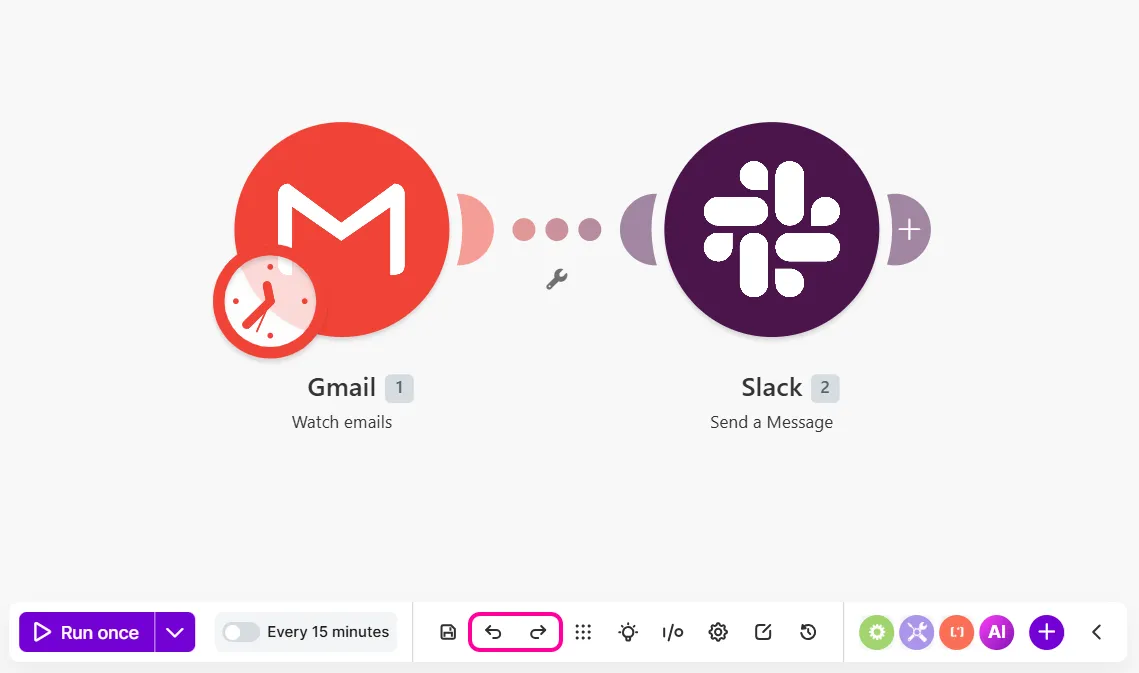
Use Undo and Redo in the toolbar to reverse or reapply changes to , such as adding, moving, linking, or configuring modules. These help you avoid manual reconfiguration when testing iterations or correcting mistakes.
Undo and redo changes
Undo or redo changes with the Undo and Redo buttons on the toolbar or keyboard shortcuts.
Use the toolbar
In the Builder, click Undo or Redo on the toolbar.
Use keyboard shortcuts
Use these keyboard shortcuts to undo and redo changes.
Shortcut | Action |
|---|---|
Windows: Ctrl+Z Mac: ⌘+Z | Undo a change to a |
Windows: Ctrl+Y Mac: ⌘+Y | Redo a change to a |
Types of changes covered
The table below outlines which changes you can undo and redo.
Covered | Not covered |
|---|---|
Module additions or deletions | inputs and outputs |
Module linking or unliking | settings |
Module position on the canvas | |
Field mappings | |
Field text | |
Schedule settings | |
Filters | |