Trash for deleting scenarios, module renaming, AI error explanations, new AI models, and more
Here's a quick look at the latest product improvements and fixes.
Introducing Trash for deleting scenarios
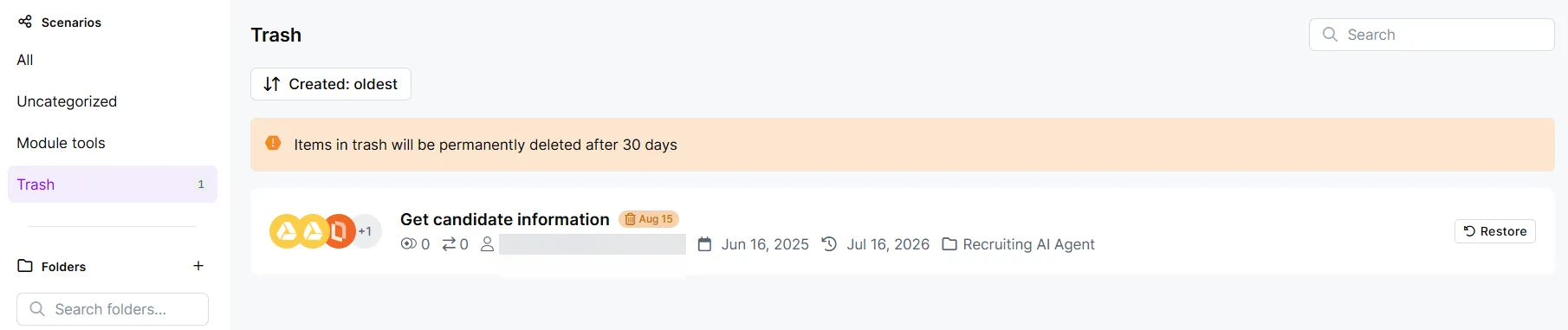
Now, deleted scenarios go to Trash in the Scenarios tab, where stores them for 30 days before permanently deleting them. You can restore a at any time during that period.
Key benefits
- Recoverable deletion: Move a scenario to Trash, and restore it any time within the next 30 days.
- Clear deletion dates: See when Make will permanently delete each scenario in Trash, so you know how much time you have left to restore it.
- Quick restore: Restore a scenario from Trash back to your scenario list in a couple clicks.
Learn more
To learn how to delete and restore scenarios, see Delete a scenario.
OpenAI GPT-5.6 models are now available
OpenAI GPT-5.6 is now available in with Sol, Terra, and Luna, a three-model family you can use to match each task with the right speed, cost, context window, and reasoning. Use Luna for frequent routing and extraction, Terra for structured business logic, and Sol for deep reasoning, coding, and large document review.
Key benefits
- Workload routing: Choose between Luna, Terra, or Sol for each step, so that ticket classifiers, summaries, and code reviews each use the model that fits.
- Luna for high-volume steps: Classify support emails, validate inputs, extract invoice numbers, categorize requests, and convert short text with a fast turnaround.
- Terra for business logic: Summarize multiple documents, reason across meeting notes, find blockers, and return JSON or XML for Airtable, CRM, or reporting modules.
- Sol for deep reasoning: Review large contracts, compare reports, plan multi-step actions, and support coding tasks that need consistent reasoning across many inputs.
- Large context: With a 1.05-million context window, scenarios can process codebase maps, multi-hour transcripts, reports, filings, or contracts in a single run.
Availability
OpenAI GPT-5.6 models are available in these apps:
- Make AI Toolkit for minimal setup; no API key required if you use Make's AI Provider
- OpenAI (ChatGPT, Sora, Whisper) for building structured prompts and using your own API key
- Make AI Agent (New) for your agentic scenarios
New session timeout options are now available
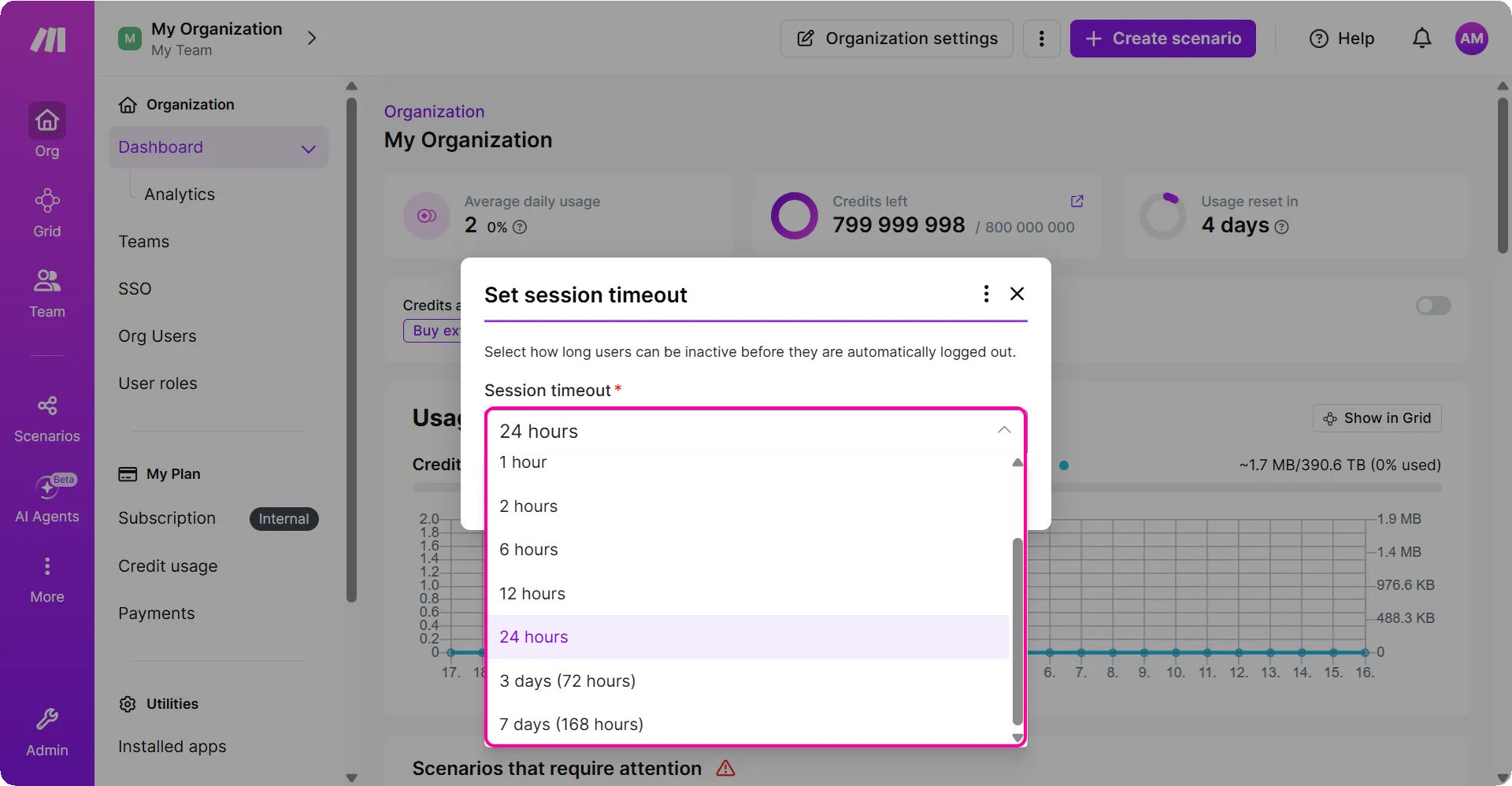
Previously, session timeouts were a maximum of 24 hours. Now, organization admins and owners can extend timeouts up to 7 days.
What's new
Organization admins and owners can now set session timeouts from 15 minutes up to 7 days in Organization settings. For users in multiple organizations, the shortest timeout applies.
Availability
Session timeout options are available to organization owners and admins on all plans.
Learn more
To learn how to set your session timeout, see Set the length of your session timeout.
Claude models are available in Make's AI Provider
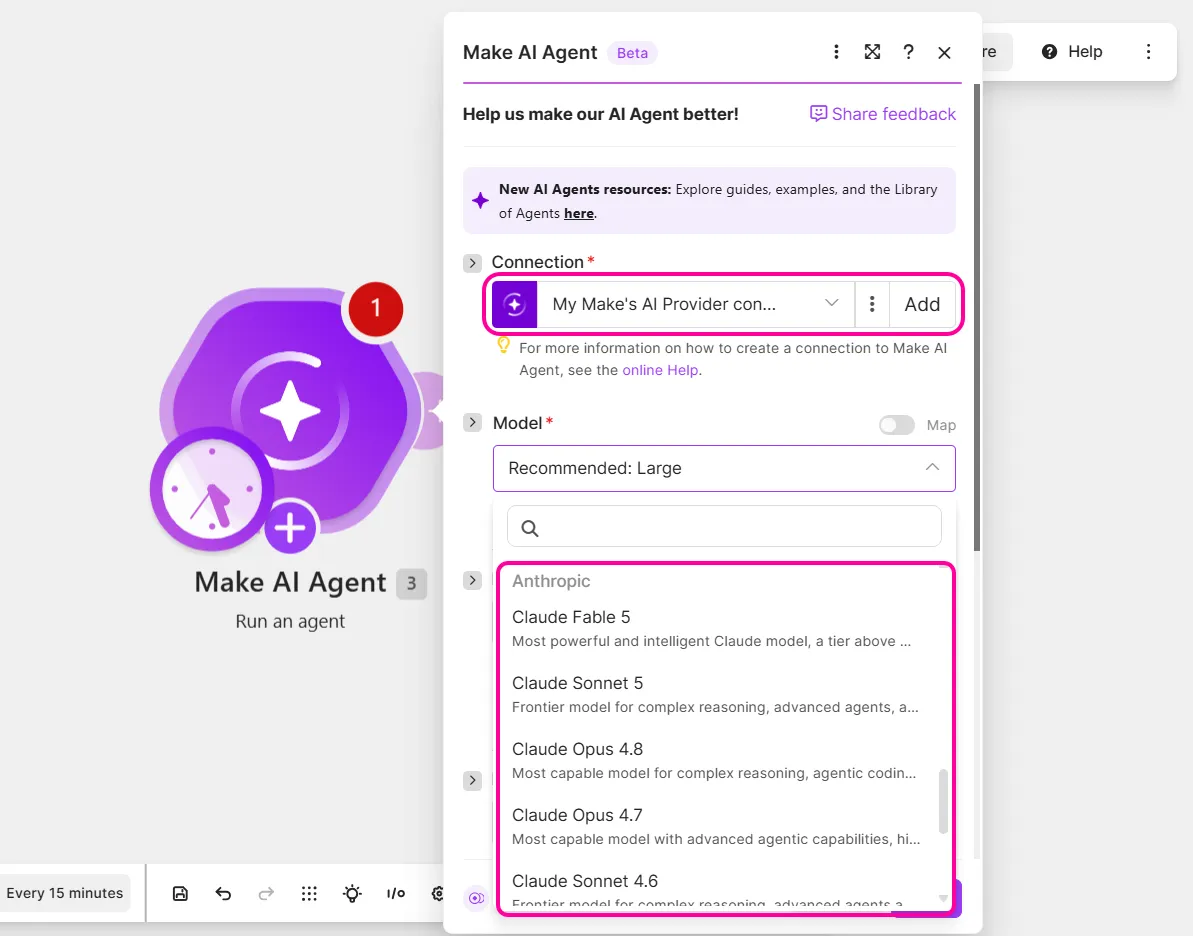
You can now use Claude models when you select Make's AI Provider in Make AI Agent (New) and Make AI Toolkit. When you use Claude through Make's AI Provider, handles the connection to Claude for you, and bills you for AI usage with credits.
Key benefits
- No separate Anthropic setup: Use Claude in AI apps without creating an Anthropic account or API key.
- One billing flow: Track your Claude usage alongside your existing Make usage with credits.
- More options for AI work: Match the model with tasks in your that need writing, summarizing, or reasoning.
Availability
Claude models are available in Make's AI Provider in Make AI Agent and Make AI Toolkit on all plans.
Error explanations with AI
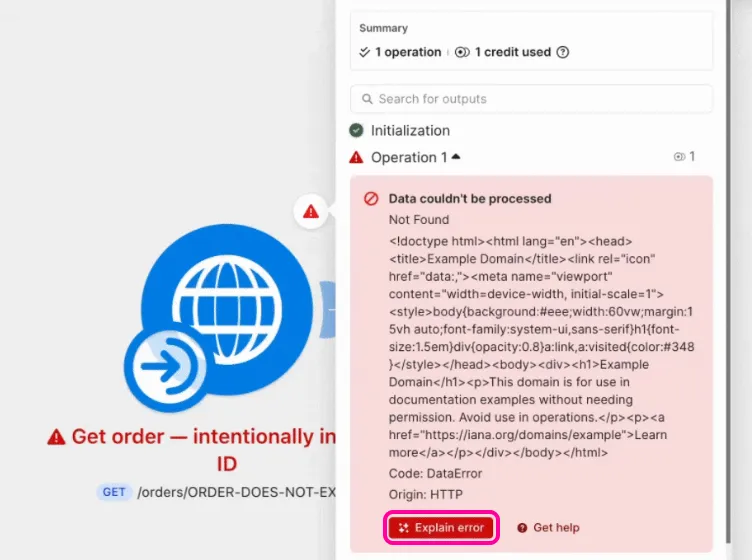
You can now use AI to understand errors in your . When a module returns an error, click its error bubble, then click Explain error, to see an AI-generated explanation of what happened and possible fixes for the error. Click Original message to go back to the raw error message.
Key benefits
- Plain-language guidance: Turns HTTP codes, API messages, JSON errors, and other technical output into a simple explanation of what happened and what to do next.
- Actions in context: Review possible fixes in the error panel, then update the affected module without leaving your scenario.
- Focused troubleshooting: Identify the field, value, or request that needs attention, such as a missing required parameter or invalid URL.
Availability
Error explanations with AI are available on all plans.
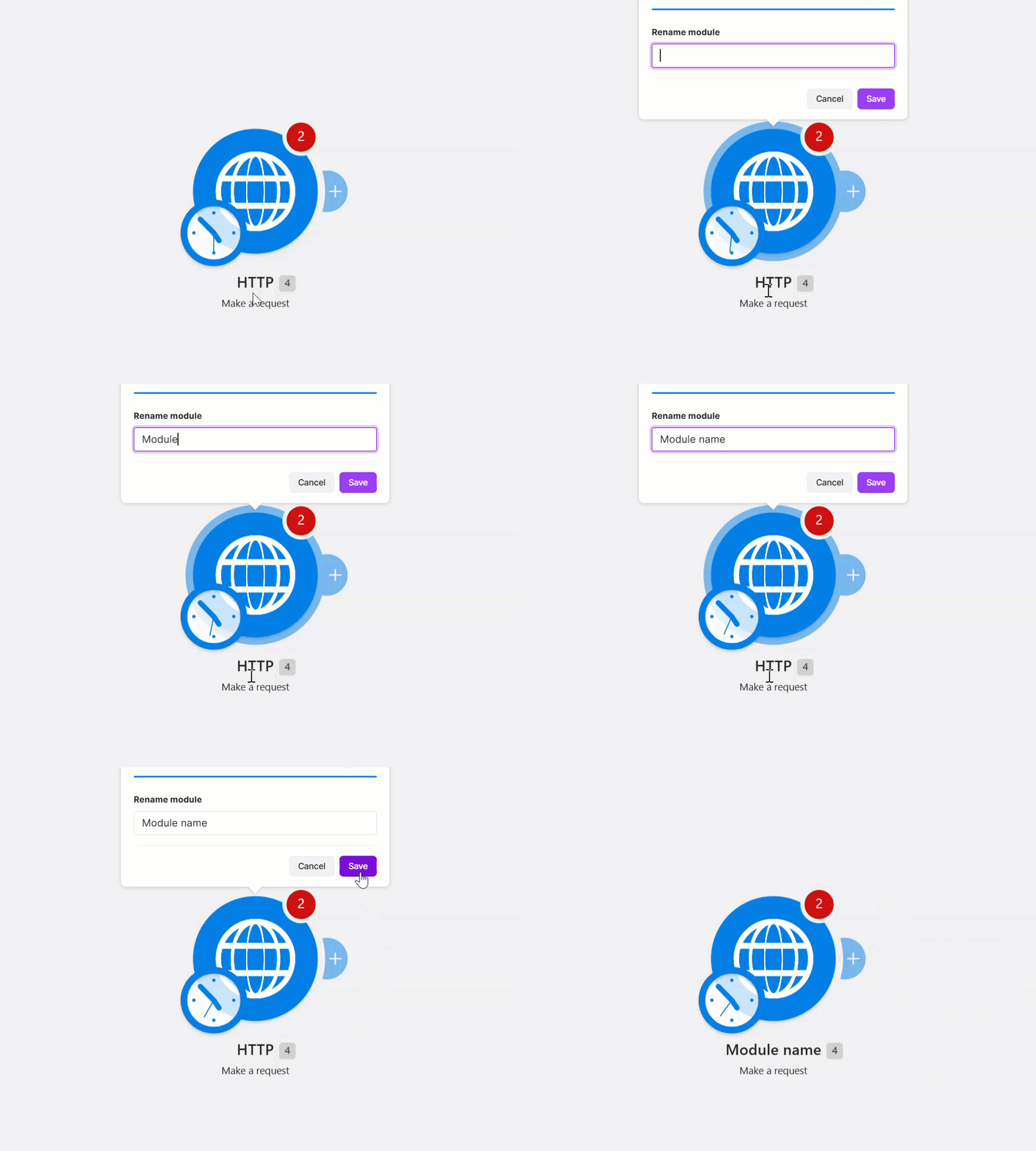
Rename modules with double-click
You can now double-click modules to rename them. Double-click a module’s name, enter the name you want, and save. Rename modules so your are easier to scan, hand over to teammates, and come back to weeks later.