Subfolders
Create folders inside your scenario folders to organize scenarios by more than one level, for example by client and then by project. Subfolders help you keep a large scenario library structured without renaming scenarios to mimic a hierarchy.
Create a subfolder
To create a subfolder:
In the left sidebar, click Scenarios.
Click the folder where you want to add a subfolder.
Click the three dots and click Add subfolder.
Enter a name for the subfolder.
Press enter.
Your new subfolder appears nested under the parent folder in the left sidebar.
Rename a folder or subfolder
To rename a folder or a subfolder:
In the left sidebar, click Scenarios.
Click the three dots next to the folder or subfolder you want to rename.
Select Rename.
Enter a new name.
Press enter or click outside the box.
You have successfully renamed a folder
Move a scenario to a folder or subfolder
To move a scenario to a folder or a subfolder:
In the left sidebar, click Scenarios.
Click the existing scenarios and drag the scenario onto the destination folder or subfolder.
Alternatively:
Click the three dots next to the scenario.
Select Move to folder.
Select the destination folder or subfolder.
Your scenario is now moved to a new folder/subfolder.
Search for a folder/subfolder
To search for scenarios:
In the left sidebar, click .
Enter a search term in the search field.
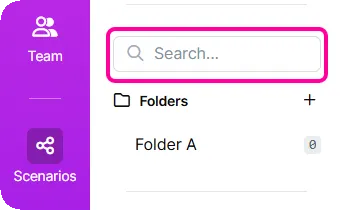
Results include matching folders, subfolders, and labels.
Search field appears when you have 5 or more folders.