Set the length of your session timeout
For security purposes, you may wish to control the length of the session timeout.
Set the length of your session time out
You can choose to set your session timeout from 15 minutes to 7 days. This option is only available to Organization administrators and owners.
Open your Organization dashboard in the left sidebar.
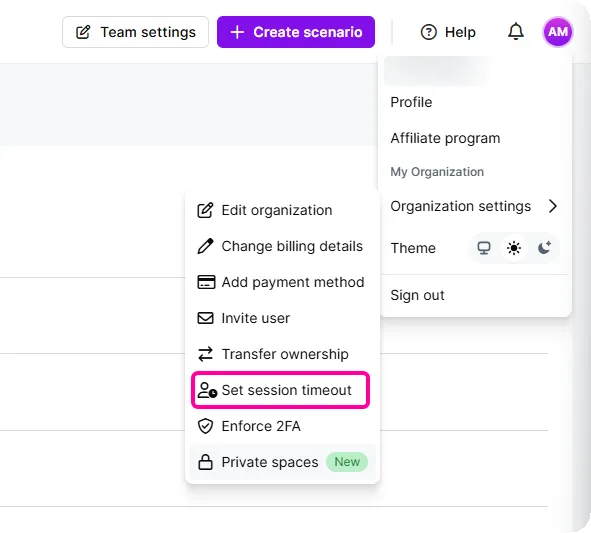
In the upper-right corner, go your profile and click Organization settings, select Set session timeout.
Select how long users can be inactive before they are automatically logged out and click Save.
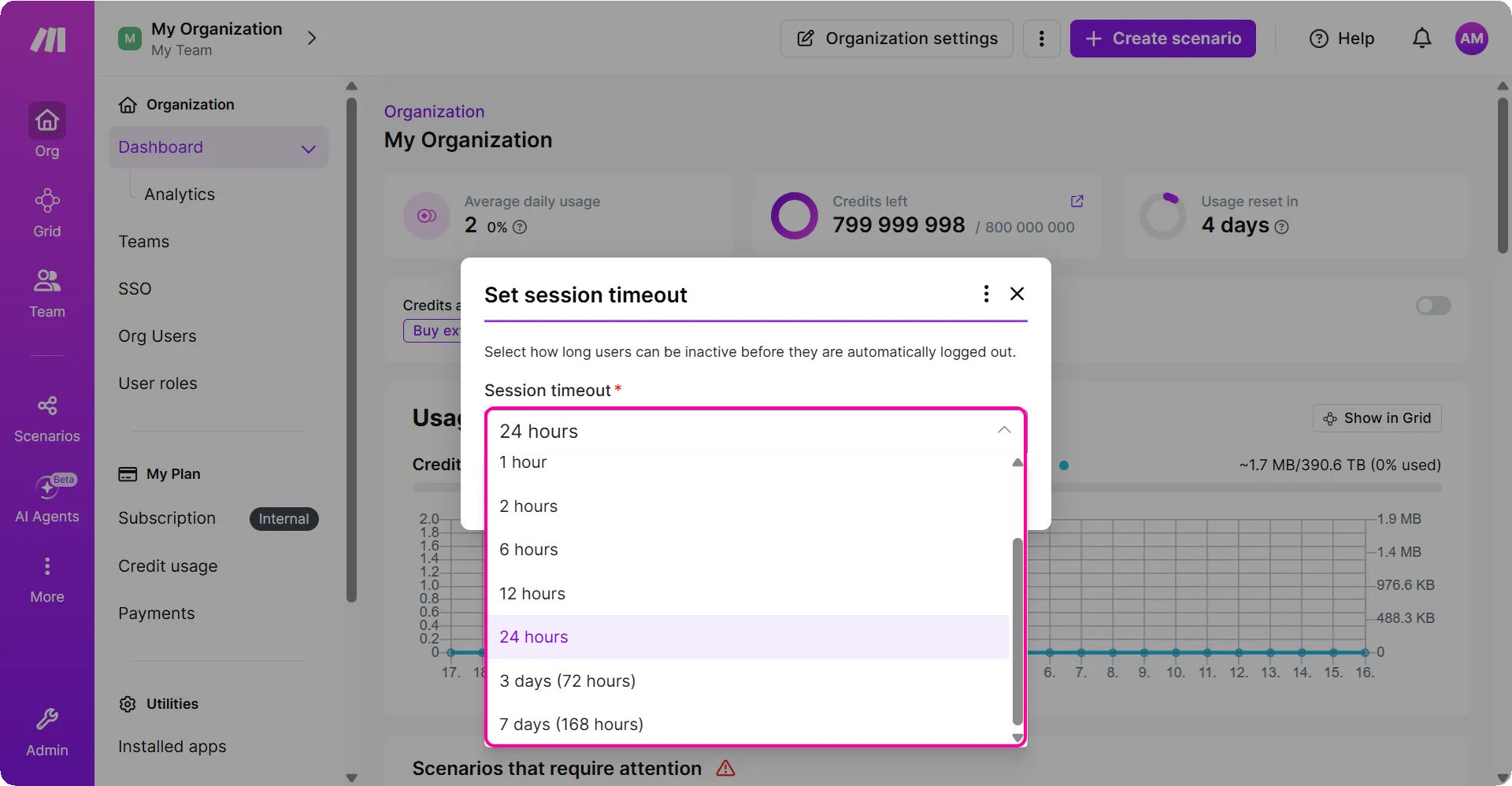
Your session timeout is saved.
If a user belongs to multiple organizations, the shortest session logout time applies.
FAQs:
- Why am I being logged out on browser close?
Closing the browser ends the session in , regardless of the configured session timeout value. This is treated as the end of the browsing session, and the user is logged out.
To avoid this, change your browser's startup setting to continue where you left off. For Google Chrome:
- Click the three dots and navigate to the Settings of your browser.
- Form the left sidebar, click On start up.
- Click Continue where you left off.
Enabling Continue where you left off makes Chrome restore your previous tabs when you reopen it, instead of starting fresh.