Scenario settings
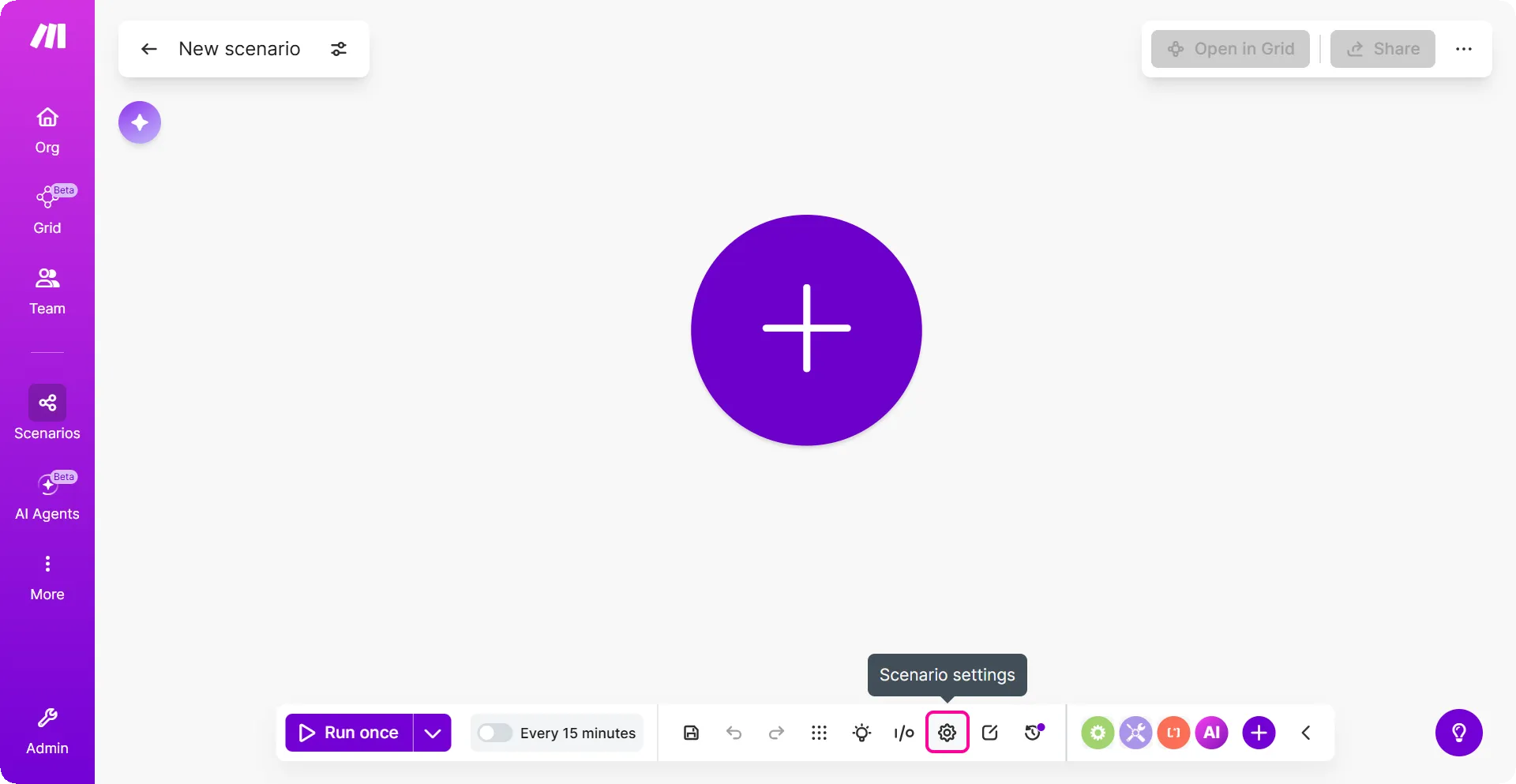
To access Scenario settings, click the gear icon in the Builder. Here you can set various advanced settings.
Process data in order
You can choose to processes data in the order it's received, with each run finishing before the next starts. If there's an incomplete execution, no new runs are processed until all incomplete executions are resolved.
- When enabled, Make completes each execution before starting the next. New runs are paused until all incomplete executions are resolved.
- If disabled, the continues to run according to its schedule, regardless of errors.
Process data in order also applies to webhooks. By default, processes webhooks in parallel. When you enable process data in order, waits until the previous execution is complete before starting the next one.
Keep data confidential
Make stores the data processed during each run in your execution logs. This lets you inspect and troubleshoot when something goes wrong. If you enable this setting, won't retain any of that data. Your logs will still show that a run happened, but without the actual payload.
Enable keep data confidential if your scenarios handle sensitive or personal data that shouldn't be stored after processing.
If enabled, there are very limited options to solve errors that occur in a execution.
Store incomplete executions
When a scenario run fails, saves it as an incomplete execution so the data isn't lost. You can then retry the run manually or let handle it automatically - either way, your scenario keeps running.
- If enabled, the is paused and moved to the incomplete executions folder. This gives you the possibility to fix the issue and continue from where the stopped.
- If disabled, the run stops and starts a rollback phase.
You can resolve each incomplete execution either manually or automatically.
The data in this folder counts towards the storage limits of your subscription plan.
Discard data if storage is full
If your incomplete executions folder is full when an error occurs, discards the failed data and keeps the scenario running. Discarded data can't be recovered, so make sure you have enough space if losing data isn't an option.
Use updated variable values
When retrying an incomplete execution, you can use either the current variable values or the ones from the original run.
- Enable this to use the latest team and organization variable values.
- Disable it to use the values that were active at the time of the original run.
Errors before deactivation
You can set how many errors in a row accommodates before deactivating the . This setting defines the maximum number of attempts before the deactivates (though there are exceptions listed in the error handling overview.
If a starts with an instant trigger, the setting is ignored and the is deactivated immediately once the first error has occurred.
Commit after each module
By default, commits data only when the entire scenario finishes successfully. Enable this setting to commit data after each module runs instead.
- If enabled, data is committed right away and cannot be restored in the case of an error.
- If disabled, no commit occurs until operations are executed for all modules.
This affects data modules, instant triggers, and webhook responses. Use it when you need to ensure data is saved incrementally - for example, if a later module fails, data processed by earlier modules is still committed rather than rolled back.
Commit trigger last
This setting defines the module commit order after a successful operation phase. This setting is enabled by default.
- If enabled, the commit phase skips the trigger and processes that module last.
- If disabled, the commit phase occurs in the default order.
Cycles per run
This setting defines the maximum number of cycles allowed during a execution.
Setting more cycles can be useful when you want to prevent connection interruption to third-party services. This can also ensure all records are processed within the run.
If you execute the manually by clicking the Run once button, the setting is ignored and only one cycle will be performed.