Preboarding setup
Before you can invite new hires, you need to complete five setup steps. Do these once when you're first enabling preboarding for your org.
Step 1: Set your preboarding and onboarding filters
Go to Admin settings > Onboarding. Two CQL filters control which employees appear in each view:
- Preboarding filter - defines who appears in the Preboarding tab. The default is employees with a start date more than 180 days out. Adjust this to match how early you can see announced new hires into ChartHop.
- Onboarding filter - defines who appears in the Onboarding tab. The default is employees who started within the last 360 days. Widen or narrow this to match your onboarding window.
Both filters are CQL expressions. Use the wand icon to edit them.
Step 2: Install the preboarding bundle
Go to Bundles, search for "Preboarding," and install. The bundle gives you a working starting point with the following included:
Item | What it is |
|---|---|
3 automated actions | Triggered on hire, on invite, and 3 days before start. Install disabled - customize before enabling. |
Onboarding essentials form | A demographic info form ready to assign to new hires. |
NDA letter template | An e-signature-ready document you can customize for your org. |
Onboarding profile tab | The tab new hires land on when they log in. This is the preboarding home page. |
Don't enable bundle actions before customizing them. They install in a disabled state. Toggling them on without editing first sends uncustomized emails to real new hires.
Step 3: Configure the onboarding home page
Go to Profile Content > Onboarding tab > Edit layout. This is the page new hires see when they log in with their magic link before day one. The bundle installs a starting layout you can edit to match your brand, task information, and any links you want new hires to have.
Sample HTML is available on the next page if you want to build a custom layout from scratch instead of editing the bundle default.
Important: This tab must stay named "Onboarding" for the preboarding home page to work. Renaming it breaks the connection.
Step 4: Customize your actions
Go to People Ops Tools > Onboarding > Actions tab and edit each of the three bundle actions before enabling them. At minimum, update the email copy and confirm the recipients and timing are correct for your org. Toggle each action on only after you've tested it.
Step 5: Setup preboarding invitation email
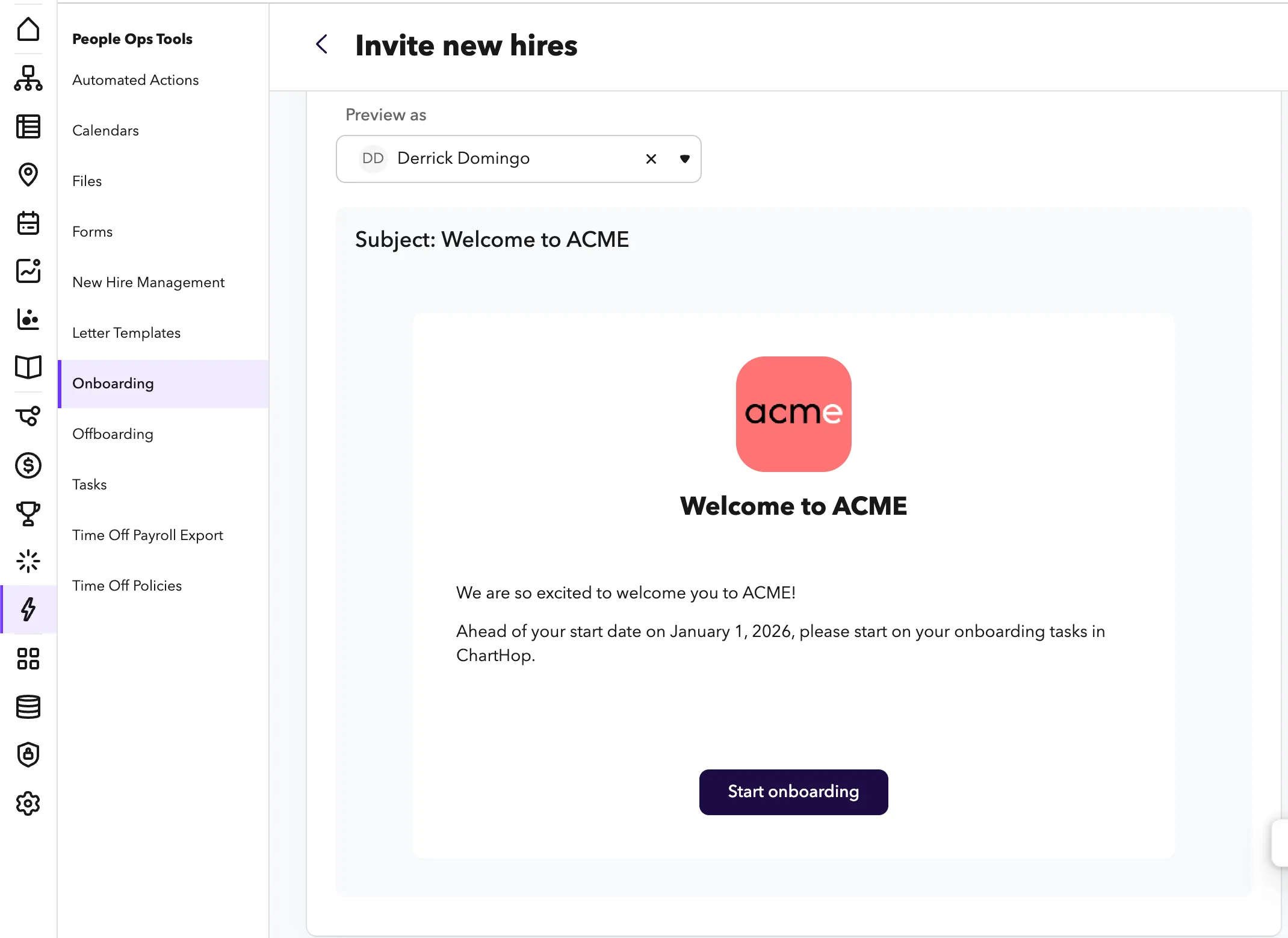
New hires will receive an email to login to ChartHop to complete their preboarding tasks.
To setup the preboarding invitation email:
- Go to Access > Settings page
- Locate the Preboarding invitation email section
- Add the subject, button copy and invitation body. You can use conditional statements in Carrot to vary the message by person.
- Preview the message by sending a test email or going inside the Invite new hires flow