XC Windows
The player will have either Windows 11 IoT LTSC (Long-Term Servicing Channel) or Windows 10 IoT LTSC installed.
No. If you purchased a player with BrightSignOS pre-installed, you cannot switch that player's OS to Windows. Similarly, if you purchased a player with Windows pre-installed, you cannot switch that player's OS to BrightSignOS.
Windows IoT LTSC is licensed for security updates only. Security updates will be applied via the standard Windows Update feature. Major updates termed “feature updates” do not apply to Windows IoT LTSC, and the Windows Update feature will not update the Windows version.
While this may be possible, it is not supported, and the provided product key will not work for different versions of Windows.
The following interfaces are supported:
- Audio and video across all HDMI outputs. Required drivers are installed.
- USB Audio and multi output. Required drivers are installed.
- USB-A
The following items will only function while the bootloader is loading and have no function once Windows has booted up:
- Buttons (e.g., SVC, reset)
- 3.5mm serial port
The following interfaces are not supported:
- USB-C
- GPIO
- HDMI-CEC
- IR
What storage devices are supported?
- microSD card
- USB-A connected storage (e.g., USB-A thumb sticks, USB-A drives)
- M.2 SSD Important note: XC Windows players come with an M.2 SSD on which Windows is installed. Since there is only one M.2 slot, no additional M.2 SSDs can be installed.
For more info about compatible storage devices, see this page.
No. BrightScript requires BrightSignOS. The OS on this player is Windows.
No. Functionally, this is a Windows PC and the BrightSign Cloud only supports BrightSignOS.
Yes. Functionally, this is a Windows PC so you can install Chromium or any other Windows-compatible browser.
The player’s serial number can be found on a label on the bottom of the player. The serial number cannot be determined from within Windows.
The serial number is also printed on a label on the product packaging.
A Windows Product Key sticker can be found on the bottom of the player.
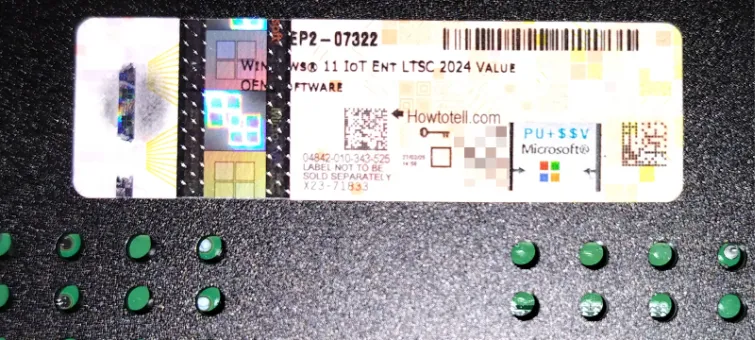
If the key has not been previously revealed, gently scratch away the Microsoft logos (a coin or card work well) to reveal the key. Avoid dropping debris into the player. It is recommended to take a photo of the product key as it will be needed to validate the installed Windows license.
The Windows registry can be accessed just as with any Windows PC. Refer to Microsoft’s registry documentation.
No. If you need CEC control, please consider our standard players based on BrightSignOS.
When the player boots up, it will display the screen below for a few seconds before proceeding to boot into Windows.
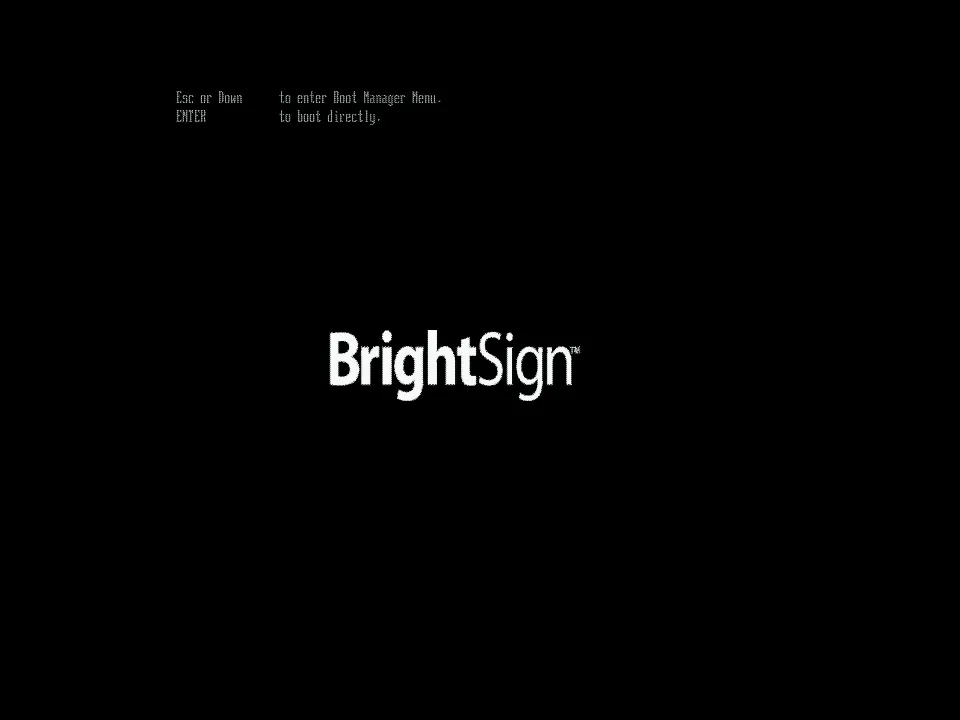
During this time, you can press Esc or the Down arrow on the keyboard to enter the boot settings menu.
The configuration settings menu on these players is limited mostly to boot options. Note that some settings (e.g., a boot delay) may not actually get saved even if you select to save them.
No. In the event that BrightSign supports determines the player requires a BIOS / firmware update, the player must be returned to a BrightSign facility for update.
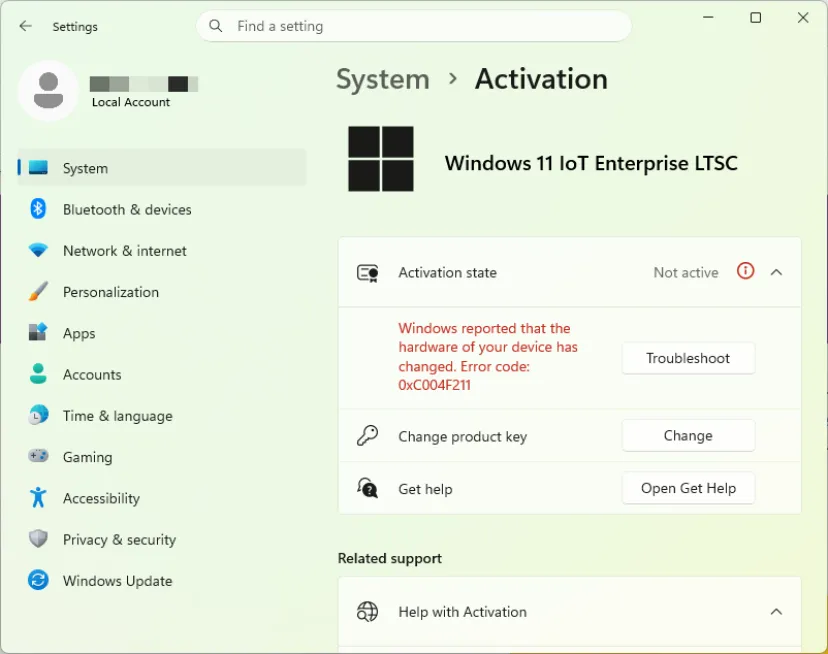
In the event where Windows Activation complains that your hardware has changed, you may need to reactivate Windows by following the below steps:
- Make sure the player has an internet connection.
- Click the Change button to the right of Change product key.
- Enter the product key from the Windows Product Key sticker on the bottom of the player to activate Windows.
It is highly recommended to create a Recovery Drive as this will be the only means of restoring the player to a prior state. From Microsoft's support page:
The Recovery Drive utility in Windows is a valuable tool designed to back up essential system files needed to restore a PC to its original state. This utility creates a USB recovery media that can help you restore your Windows device to its factory settings, even if you replace the hard drive or completely wipe the drive.
In addition, the player should be backed up and secured like any other Windows device.
For Windows related issues, please contact your reseller or Microsoft.
For hardware related issues, please visit support.brightsign.biz.