Portrait Presentations
The information below applies to presentations created in BrightSign Author and BrightAuthor Classic. Content created in a Partner CMS may behave differently as the CMS may handle rotation in a different manner.
Landscape
BrightSign players natively output video in the landscape (horizontal) orientation, just like Blu-ray/DVD players and most media players like Amazon Fire Stick, Google Chromecast, Roku media players, and TiVo Stream.
While newer players and OS versions do support custom resolutions which can potentially output true portrait video, this is not yet natively supported in either BrightSign Author or BrightAuthor Classic.
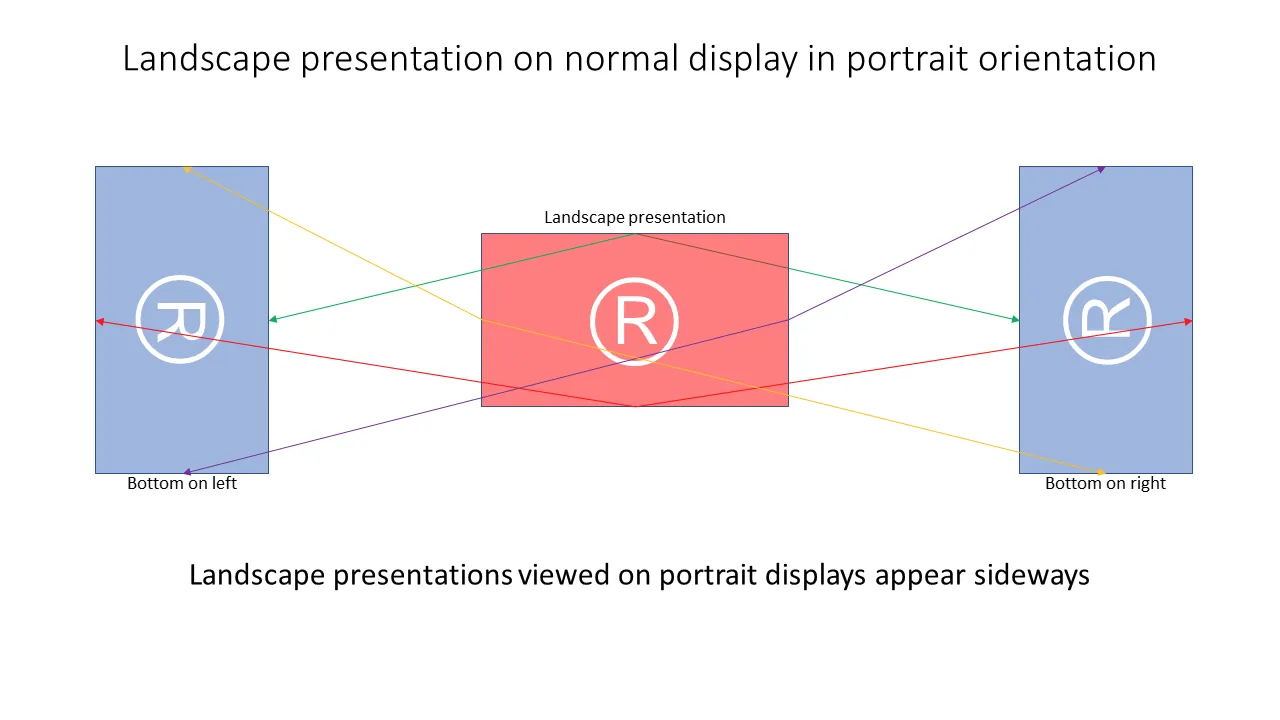
Landscape on Portrait Displays
Displaying a landscape presentation on most displays that are rotated to the portrait (vertical) orientation results in the video appearing sideways, unless the display itself is doing some internal rotation. For portrait presentations, the player must internally rotate the content to output a rotated landscape display that would appear sideways if displayed on a landscape-oriented display.
Rotating Displays
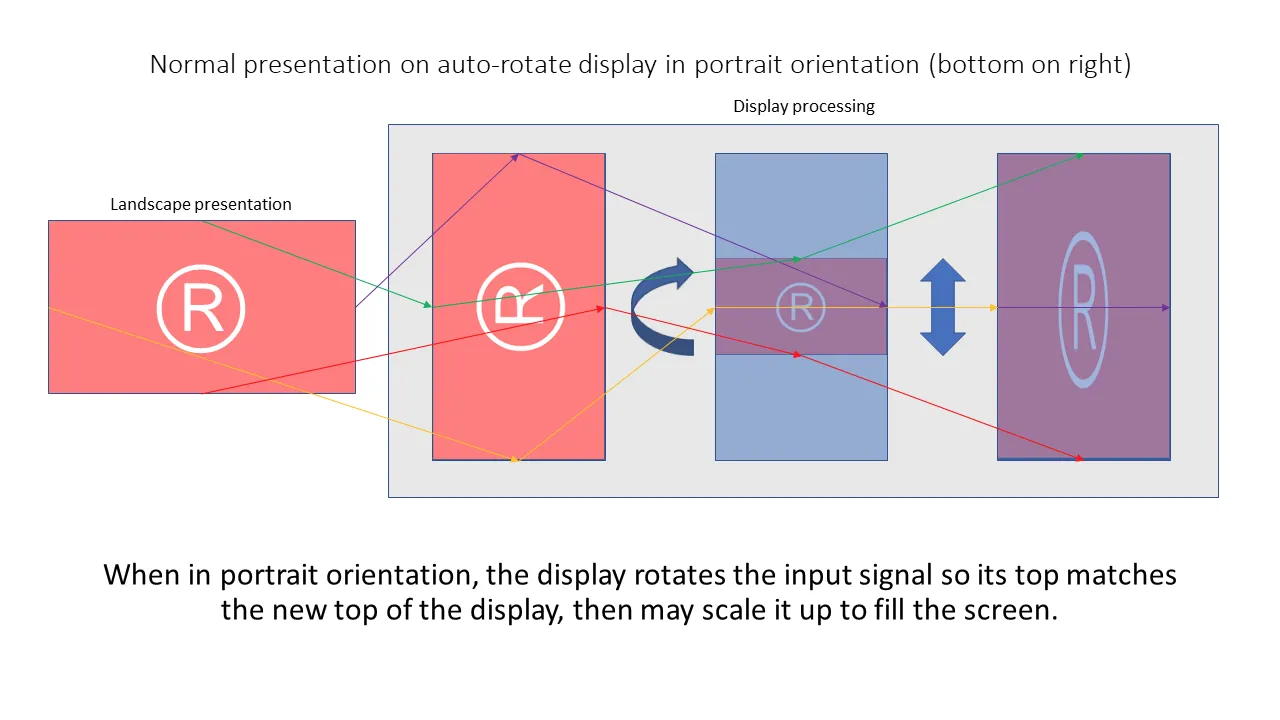
Some newer displays (e.g., Samsung Frame models), have orientation sensors and the display will rotate the input based on the display's physical orientation.
This results in landscape presentations appearing in the correct orientation, either letter-boxed (bars at top and bottom) or stretched out of aspect depending on the display setting.
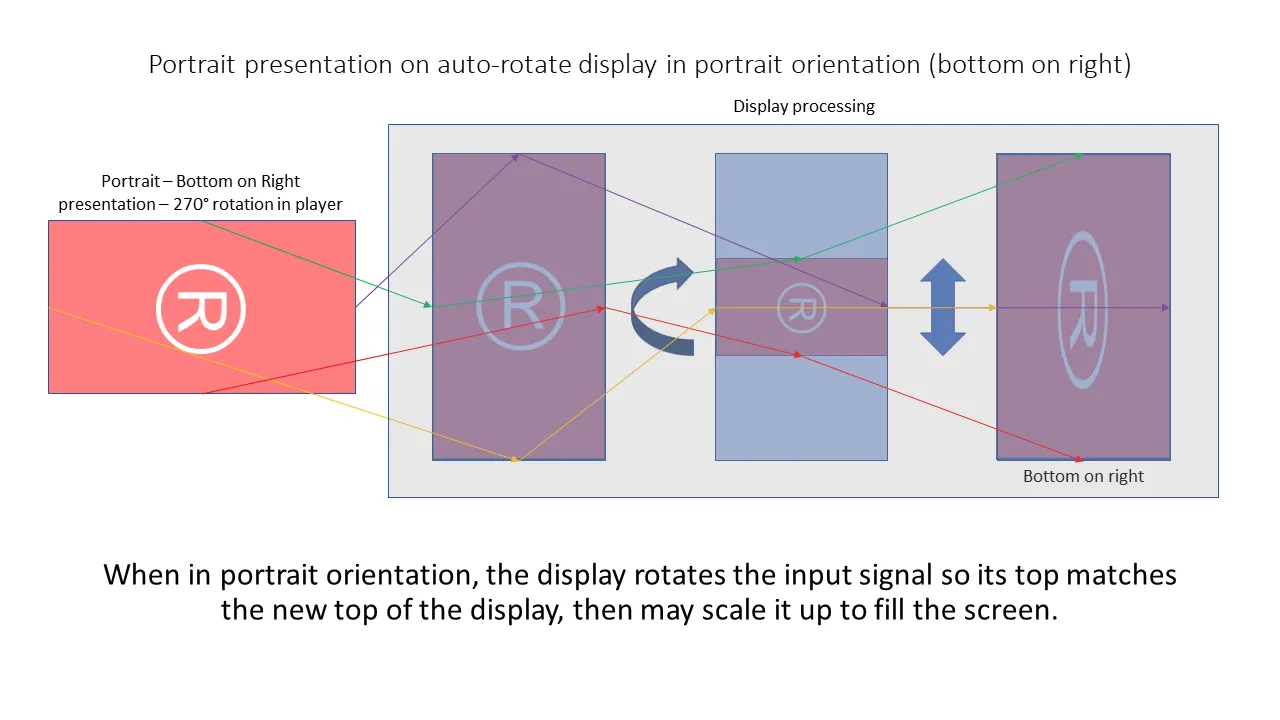
Portrait presentations, on the other hand, are pre-rotated by the player, then rotated again by the display resulting in the image being sideways and letter-boxed or stretched out of aspect depending on the display setting. Automatic input rotation should be disabled on displays like this to avoid the double rotation.
For Samsung displays, the Source Content Orientation setting needs to be changed to force it to landscape while the HDMI input is selected.
Series 4 vs. Series 5 & 6
Portrait content is displayed differently on Series 5 and 6 players than older Series 4 players.
Series 5 and 6 Players
- These players do not rotate the individual widgets.
- Portrait rotations take place on the roVideoMode object within the autorun.brs (for example, the .transform() = “90” call after GetScreenModes())
Example
This example uses roVideoMode to rotate the display:
vidmode = CreateObject("roVideoMode")

width = vidmode.GetResX()
height = vidmode.GetResY()

sm = vidmode.GetScreenModes()
videoMode$ = mid(Str(width),2) + "x" + mid(Str(height),2) + "x60p"
sm[0].video_mode = videoMode$
sm[0].transform = "90"
sm[0].display_x = 0
sm[0].display_y = 0
sm[0].enabled = true
vidmode.SetScreenModes(sm)


r = CreateObject("roRectangle",0,0,width,height)
Series 4 Players
- Portrait rotations must take place on the individual widgets used by your application (for example, “rot90” in the config for roHtmlWidget).
- When using roTouchScreen, the touch screen must also be rotated when using touch events.
Example
This example uses roHtmlWidget to rotate the display:
config = {
    url: "//Filepath for index.html//",
    transform: "rot90",
    nodejs_enabled: true,
    mouse_enabled: true,
    inspector_server: {
        port: 2999
    },
    port: msgPort,
}
rect = CreateObject("roRectangle", 0, 0, width, height)
htmlWidget = CreateObject("roHtmlWidget", rect, config)