Disconnect Bank Feeds (Xero)
To disable Bank Feeds for specific accounts, follow this guide on how to disconnect active and outdated bank accounts.
Manage Bank Feeds
Start by accessing the Manage Bank Feeds page using the following steps.
Go to
Go to the Production page.
Log In
Log in with your credentials.
Manage Bank Feeds
Select the “…” that appears in the top right corner of the Xero module and select Manage Bank Feeds.
Managing Outdated Accounts
Updating account mappings on the Account Matching page will impact your active Bank Feeds. To ensure transaction data continues to flow correctly, you must reset the connection for any remapped accounts.
These accounts appear on the Bank Feeds Setup page with a warning icon and an Outdated Accounts status.
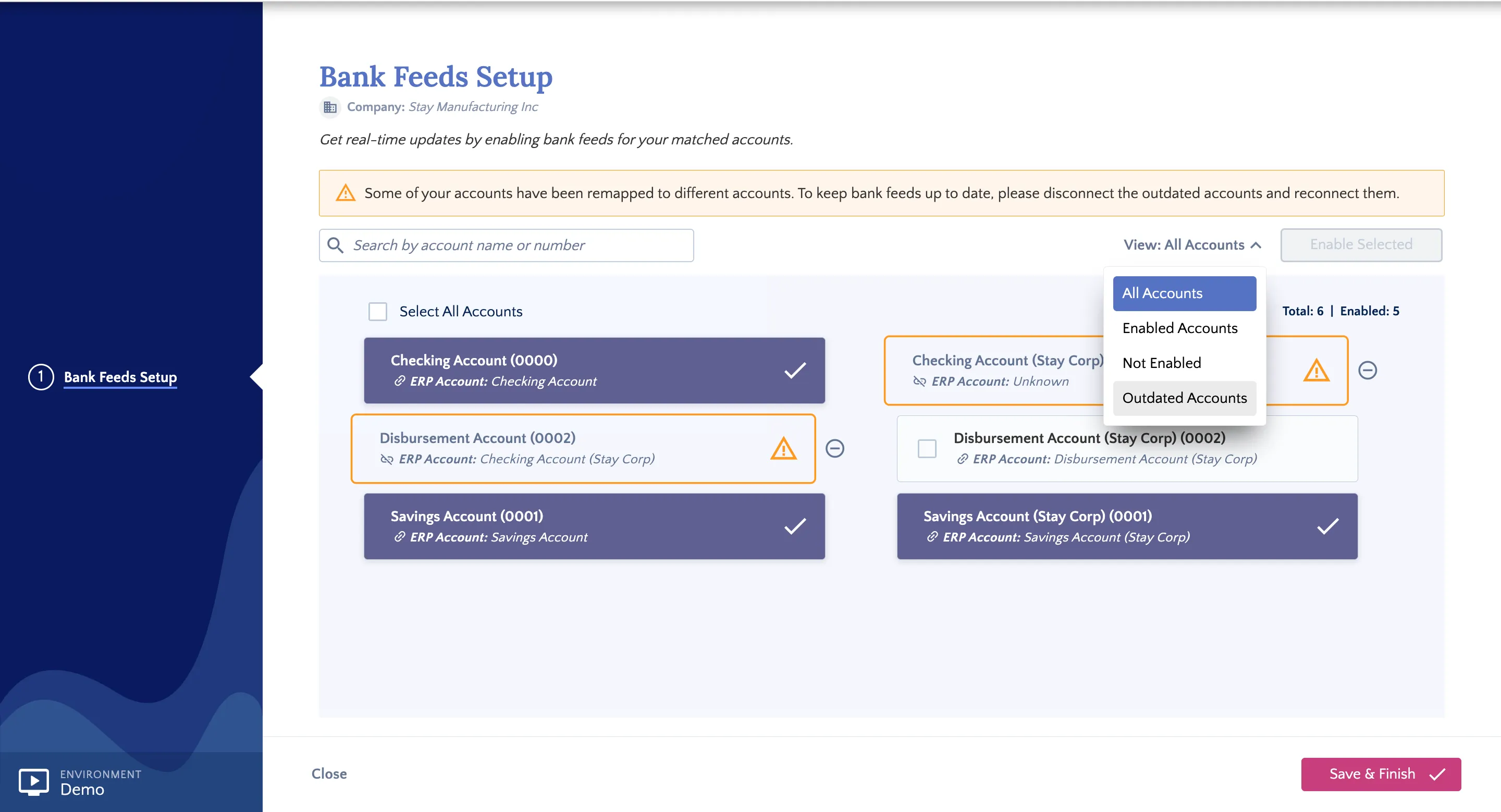
You can also use the page filters to locate them immediately.
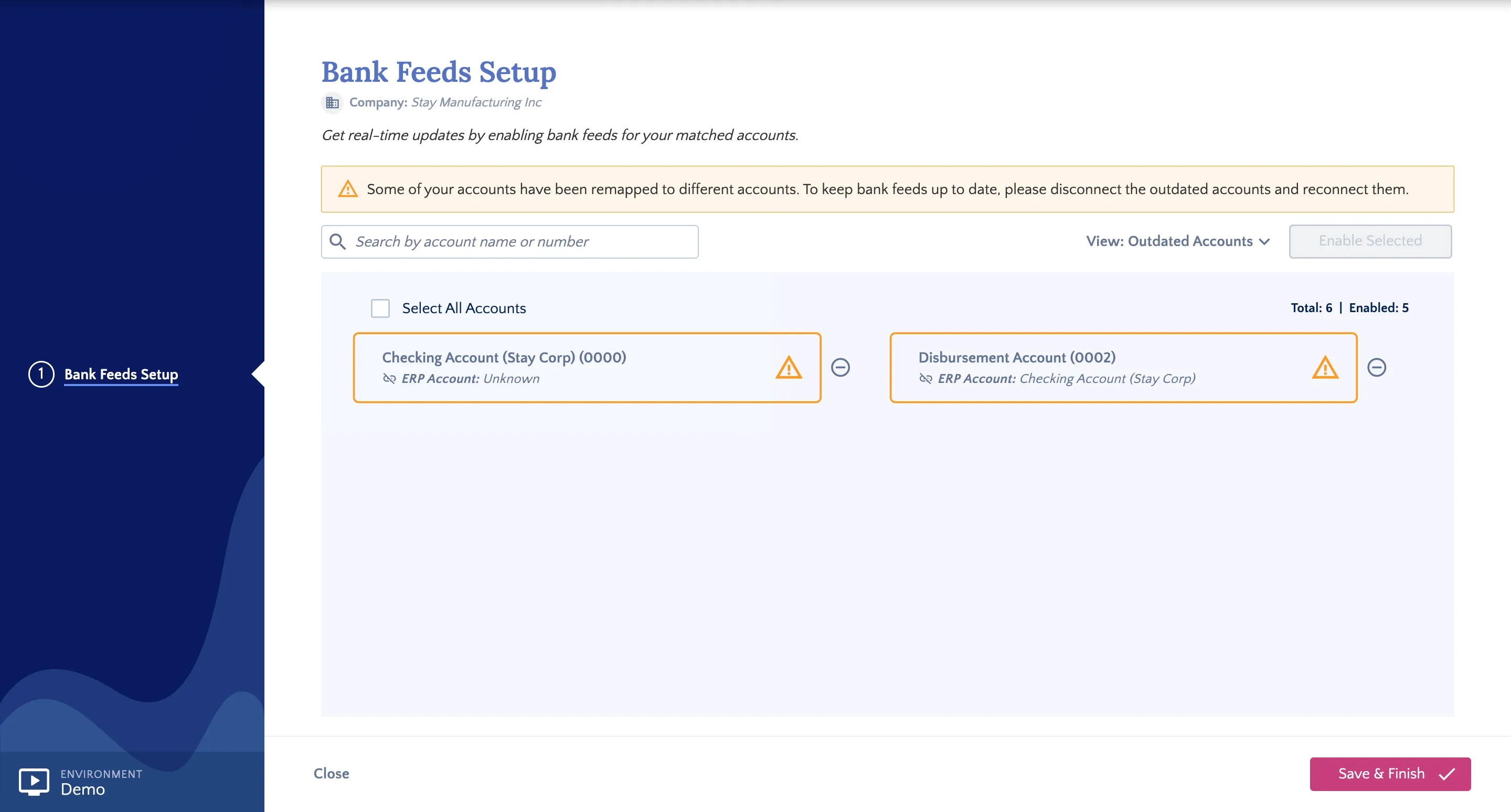
To reset the connection, follow these steps.
Disconnect Outdated Accounts
Follow steps 2 and 3 outlined in the Disconnect Bank Feeds section above to disconnect these outdated accounts.
Reconnect Outdated Accounts
Once disconnected, follow the Enabling Bank Feeds (Xero)enable steps to reconnect the accounts and resume receiving transaction data.
Facing errors while disconnecting accounts for bank feeds? Check this troubleshooting guide